Internal Scanning using Virtual Scanning Appliance
Scanning with virtual Scanner Appliance involves the following sequence of steps:
-
Based on your requirements, create a dynamic tag with Cloud Asset Search filters under the Qualys AssetView module.
For example:
-
All running VM instances in your Qualys Subscription:
gcp.compute.state:"RUNNING"
-
All running VM instances in your GCP Project:
gcp.compute.projectId:<your GCP Project ID> and gcp.compute.state:"RUNNING"
-
All running VM Instances in US East 1 zone:
gcp.compute.state: p>"RUNNING" and gcp.compute.zone: us-east1-b
-
- Extract IP addresses of machines returned by tags created in step 1. You can extract it by using Download or API Query to Host Assets.
- Add these IP addresses grouped as Asset Groups or individually as Host Assets under the Assets tab in VM or VMDR.
- Configure OS Authentication.
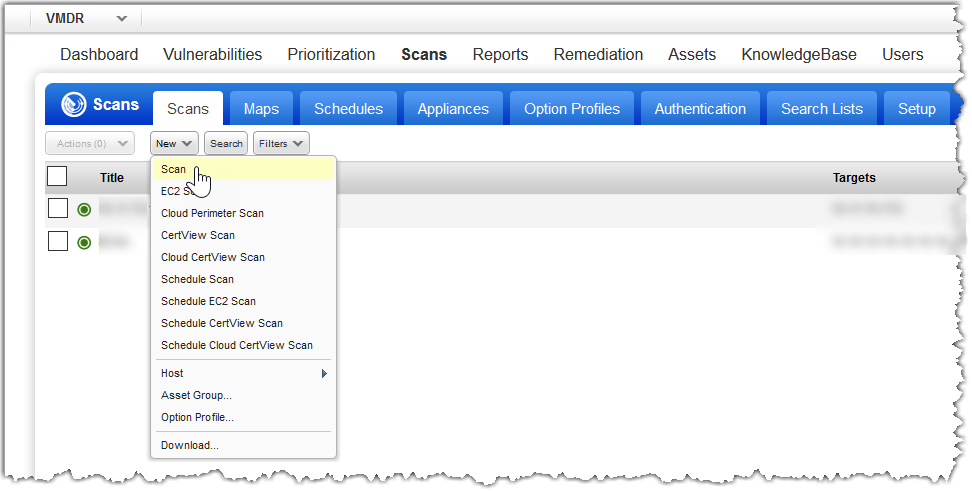
- Now, let us start scanning. Go to VM or VMDR > Scans > Scans > New > Scan (or Schedule Scan).
-
Identify your scan target. Click Assets to select a combination of asset groups and IP addresses to scan or click Tags to select one or more asset tags to scan.
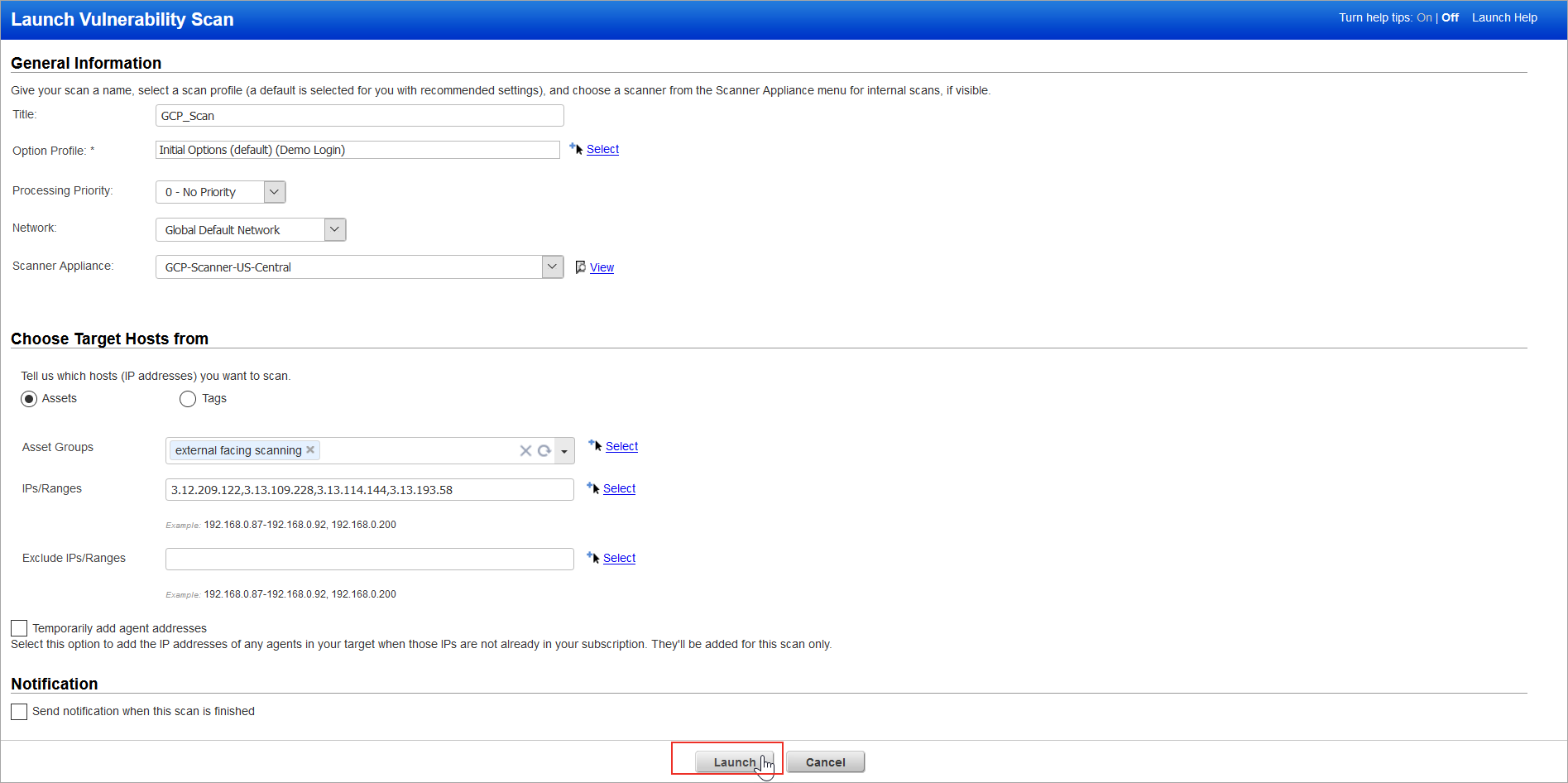
- Click Launch, and you are done.