Troubleshooting
Here are some troubleshooting tips.
Looking for Logs?
Qualys logs are populated in Splunk’s index “_internal”. Use this search to find logs:
index=_internal source="$SPLUNK_HOME/var/log/splunk/TA_qualys_cloud_connector_*.log"The add-on generates a separate log file for each modular input, organized by input type. This allows you to isolate logs for a specific data input when multiple inputs are running simultaneously.
Use the following Search Processing Language (SPL) to find app-specific logs:
index=_internal source="$SPLUNK_HOME/var/log/splunk/TA-Qualys-Cloud-Connector/vmdr/vmdrtest.log*"
index=_internal source="$SPLUNK_HOME/var/log/splunk/TA-Qualys-Cloud-Connector/was/wastest.log*"
Use the data input name as per your records
Troubleshooting the Connector Setup
- Be sure to enter the proper API Server URL for the configuration.
- Verify that you can reach the API from the Splunk Search Head where you have installed the Qualys App for Splunk Enterprise (no firewall or other infrastructure).
- Be sure the Qualys user account you use to connect has API access. Edit the user account in the Qualys UI, then select the API access checkbox in the user settings. If you are not able to see this option, contact Qualys Support or your Technical Account Manager.
Updated Qualys Universal Technology Add-on (TA) for Splunk Settings does not reflect.
If you are not able to see the updated Qualys Universal Technology Add-on (TA) for Splunk Setup page, clear the cache and perform a hard reload to view changes.
|
Issue |
Possible Cause |
Resolution |
|---|---|---|
|
ModuleNotFoundError in log |
Add-on not installed correctly |
Reinstall the add-on; verify lib/ directory is present |
|
Input fails immediately after enabling |
Python version mismatch |
Verify Splunk is using Python 3.9 or later ($SPLUNK_HOME/bin/python3 --version) |
|
Settings saved, but not taking effect |
Splunk restart required |
Restart Splunk after saving configuration changes for the first time |
|
Data input is visible, but not running |
Input is disabled, or the interval is too long |
Check the Actions toggle in Inputs; verify interval value |
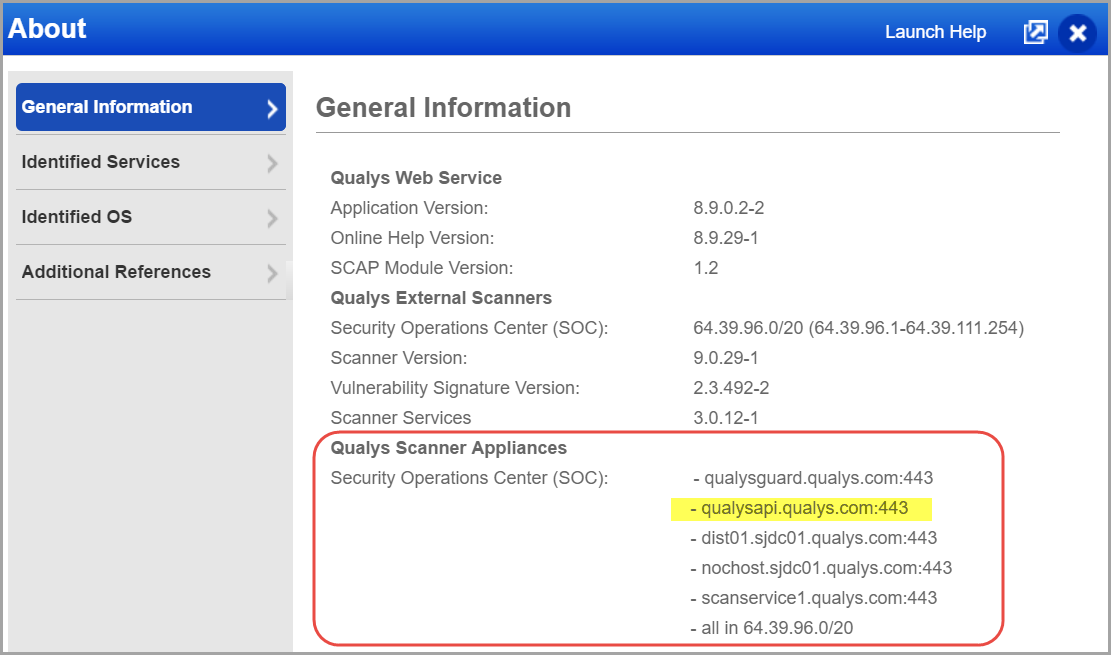
URL to the Qualys API Server
The Qualys API URL you should use for API requests depends on the Qualys platform where your account is located.
Click here to identify your Qualys platform and get the API URL.
- You can find the API server URL for your account.
- Log in to your Qualys account and go to Help > About.
You can view this information under the Security Operations Center (SOC).
HTTP 503 – KV Store Initialization Failed
Cause
Occurs after a Splunk upgrade or due to a temporary KV Store startup issue.
Solution
Restart the Splunk service : $SPLUNK_HOME/bin/splunk restart