Incident Auto Closures
The Incident Auto Closures setting enables the automatic closure of incidents that have not been scanned or updated within a defined time period.
How does this setting work?
This setting automates the process of closing resolved incidents based on conditions you set.
- Configure a closure condition based on your operational needs.
- When an incident meets this condition, it is automatically closed, and its status is updated to Closed.
- You must configure a closure condition, and once an incident meets this condition, its state is automatically updated to Closed.
You can define multiple Auto-Closure Rules according to the requirements.
- This setting is off by default and must be enabled manually. To configure the auto-closure condition, see How to Set an Incident Auto Closure Condition for Stale Incidents.
- For an incident to be closed automatically, it must be in the Resolved state.
How to Set an Incident Auto Closure Condition for Stale Incidents
This section provides information about the available auto-close stale conditions and frequency options for incidents in Qualys Core within ServiceNow.
Auto Close Stale Incidents
You can set the following configurable conditions to close stale incidents automatically:
Frequency Options for Auto Closure
You can set how often the system checks for incidents to close automatically. The frequency options are available in the Run dropdown list.
| Frequency | Description |
| Daily | Select this option to trigger the automatic closure of incidents daily at a specified time. This is the default setting. |
| Weekly | Select this option to trigger the auto-closure on specific day(s) of the week. |
| Monthly | Select this option to trigger the auto-closure on a specific date of the month or day of the week. |
| Periodically | Select this option to trigger the auto-closure after a specified period (number of days). |
| Once | Select this option to trigger the auto-closure only once on the specified date and time. |
| On Demand | Select this option to trigger the auto-closure manually, as needed. |
| Business Calendar: Entry Start | Select this option to trigger the auto-closure on the business calendar start date and time. |
| Business Calendar: Entry End | Select this option to trigger the auto-closure on the business calendar end date and time. |
Setting Up Auto Closure Conditions
To set the Incident Auto Closure condition for stale incidents, perform the following steps:
- Navigate to Qualys Core and click Incident Auto Closures.
- To set a new condition, click New.

The Incident Auto Closure setting page is displayed. - To set the condition, add the following details:
- In the Name field, enter a name for the incident closure.
- To enable the triggering condition, select the Active checkbox.
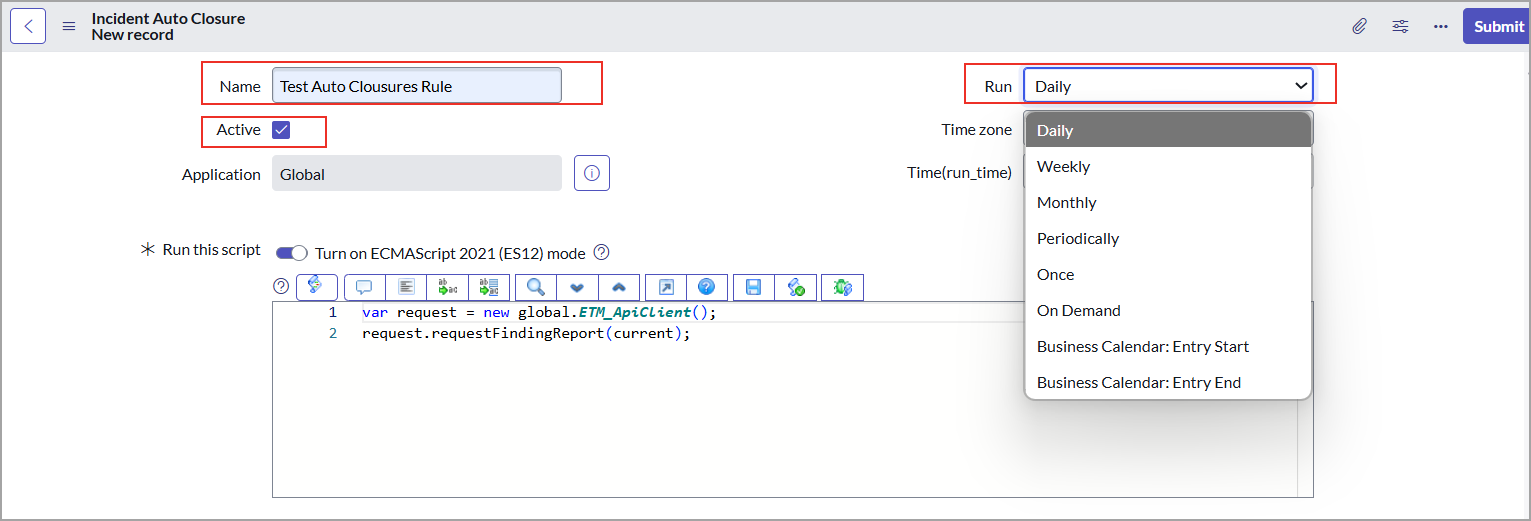
- From the Run dropdown list, select a frequency to trigger auto-closure based on the condition. See Frequency Options for Auto Closure.
- Scroll to the bottom of the window, and click the Close Stale Incidents tab.
- From the Incident Auto Closure Condition dropdown, choose a condition to auto-close the incidents. See Auto Close Stale Incidents.

- In the Last found (days ago) field, enter the number of days and click Submit.
If the detection last found date, or the asset’s last scanned date is older than the specified number of days, the incident is automatically closed based on the Incident Auto Closure condition.
Close Incident based on CI Lifecycle
If the related Configuration Item (CI) is in the Retired state and the corresponding auto-closure option is selected, all associated incidents are automatically closed based on the CI's lifecycle status.
Setting Up Auto Closure Conditions
To set a condition for closing incidents based on the CI life cycle, perform the following steps:
- Perform steps 1 to 3 mentioned for closing stale incidents.
- Scroll to the bottom of the window, and click the Close Incidents based on CI Life Cycle tab.

- Select the Auto Close Incident for Retired CI checkbox and click Submit.
Incidents that meet the condition based on the CI lifecycle are automatically closed.