Trigger Scan
After configuring the pipeline script, you can trigger a scan in the following ways:
Trigger Scan (Automatically)
The WAS scan is automatically triggered on every push and merge request. Once the script is configured, it automatically triggers the scan, which scans the committed or merged files that were added to the branch.
To trigger scans automatically, commit the file in your repository with the extensions that are scanned by the Qualys WAS module.
GitLab CI pipeline automatically triggers a scan of the committed files by the Qualys WAS module.
Trigger Scan (Manually)
To trigger a scan manually for the entire repository, perform the following steps:
- In GitLab, go to your project.
- In the Build section, click the job.
- To trigger the build, click Run again.

The scan is initiated on all files in the selected branch of your repository.
Trigger Scan (Scheduled)
You can schedule the scans to be executed at a scheduled time at specific intervals.
- In GitLab, navigate to your project.
-
Under the Build section, click Pipeline Schedules.
-
Click Create a new Pipeline Schedule.
The Schedule a new pipeline window is displayed.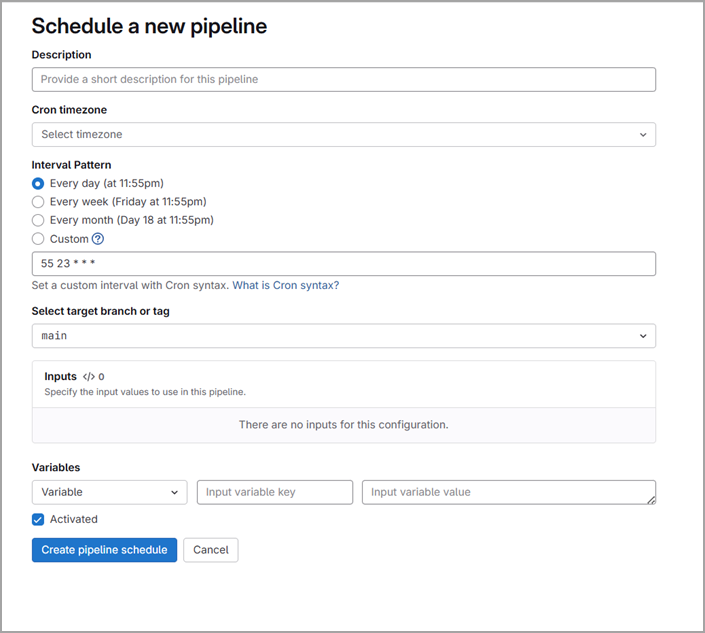
- In the Schedule a new pipeline window, configure the following settings:
- Enter the description for the new schedule.
- From the Cron Timezone drop-down, select Coordinated Universal Time (UTC).
-
From Interval Pattern,
select the appropriate interval for triggering the schedule.
The schedule timing is configured with cron notation.
- From the Select target branch or tag drop-down, select the branch on which you want to trigger the scan.
- Click Create Pipeline schedule.