Manage Tags
Learn more about the tag management activities that can be performed from the Managed Risk Operations Center (mROC) Administration > Tags tab:
Partners with the Manager role can see the Administration > Tags tab and perform the tag management activities.
Create a Tag
1. Go to Administration > Tags and click Create Tag.
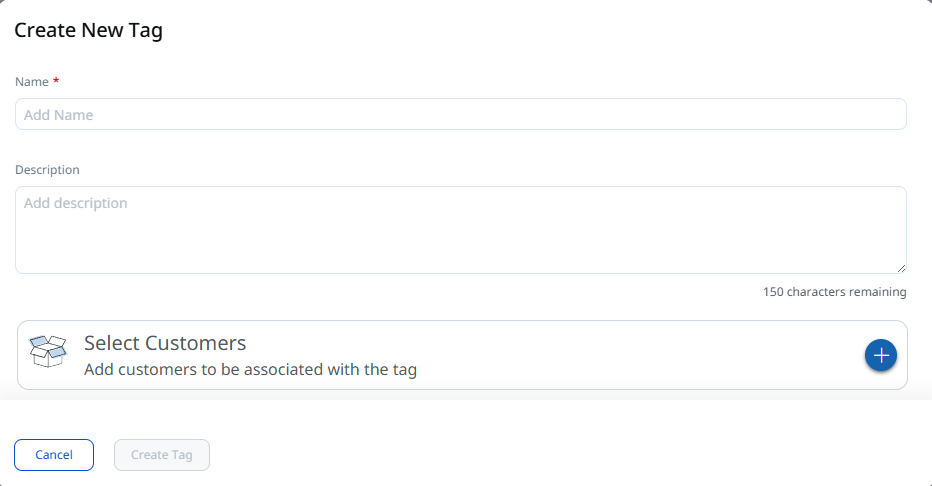
2. In the Create New Tag popup, provide the following details:
|
User Input |
Description |
|---|---|
|
Customer |
Click Customer to create a Customer tag. Note: When we choose to create a Customer tag, you can assign the tag to the required customers. As a result, the customers are grouped using the tag. |
|
Name |
Enter the tag name. |
|
Description |
Enter the tag description. |
|
Select Customers |
Add customers you want to add to the tag. These customers are then associated with the tag. |
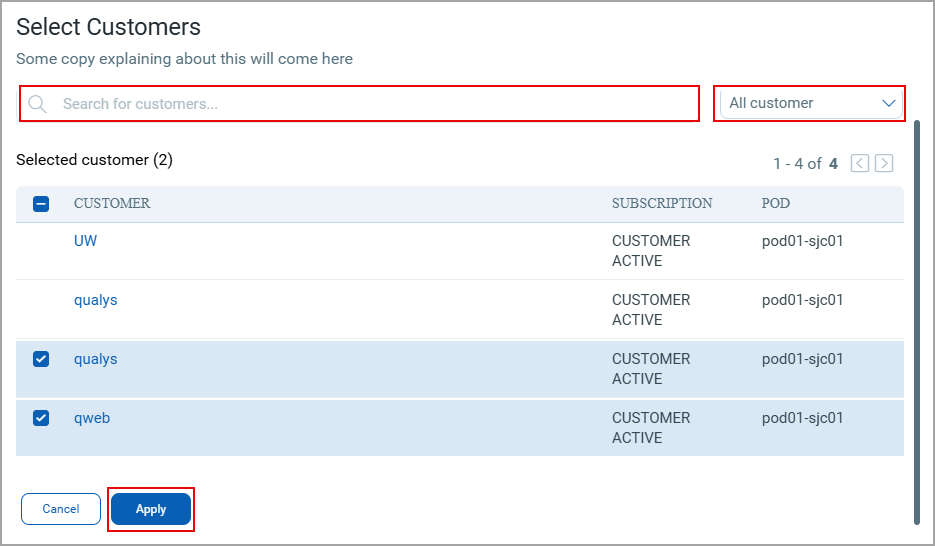
When you click the Add  icon next to Select Customers, the Select Customers popup is shown. Select the checkboxes next to customers you want to add and click Apply. The customers get added to the tag.
You can use the search bar from the Select Customers popup to search for a specific customer. Also, you can choose to select All Customers or Selected Customers.
Edit a Tag
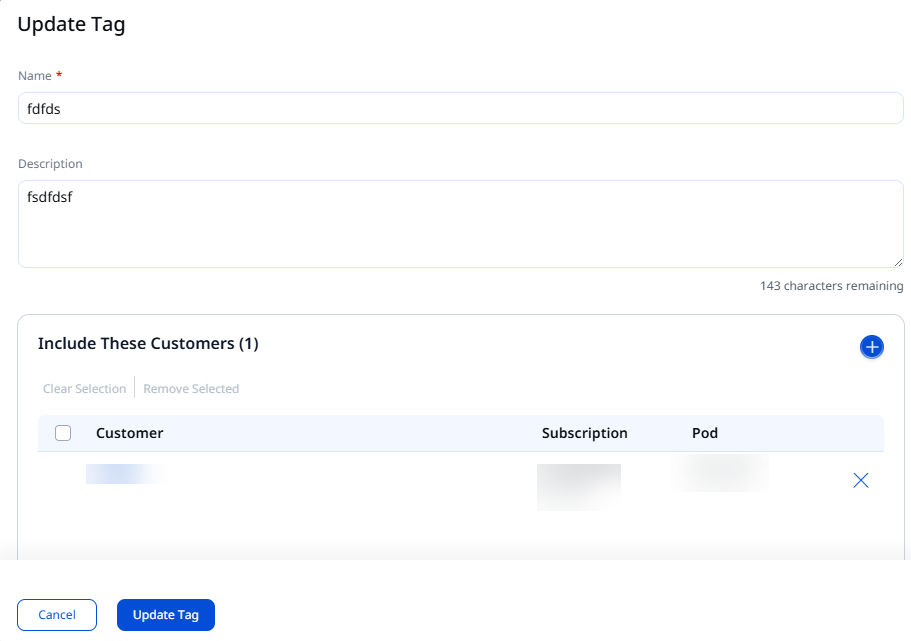
You can edit the tag name and description. Also, you can add or remove customers added to the tag.
1. Click Edit from the Quick Actions menu of the tag, and an Update Tag pop-up is shown.
2. Edit the tag name and description as required. If you want to delete the customer already added to the tag, you can delete one by clicking the Delete  icon.
icon.
3. Click Update Tag.
Delete Tags
You can delete an individual or multiple tags from the Administration > Tags tab.
- To delete multiple tags, click the checkboxes next to tags and click Delete from the Actions list.
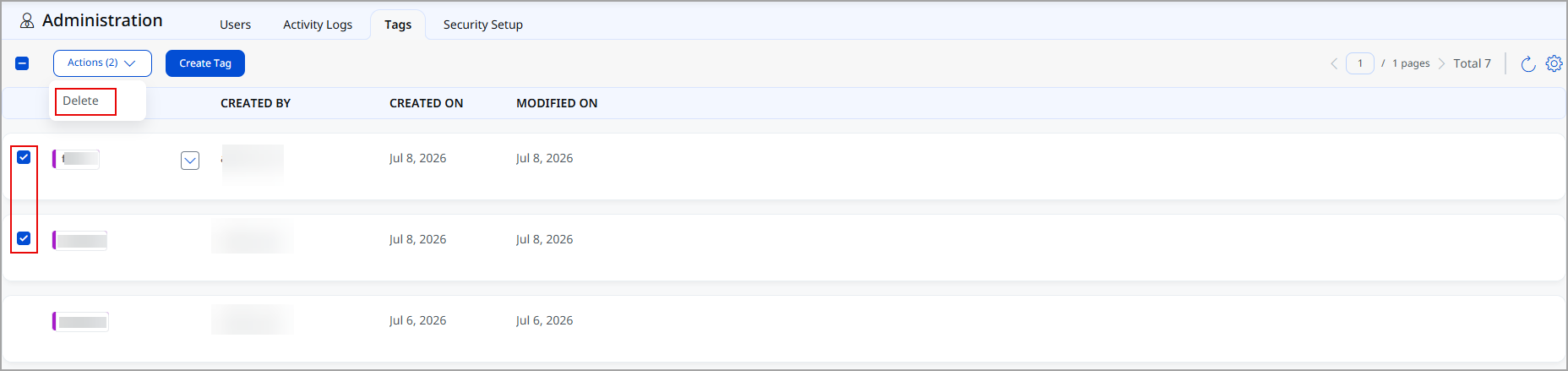
The message is displayed, mentioning the selected tags have been successfully deleted.
- To delete an individual tag, click Delete from the Quick Actions Menu of the tag.
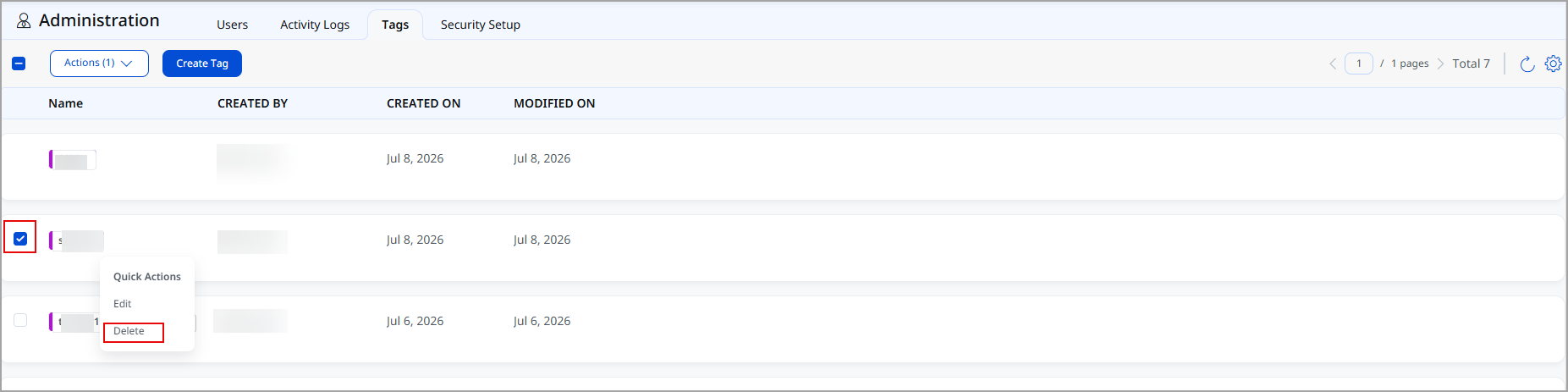
The message is displayed, mentioning the selected tag has been successfully deleted.