Multi-Factor Authentication (MFA) Configuration
Multi-factor authentication (MFA) adds a second verification step when signing in to your account, beyond the standard username and password. This additional step reduces the risk of unauthorized access, even when credentials are compromised.
Only partners with a manager role can enable the MFA setup.
How to configure MFA
To configure the MFA, complete the following steps:
-
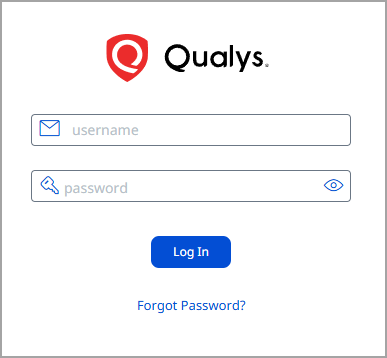
Log in to the Managed Risk Operation Center (mROC) platform using your credentials, username, and password.
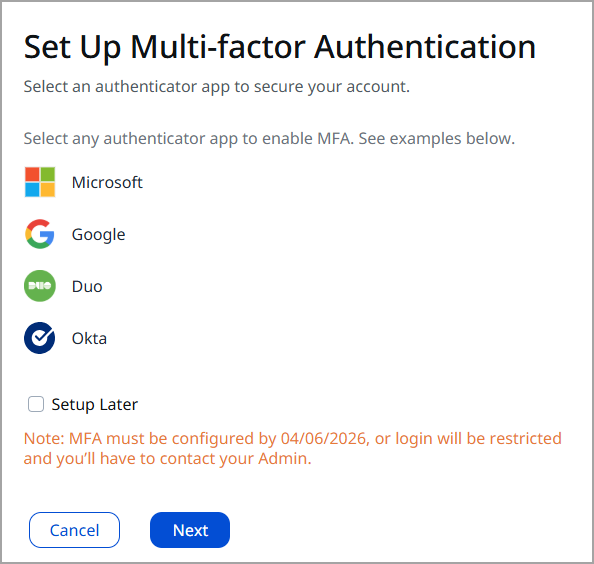
- Select any MFA application on your mobile device, and then click Next.
You can defer MFA setup until the date specified in the Security Setup tab or the date specified for the individual user in the User tab. To postpone MFA setup, select Setup Later checkbox. Click Next to log in to the platform.
-
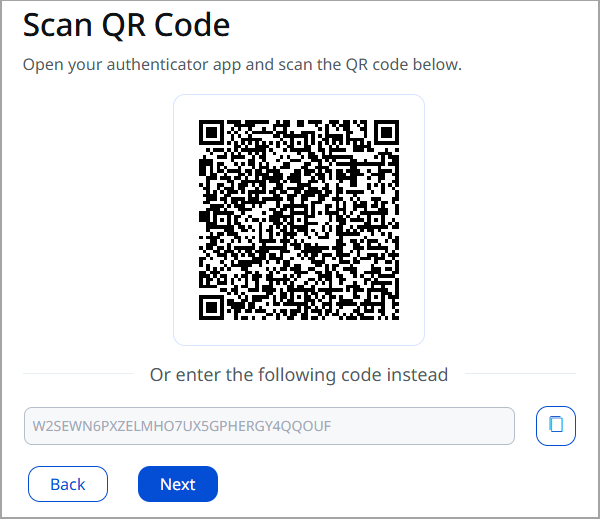
Scan the QR code with your authenticator application. If you cannot scan the QR code, manually enter the displayed code in the authenticator application.
Click Next
-
Enter the verification code generated by the authenticator application, and then click Verify.
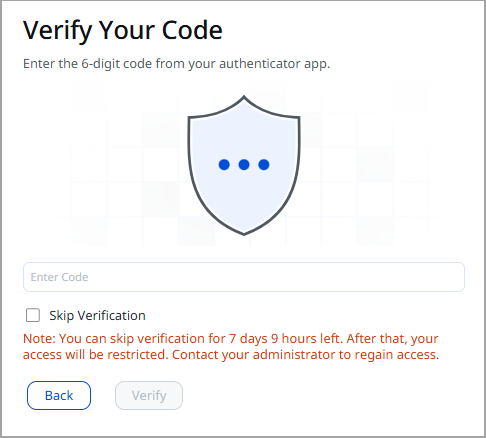
After successful verification, MFA is enabled. You are signed in to the platform, and the Home page is displayed.
For subsequent sign-ins, verify your identity using the code generated by the authenticator application. If you do not have access to your mobile device at login, you can skip verification. Click Skip Verification checkbox, then click Next to log in.