MFA Device Deregistration
MFA device deregistration removes the registered authenticator device from the account. After deregistration, you need to configure a new authentication device.
Only partners with a manager role can deregister MFA devices.
Deregister the MFA device in the following scenarios:
- You replace a mobile device.
- Your device is lost.
- A hardware security key becomes unavailable.
How to Deregister the MFA Device
To deregister an MFA device:
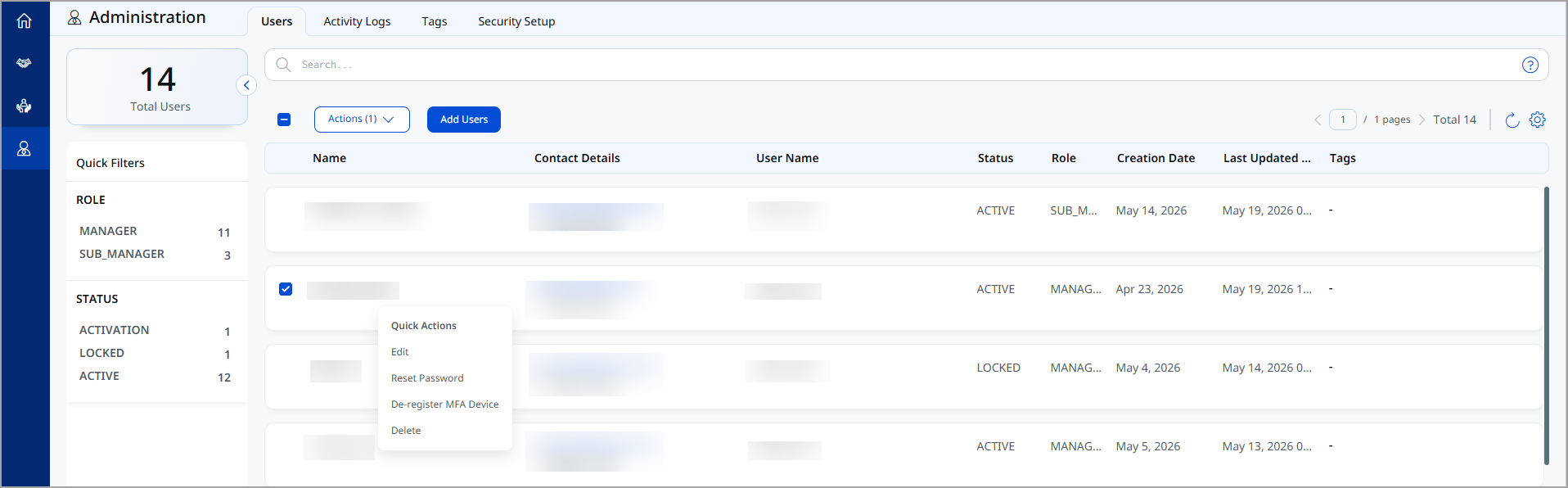
- In the Users tab, select the account for which you want to deregister the MFA device.
-
In the Quick Action menu, select Deregister MFA Device.
-
Confirm the deregistration request.
A confirmation message indicates that the MFA device has been deregistered successfully.
After deregistration, configure a new device to enable MFA.
MFA Setup Exception
Manager users can exempt an account from MFA setup for a limited period after deregistration if no device is available.
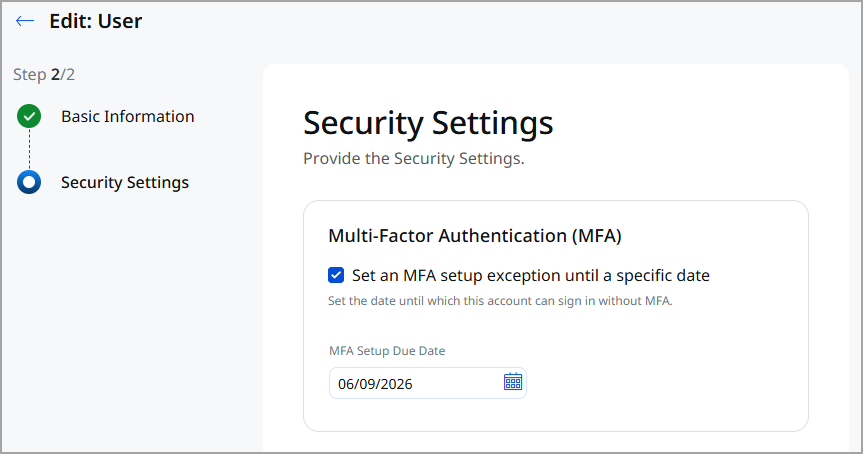
- In the Users tab, select the Quick Actions menu > Edit > Security Settings.
- Select the Set an MFA setup exception until a specific date checkbox.
- Specify the MFA Setup Due Date. By default, the MFA Setup Window is set to 7 days and can be extended up to 30 days.
-
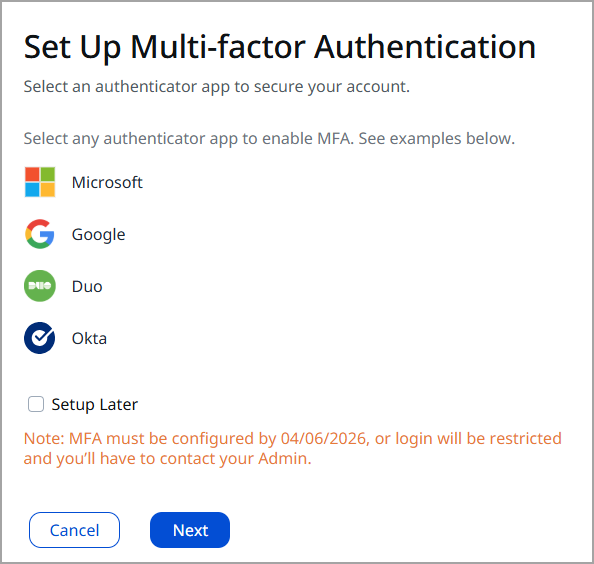
Select the Setup Later checkbox to skip authentication during login. Then click Next to access the platform directly.