mROC SAML Integration with Okta
This article describes the typical Okta IdP SSO-initiated SAML 2.0 integration with Qualys.
Ensure that you create a new application for Qualys, and avoid using community-created applications. When sending the SAML assertion response to Qualys, you can use SHA1 or SHA256 as the signing algorithm. If you are doing an IdP-initiated SSO SAML 2.0 integration, leave the Default Relay State field blank.
Perform the following steps to configure Okta for SSO integration with Qualys:
- Log in to Okta.
- Click Applications.
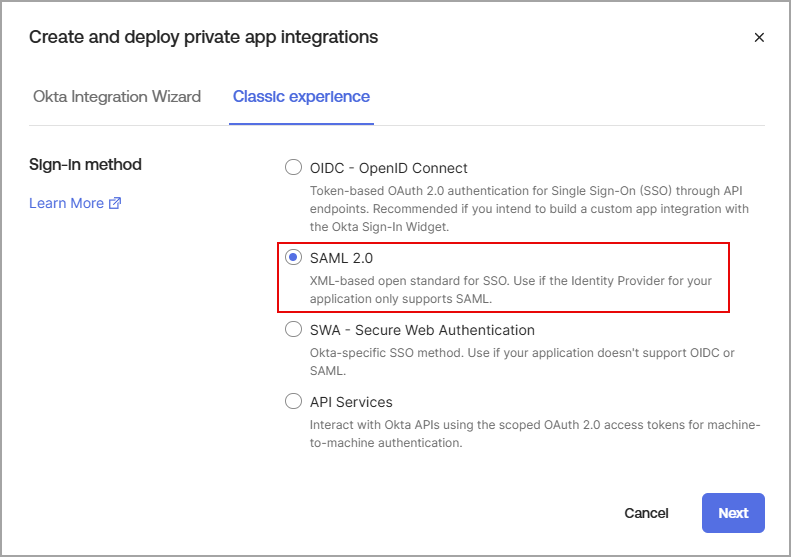
- Select Create App Integration.

- Select SAML 2.0.
- Provide the application certificates to Qualys Support.
- Follow the on-screen instructions to configure your SSO application.
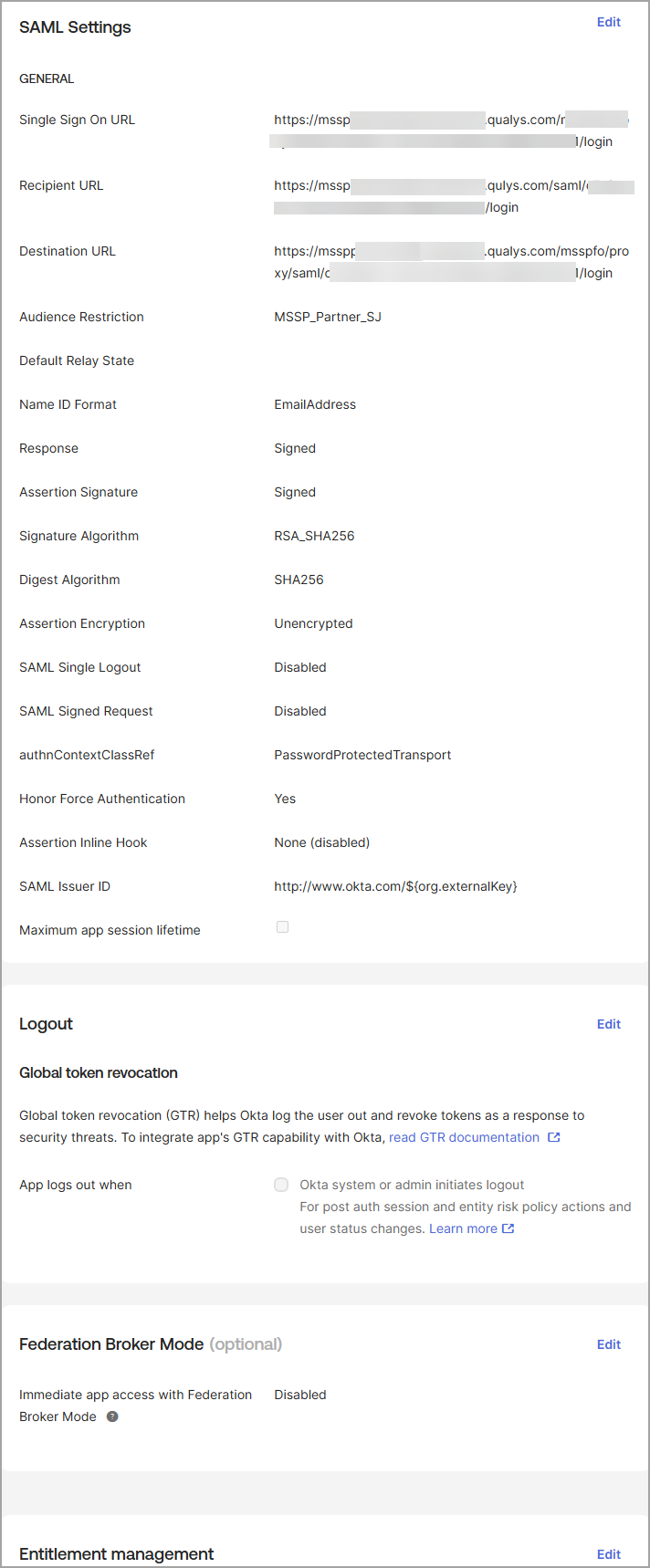
Refer to the following table for more information on SAML configuration.
| Attribute | Description |
|---|---|
| Single Sign on URL/Destination URL | mROC Platform: https://msspportal.qualys.com/msspfo/proxy/saml/IdM_UUID/login |
| Recipient URL | https://msspportal.qualys.com/saml/IdM_UUID/login |
| Audience URI (IdP Entity ID) | Qualys mROC_SharedPlatform-SAML20-IdP |
| Name ID format | Unspecified |
| Application Username | Okta username |
| Response | Signed |
| Assertion Signature | Signed |
| Signature Algorithm | RSA SHA1/SHA2 |
| Digest Algorithm | SHA1 |
| Assertion Encryption | Unencrypted |
| Enable Single Logout | Depending on user requirements |
| Authentication Context Class | Password-Protected Transport |
| Request Compression | Compressed |
| Honor Force Authentication | Yes |
| SAML USer ID | http://www.okta.com/$(org.externalKey) |
| Attribute Statement | This is a mandatory field for successful authentication:
|