Security Setup
The Security Setup tab includes organization-level settings for IP access restrictions, data prefetch, multi-factor authentication (MFA), and password security.
Only Partners with the Manager role can access the Security Setup tab.
To enable security settings, navigate to Administration > Security Setup tab.
Configure IP Access Restrictions
Configure IP access restrictions to control which IP addresses can access the mROC application. Follow the steps below to configure IP access restrictions:
- Under the Restricted Access section, select the checkbox Allow connections from the following IPs only
- Enter the required IP addresses or IP address ranges.
- After the configuration is saved, only the specified IP addresses can access the mROC application. If you uncheck this option, users can access the mROC application from anywhere without any restrictions.
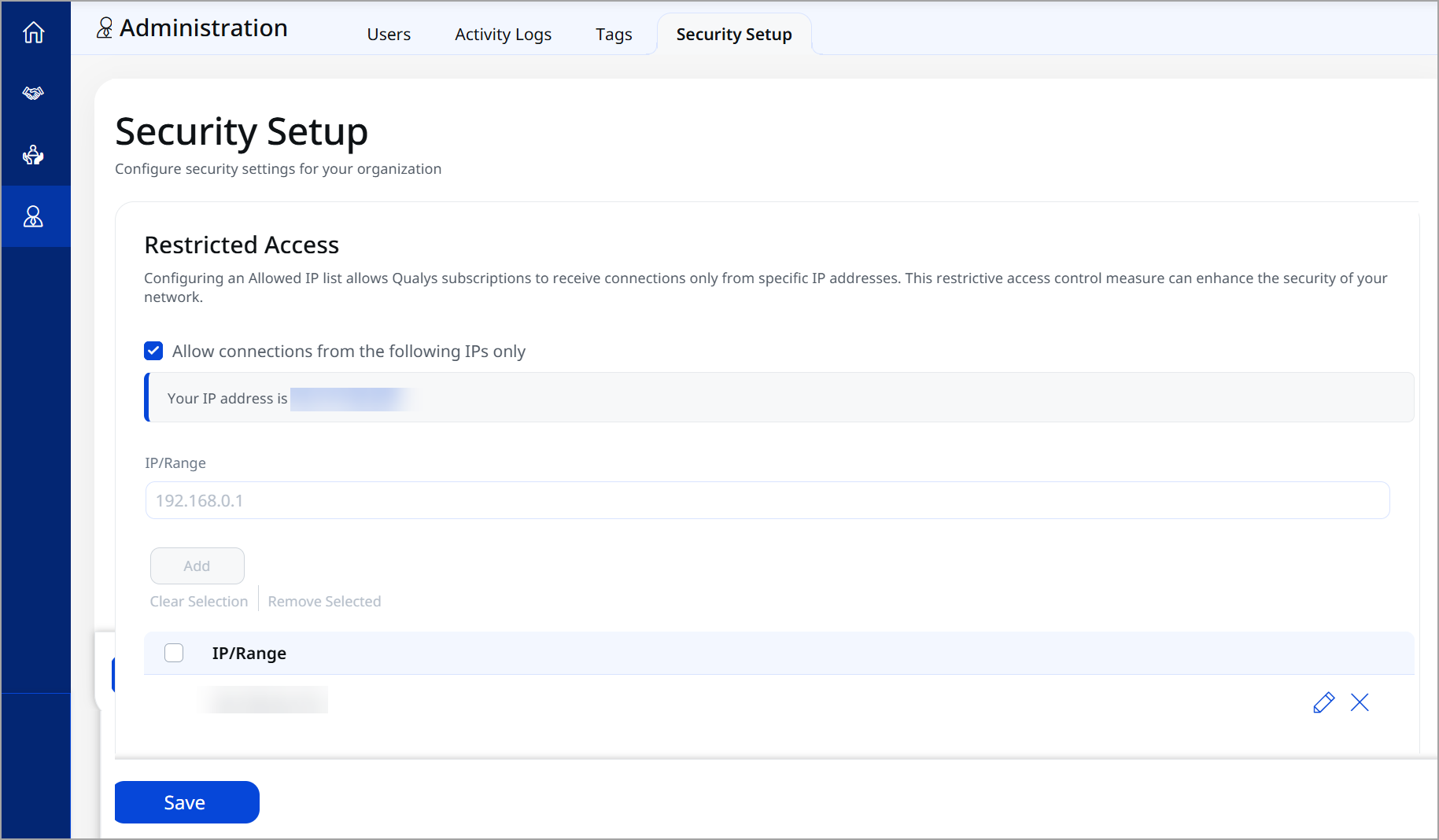
Your system's IP address is automatically displayed. You must enter single IPs one by one or enter an IP range. We support only IPv4 addresses.
If you login from a system whose IP address is not included in the IP allow list, contact Qualys Support to disable this setting to remove the IP restriction.
Currently, you cannot configure the IP addresses if the partner has the SAML Authentication setting enabled. We will support both configurations together in the future releases.
Data Prefetch Configuration
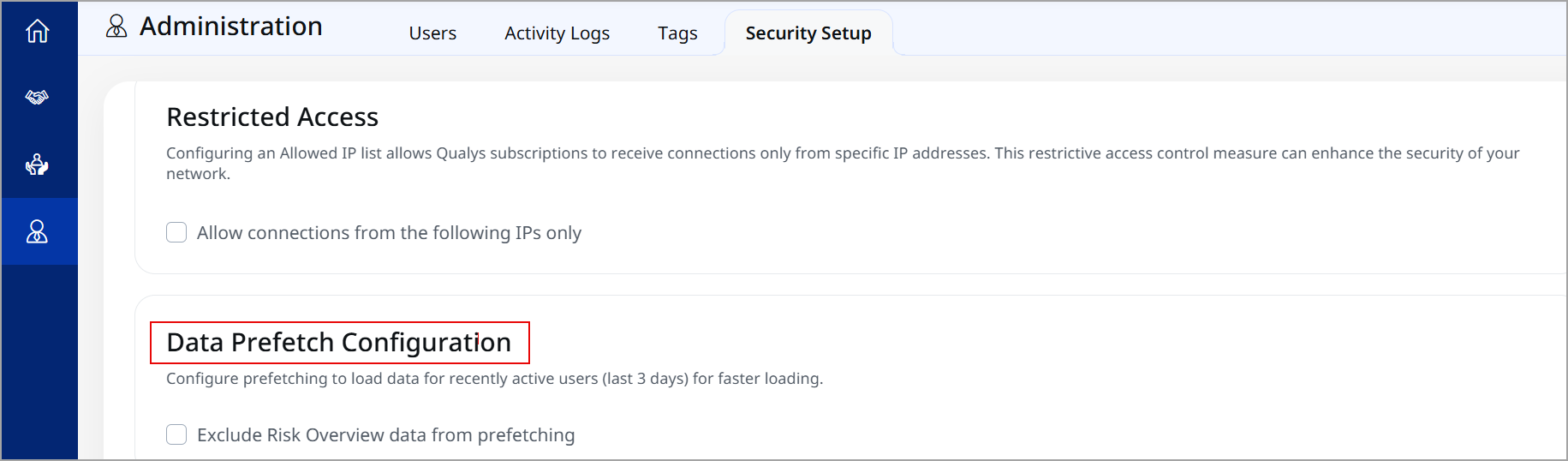
The Data Prefetch Configuration now allows customers to exclude Risk Overview data from prefetching.
Multi-Factor Authentication (MFA) Setup
Use this section to enable and configure Multi-Factor Authentication (MFA) for all customer accounts. MFA adds an extra layer of security by requiring users to provide additional verification during sign-in.
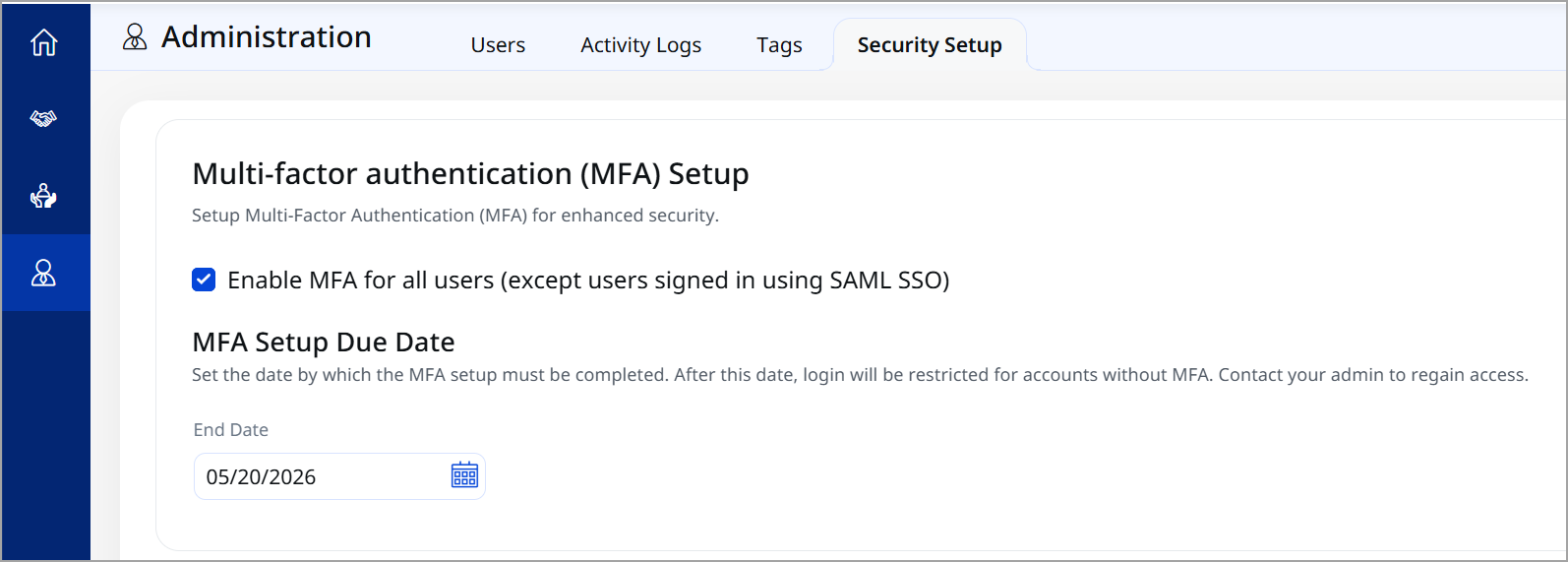
To enable MFA, navigate to Administration > Security Setup > MFA Setup, and then select the Enable MFA for all users (except users signed in using SAML SSO) checkbox.
The MFA Setup Window is the period by which you must complete MFA setup before it is required at sign-in. If you do not enroll/register for MFA during the selected setup window, you have to contact the support team, as your account is locked.
For the End Date field, select the date from the calendar. By default, the MFA Setup Window is set to 7 days and can be extended up to 30 days.
You can select the End Date based on your requirements.
Manager users can edit the end date for separate accounts in the User tab.
Password Security
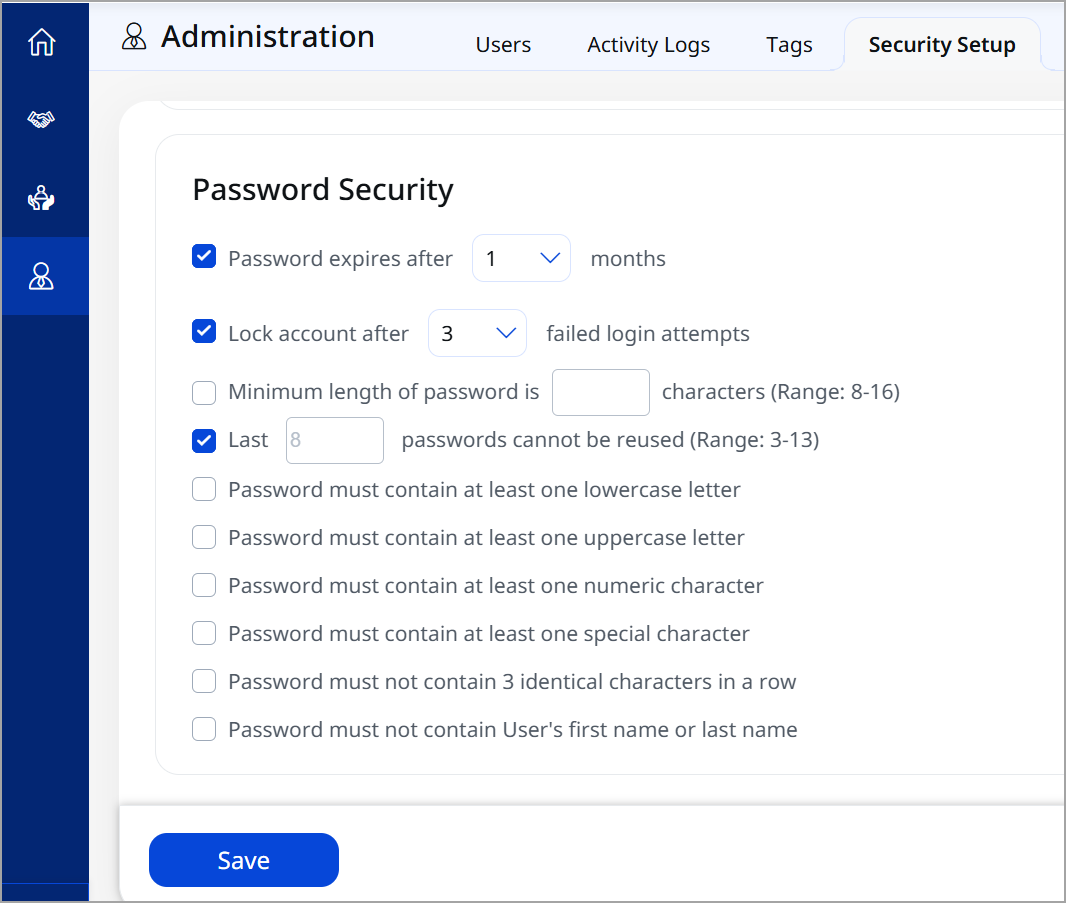
Under the Password Security section, select the required checkboxes and enter the appropriate values where applicable. Select the Enable SAML Authentication for new users by default checkbox to enable the SAML authentication for newly created users. Once you enable this option, SAML authentication is enforced for all newly created users.
SAML authentication must be enabled in the mROC back office application.