Generate Risk Overview Report
The Risk Overview tab in the mROC provides a consolidated view of risk across all customer accounts you manage. It shows a risk-scope funnel, moving from Total Findings, to All Active Findings, to Critical + High Severity Findings, and finally to Exploitable Findings, along with a per-account table of TruRisk Score, Assets, Critical Vulnerabilities, Misconfigurations, and Eliminations.
Prerequisites to download risk overview report
Before you can generate and download Risk Overview reports, make sure the following are in place:
- You have access to the mROC console with a user role that allows you to view the Customers > Risk Overview tab.
- At least one customer/organization account is already onboarded and visible in the Risk Overview account table.
- Your subscription includes the applications required to generate the report you want. Each report type is tied to a specific underlying application:
- CSAM (CyberSecurity Asset Management): Required for the EASM Summary Report.
- CSAM and VMDR: Required for the TruRisk Report.
- VMDR (Vulnerability Management, Detection and Response): Required for the TruRisk Eliminate Report.
If a required module isn't part of your subscription, the corresponding report option may not be available to generate for that account.
How to download reports
Perform the following steps to generate and download the report:
- Open the Risk Overview tab.
- Go to Customers > Risk Overview in the mROC console. This loads the risk-scope funnel and the account table.
- Open Quick Actions for the account.
- Open the Quick Actions menu.
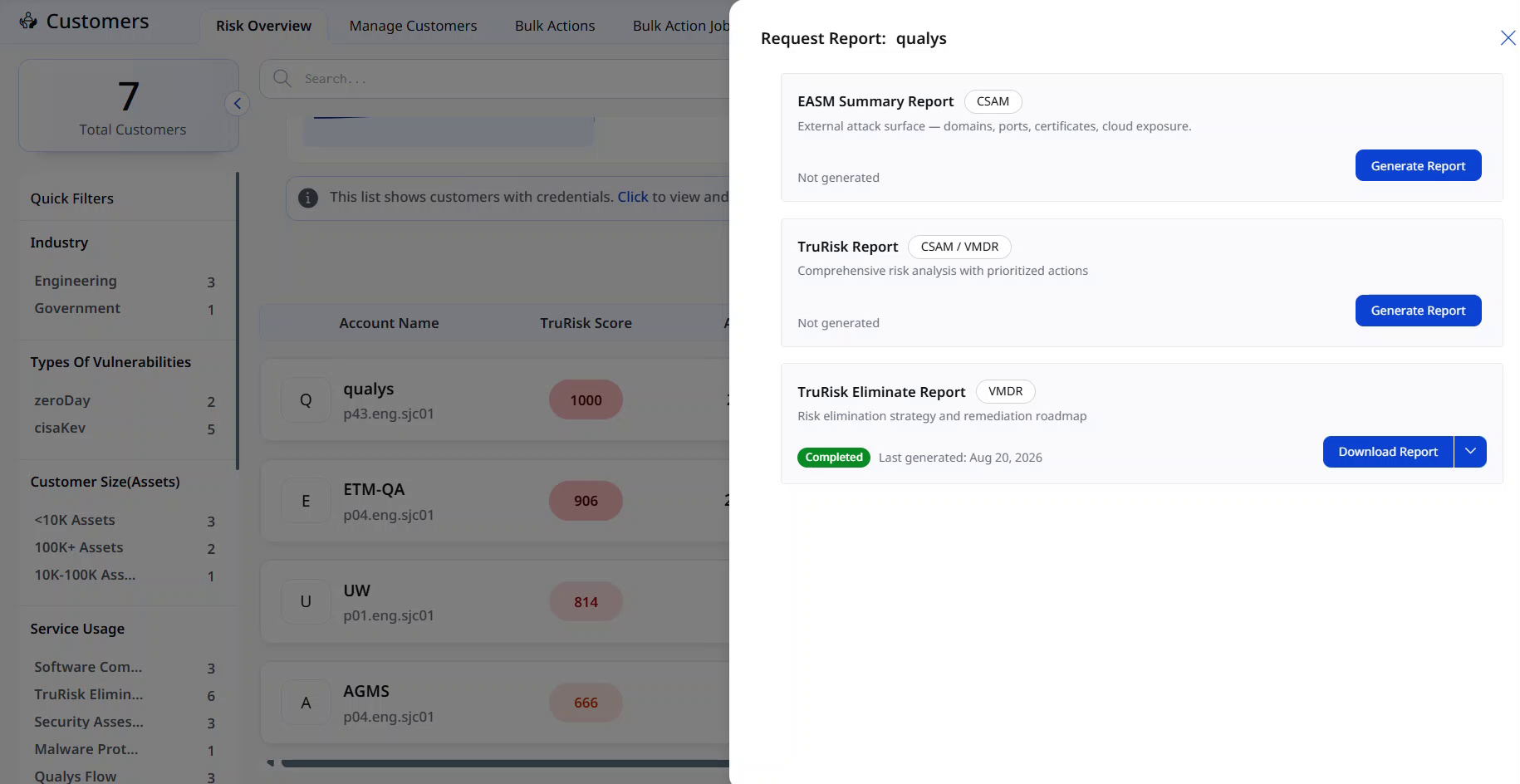
- From the Quick Actions menu, choose Request Report. This opens the Request Report panel for that account, listing every report type available for your subscription along with a short description of the insights each one provides.
- Next to the report type you need, click Generate Report. While a report is being generated, the other action buttons in the panel are temporarily disabled.
- Once generation finishes, the report's status changes from Not generated to Completed, and the Last generated date/time appears next to it.
- Click Download Report to save the file to your computer.
What reports are available for download
The Request Report panel can generate three report types, depending on your subscription:
| Requires | What it provides | |
|---|---|---|
| EASM Summary Report | CSAMA summary of the account's external attack surface, domains, ports, certificates, and cloud exposure. | |
| TruRisk Report | CSAM / VMDRA comprehensive risk analysis of the account, along with prioritized remediation actions. | |
| TruRisk Eliminate Report | VMDRA risk elimination strategy for the account, along with a remediation roadmap. You can download the TruRisk Eliminate Report only if it has already been generated for the respective account. |
|