mROC Partners - Overview
Learn more about the details you can see from the Qualys Managed Risk Operations Center (mROC) Partners tab and the actions that you can perform.
- Super Partners and Partners with the Manager role can see the Partners tab and perform the partner management activities or functions.
- Super Partners and Partners with the Sub Manager role can view only the assigned partners and customers but cannot add new customers or partners.
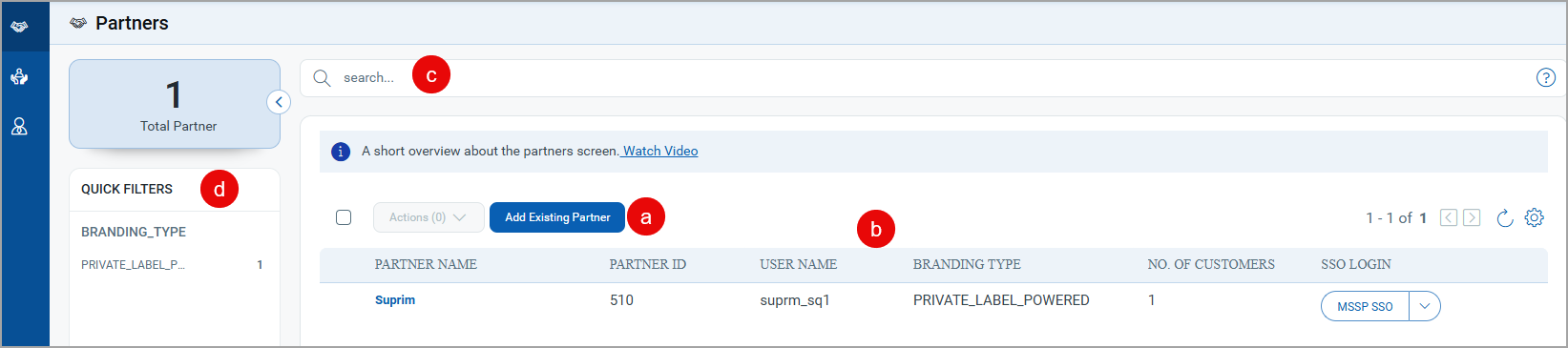
(a) You can add the partners that are already added from the back office. Partners added by someone else are also listed on the Partners page. After the partner is added, the customers managed by that partner are also synced to the Customers page.
There are two user roles, Super Partner and Partner. A Super Partner can manage multiple Partners.
(b) You can see the details of partners under your account. You can see the partner summary, such as the partner's name, branding type, the number of customers managed by the respective partner, and so on.
You can see either Add Credentials or SSO Link under the SSO LOGIN column.
You can see the SSO Link if you have added the partner. Click the SSO Link to access the partner's mROC SSO account.
You can see the Add Credentials link if the partner is added by someone else. In that case, you need to enter the credentials of that partner, and then the SSO Link is shown.
(c) You can use Qualys Query Language (QQL) to filter partners.
Examples:
- You can find details of particular partners based on the branding type.
- You can find a particular partner by specifying the partner name.
(d) You can use the Search criteria provided in the left pane to filter the partners based on the branding type.