Set up Qualys Managed Authentication
The enhanced token-based authentication supports setting up user-level and subscription-level clients from the application user interface. Perform the following steps to set up the token-based authentication from the Qualys application user interface, such as the Administration UI.
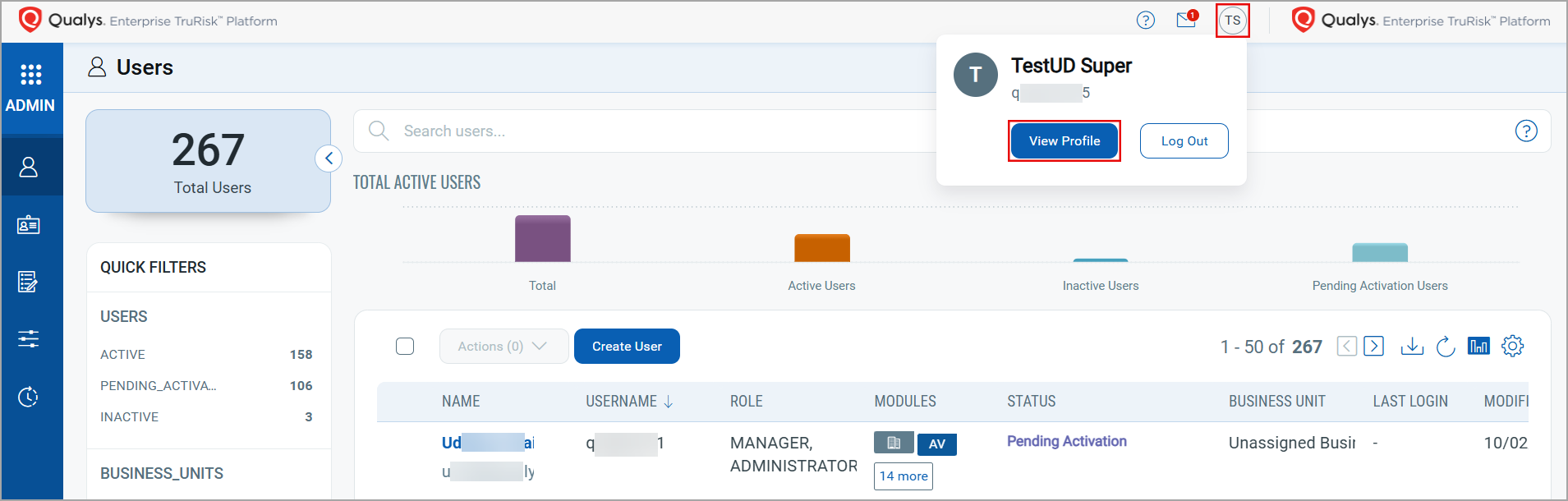
- In the application user interface, click the User information option.
- In the user details banner, click View Profile. The My Profile window opens.
- Click the Auth ID Client Management section to start creating a new user-level or subscription-level client.
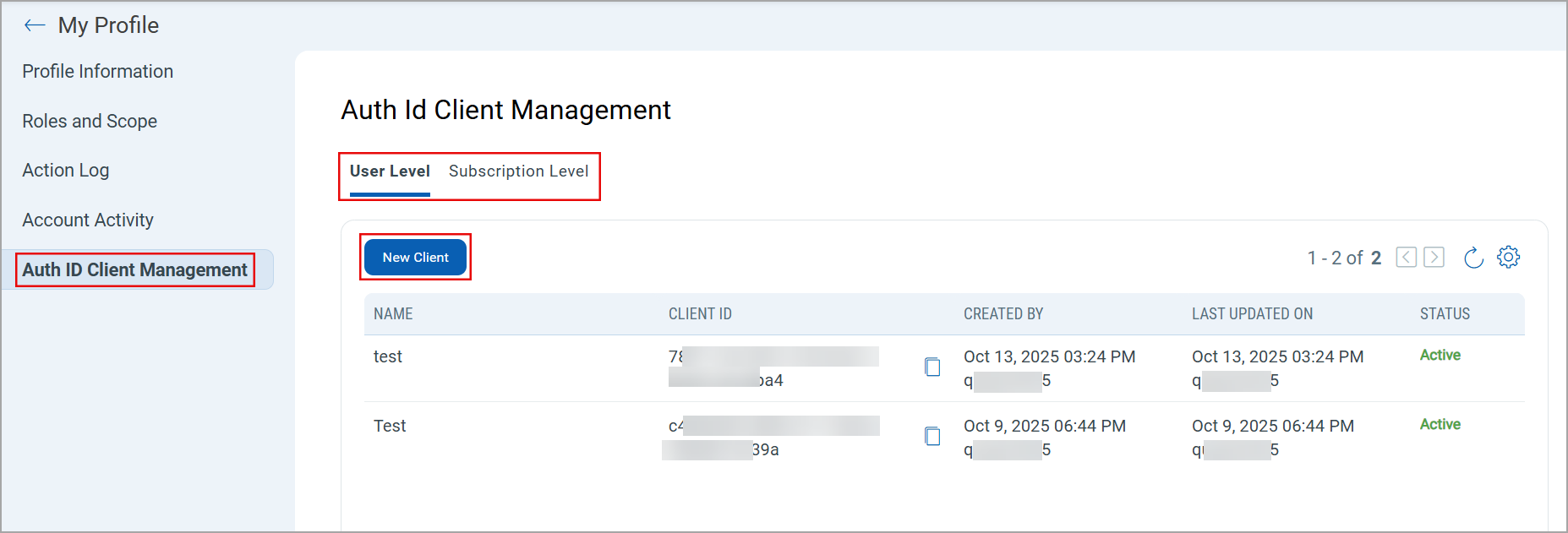
The Qualys Managed Authentication service is available only for users onboarded to the UI 4.0. The service is not available with the legacy Qualys user interface.
The User Level and Subscription Level tab availability may vary for different Qualys applications. Some of the Qualys applications may have both these tabs while other may have only User Level tab.
Create User-level Client
- In the Auth ID Client Management window, click the User Level tab.
- Click New Client. The Create User Level Client window opens.
- Enter the following details to continue with user-level client creation.
Name: Enter a unique client name for the user-level client.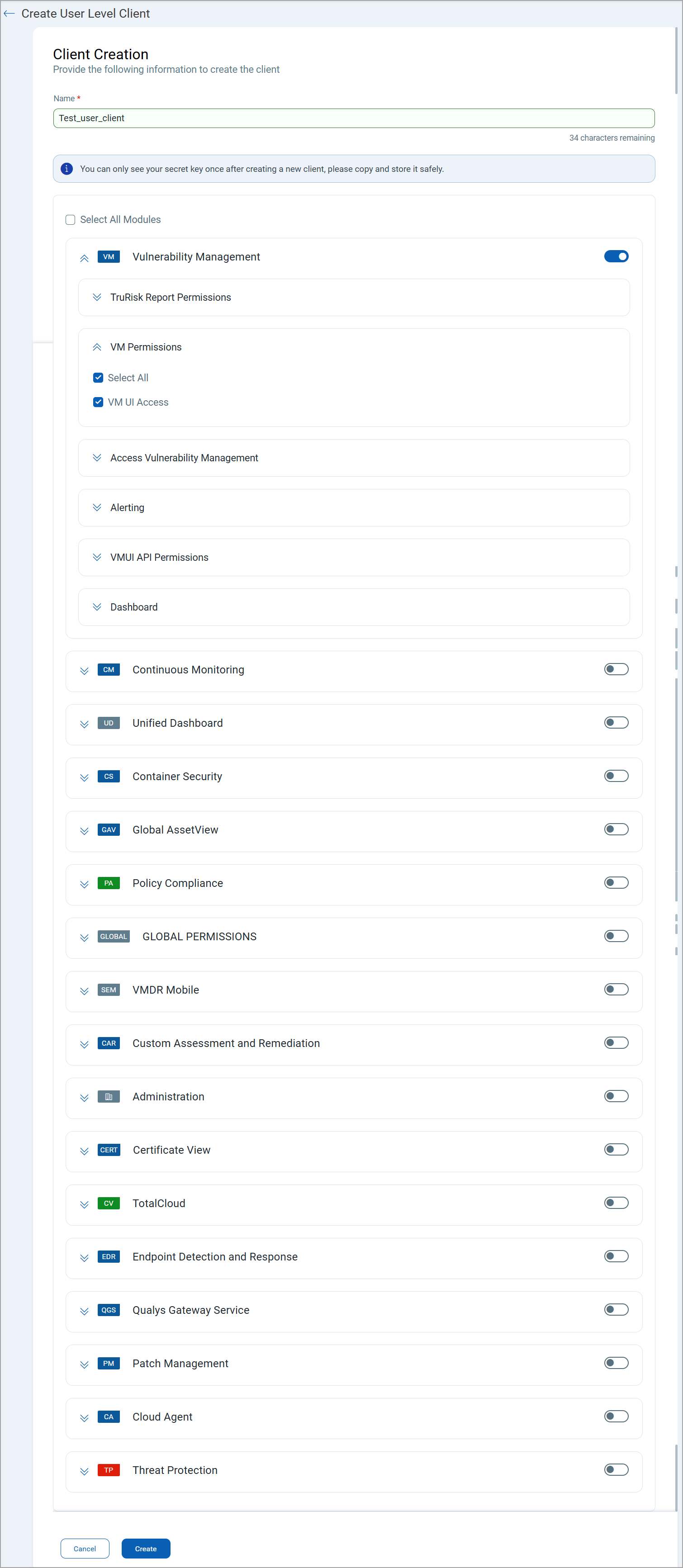
Assign required application permissions for the user-level client. You can give access to all the applications by selecting the Select All Module checkbox. - Click Create to complete the client creation. The Client Secret Key pop-up is displayed on the user interface.
- Copy the Secret Key and store it at a safe place. You will need this key to generate the JWT token for API authentication.
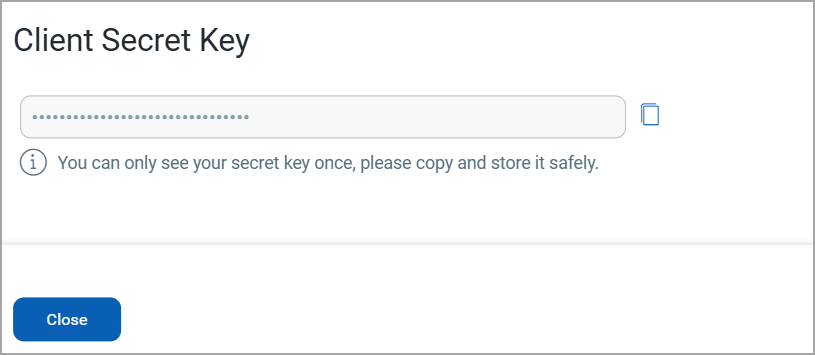
- Click Close. The newly created user-level client is displayed at Auth ID Client Management > User Level tab. Copy the Client ID of the new client to the place where you stored the associated Secret key.
You can create multiple User-level clients with different permissions.
Create Subscription-level Client
- In the Auth ID Client Management window, click the Subscription Level tab.
- Click New Client. The Create Subscription Level Client window opens.
- Enter the following details to continue with subscription-level client creation.
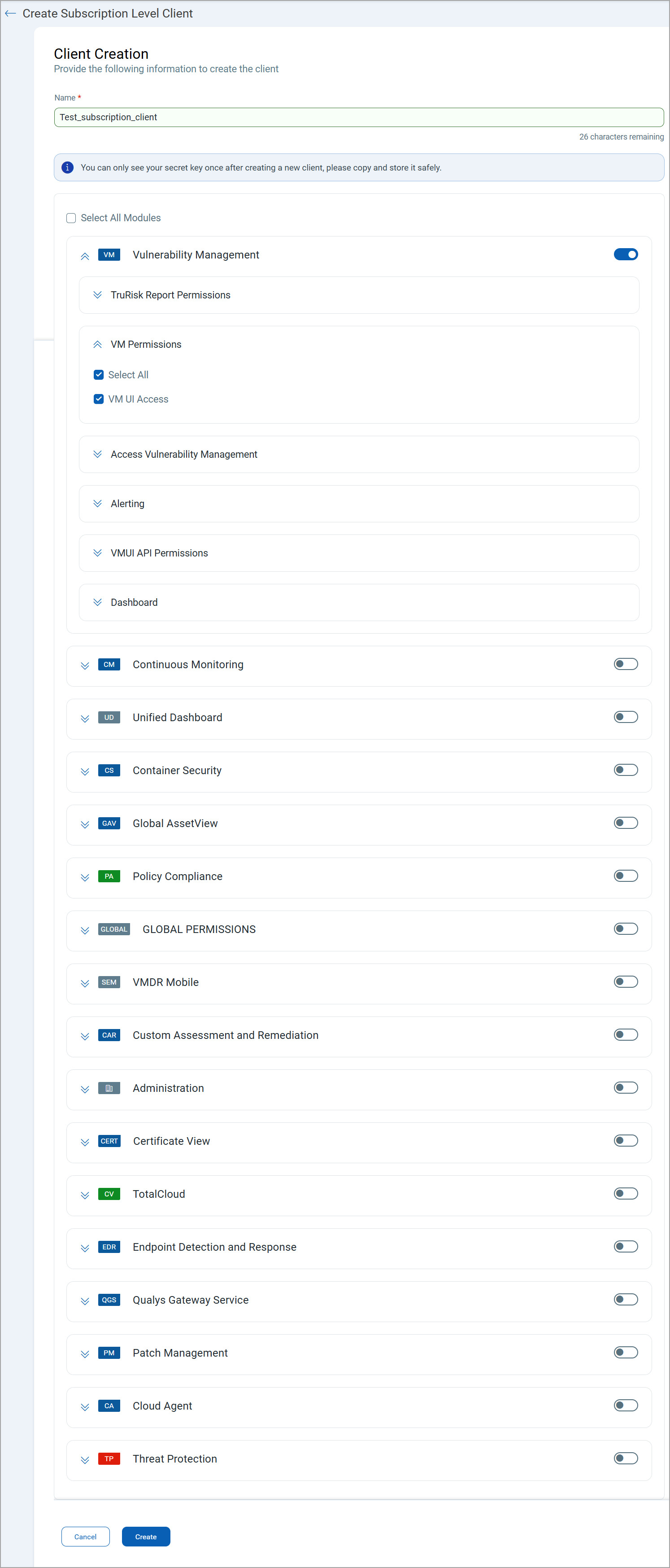
Name: Enter a unique client name for the subscription-level client.
Assign required application permissions for the subscription-level client. You can give access to all the applications by selecting the Select All Module checkbox. - Click Create to complete the client creation. The Client Secret Key pop-up is displayed on the user interface.
- Copy the Secret Key and store it at a safe place. You will need this key to generate the JWT token for API authentication.
- Click Close. The newly created subscription-level client is displayed at Auth ID Client Management > Subscription Level tab. Copy the Client ID to the place where you stored the associated Secret key.
Next Topic: Generate Qualys Managed Authentication Token