Import Compliance Policy from Library
You can import policies directly to your account from our Compliance Policy Library.
What types of policies are available?
The Library tab provides a centralized view of Qualys-managed policy library details, including CIS, DISA STIG, and other supported compliance standards.
Import a Single Policy or Multiple Policies
- On the Library tab, select the policy (or policies) you want to import.
- Select Import.
The Import Policies window is displayed. - In the Import Policies window, configure each policy as needed:
- Add Assets: Select Add Assets to open the Asset Details window, add the required asset groups or asset tags, and select Save.
The asset groups or tags are added to the policy. - Active/Inactive: Turn the toggle on to keep the policy active, or off to import it as inactive.
- Lock/Unlock: Select the lock icon to lock or unlock the policy.
- Title: Edit the policy name.
- Add Assets: Select Add Assets to open the Asset Details window, add the required asset groups or asset tags, and select Save.
- Review your selections and select Import to begin importing.
- After the import starts, you are redirected to the Library tab, where you can track the import status of the selected policies.
View Changelog (Library Tab)
Select a library policy, then select View Changelog to see the number of revisions made to the policy and the dates they occurred, with the latest revision listed first. Select Download to save the version history as a PDF.
Select the policy you want and then click Next. Follow the wizard to give your policy a name and choose whether the policy should be locked or unlocked after import.
Locked Policies
Our library includes locked policies for testing compliance against specific CIS benchmarks. These policies have been reviewed and certified by CIS (the Center for Internet Security). When a policy is locked, you can add hosts to the policy but you can't make any other edits.
During the import, you get the option to import the locked policy as unlocked. This lets you remove the editing restrictions.
Edit the Imported Policy
You can edit the policy to change the assigned asset groups. If the policy is unlocked, you can also change the title, technologies, controls, etc. If the policy is locked, no other changes are allowed. You can, however, save a copy of any locked policy with a new name and edit it as needed.
New Policy Version
When there is a newer version of a policy available, the new version will be added to the Policy Audit Library and the old version will be removed from the Library. You can view that each policy has a version number. Go to PA > Policies > New > Policy > Import from Library, select the policy version you are interested in, and click Next to import it to your account. You can decide whether to delete old policy versions from your account or keep them.
How do you know when there is a new policy version available?
We announce Policy Audit Library Updates at notifications.qualys.com on a regular basis. Follow Qualys notifications to get these updates.
View Change Log for a Policy
To view the Change Log for a policy, navigate to:
- Policies > New > Policy > Import from Library.
In the Policy Editor window, the Create a New Policy window is displayed. - In Label, select Updated.
- In Technology, select an option of your choice.
The associated policies are displayed. For the policies that have an update, the View Changelog option is displayed. - Select View Changelog.
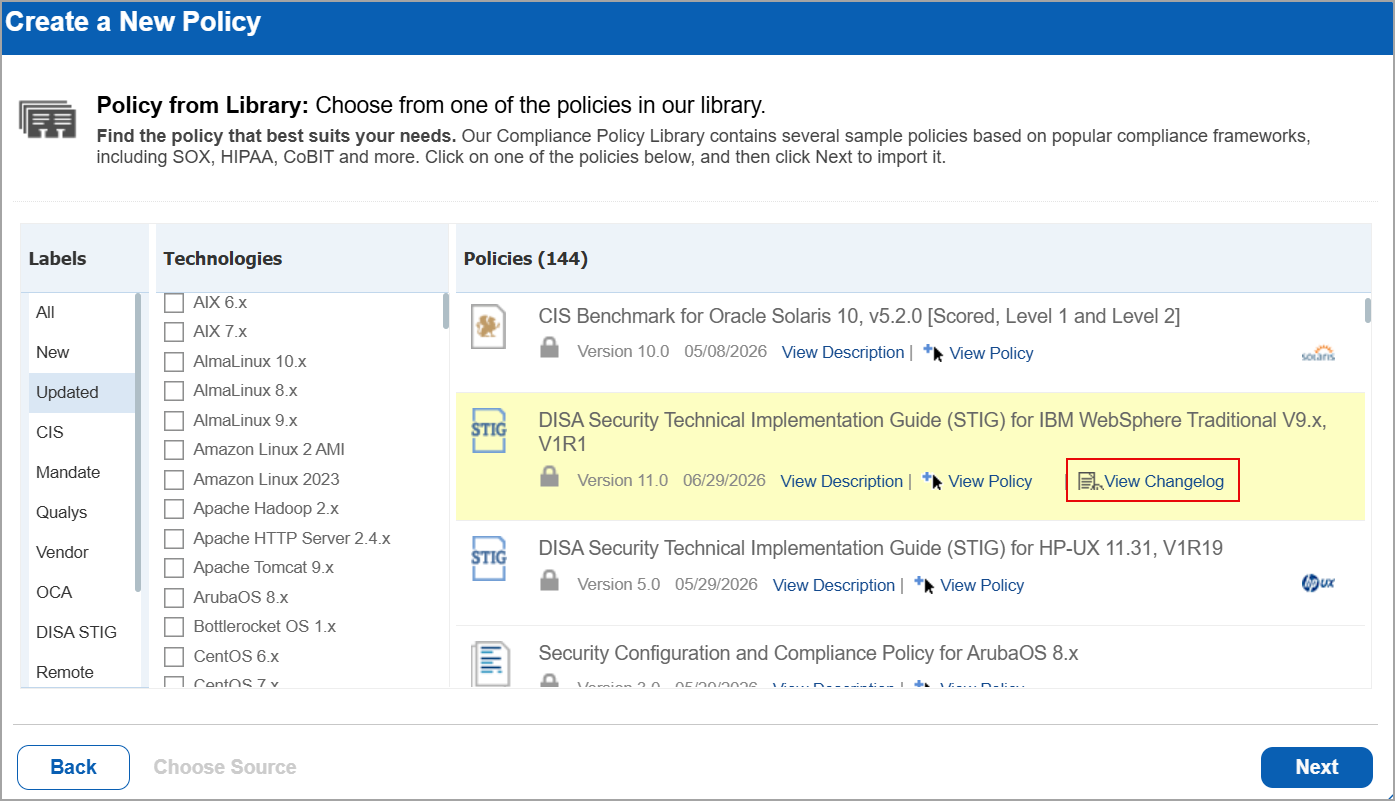
The View Changelog window is displayed.
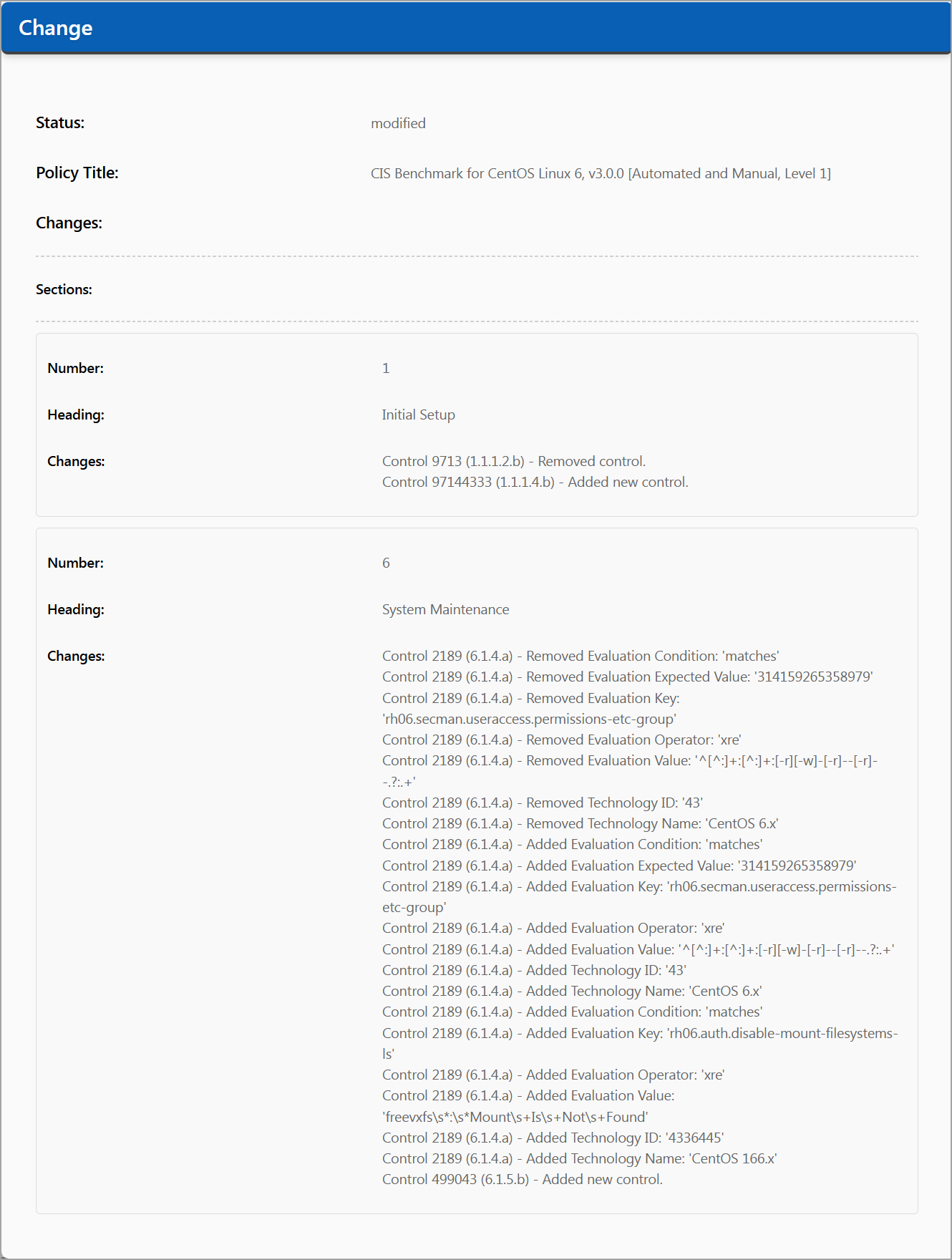
This displays the number of revisions made to the policy and the dates on which they occurred, with the latest revision shown first. Release versions are also updated whenever changes are made to the library policy.
To download the Version history, select Download.
The changelog details are downloaded in PDF format.
Not Able to View the Policy
You can also import a compliance policy from an XML file. Learn more about Import Compliance Policy from XML.