Generate Audit Ready Report from the Reports Tab
To generate an Audit Ready Report form the Reports tab, refer to the following steps:
- Navigate to Reports > New > Audit Readiness Report.
The Audit Readiness Report browser window is displayed.
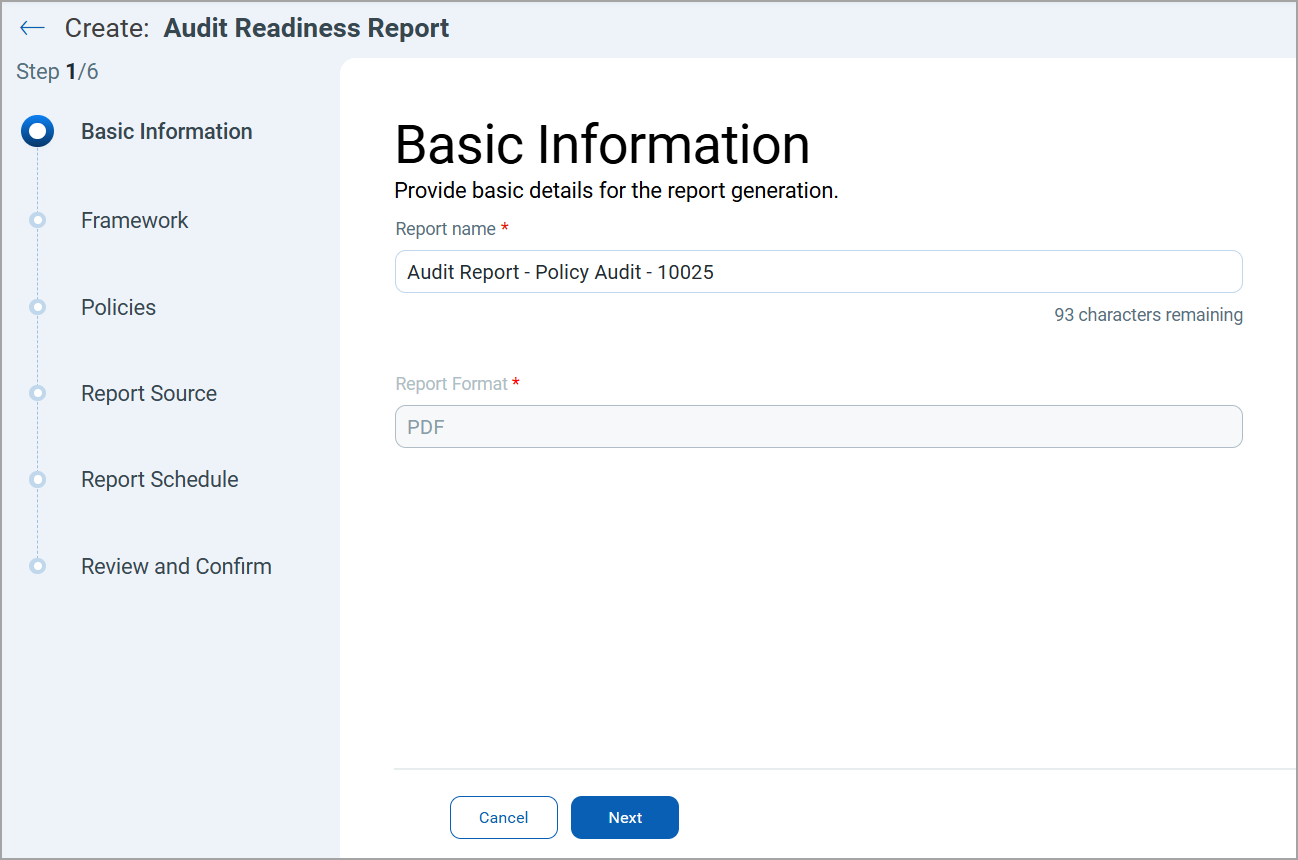
- Enter the Report name and select Next.
The Framework tab is displayed.
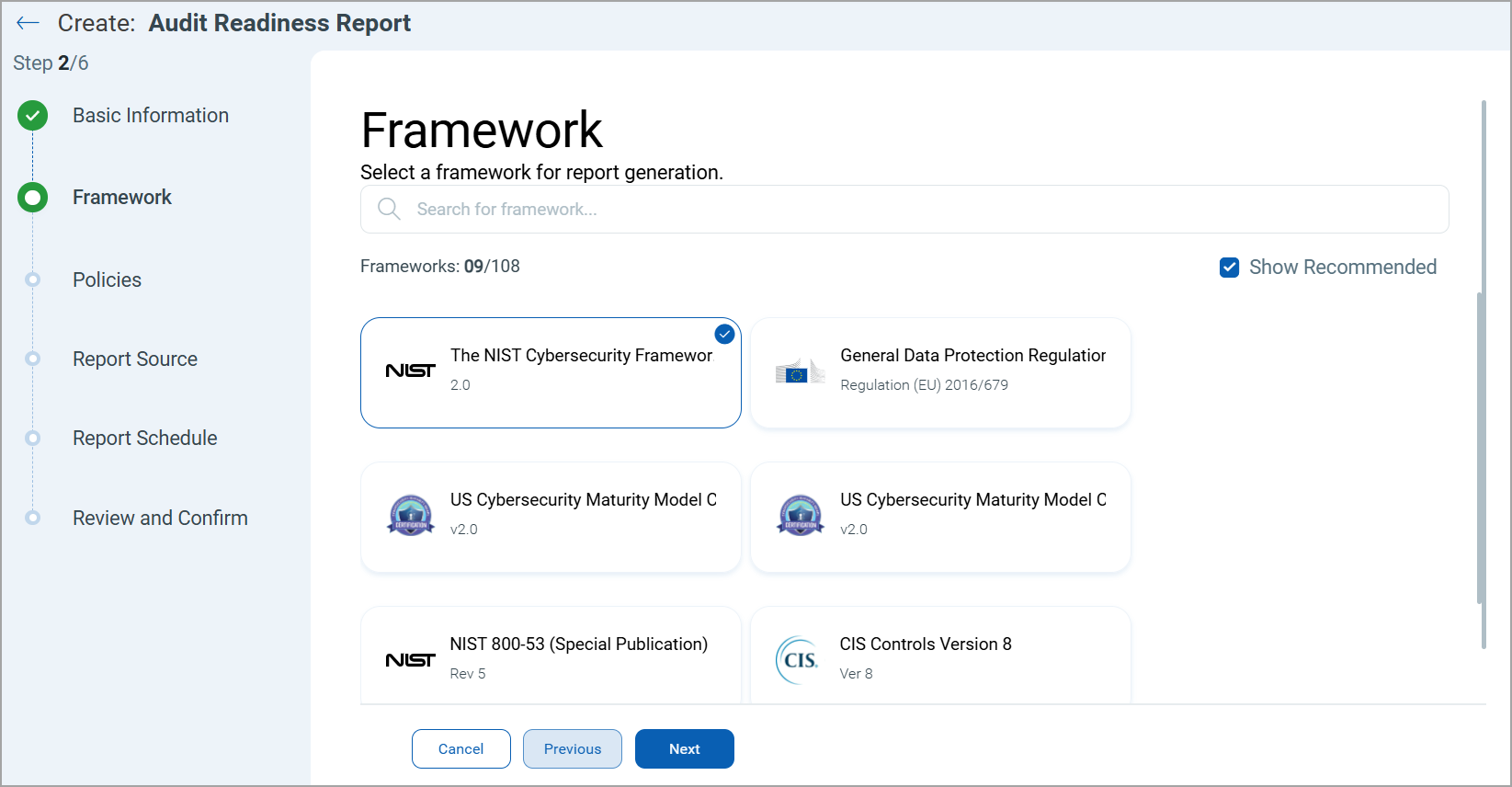
- Select a framework of your choice and select Next.
The Policies tab is displayed. -
In Policies, you have the following two options:
Apply to all policies
On selecting apply all policies, users can optionally exclude specific policies from the report. In Exclude Policies, select the add icon ( ).
).
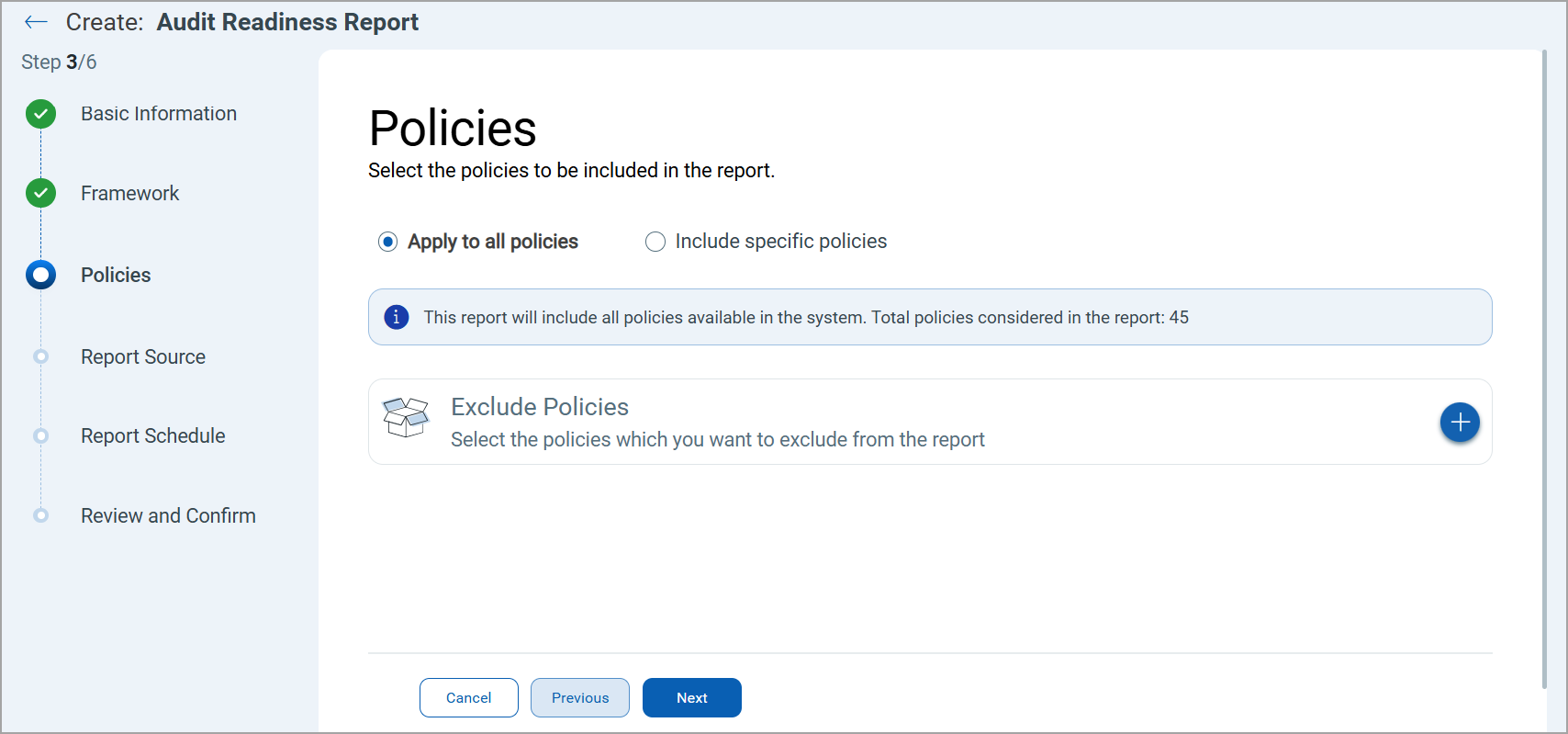
The Select Policies window is displayed. Select the policies to be excluded and select Save.Include specific policies
On selecting Include specific policies, users can choose the policies to include in the report. In Include Policies, select the add icon ().
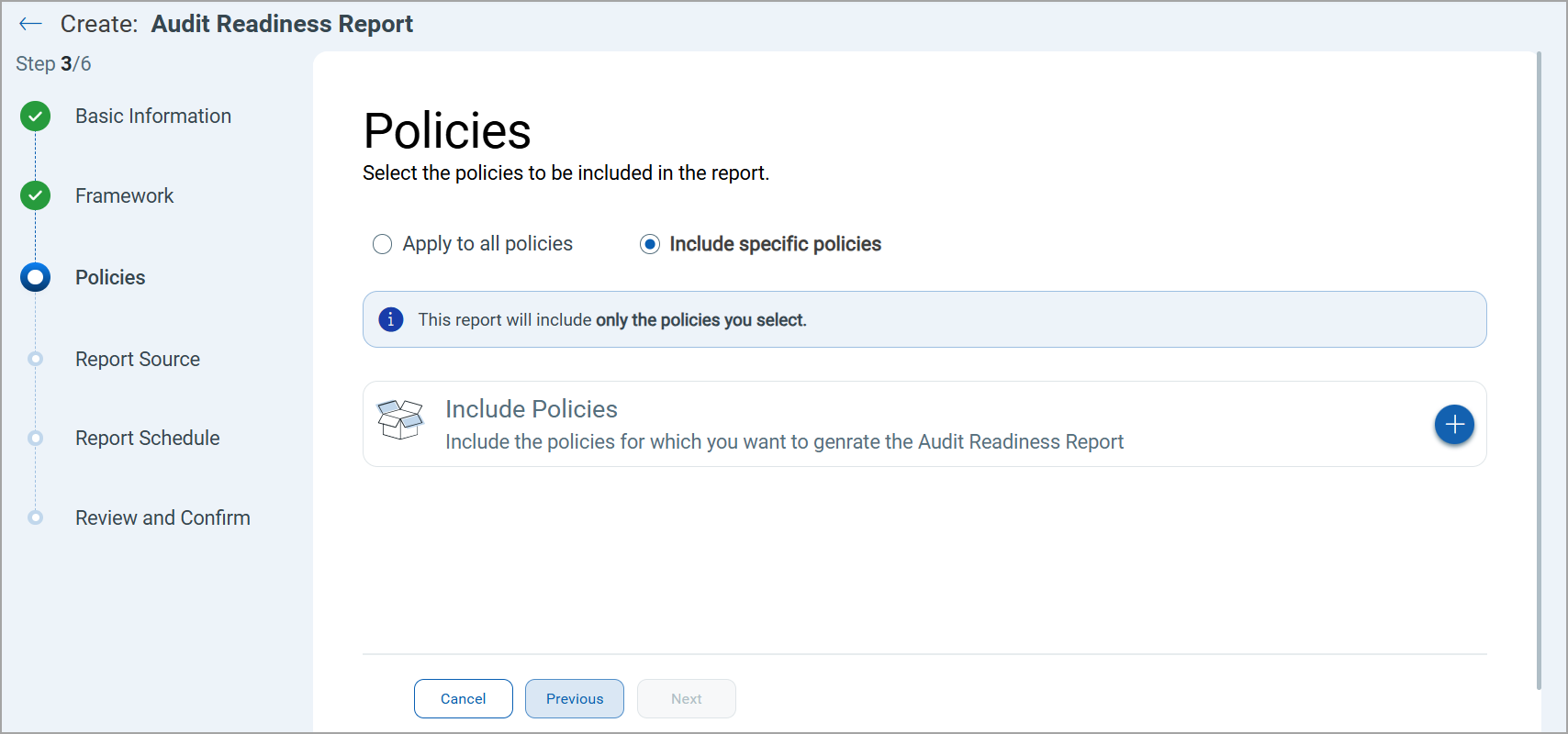
The Select Policies window is displayed. Select the policies to be excluded and select Save.On selecting Policies, you next go to Report Source, where you select assets tags. If these asset tags selected are not mapped to the policies selected while generating the report, the report is generated with blank data.
-
Add the required policy options and select Next.
The Report Source tab is displayed. -
Similar to Policies, in Reports Source, you have the following two options:
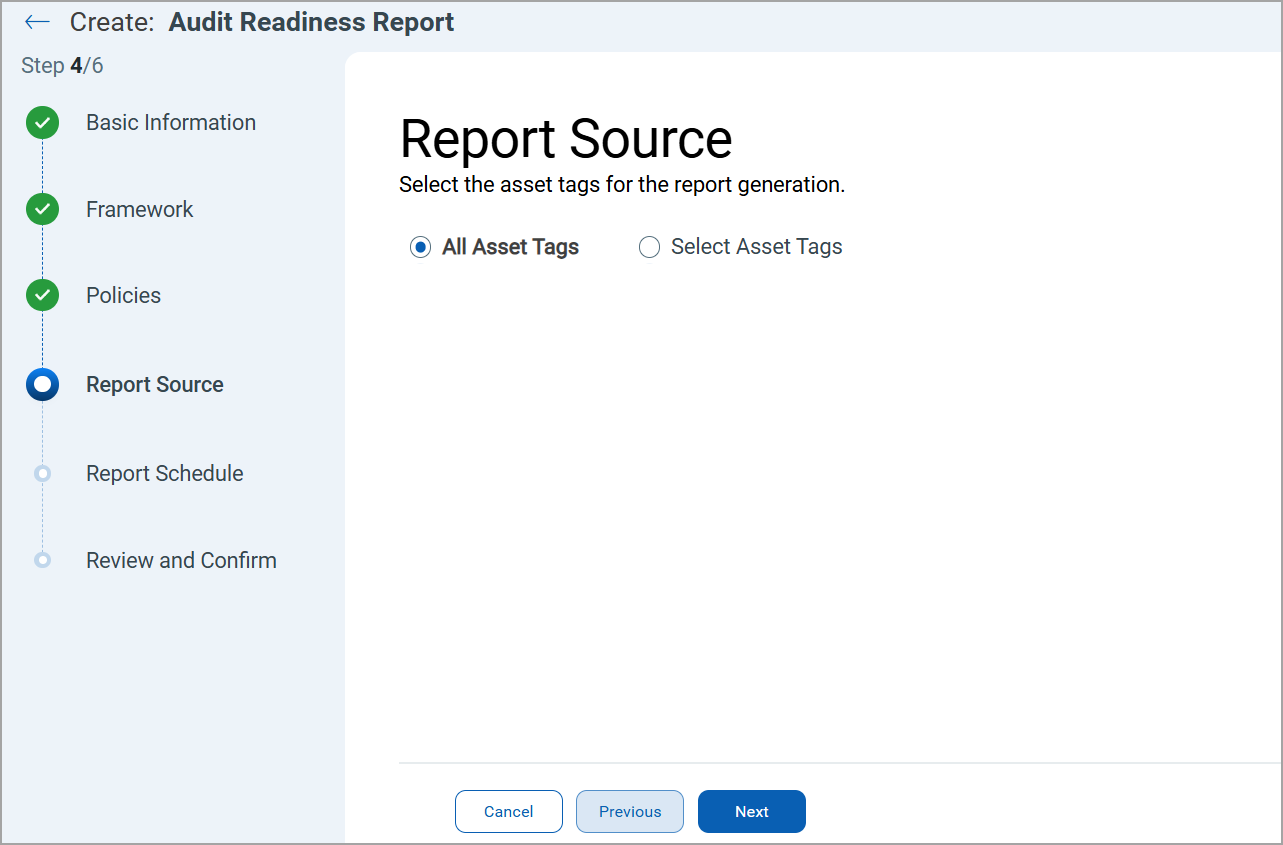
All Asset Tags
On selecting all asset tags are considered when generating the audit readiness report.
Select Asset Tags
On selecting Select Asset Tags, you can select specific asset tags to include in the report. In Include hosts, select the add icon ().
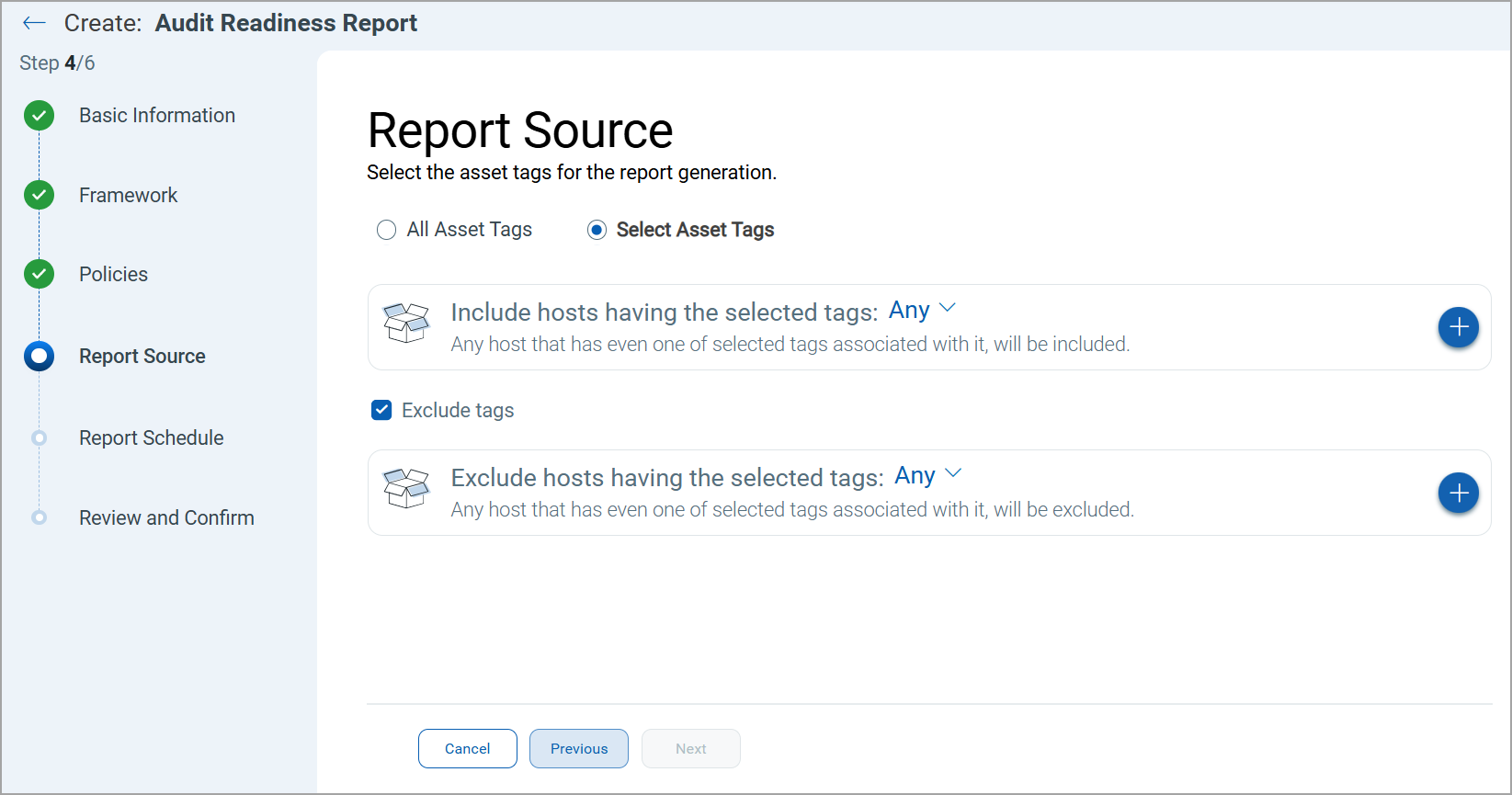
The Select Tags window is displayed. Select the tags to be included and select Save.
Next, users can select Exclude tags and select the tags to be excluded from the report. -
Add the required Report Sources and select Next.
The Report Schedule tab is displayed.

-
In Report Schedule, select from the following:
-
Run Now - to run the report once setup is complete.
-
Single Occurrence - to run the report once at a specific time and date.
-
Recurring - to run the report on a recurring basis at a specified time and date.
Once the report schedule is selected, select Next.
-
-
Review the set options for generating an Audit Ready Report and select Create Report.
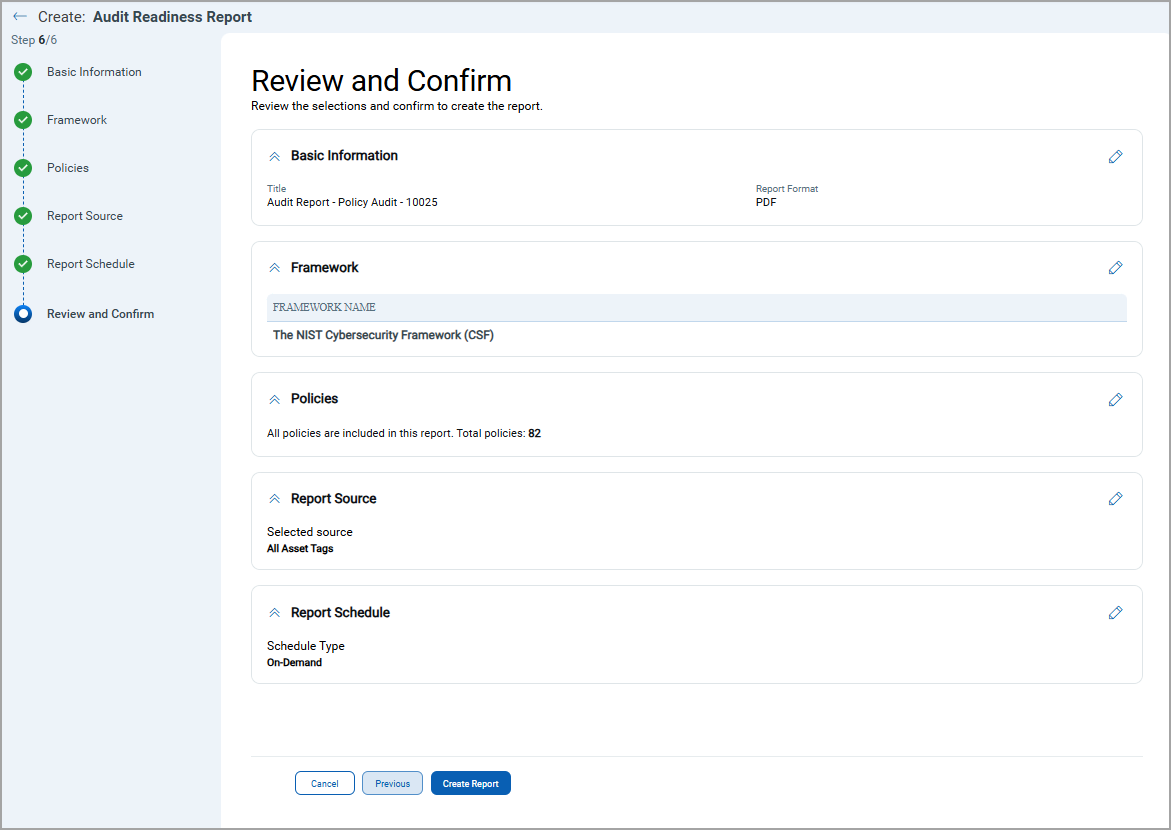
The new Audit Ready Report is generated in PDF format.