PCI Compliance — TAS Integration
We have integrated the PCI Compliance and TotalAppSec (TAS). The integration provides support to generate a PCI compliance report with attestation for TAS scans.
The integration has enhanced web application compliance coverage by providing support for scanning large web applications requiring authentication and generating a compliance report for them.
The PCI Compliance - TAS Integration feature is not available by default. Contact your Technical Account Manager or Qualys Support to activate this feature.
The following subsections provide detailed information about PCI Compliance — TAS integration.
Benefits
The PCI Compliance ― TAS Integration provides the following benefits:
- Simplified quarterly ASV scan attestation for Web applications and APIs.
- Detects OWASP Top 10 vulnerabilities, API misconfigurations, and malware threats that could lead to PCI non-compliance.
- Reduces risk of failing PCI audits by maintaining a real-time compliance posture.
- Early detection and remediation of vulnerabilities in web apps and APIs that handle cardholder data.
- In line with PCI DSS 4.0.1 Req. 6.4.1 and 11.3.2 by providing Secure development practices and vulnerability management for web apps and APIs.
Prerequisites
You must meet the following requirements to use this feature:
- An active subscription for Qualys TAS and a PCI Merchant account.
- TAS 1.24 or later versions.
- PCI Merchant users are added to your Qualys Vulnerability Management (VM) account.
- The functionality to share scans launched in TAS to PCI has to be enabled on the subscription.
- The TAS scans, which you want to share with PCI Compliance, must be complete. Only scans with the following statuses can be shared with PCI:
- Result Processed Successfully
- Max Links Crawled
- Time Limit Reached
- Time Limit Exceeded
- Service Error
- Canceled With Results
Steps to Attest TAS Scan Reports
Perform the following steps to share TAS Scan reports with PCI Compliance for attestation.
Step-1: Share TAS Scans with PCI Compliance
The following steps outline how to share TAS scans with PCI Compliance.
- In the TAS application user interface, navigate to Scans > Scan List.
- Locate the TAS scan that is completed.
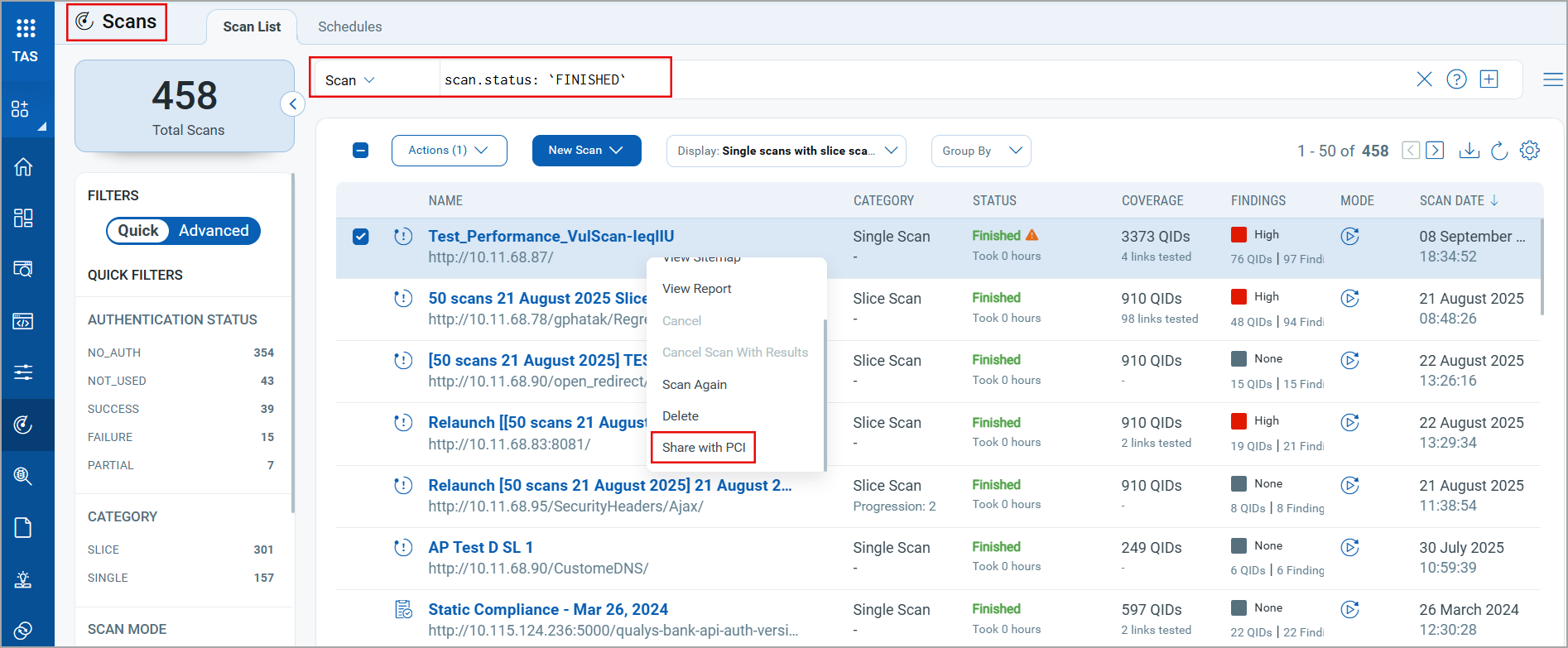
You can also use the Group By filter to search for completed Vulnerability scans. - Find the TAS scans that have either the IP Address or FQDN in the scan URL. Locate the required scan and click Share with PCI. The PCI List window is displayed.
The Share with PCI option is available only for scans that have an IP address or FQDN in the scan URI.
- Select the PCI Merchant user with whom you want to share the TAS Scan data.
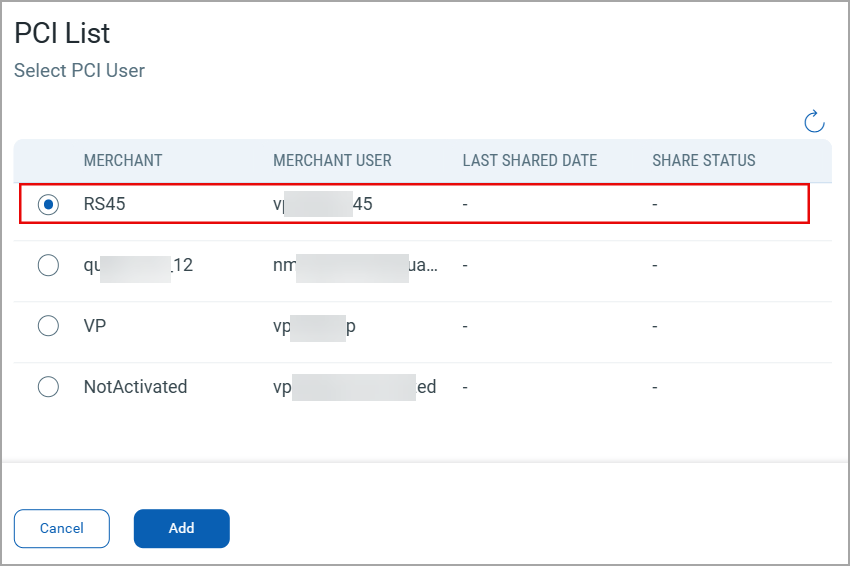
The PCI Merchant user list in TAS is imported from the VM application. You can edit the list in PCI Admin or VM applications.
- Click Add to share the selected scan with the PCI Merchant user.
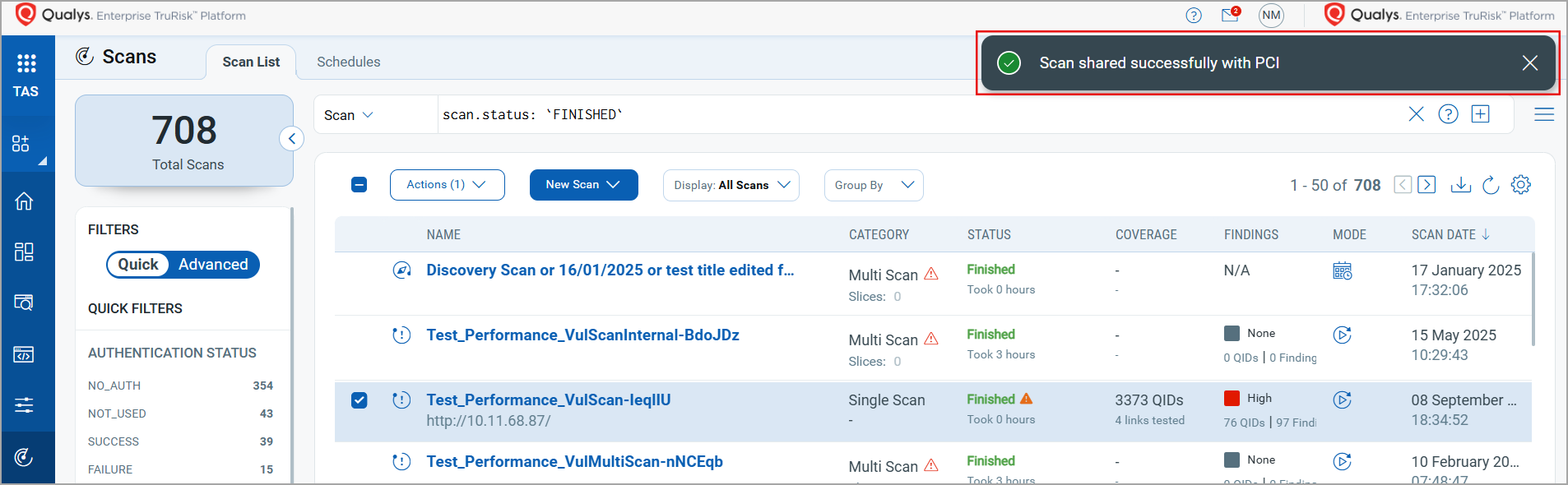
Step-2: Submit Compliance Reports for Attestation
The following steps outline how to generate TAS scan reports and share them for attestation.
- From the module picker, open the PCI application. The PCI Setup window opens.
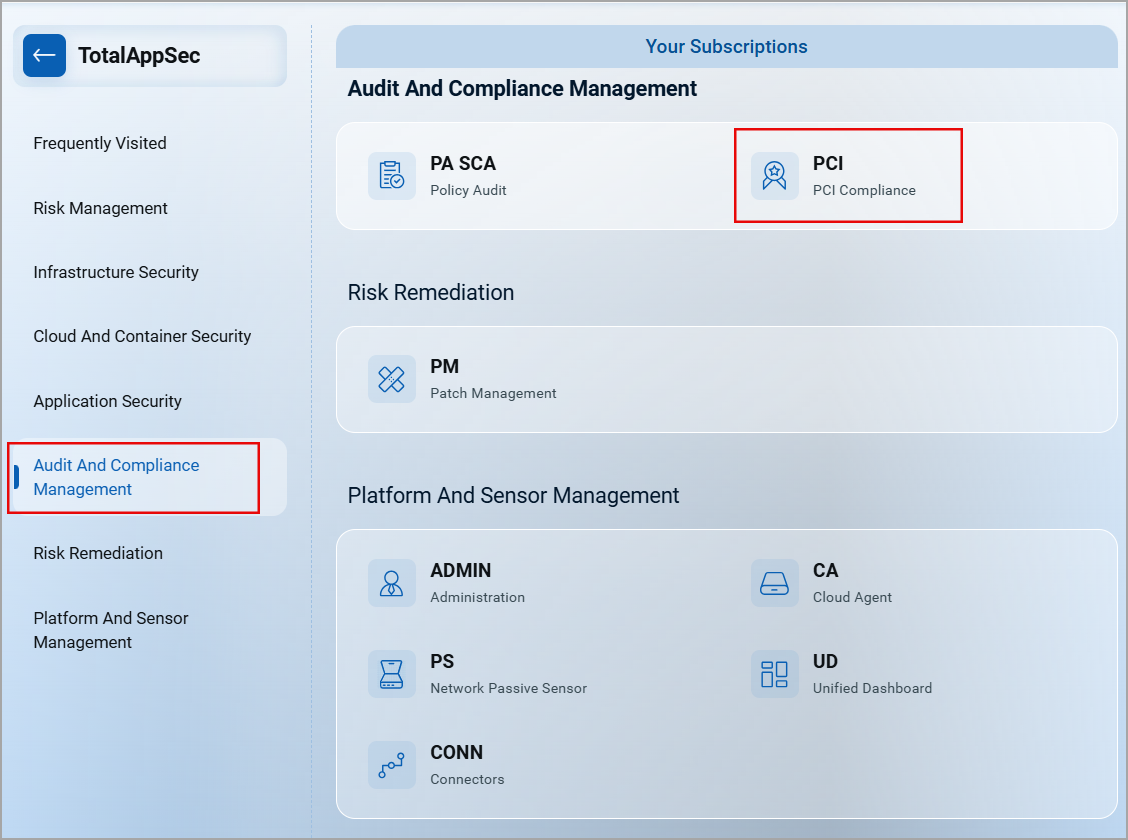
- Select the user with whom you want to share the TAS Scan data and click Launch.
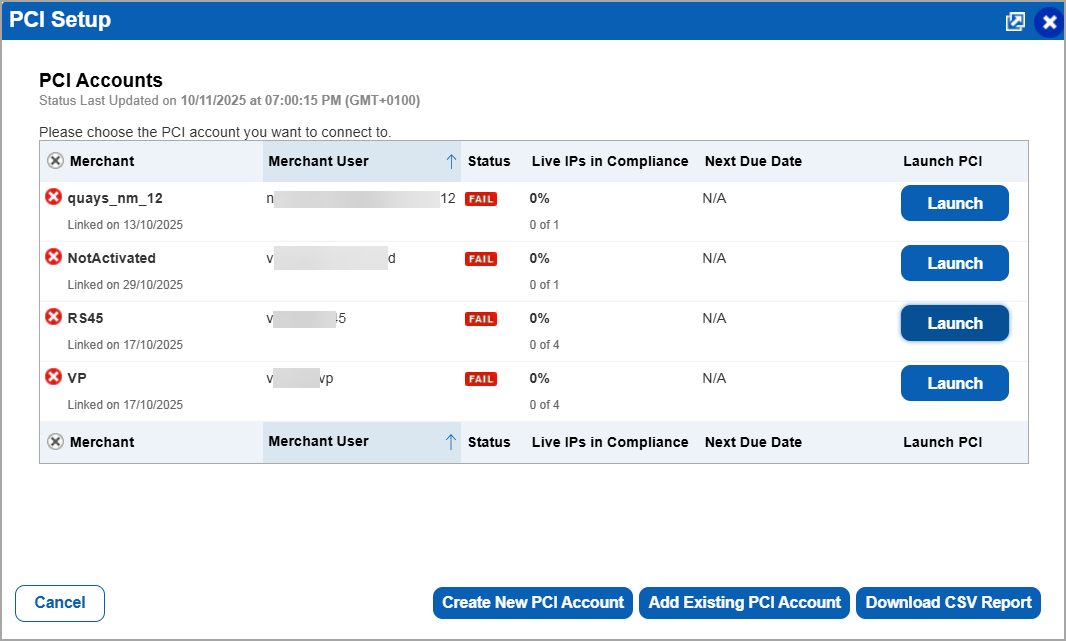
In the PCI Setup window, you can also create the new users or add the existing users to share the TAS Scan data.
- In the PCI Compliance user interface, navigate to Network > Scan Results to see the scan shared from TAS to PCI.
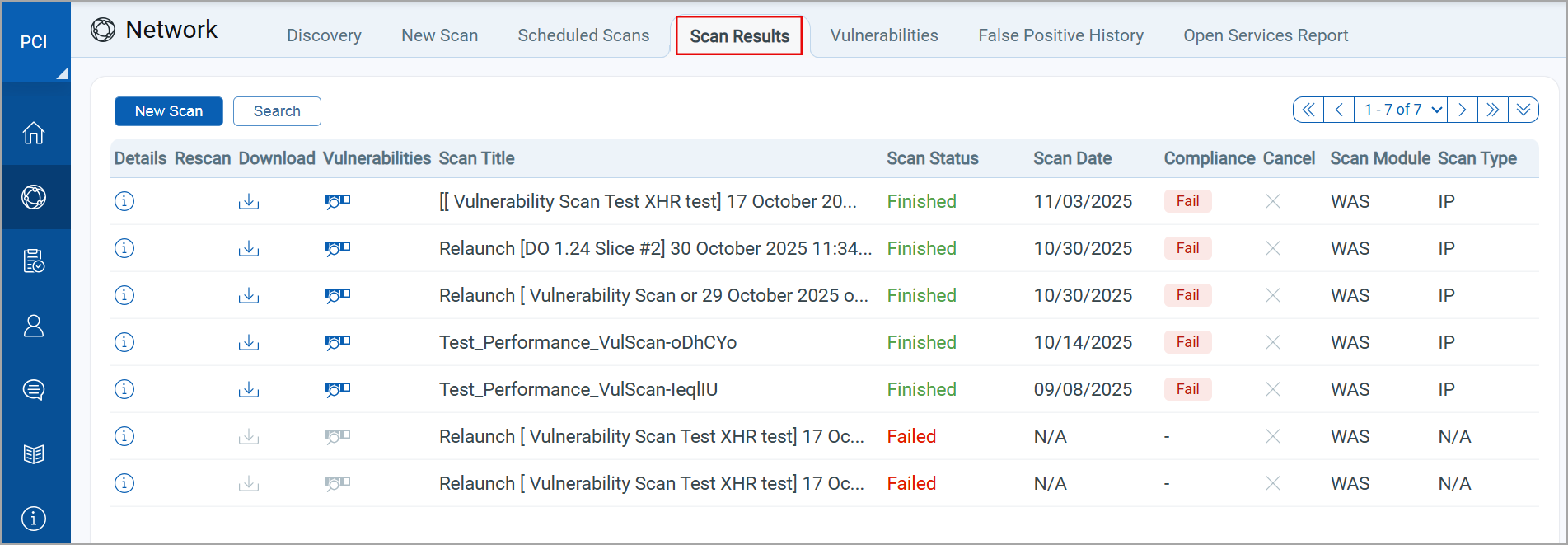
- Download
 the TAS scan result to see the scan details.
 - To view the list of vulnerabilities discovered in PCI and TAS scans, navigate to Network > Vulnerabilities.
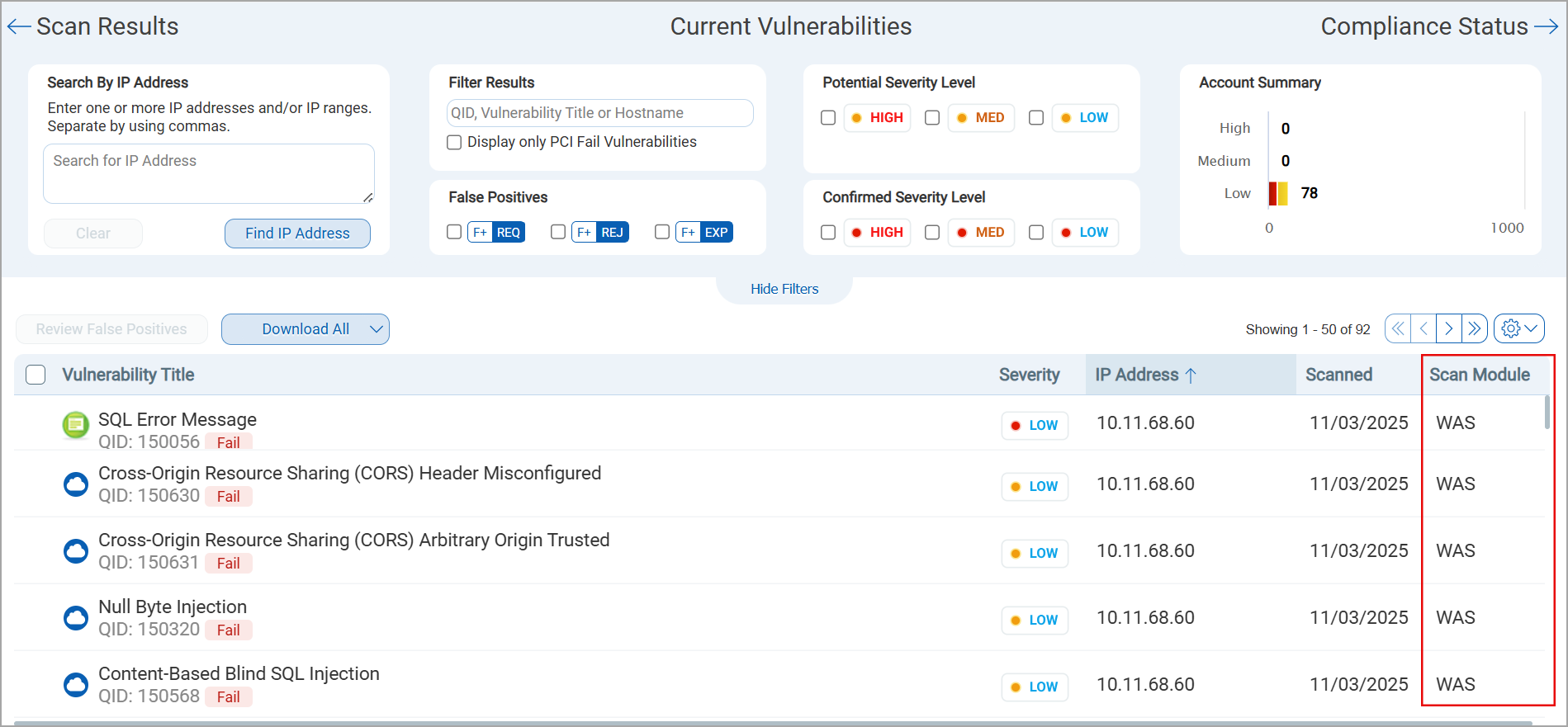
If the same asset scanned in both the PCI and TAS/WAS scans, use the latest reported QIDs for False Positive submission.
-
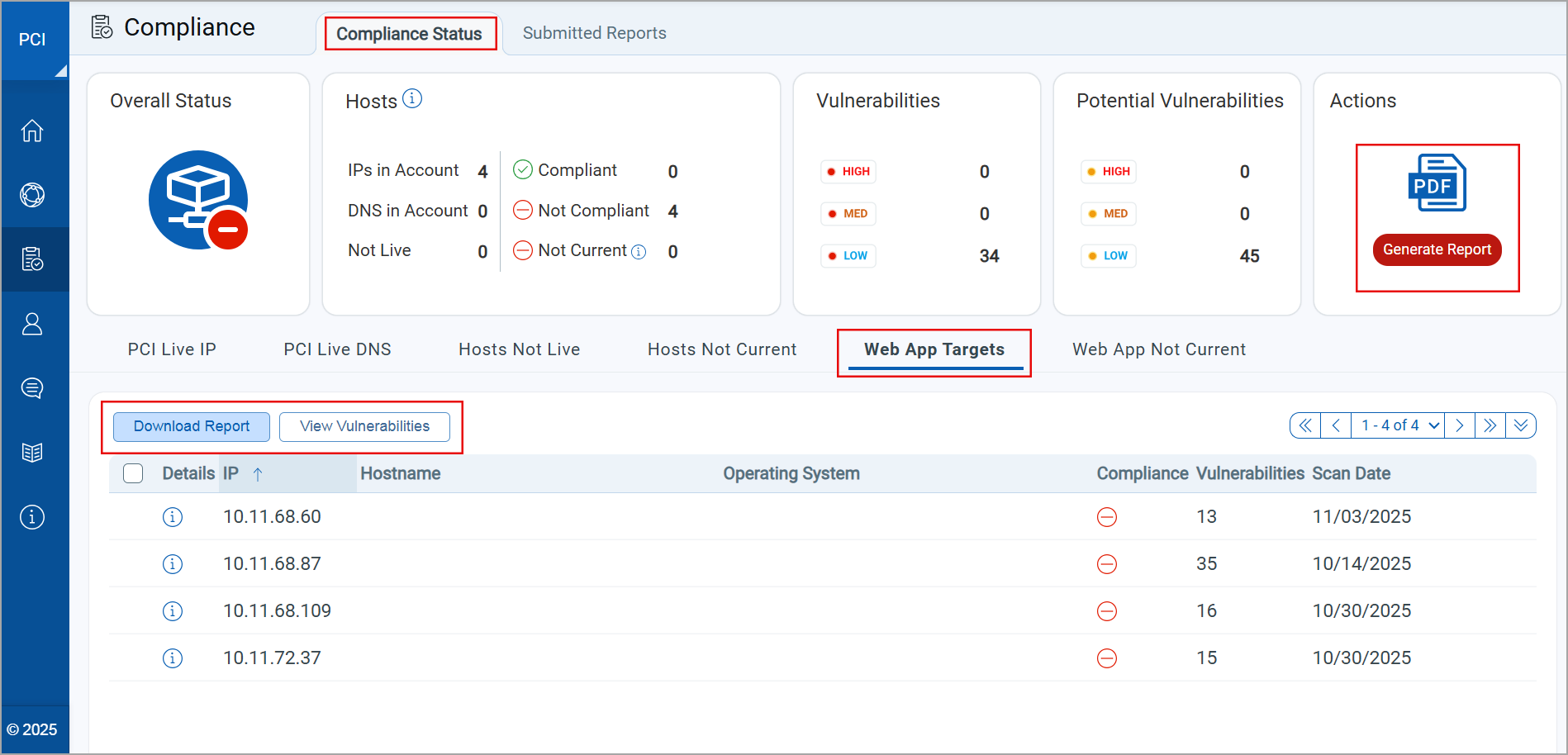
Navigate to the Compliance > Compliance Status tab.
-
Open the Web App Targets section. It lists the Vulnerabilities, IP Addresses, and FQDNs shared with PCI.
-
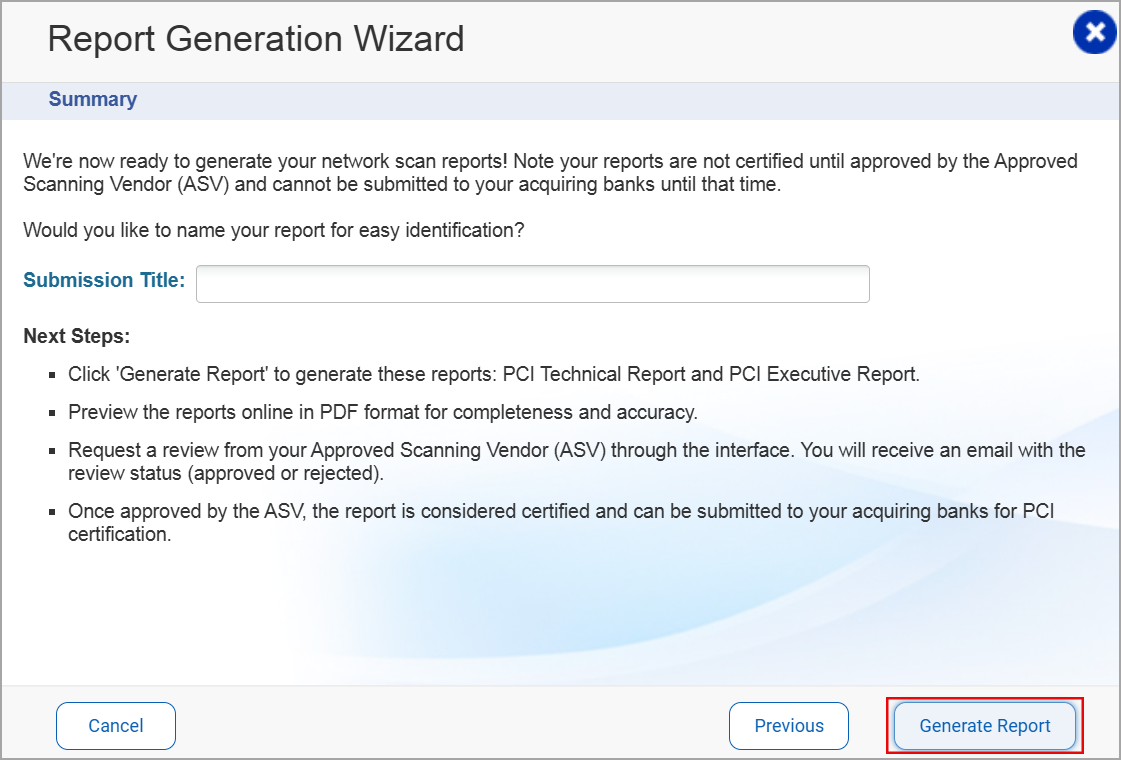
Click Generate Report. The Report Generation Wizard opens. You can see the asset details and add comments while generating the report.
-
In the Report Generation Wizard, provide the required details.
-
Click Generate Report. The compliance report, consisting of TAS scan data, is generated.
-
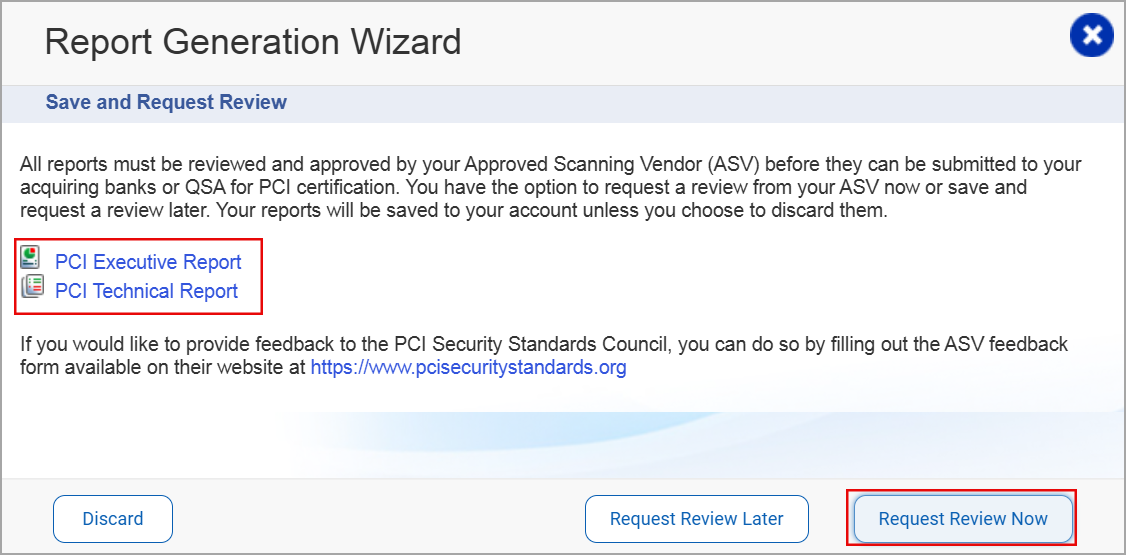
Click Next to view and save the compliance reports.
-
Click the report name. The PCI Executive Report and the PCI Technical Report are downloaded.
-
Click Request Review Now to share the report for attestation with the Approved Scanning Vendor (ASV). You can also schedule the report review with the Request Review Later option.
-
To view report status, navigate to Compliance > Submitted Reports tab.
The reports submitted with the Request Review Now option show the Pending Review status.
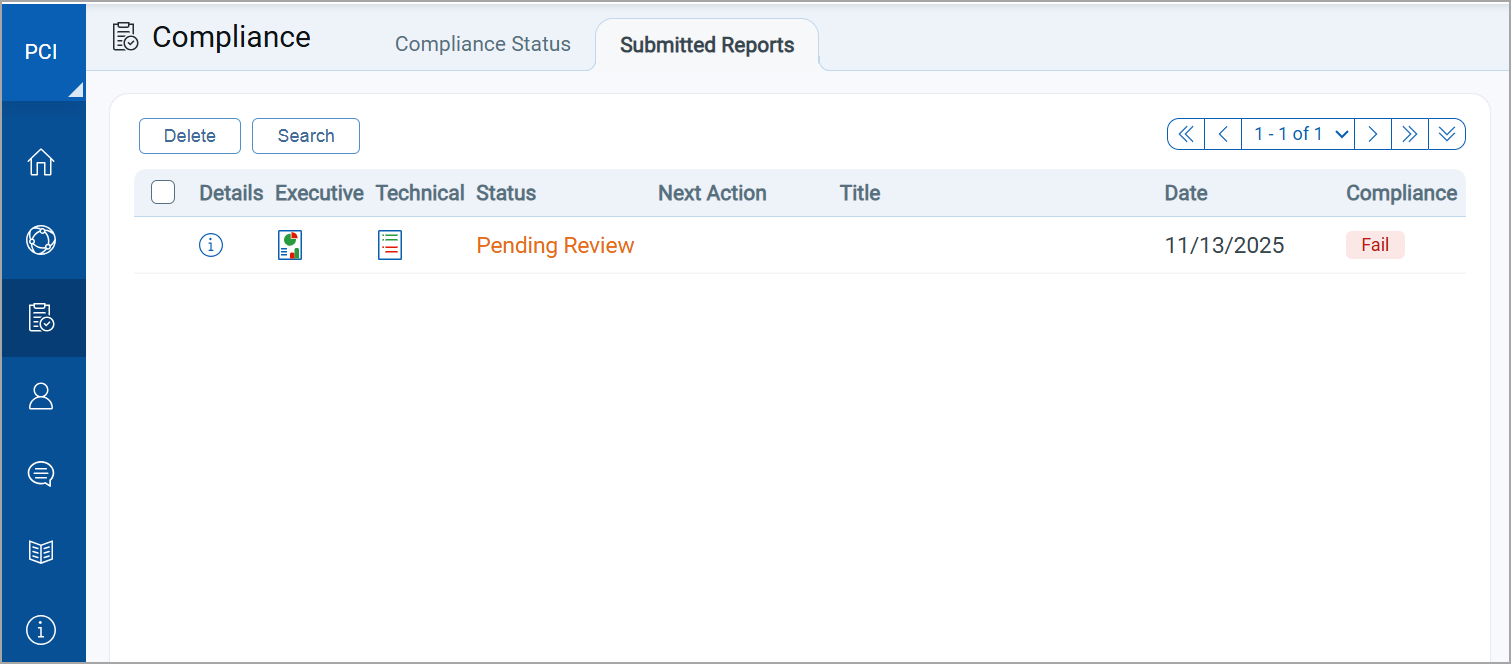
The reports that are submitted with the Request Review Later option show the Request Review status.
Current Scope
The following points outline the current scope of PCI Compliance — TAS Integration:
- The PCI Compliance — TAS integration is supported only for TAS Vulnerability scans, which have an IP address or FQDN in the scan URI. If the TAS scan URI contains domain names and other attributes, the option to share scan data with PCI is disabled.
- The PCI Merchant users available for sharing the TAS scan data are imported from Vulnerability Management (VM). The PCI Merchant list can only be edited from VM or PCI Admin user applications.
- Currently, the integration supports only the IPv4 assets. The support for IPv6 assets is not available.
- Only the latest vulnerability scans can be shared with the PCI Compliance. The older scan data cannot be shared.
- The vulnerabilities discovered by TAS and PCI scans are displayed separately in the PCI user interface. You may see duplicate records for the same assets with a distinct Qualys application tag.
- If the same asset is scanned in both the PCI and TAS scans, the scan results are not merged; the PCI user interface and compliance report display the result from the latest scan only.