Generating MTG Job Progress Report
You can generate the job progress report for Windows and Linux Mitigation jobs. The details about the mitigation actions are included in the report. You can also view the mitigation status and failure details.
Complete the following steps:
- Go to the Jobs > Windows / Linux tab based on the report you want to generate. Click View Progress from the Quick Actions menu of the job.
- Click the Download
 icon from the "Job Progress" page, a Generate Report window is displayed.
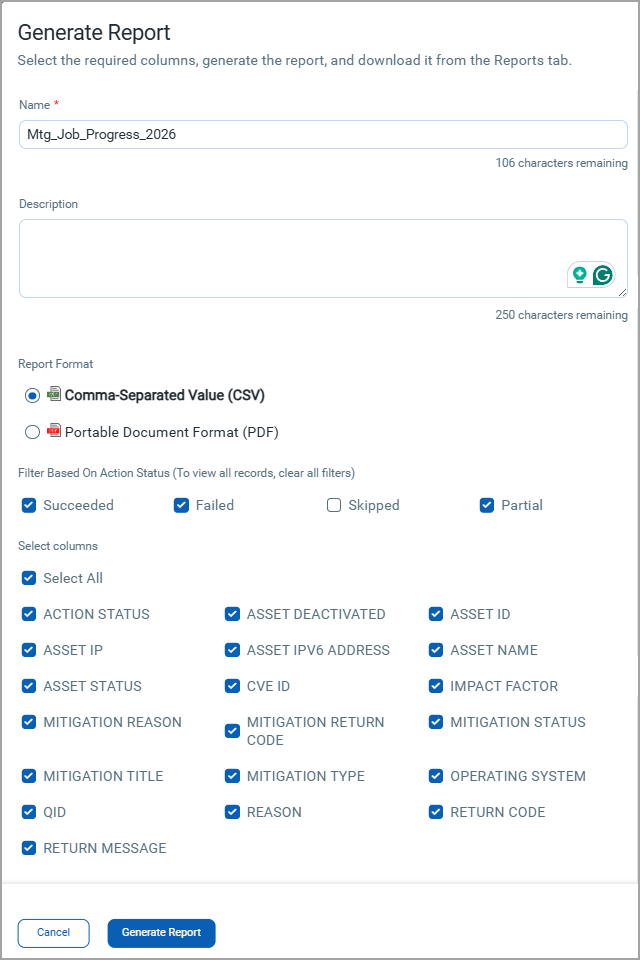
- Enter the name and description of the report.
- Select the report format you want to download. You can download the report either in CSV or PDF format.
PDF reports support the selection of up to 5 columns for optimal readability.
- Select the required Action Status filters: Succeeded, Failed, Skipped, and Partial. Depending on your selection, the results are displayed in the report. If no filters are selected, all rows are included by default.
- If you select CSV format, by default, all columns are pre-selected that are generated in the report. To customize your selection, select only the required check-boxes for the columns that you want to generate in the report.
- Click Generate Report. The Report Generation message is shown, which mentions that the data is downloaded in CSV format.

If four reports are in the "Queued" or "Generating" state, the following message is shown:

- Click the Report List link from the Report Generation message (as shown in above image) to see the report's status.
- Click the Download
 icon from the Actions column on the Reports > Reports tab. Note that the Download icon is enabled only when the report status is Ready.

A list of only ten reports is shown and the report shown in the list is available for download only seven days from the report generation date.
The report is downloaded as a zip file. After you extract the zip file, you can see the report in CSV/PDF format based on your selection.