Maintenance Windows
The Maintenance Window page lets you define the days and time ranges during which Qualys TruRisk™ Eliminate is allowed to deploy patches to your assets. A deployment job's own schedule controls when the job starts, a maintenance window controls whether the assets targeted by that job are actually allowed to install patches at that time. If a Maintenance Window is configured for an asset, patching for that asset is permitted only inside the window, outside of it, patching does not proceed.
You can create and manage maintenance windows from TE > Configuration > Maintenance Window.
Only users with the appropriate Patch Management permission can create, edit, enable, disable, or delete a Maintenance Window. If this tab is not visible to you, ask your administrator to grant the required permission.
An asset that is not covered by any maintenance window, either directly through the Global scope or through a matching tag, is not restricted for patching. Patching for that asset proceeds according to its deployment job's own schedule, as it always has.
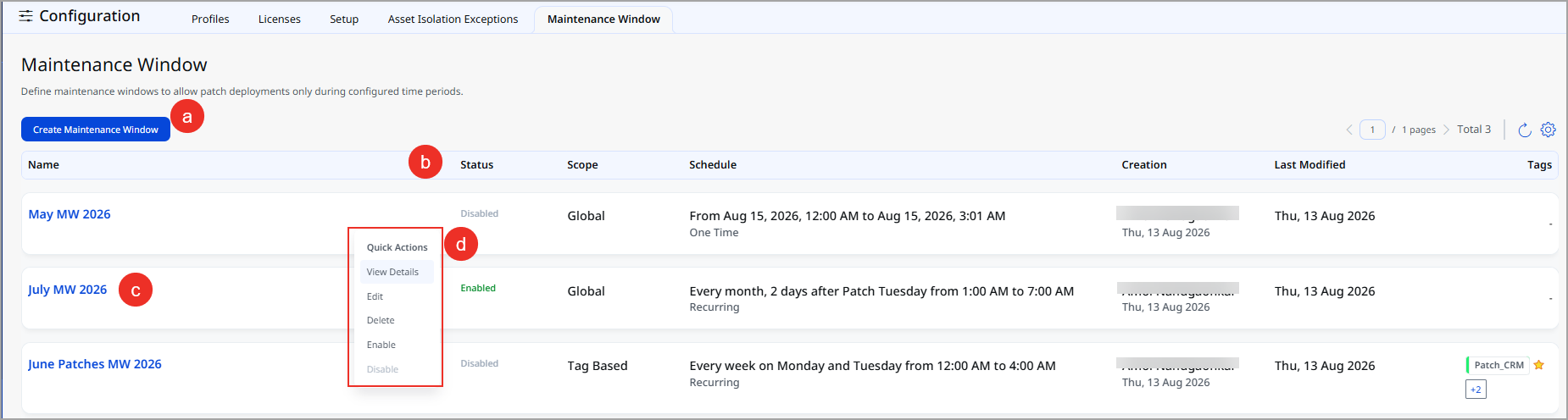
From the Maintenance Window page, you can:
- Create a maintenance window to define a new window for patching. See Create a Maintenance Window.
- View the Status (Enabled or Disabled), Scope (Global or Tag Based), Schedule, Creation details, Last Modified date, and Tags for every maintenance window configured in your subscription.
- Click a maintenance window's name to view its full configuration details.
- Use the Quick Actions menu on a maintenance window to Edit, Enable/Disable, or Delete it
- Disabling a Maintenance Window pauses enforcement without deleting the configuration, so patching for its assets is no longer restricted until you re-enable it.
- Deleting a Maintenance Window permanently removes the schedule. Assets that were covered only by that window are no longer restricted.
Global vs Tag Based Scopes
A maintenance window's scope determines which assets it applies to:
- Global: The maintenance window applies to every patch-enabled asset in your subscription.
- Tag Based: The maintenance window applies only to assets that are included in the selected asset tags. Dynamic tags automatically extend the window's scope to newly matching assets. Only 10 asset tags can be selected in a maintenance window.
If both a global and a tag-based maintenance window are enabled for the same asset, only the Tag-based maintenance window is applied; the global schedule is not sent to the agent for that asset. If an asset is part of more than one tag and each tag has its own maintenance window, all those windows are together applicable to the asset.
How Maintenance Windows affect deployment jobs
When you create or edit a deployment job, you can control how that specific job behaves if its scheduled time falls outside an active maintenance window:
- Defer to Next Maintenance Window: The job automatically waits and runs during the next available window instead of failing.
- Bypass Maintenance Windows: The job ignores maintenance window restrictions and runs on its own schedule. Use this for emergency, zero-day patching.
- On-demand (Run Now) jobs always bypass maintenance windows, so critical patches can be pushed immediately.
Because patch execution depends on an active window, a job can end up in one of the following states for a given asset:
- No active window was found at the scheduled time, and the job is not set to defer, the asset shows a Failed status.
- No active window was found at the scheduled time, but the job is set to defer, the asset shows Deferred due to Maintenance Window and runs automatically once a window opens.
- The job starts inside a window, but the window closes before the job finishes, the asset shows Timed Out (maintenance window expired). Patches already attempted are reported as installed or failed, and any remaining patches are reported as Skipped.
You can review these results on the Job Status and Asset Vulnerability tabs of a deployment job.
Important to Know
If your Qualys Cloud Agent has a Reduced Activity Period (RAP) configured for an asset, RAP always takes precedence over a Maintenance Window when the two overlap. Even if a maintenance window is open, the agent remains restricted by RAP and does not patch during the overlapping period. Review the RAP schedule in the Cloud Agent UI before creating a Maintenance Window that's expected to run during those hours.