Overview of Run Script Actions
Patch Management helps pathc servers, endpoints and cloud devices semalessly through Qualys Cloud Agent. Along with patch deployment, it also provides Run Scripts capability that allows you to execute custom scripts for automation as per your requirement.
With Run Scripts, you can:
- Run PowerShell scripts on Windows endpoints.
- Run Shell scripts on Linux endpoints.
- Run Shell or AppleScript scripts on macOS endpoints.
Configure scripts as pre-actions (run before pathcing) or post-actions (run after patching) in the patch deployment job. Each patch job supports upto 5 pre-actions and post-actions, providing you a better control over pre-checks, environment preparation, post-patch validation and clean up tasks. For example, you can configure a system health check run-script pre-action before deploying the patches on staging and production environments. For more information on how to configure the pre and post actions in a patch job, see Creating Patch Job for Windows Assets.
Pre and Post Actions Execution Order
1. Execution of all pre-actions
2. Patch Installation
3. Execution of all post-actions
4. (Optional) Reboot (if required)
If required, a reboot is performed only once, at the end of the patch job execution, after all the actions and patches are processed.
Exit Codes
Each script must end with an exit code so the Qualys Cloud Agent can determine the result and decide the next action. The table below lists the supported exit codes.
| Exit Code | Description | Job Continues? | Reboot required? |
|---|---|---|---|
| 0 | Script executed successfully. | Yes | No |
| 1 | Script execution failed. | Yes | No |
| 10 | Script executed successfully, reboot required. | Yes | Yes |
| 11 | Script execution failed, reboot required. | Yes | Yes |
| 12 | Abort the job. All remaining actions and patches are skipped. | No | NA |
| 101 | Skip this action, the job and remaining actions continue. | Yes | NA |
The following are the detailed descriptions for the exit codes for Run Script actions:
Exit Code 0 and 1
Exit Code 0 (Success) : Indicates that the script executed successfully and the job proceeds to the next action without interruption. Depending on the status of other scripts and patches, the job displays a Completed or Completed with Failure status.
Applicable Scenarios: Environment validation passed, a service started or stopped successfully, a configuration change was applied, and so on.
Exit Code 1 (Failure): Indicates that the script encountered an error and failed, but the job continues with the next action or phase. The patch job displays a Completed with Failure status. This allows non-critical failures to be recorded without stopping the entire patch deployment cycle.
Applicable Scenarios: A pre-check identified a warning condition that should be logged but does not require stopping the job.
You can use the exit codes individually or in combination in your scripts as per your requirement.
The following example demonstrates the use of both exit code 0 and 1. This sample script checks if the software is installed or not. A return code of 0 indicates that a new version of the software can be installed, while a return code of 1 indicates that installation is not required, as the earlier version is already available on the system.
Example: To detect if Notepad++ version 8.1.2 can be installedExample: To detect if Notepad++ version 8.1.2 can be installed
Exit Code 0 and 1
# Sample pre-detection script for Qualys Patch Manager       *
#     This sample script demonstrates detection of installed  *
#     software. It returns 0 if software can be installed    *
#     and returns 1 if installation is not required          *
#                                                            *
#       Return Code                                          *
#        0 - success                                         *
#        1 - failure                                         *
#*************************************************************
# required parameter
[string]$SoftwareName = "notepad++*"
[string]$SoftwareVersion = "8.1.2"
# Print OS info for asset information and troubleshooting
Write-Host "Gathering OS Information..."
$osInfo = Get-CimInstance Win32_OperatingSystem | Select-Object Caption, Version, ServicePackMajorVersion, OSArchitecture, CSName
$properties = @{
    Caption                 = $osInfo.Caption
    Version                 = $osInfo.Version
    ServicePackMajorVersion = $osInfo.ServicePackMajorVersion
    OSArchitecture          = $osInfo.OSArchitecture
    HostName                = $osInfo.CSNAme
}
$obj = New-Object -TypeName PSObject -Property $properties
Write-Output $obj
Write-Host "Looking for package installation...`n"
# Check install key in both wow64 and normal path. Application can be either 32-bit or 64-bit.
$32bit = Get-ItemProperty HKLM:\SOFTWARE\Wow6432Node\Microsoft\Windows\CurrentVersion\Uninstall\*
$64bit = Get-ItemProperty HKLM:\SOFTWARE\Microsoft\Windows\CurrentVersion\Uninstall\*
$programs = $32bit + $64bit
$packageFound = $false
foreach ($program in $programs) {
    $program = Write-Output $program | Where-Object Displayname -like $SoftwareName
    if ($null -ne $program.DisplayName) {
        $LastModified = (Get-Item $program.uninstallstring).lastwritetime
        $properties = @{
            ProgramName     = $program.DisplayName
            Publisher       = $program.Publisher
            Version         = $program.DisplayVersion
            UninstallString = $program.UninstallString
            LastModified    = $LastModified
        }
        $package = New-Object -TypeName PSObject -Property $properties
        Write-Output $package
        $packageFound = $true
        break;
    }
}
if ($packageFound -eq $false) {
    Write-Host "No installed package found"
    # Package needs to be isntalled
    exit 0
}
Write-Host "Checking installed software version..."
[System.Version] $installedVersion = $package.Version
[System.Version] $ExpectedVersion = $SoftwareVersion
if ($installedVersion -lt $ExpectedVersion) {
    Write-Host "Installed software is older than required version. Patch upgrade needed."
    exit 0
}
else {
    Write-Host "Installed software is up to date."
    exit 1
}>
Exit Code 10 and 11
Exit Code 10 (Success with Reboot Required): Indicates that the script executed successfully and a system reboot is required. The reboot is triggered only after the job execution is completed.
Key Behaviors (for Codes 10 and 11):
- If multiple actions exit with code 10 or 11, the system performs only one reboot at the end of the job.
- Reboot requests from Post Actions are ignored. Only pre-actions and patch installations can request a reboot.
- The job continues through all remaining actions and patch installations before the reboot occurs.
Applicable Scenario: A pre-action installs a prerequisite component, such as a run-time or driver, that requires a reboot to take effect.
Exit Code 11 (Failure with Reboot Required): Indicates that the script execution failed or any errors encountered while script execution, and a system reboot is still required. Key behaviors stated for exit code 10 also apply for exit code 11.
Applicable Scenario: A pre-action attempted a configuration change that partially succeeded and left the system in a state that requires a reboot despite the failure.
You can use the exit codes individually or in combination in your scripts as per your requirement.
The following script is an example of both exit codes 10 and 11. This sample script demonstrates the installation of software. If the code returned is 0, the software is installed successfully, and if the code returned is 1, the installation fails.
Example: To install Notepad++ version 8.1.2Example: To install Notepad++ version 8.1.2
Exit Code 10 and 11
#*************************************************************
# Sample install script for Qualys Patch Manager             *
#     This sample script demonstrate installation of         *
#     software. It returns 0 if software is installed        *
#     successfully and returns 1 if installation fails.      *
#       Return Code                                          *
#        0 - success                                         *
#        1 - failure                                         *
#*************************************************************
[string]$PackageName = "npp.8.1.2.Installer.x64.exe"
[string]$InstallerLocation = $Env:ProgramData + "\Qualys\QualysAgent\PatchManagement\PatchDownloads\"
[string]$Arguments = "/S"
#set this 1 if reboot is required after package installation
[int]$RebootFlag = 1
function Get-QualysScriptReturn {
    param (
        [ValidateRange(0, 1)]
        [Int]
        $Success_Code,
       [ValidateRange(0, 1)]
        [Int]
        $RebootFlag
    )
    return $Success_Code + ($RebootFlag * 10)
}
function Start-Program {
    param (
        [ValidateNotNullOrEmpty()]
        [string]
        $ProgramFullPath,
        [Parameter(Mandatory = $false)]
        [string]
        $Arguments
    )
    try {
        $pinfo = New-Object System.Diagnostics.ProcessStartInfo
        $pinfo.FileName = $ProgramFullPath
        $pinfo.RedirectStandardError = $true
        $pinfo.RedirectStandardOutput = $true
        $pinfo.UseShellExecute = $false

        if ($null -ne $Arguments) {
            $pinfo.Arguments = $Arguments
        }
        $pinfo.WorkingDirectory = Get-Location
        $p = New-Object System.Diagnostics.Process
        $p.StartInfo = $pinfo
        $p.Start() | Out-Null
        $p.WaitForExit()
        $stdout = $p.StandardOutput.ReadToEnd()
        $stderr = $p.StandardError.ReadToEnd()

        Write-Host "Process Stdout:`n $stdout"
        Write-Host "Process Stderr:`n $stderr"
        Write-Host "exit code: "$p.ExitCode
        return $p.ExitCode
    }
    catch {
        Write-Host -ForegroundColor DarkRed "Failed to execute program" $_.Exception.Message
        return 1
    }
}
Write-Host "Running install script to install -"$PackageName
Write-Host "Looking package installer..."
$InstallerFullPath = $InstallerLocation + $PackageName
if (Test-Path $InstallerFullPath) {
    Write-Host "Found installer at "$InstallerFullPath
}
else {
    Write-Host "Installer does not exist at "$InstallerFullPath
    exit 1;
}
Write-Host "Launching installer..."
$ReturnCode = Start-Program $InstallerFullPath $Arguments
if ($ReturnCode -eq 0) {
    Write-Host -ForegroundColor Green "Installation successfull..."
    exit Get-QualysScriptReturn 0 $RebootFlag;
}
else {
    Write-Host -ForegroundColor DarkRed "Installation failed. See output for more details."
    exit 1
}
Exit Code 12 (Abort Job)
This is the most critical exit code. When a script exits with code 12:
- The current action is marked as failed with exit code 12.
- All remaining Pre and Post Actions are skipped and marked with system-assigned exit code 101.
- Patch installation is skipped.
The system assigns exit code 101 to all skipped actions to indicate that the scripts were not executed because the job was aborted.
For example, suppose a job has five pre-actions configured, the first pre-action executes successfully, but the system gives an exit code 12 in the second pre-action. Then the remaining three pre/post-actions, do not execute and the system marks them as Skipped with exit code 101. As a result, the patches in the job are skipped and job is aborted. The patch job status appears as Completed with Failure.
The following script is an example that returns exit code 12. The Healthcare providers often use Electronic Medical Record (EMR) systems that run regular backups. If patching starts during these backup windows, it can interfere with data integrity and system performance. So avoid this issue, you can configure a pre-action in the patch job, that checks if the backup flag is On, the script returns exit code 12 and the pre-action executes and patch job execution is aborted.
Example: EMR Servers during Backup WindowsExample: EMR Servers during Backup Windows
The scheduled tasks update the following status file to indicate backup activity.
# Before backup
Set-Content -Path "C:\AppStatus\backup.status" -Value "BackupMode=ON"
# After backup
Set-Content -Path "C:\AppStatus\backup.status" -Value "BackupMode=OFF"
The pre-action PowerShell script checks this status:
# pre_patch_check.ps1

$StatusFile = "C:\AppStatus\backup.status"
if (-Not (Test-Path $StatusFile)) {
    Write-Output "Status file not found – assuming unsafe to patch."
    exit 12
}

$StatusLine = Get-Content $StatusFile | Where-Object { $_ -match "BackupMode" }

if ($StatusLine -match "BackupMode\s*=\s*ON") {
    Write-Output "Server is in Backup Mode – canceling patch job."
    exit 12
} else {
    Write-Output "No backup in progress – safe to patch."
    exit 0
}
Exit Code 101 (Skip this Action)
Exit code 101 has two meanings, depending on how it is used.
| Context | Description |
|---|---|
| User specified in a script | The current action is intentionally skipped. The job and remaining actions continue normally. If a job has five pre-actions configured and the second pre-action is skipped with an exit code of 101, then the consecutive three pre-actions continue to execute. |
| System-assigned | Automatically assigned to actions skipped due to a preceding exit code 12 (abort). If a job has five pre-actions configured, and the if first action returns code 12, the remaining actions are skipped with exit code 101 and the job is aborted. |
When explicitly used in a script, exit code 101 enables conditional logic. A script can evaluate the environment at run-time and skip itself if execution is not required, without affecting the rest of the job.
Applicable Scenario (user-specified): A pre-action checks whether a required prerequisite is already installed. If it is present, the script exits with code 101 to avoid redundant work.
Applicable Scenario (system-assigned): A preceding pre-action exits with code 12. The system assigns exit code 101 to all remaining actions to indicate that they were skipped and not executed.
If a job has five pre-actions configured and the second pre-action is skipped with an exit code of 101, then the consecutive three pre-actions continue to execute. The patch job status is Completed with Failure, since exit code 101 is generated only after a pre-action fails with exit code 12.
When the previous action returns the exit code 12, the system returns exit code 101 directly.
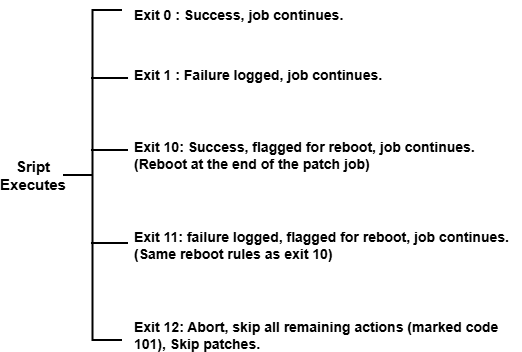
Exit Code Flowchart
The following figure illustrates the flow of the flow of the exit codes while script execution.
Reboot Behavior Summary
The following is the reboot behavior summary:
- Single reboot: Regardless of how many actions request a reboot (exit code 10 or 11), the system performs only one reboot.
- Deferred until job completion: The reboot occurs only after all actions and patch installations are complete.
- Post-actions cannot trigger reboot: Reboot requests from Post Actions are ignored. Only Pre Actions and patch installations can trigger a reboot.
Best Practices
- Use exit codes 0 and 1 for standard success and failure results.
Always return an explicit exit code from your scripts. Do not rely on the shell’s default behavior, as it can produce inconsistent results. - Use exit code 12 only for critical failures.
Exit code 12 aborts the entire job. Use it only when continuing the job could negatively impact the endpoint. - Use exit code 101 for conditional execution.
Perform a quick check at the beginning of the script and exit with code 101 if the action is not required. This keeps scripts simple and avoids unnecessary execution. - Plan reboot-dependent actions carefully.
Reboots occur only at the end of the job. If an action depends on a reboot, place it in a separate job instead of the same job sequence. -
Keep scripts idempotent.
Jobs may run again during retries. Ensure your scripts can execute multiple times without causing issues or duplicate changes. - Test scripts before production deployment.
Validate scripts and exit code behavior on a representative set of endpoints before using them in production patch jobs. You can also use the Linked Job feature in Patch Management to first deploy and test jobs, including scripts, on a staging asset group. After the linked job succeeds, the main job automatically runs on production assets, enabling a safer phased roll out.
Additional Examples
Windows Pre Action: Disk Space CheckWindows Pre Action: Disk Space Check
PowerShell (Windows)
# Check if the system drive has at least 5 GB free
$freeSpaceGB = (Get-PSDrive -Name C).Free / 1GB

if ($freeSpaceGB -lt 5) {
    Write-Output "CRITICAL: Only $([math]::Round($freeSpaceGB,2)) GB free on C:. Aborting job."
    exit 12
}

Write-Output "Disk space check passed. $([math]::Round($freeSpaceGB,2)) GB available."
exit 0
Linux Pre Action: Stop Application Before PatchingLinux Pre Action: Stop Application Before Patching
Shell (Linux)
#!/bin/bash
# Stop the application service before patching
systemctl stop myapp.service

if [ $? -eq 0 ]; then
    echo "Service myapp stopped successfully."
    exit 0
else
    echo "Failed to stop myapp service. Aborting job."
    exit 12
fi
Linux Pre Action: Conditional SkipLinux Pre Action: Conditional Skip
Shell (Linux)
#!/bin/bash
# Skip if the required package is already at the desired version
CURRENT_VERSION=$(rpm -q targetpkg --qf '%{VERSION}')
DESIRED_VERSION="2.4.1"

if [ "$CURRENT_VERSION" == "$DESIRED_VERSION" ]; then
    echo "targetpkg is already at version $DESIRED_VERSION. Skipping."
    exit 101
fi

# Perform prerequisite installation
yum install -y targetpkg-prerequisite
if [ $? -eq 0 ]; then
    echo "Prerequisite installed. Reboot required."
    exit 10
else
    echo "Prerequisite installation failed."
    exit 1
fi
macOS Post Action: Notify UsermacOS Post Action: Notify User
AppleScript (macOS)
#!/bin/bash
# Display a notification to the logged-in user after patching
osascript -e 'display notification "Patch deployment complete. Please save your work." with title "IT Patch Management"'

if [ $? -eq 0 ]; then
    exit 0
else
    exit 1
fi