Patch Management Release 3.13
March 29, 2026
AI-Assisted Patch Job Creation with AI Agents 
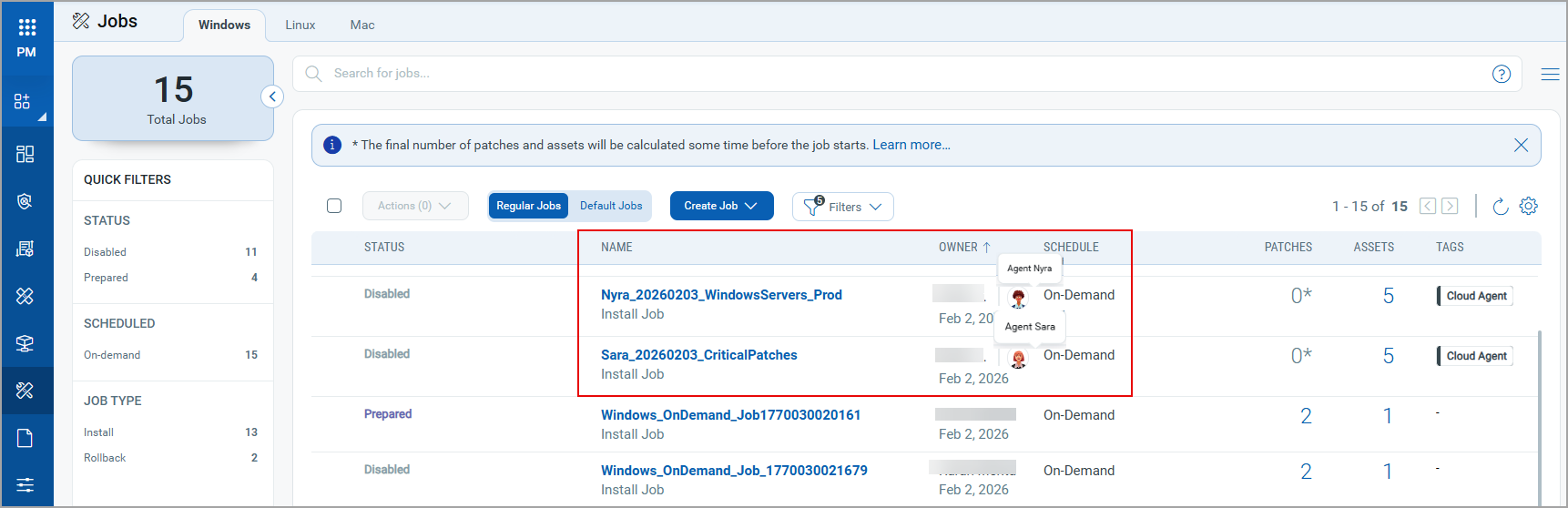
We have introduced an advanced Agentic AI capability where the AI agents Sara and Nyra automatically create tag-based patch deployment jobs in the Enterprise Management (ETM) application. These jobs are listed directly on the Patch Management (PM) Job listing page. This enhancement reduces manual effort and helps you accelerate patch deployment.
The AI agents create the following types of jobs:
- Agent Nyra: Creates On-Demand jobs for Windows, Linux and Mac platforms.
- Agent Sara: Creates only On-Demand jobs Patch Tuesday for Windows platform.
This feature works with Enterprise Management (ETM) version 1.6.1.0.
The following image highlights the patch jobs created by the Agents Nyra and Sara.
Support for Vendor-Acquired MacOS Patches
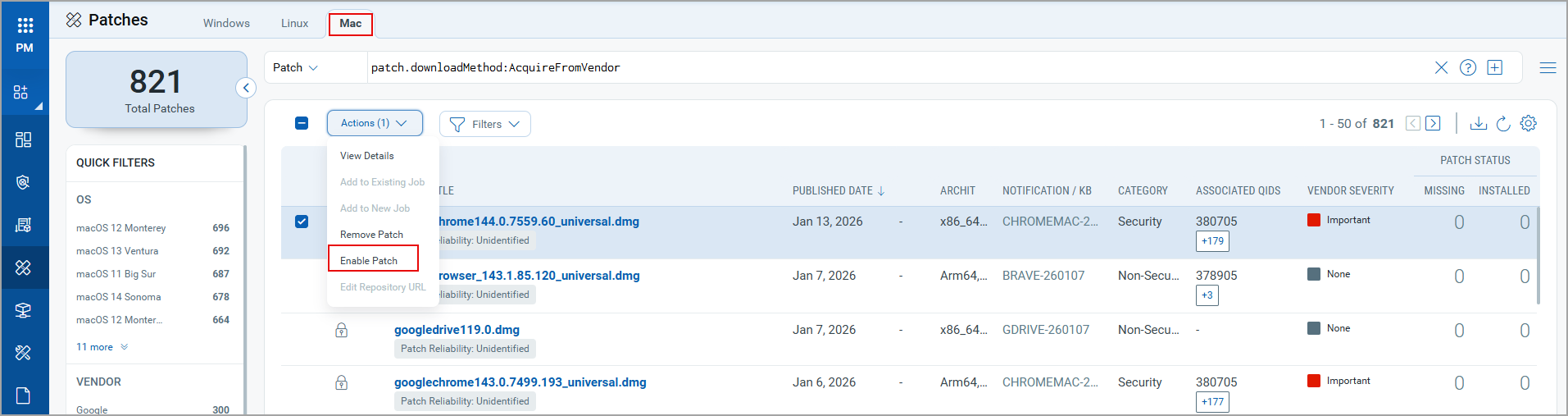
You can now enable macOS patches acquired from vendors and include them in your deployment jobs. This enhancement extends the patching support for the macOS assets. You can also configure the repository URL that the Cloud Agent can use to download the required patch binaries for deployment.
The following image highlights the new option Enable Patch for the macOS patches that are vendor acquired.
Simplified Sharing of Elimination Views 

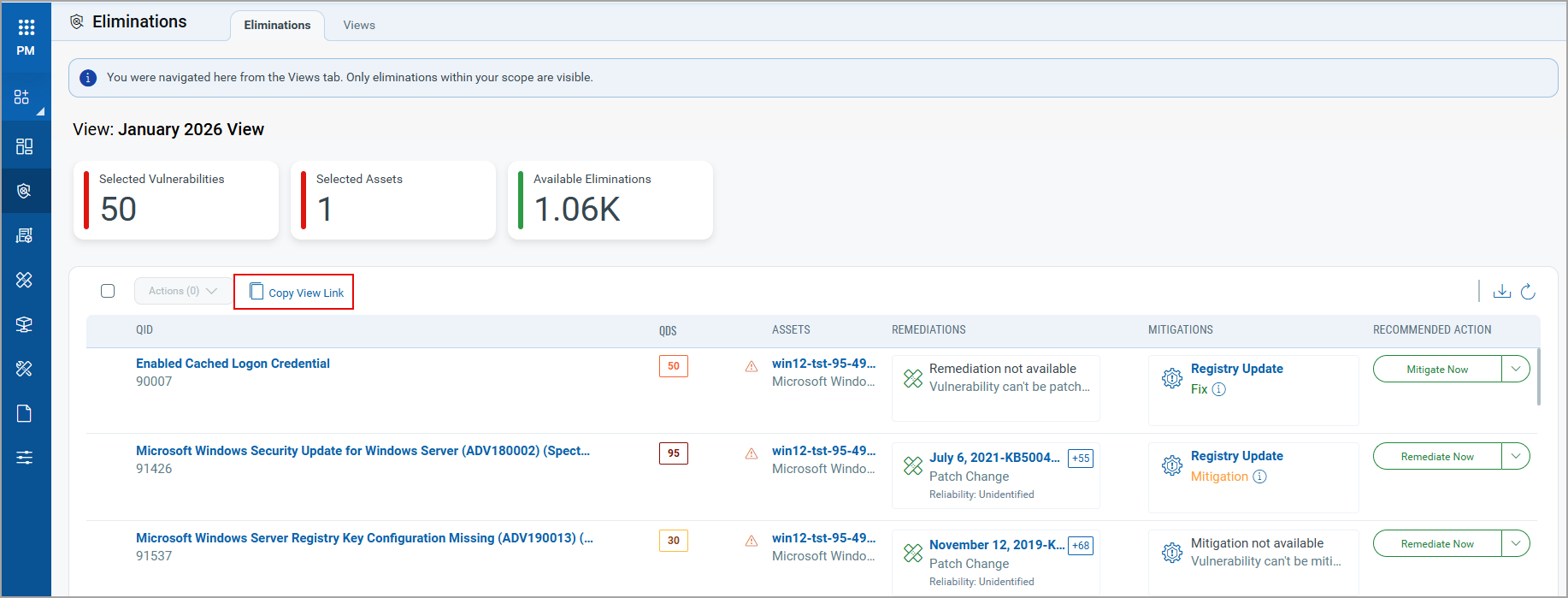
You can now prioritize the vulnerabilities and quickly copy and share an Elimination View using a direct link. This link can be used in your email communication to IT Ops team, automation orchestration or in an ITSM or any ticketing system for tracking purposes. This makes collaboration with assigned users easy and provides instant access to the exact view details without any extra navigation.
On the Views tab, select and open the required view. The details of the view are visible on the Eliminations tab with the new Copy View Link option. The view details page displays the list of QIDs included in the view.
Report Enhancements
We have now introduced the following enhancements for reports generated from various tabs:
IPv6 Address Visibility
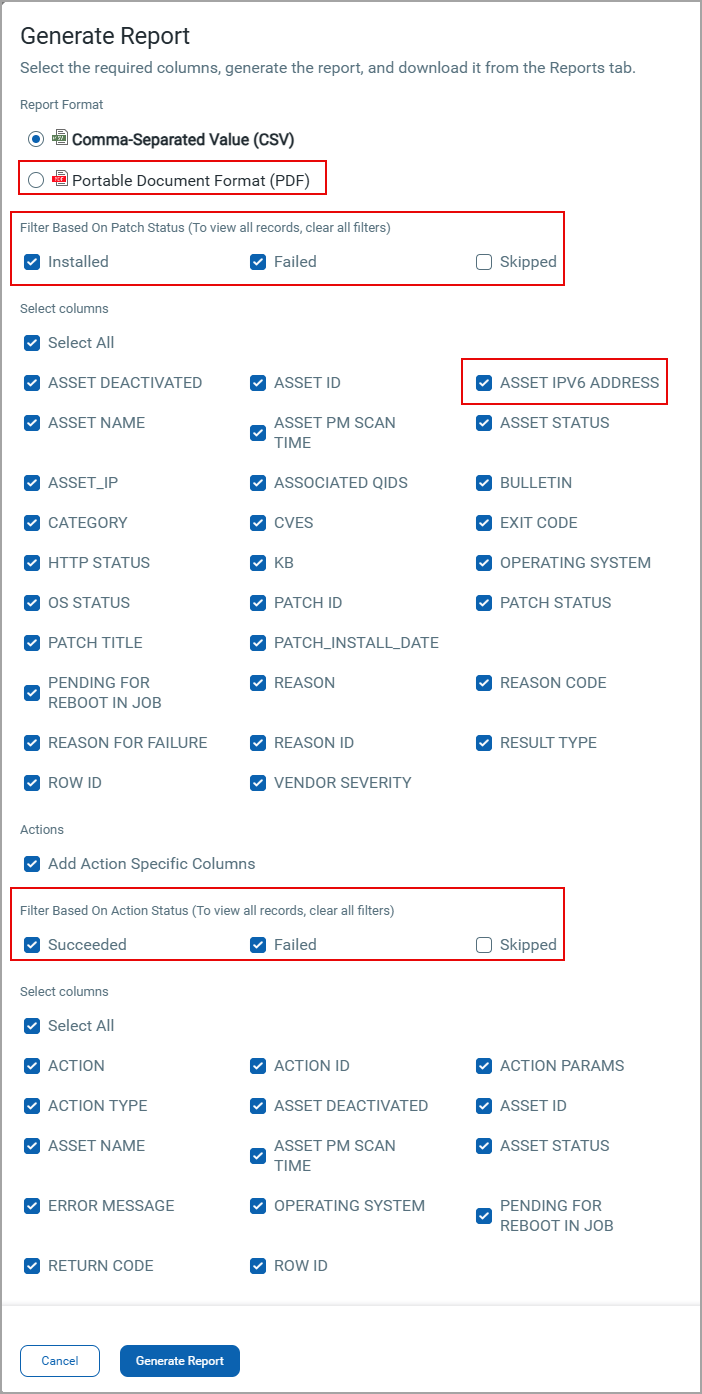
You can now add the Asset IPv6 Address column to reports, making it easier to identify and track assets in IPv6 environments. This enhancement applies to Patch, Mitigation and Isolation reports and is available for Assets, Job Progress, and Aggregated Job Progress tabs for Windows, Mac and Linux platforms.
In addition, Assets report and Mitigation Job Progress report now also include the IPv4 address (ASSET IP) column for improved visibility of network details.
PDF Report
You can now download the reports in PDF format. This enhancement applies to Job Progress, Patches, Assets, Asset Compliance, Aggregated Jobs, Deployment Result GroupBy Status, Mitigation Job Progress, Isolation Job Progress, and Patch Deployment Result reports.
PDF reports support the selection of up to 5 columns for optimal readability.
The following image highlights the new PDF format for report download and the newly added IPV6 Address column.
Patch and Action Filters
You can now use Patch and Action filters to customize Job Progress and Job Aggregated reports for Windows, Linux and Mac platforms. The filters include:
- Patch Status filter: View Installed and Failed patches.
- Action Status filter: View Succeeded and Failed actions.
The report dynamically displays results based on the selected filters. If no filters are selected, by default, all rows are included.
Support for Large Software Installer File Uploads
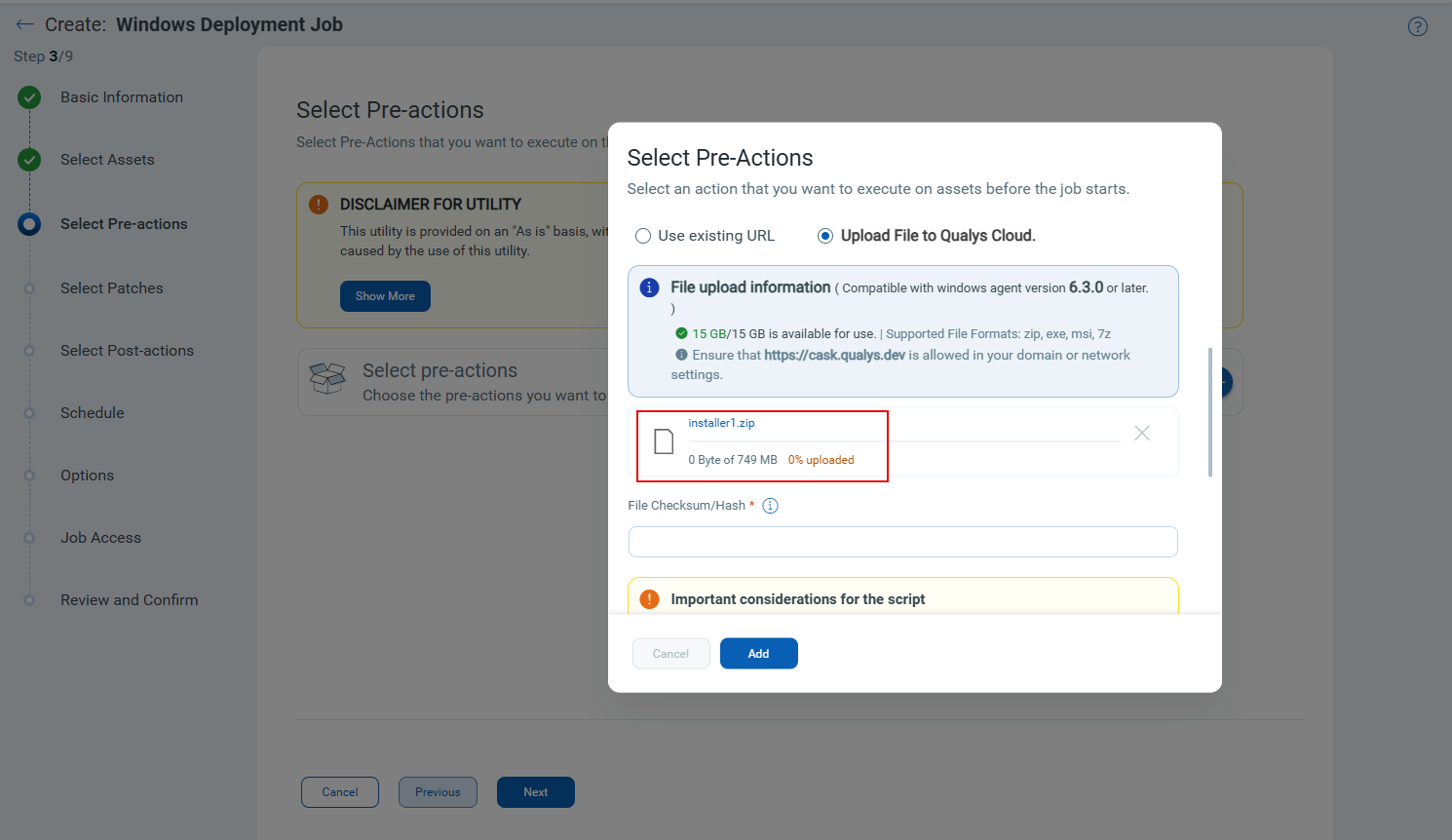
The previous 500 MB limit on uploading software files to Qualys Cloud storage has been removed. You can now upload larger software installer files using the Upload File to Qualys Cloud option when creating patch jobs with Install Software pre- or post-actions, and when enabling vendor-acquired patches.
For files larger than 500 MB size, you must manually enter the file checksum value, as it is not generated automatically.
Add Assets to Mitigation Job from VMDR
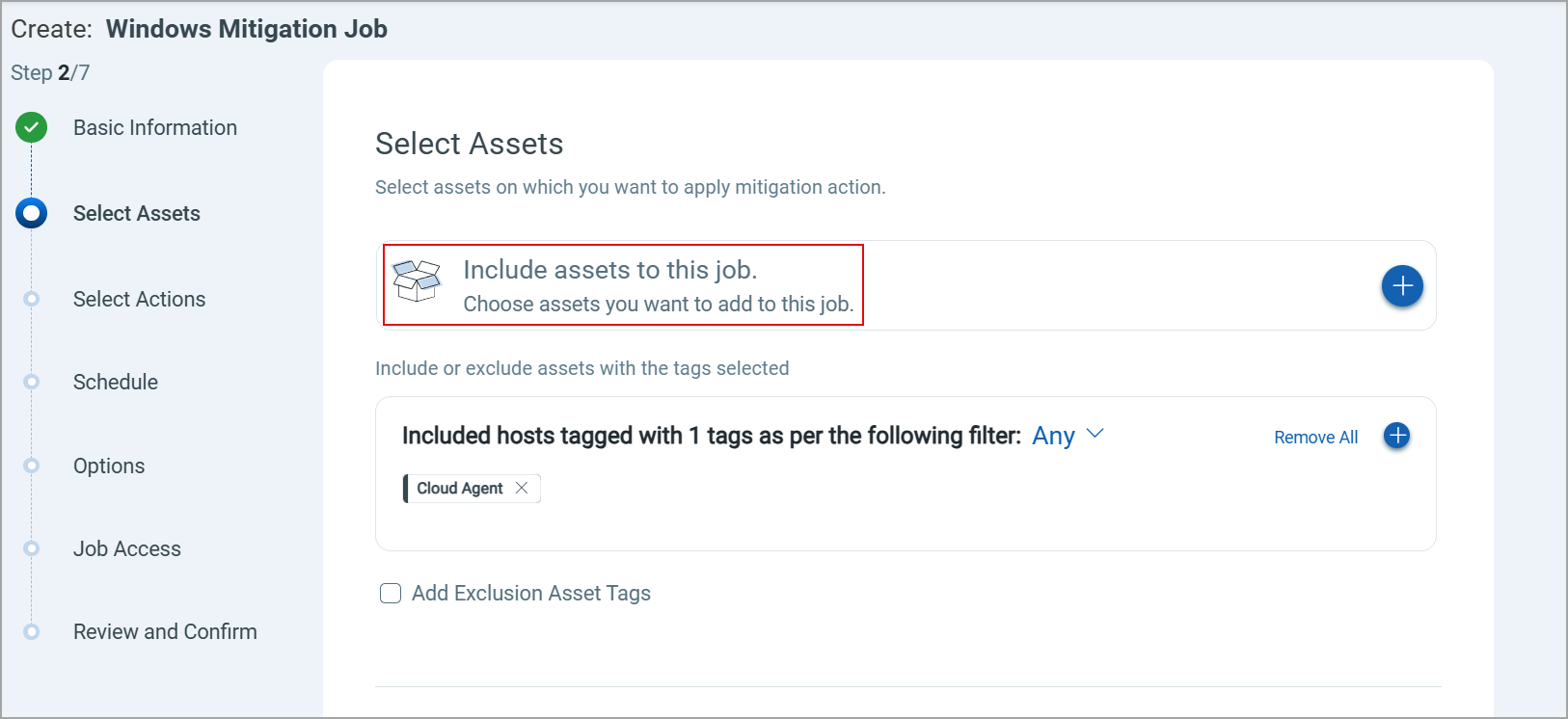
You can now add mitigation enabled assets when creating a mitigation job from the VMDR > Prioritization tab. This enhancement allows you to include individual assets to the mitigation job, providing more flexibility and control over the job creation. Earlier, you could include only asset tags in the mitigation job.
Extended Randomized Download Time
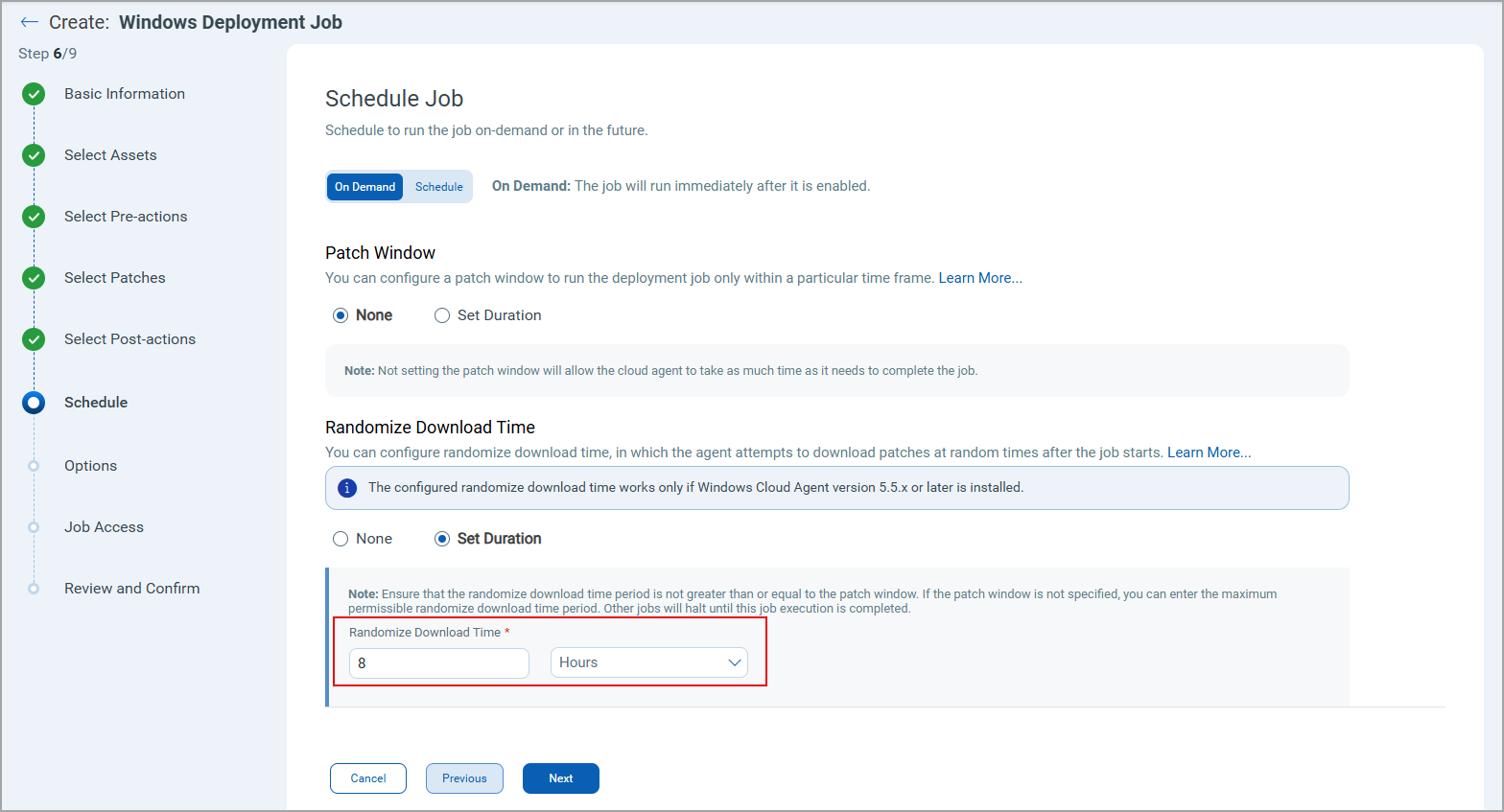
The patch download start time window has been extended from 2 to 8 hours, allowing better distribution of patch download schedules across large asset deployments. This enhancement prevents network congestion by staggering download start times, ensuring optimal bandwidth utilization when numerous assets download patches simultaneously. It also allows Cloud Agent to download patches over a longer interval, making it suitable for patch jobs that deploy a large number of patches.
To set this value, while creating a Windows deployment job, navigate to the Schedule tab, and under Randomize Download Time, select the Set Duration option and enter the value.
Support Added for Linux OS
We have now support patching for the following versions of Linux Operating system:
- Support patching for Ubuntu 24.10, 25.04, RHEL 10 and OEL 10 assets with ARM architecture.
- Support patching, mitigation, isolation, patch rollback, mitigation rollback, isolation rollback and NSU for Oracle Enterprise Linux 10.x assets.
Auto-Validation and Extended Limits for Deployment Job Co-Authors
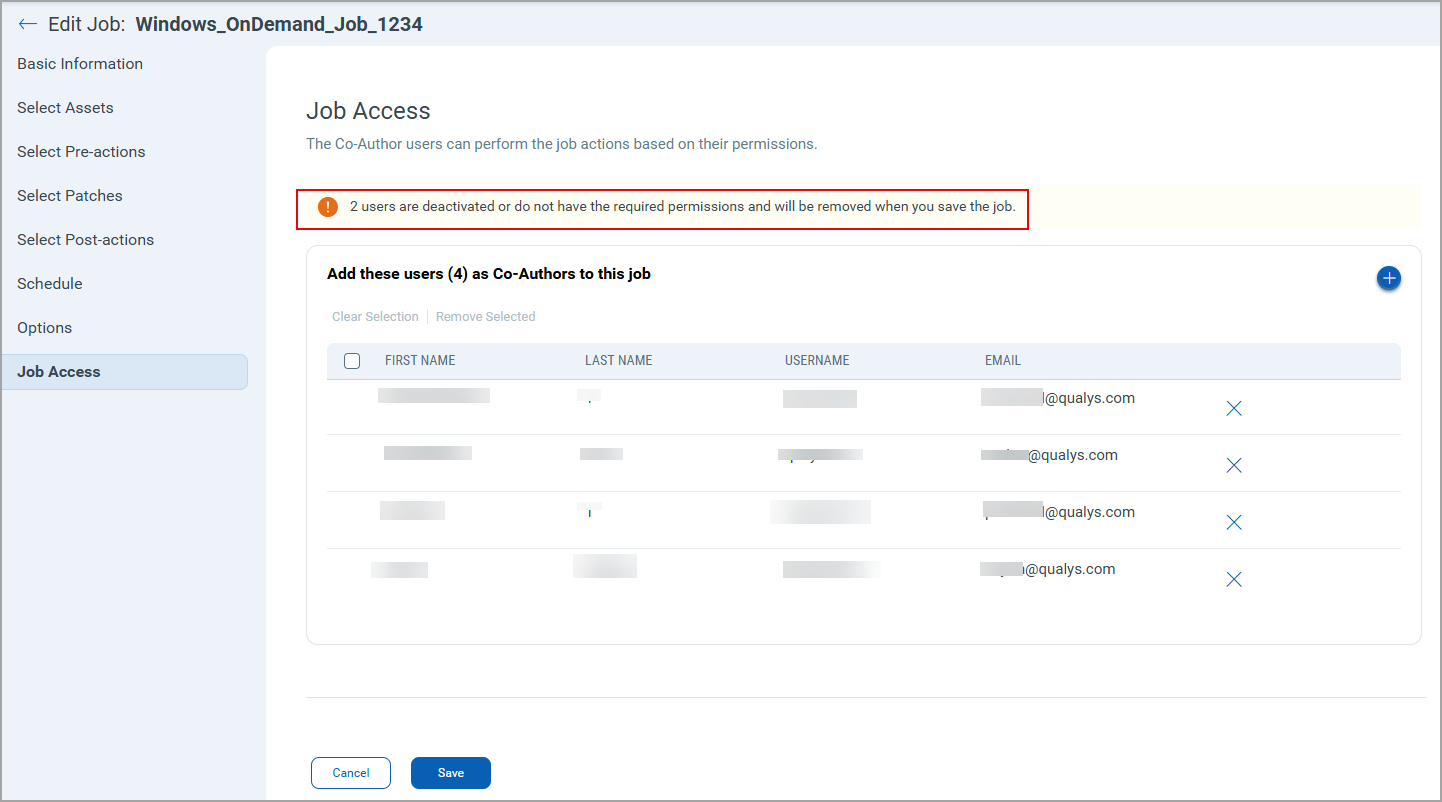
When a deployment job is saved, automatic validation is performed to ensure that only active users and users with appropriate permissions are added as co-authors. Any deactivated users or users without appropriate permissions are removed.
You can now add up to 200 co-authors per deployment job. This validation and limit apply to Windows, Linux, and macOS platforms.
Interim Patch Counts for Linux Job
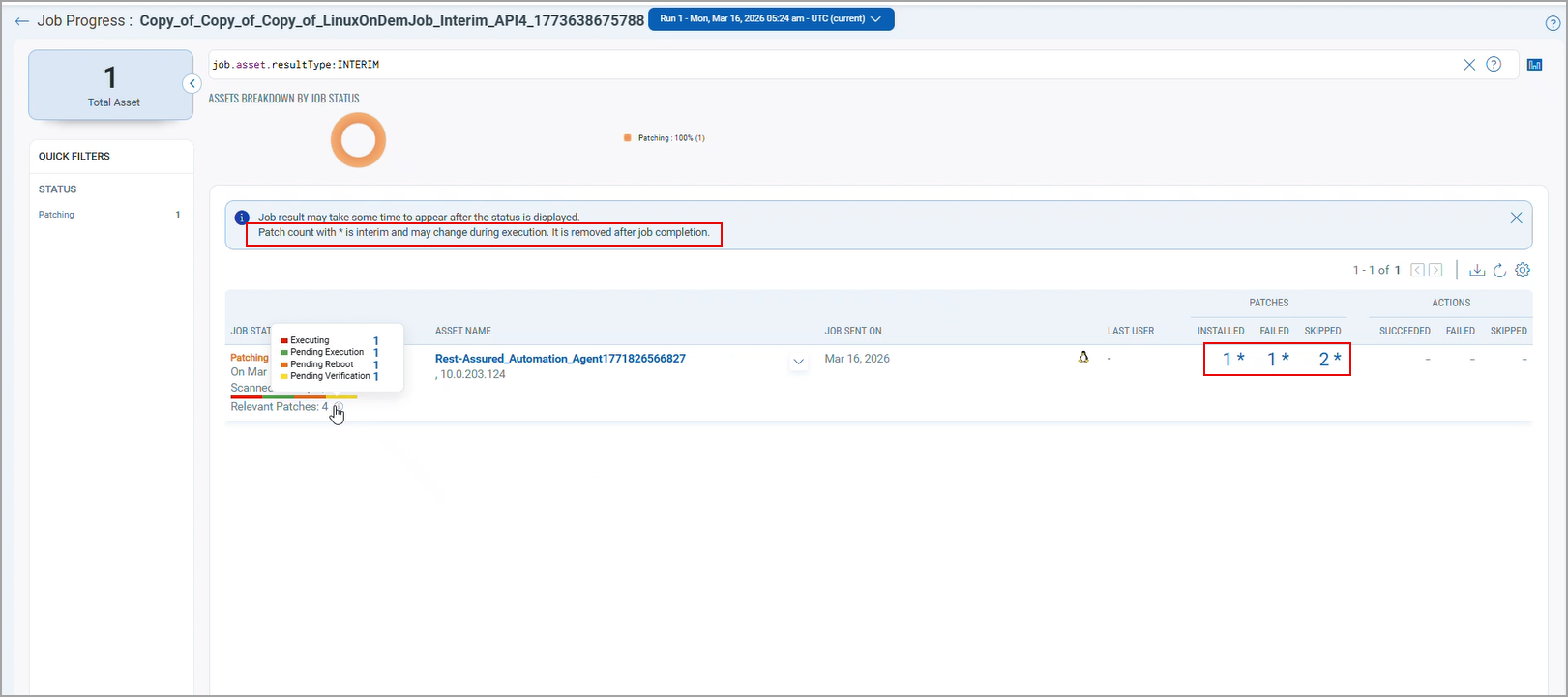
You can now view the patch count for Linux jobs during execution on the Job Progress page. The number of Installed, Skipped and Failed patches are marked with an asterisk (*) to indicate that the count is interim and may change as the job progresses.
Once the job execution is complete, the asterisk symbol is removed and final patch counts are displayed. The interim message Patch count with * is interim and may change during execution, it is removed after job completion is also removed from the Job Progress page.
Previously, patch counts were not available during job execution. With this enhancement, you can monitor patch job progress throughout the job life cycle. Even after execution completes, you can continue to view patch counts for assets awaiting reboot. After the reboot is completed, the job status finally updates to Completed or Completed with Failure.
You can use the job.asset.resultType:INTERIM QQL token to filter the interim job results on the Job Progress and Aggregated Job Progress page.
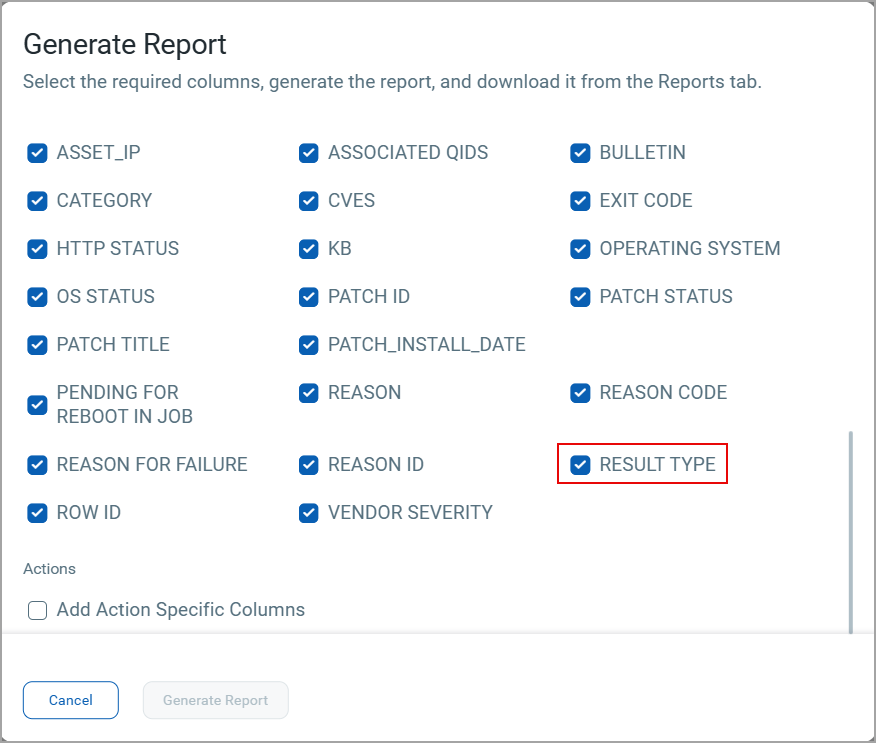
We have introduced a new column Result Type, to display the type of result: Final or Interim in the Job Progress report.
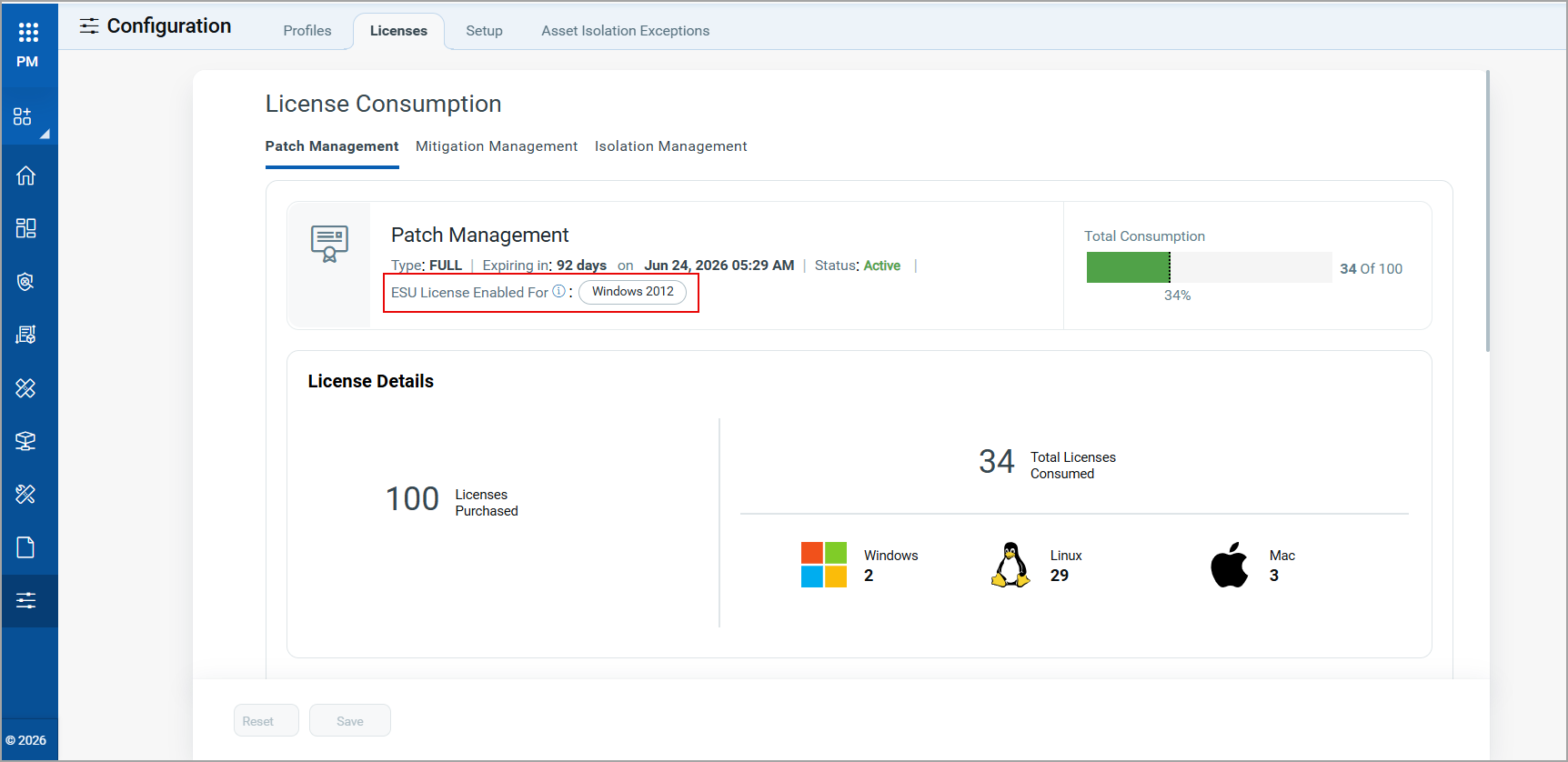
Version-Specific ESU Licensing for Windows Patching
The Extended Security Update (ESU) licenses are now aligned with specific Windows operating system versions, replacing the previous generic ESU license model. This allows you to purchase and apply ESU licenses tailored to the required Windows version. You can view the ESU OS version on the Patch Details page.
- If a patch added to a deployment job is not enabled for the required ESU version, an informational message is shown on the Job Progress > Patches for Job page.
- We support ESU licensing for Windows 2012 and later versions. For ESU support, you must purchase a separate ESU license from Qualys.
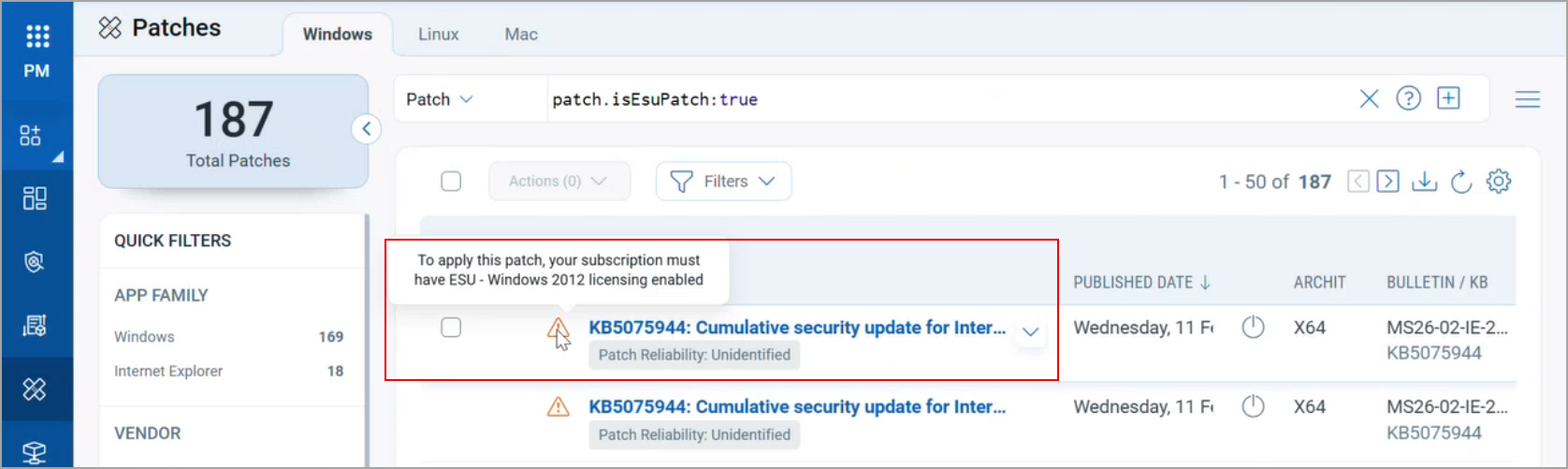
You can use the patch.esuOsVersion QQL token to identify patches applicable for ESU patching for the specified Windows version. Additionally, the Patch listings page displays an informational message indicating the required ESU version for each relevant ESU patch as displayed in the following message.
New QQL Tokens
Refer to the following table to learn more about the new and updated tokens in this release.
| Tab | Token (New) | Usage |
|---|---|---|
|
job.owner.fullName |
To find the jobs that has specified job owner full name. |
|
job.owner.userName | To find the jobs that has specified job owner user name. |
|
patch.esuOsVersion | To find the ESU patches that are applicable for the specified Windows version. |
|
job.asset.resultType | To find the job results for each asset in the patch job as per the specified result type. |
Issues Addressed
The following reported and notable customer issues are fixed in this release.
| Component/Category | Description |
|---|---|
| PM - Job Linux | An issue was observed in which the Linux patch jobs were stuck in Pending status. This issue is now fixed and the jobs are no more stuck in Pending state. |
| PM Job Windows | An issue was observed in which the job failed to be sent to the Cloud Agent. This issue is now fixed, and the job is sent to Agent on correct time. |
| PM - UI | The Assets tab incorrectly displayed multiple IP addresses for assets. This issue has been fixed, and we now display only single IPv4 address for those assets. |
| PM - UI | An issue where the UI was slow to respond when entering text in the Name and Description fields during report generation has been resolved. |
| PM - Job Windows | An issue where users without the required permission could save and enable a patch deployment job has been fixed. Now, only users with the permission to enable the job can enable jobs. |
| PM - Job Windows | Previously, there was no limit on the number of co-authors in a deployment job. Each deployment job can now include up to 200 co-authors, restricted to active users. |
API Release Updates
For more details on the API updates for this release, see Patch Management API Release 3.13.