TruRisk™ Eliminate Release 4.2.1
October 12, 2026
This release introduces Agent Sara recommended remediation waves, which roll out patches from a risk elimination plan either as patch automation jobs or in phases, from a lab ring through ring jobs (Lab > Staging > Production). It also lets you mitigate findings to reduce risk on assets where a patch is not available or cannot be deployed yet due to low reliability.
New Feature
With Agent Sara, Remediate Smarter, and Roll Out in Phased Rings
What's New for You
You now receive AI-prioritized suggested remediation waves that tell you what to fix first.
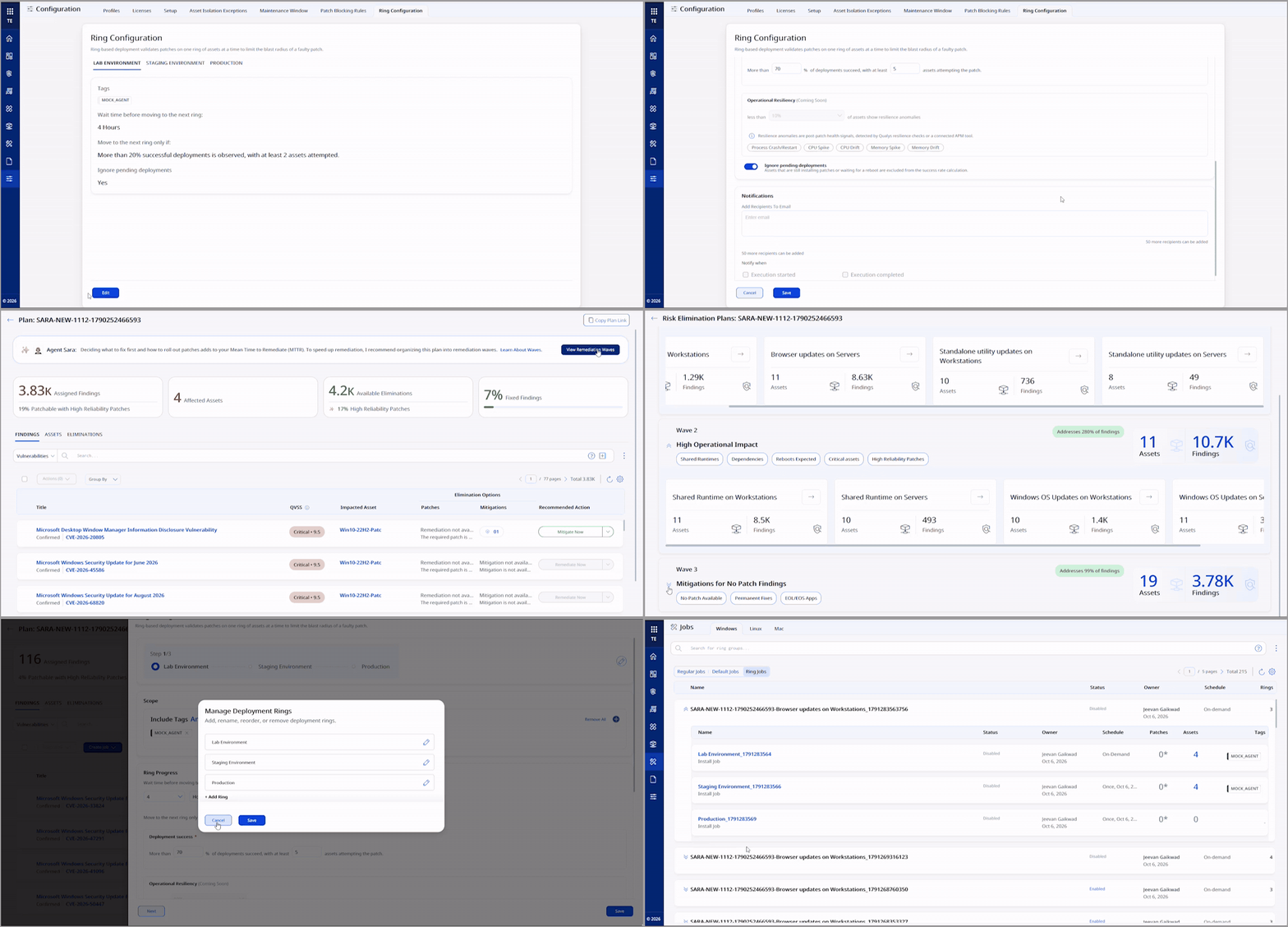
Agent Sara analyzes the findings in your risk elimination plans, groups them into waves by operational impact, and then splits each wave into sub-waves by asset type, operating system, and application category, such as browser updates on workstations. These waves and sub-waves use ready-made criteria, so you do not have to build queries yourself.
From any sub-wave, you can create a patch automation job or a ring job. The ring job deploys patches in stages (Lab > Staging > Production), with each ring executing only after the previous ring meets your success criteria, so a faulty patch stops before it reaches production. For more information, see Risk Remediation Using Agent Sara Waves.
Key Benefits
- Know What to Fix First: Agent Sara prioritizes plan findings into waves and sub-waves based on operational impact. This categorization helps you decide which findings to fix on priority.
- Accelerate Remediation Planning: Reduce manual effort by turning security insights into ready-to-execute remediation recommendations.
- Automated Deployment with Controlled Progression: Use ring jobs to validate remediation on smaller asset groups before expanding deployment. The rollout advances to the next ring only after the current ring meets your success criteria.
- Configure Once, Reuse Across Jobs: Define ring configuration once, then reuse and tailor it across Agent Sara-recommended jobs as needed.
View Remediation Waves and Sub-Waves
Navigate to Eliminations > Risk Elimination Plan, open a plan, and select View Remediation Waves for Overall Plan. Each wave shows the percentage of plan findings it addresses, and the sub-waves are listed below each wave.
| Wave | Focus |
|---|---|
| Wave 1: Low Operational Impact | Browsers, standalone utilities, and low-risk apps, where no reboots or outages are expected. |
| Wave 2: High Operational Impact | Shared runtimes and dependencies on critical assets, where reboots are expected. |
| Wave 3: Mitigations for No Patch Findings | Findings with no patch available, including end-of-life and end-of-support (EOL/EOS) apps. You can create a Mitigation job to fix these findings. |
Roll Out Patches with Ring Jobs
A ring job deploys patches in a sub-wave across an ordered sequence of rings, such as Lab Environment > Staging Environment > Production. TruRisk™ Eliminate creates one ring job for each ring. Each later ring starts after the waiting time you set, and only if the previous ring meets its success criteria and minimum asset threshold.
- Set up your rings: In Configuration > Ring Configuration, define your rings, assign assets to each ring by tag, the waiting time between rings, the success criteria, and email notifications. Set the global configuration before you create a ring job. You can edit and override it for an individual job.
- Create a ring job: On a sub-wave, select Create Job > Create Ring Job, and run the job on demand, once, or on a recurring schedule.
- Enable the ring jobs: Ring jobs are created in a disabled state and appear in the new Ring Jobs tab on the Jobs page. Enable all ring jobs at once or one at a time.
- Send ring jobs for approval: If the Job Approval Workflow is turned on in Configuration > Setup, send the whole ring group or individual ring jobs for approval. Ring jobs stay disabled in Pending Approval until they are approved, and each decision is recorded in Job Approval History.
- Edit ring jobs: Pre-actions and post-actions you add to the first ring (Lab environment) apply to all later ring jobs. You can add, Edit, or remove the maintenance window only in the Production ring job. You can edit On-Demand and Run Once ring jobs only while they're disabled, and recurring ring jobs at any time.
Permissions
A new Eliminate Ring Job Config Manager permission lets you create, update, and delete the global ring configuration in Configuration > Ring Configuration. This permission is assigned to the Patch Manager role by default.
To create ring jobs, you also need your existing permissions to create patch deployment jobs. For more information, see User Roles and Permissions.
- Ring jobs are supported on Windows platform. Remediation waves also suggest mitigations for Windows and Linux assets.
- You can create ring jobs from a sub-wave, not from a whole wave.
- You can define up to ten rings. Lab Environment always runs first, and Production always runs last.
- You can add a maintenance window only to the Production ring job.
Enhancement
Mitigate ETM Plan Findings to Reduce Risk When No Patch Is Available
What Changed For You
You can now mitigate findings in risk elimination plans in Enterprise TruRisk™ Management (ETM). This reduces risk when a patch is not available or cannot be deployed.
Mitigation reduces the risk posed by a vulnerability without installing a patch (for example, by stopping a vulnerable service).
Previously, the ETM integration let you eliminate plan findings only through patching. Now, when a mitigation is available for a finding, you can apply it from TruRisk™ Eliminate with Mitigate Now.
You can mitigate findings in two ways:
- From an ETM-sourced risk elimination plan in TruRisk™, Eliminate: Mitigate one finding, or many findings across many assets, in a single job.
- From the Findings list in ETM: Mitigate a single finding without opening a plan.
For more information, see Prioritize and Remediate Risks from ETM and Create Mitigation Job.
Key Benefits
- Reduce Risk When No Patch Is Available: Apply a mitigation, such as stopping a vulnerable service, to findings where a patch does not exist or cannot be deployed yet.
- Act on the Plan Your SecOps Team Prioritized: Mitigate findings directly from the ETM plan assigned to you. The job starts with the assets from your selected findings, so you do not have to rebuild the scope.
- Find Mitigable Findings Easily: Quickly see which findings you can mitigate with a single QQL token. The Recommended Action column shows Mitigate Now when mitigation is the available fix. Mitigate many findings across multiple assets in one job from a plan or address a single finding from the ETM Findings list.
- Stay in Control of Every Mitigation: Start with the recommended mitigation or choose another, exclude assets, add co-authors, and track results on the job progress page.
Mitigate Findings Directly from Your ETM Risk Elimination Plan
Risk Elimination Plans that your SecOps team creates in ETM and hands off to IT Ops appear in TruRisk™ Eliminate under Eliminations > Risk Elimination Plan. Use the Source filter to show only plans from ETM.
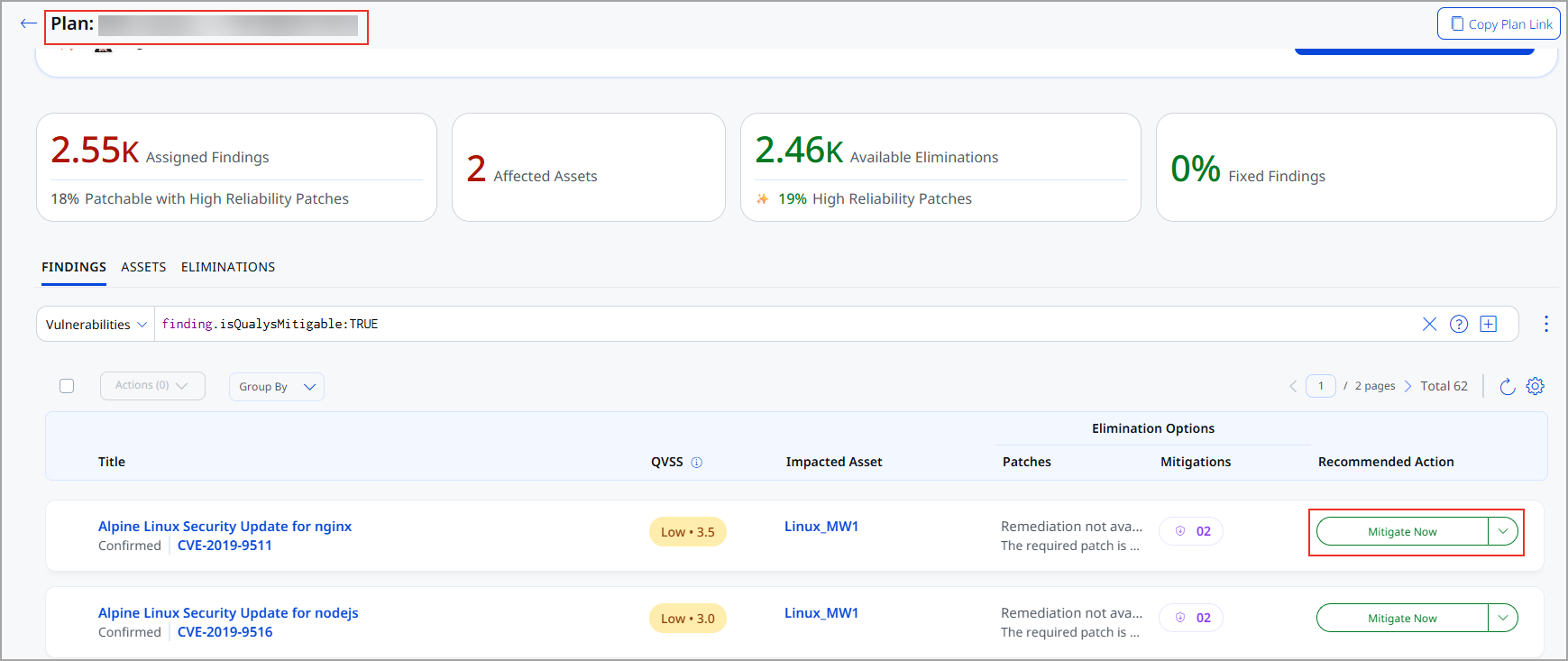
Open a plan to see its Assigned Findings, Affected Assets, Available Eliminations, and Fixed Findings. On the Findings tab, the Elimination Options columns show the patches and mitigations available for each finding, and the Recommended Action column suggests the next step.
To show only the findings that have a mitigation available, search the Findings tab with this QQL token:
finding.isQualysMitigable:TRUE
For these findings, the Recommended Action shows Mitigate Now when a patch is not available. The Mitigations column shows how many mitigations are available. When a finding has no patch and no configuration change, Patch Now is unavailable, and Mitigate Now is your option.
Select Mitigate Now for a finding or select several findings to mitigate them in one job. The job contains assets from your selected findings and the recommended mitigation for each CVE.
You can also mitigate a single finding directly from the ETM Findings list with Mitigate Now in the finding's Elimination Options. Open the Job Progress page to see the mitigation status of each asset in the job.
Token
New QQL Tokens
Refer to the following table to learn more about the new tokens in this release.
| Tab | Token (New) | Usage |
|---|---|---|
| Jobs > Windows tab | ring.createdDate | To find the ring groups created on the specified date. |
| ring.group.id | To find a ring group by group ID. | |
| ring.group.jobId | To find a ring job under a ring group. | |
| ring.group.name | To find a ring group by name. | |
| ring.group.owner.fullName | To find ring jobs that have the specified job owner's full name. | |
| ring.group.userName | To find ring jobs with the specified job owner username. | |
| ring.group.scheduleType | To find ring jobs as per schedule type (On-demand, Once, Daily, Weekly). | |
|
operatingSystem.category | To find the assets with the full operating system category, that is combination of category 1 and 2. For example, Windows/Server. |
| operatingSystem.category1 | To find the asset with the operating system category 1 value. Category 1 is for Windows, Linux, and Mac platforms. | |
| operatingSystem.category2 | To find the asset with the operating system category 2 value. Category 2 values are client or servers. | |
| Jobs > Windows > Job Creation > Patches > Automated Patch Selection > Add Vulnerability QQL | Findings tokens. To see the complete list of tokens, refer to Findings tokens. | To find the vulnerabilities based on various parameters. |
Fix
Issues Addressed
The following reported and notable customer issues are fixed in this release.
| Component/Category | Description |
|---|---|
| MTG - Job Windows | An issue occurred in which mitigation jobs failed because the mitigation signature was not found.
The issue is now resolved and the mitigation jobs complete successfully. |
| PM - Job Windows | An issue occurred in vendor-acquired patches enabled through Qualys Cloud, which were failing to install.
This issue is now resolved, and the vendor-acquired patches enabled through Qualys Cloud are deployed successfully. |