TruRisk™ Eliminate Release 4.3
November 20, 2026
This release lets you create ring-based deployment jobs from the Jobs page, track patch SLA compliance, check patch and mitigation availability for any CVE, patch macOS 27 assets, and align automated Windows jobs with Patch Tuesday.
Enhancement
Create Ring-Based Deployment Jobs from the Jobs Page
What Changed For You
You can now create ring-based deployment jobs directly from the Jobs page for Windows, Linux, and Mac assets, and target individual assets as well as tags in each ring.
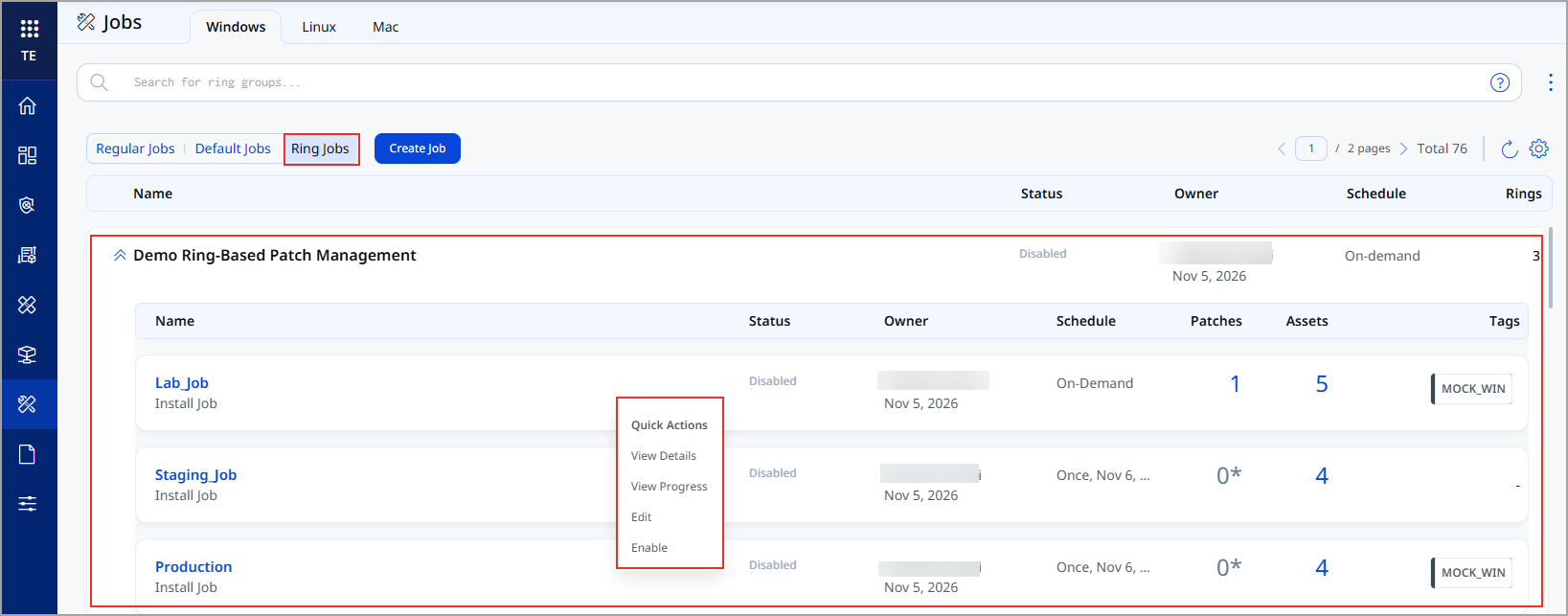
With the ring deployment jobs, you can now deploy patches in phases rather than across all assets at once. The rollout advances to the next ring only when the current ring meets both the configured success criteria and minimum asset threshold, helping prevent faulty patches from reaching production.
You can now create these ring jobs from the Jobs page for Windows, Linux, and Mac assets. You can now add specific assets to a ring, in addition to tags. Earlier, you could create ring jobs only from Agent Sara remediation sub-waves, and only for Windows.
To create a ring-based job, go to Jobs > Ring Jobs and click Create Job. The job uses the rings from your global ring configuration, and you can add more rings. Navigate to Configuration > Ring Configuration tab to set up the global ring configuration.
TruRisk™ Eliminate creates ring jobs that are grouped under the job title on the Ring Jobs tab. Ring jobs follow the existing job approval workflow, and require the ring job permissions.
Limits:
- A ring-based job must have 3 to 10 rings.
- Each ring must have atleast one tag or one asset, or both. You can add up to 200 tags or 200 assets to a ring.
- You can set the wait time between rings to 4-23 hours or 1–6 days.
- You can run the job on demand, or run-once or on a weekly or monthly schedule.
- Ring names can have up to 53 characters and can contain letters, numbers, spaces, hyphens (-), and underscores (_).
Enhancement
Overview and Operational Status Page Enhancements
What Changed For You
You can now track patch SLA compliance, look up patch and mitigation availability for any CVE, and see deployment success rates that ignore failed retries, all from the Overview and Operational Status pages.
New Feature
Track Patch SLA Compliance and Catch Violations Early with Custom SLA Criteria
What's New for You
You can now define your own patch SLA criteria and see which patches and assets violate, or are about to violate, your patching SLAs.
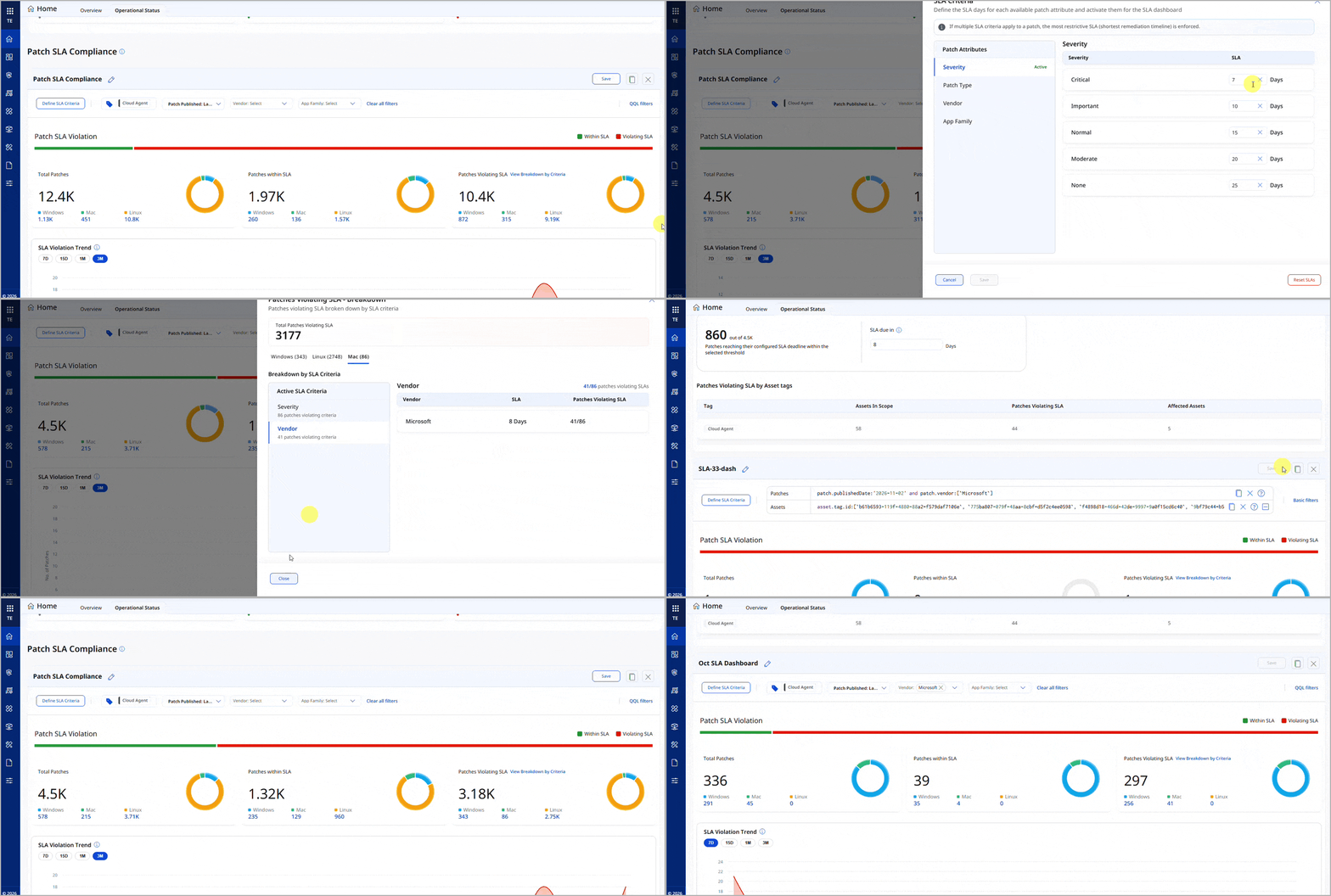
Monitor patch SLA compliance and identify patches and assets that need attention. The Operational Status page has a new Patch SLA Compliance section that shows how well you meet your patching service-level agreements (SLAs). The SLA countdown begins with the patch published date.
- Patch SLA Violation: View the total number of patches, the patches within SLA, and the patches violating SLA. Click View Breakdown by Criteria to see SLA violations on each platform, grouped by your active SLA criteria. For example, see how many Critical patches missed their 7-day SLA.
- SLA Violation Trend: View the number of patches that crossed their SLA deadline in each interval of the selected time frame: 7 days, 15 days, 1 month, or 3 months. Each point shows only the new violations from the previous point, and only patches still missing on an in-scope asset are counted.
- Affected Assets: View the number of assets missing at least one patch that violates SLA, broken down by servers and workstations and by platform.
- Patches Approaching SLA: View the patches that reach their SLA deadline within the number of days you enter in SLA due in, so you can fix them before they violate SLA.
- Patches Violating SLA by Asset Tags: For each selected asset tag, view the number of inscope assets, patches violating SLA, and affected assets.
Click a count to go to the related patches or assets. Narrow the data with basic filters, such as tags, patch published date, vendor, and app family, or switch to QQL filters to enter patch and asset QQL queries.
To set up your SLAs, click Define SLA Criteria and choose the criteria you want to use: severity, patch type, vendor, or app family. For each criterion, enter the number of days a patch has to be deployed. For example, you can give all Apple patches 20 days.
If a patch matches more than one criterion, it gets the shortest SLA. For example, say you set:
- 10 days for a vendor
- 5 days for Critical severity
A Critical patch from that vendor then has a 5-day SLA, because 5 days is shorter than 10.
Default criteria are provided, and you can reset to them at any time. Your criteria and queries are saved to your user account.
Create multiple SLA views to track compliance across different sets of patches and assets. Click the clone icon on the Patch SLA Compliance section to copy it, rename the copy with the edit icon, and change its filters and SLA criteria. For example, create a view for Microsoft patches published in the last 90 days on assets with specific tags. You can have up to five SLA views. Click Save to retain your changes. Your views, filters, and SLA criteria are saved for your user account.
New Feature
Instantly Check Patch or Mitigation Availability for Any CVE
What's New for You
You can now decide how to respond to a CVE faster, with its severity details, patch and mitigation availability, and affected asset counts in one place.
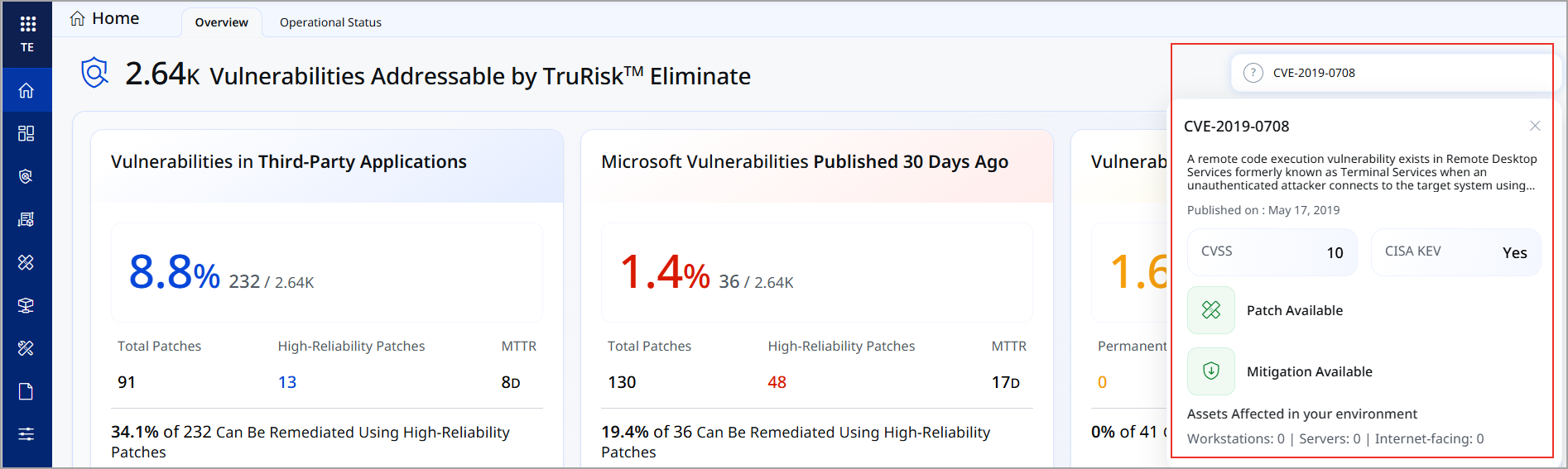
Find out whether you can patch or mitigate a CVE, and how many of your assets it affects, directly from the Overview page. Enter a CVE ID in the search box on the TruRisk™ Eliminate Overview page, view its description, published date, CVSS score, and CISA KEV status. You also see whether patches and mitigations are available across Windows, Linux, and Mac, and how many of your workstations, servers, and internet-facing assets are affected.
Enhancement
See Accurate Patch Deployment Success Rates by Excluding Retries
What Changed For You
You can now count only the latest result for each patch on each asset, so failed retries no longer lower your deployment success rate.
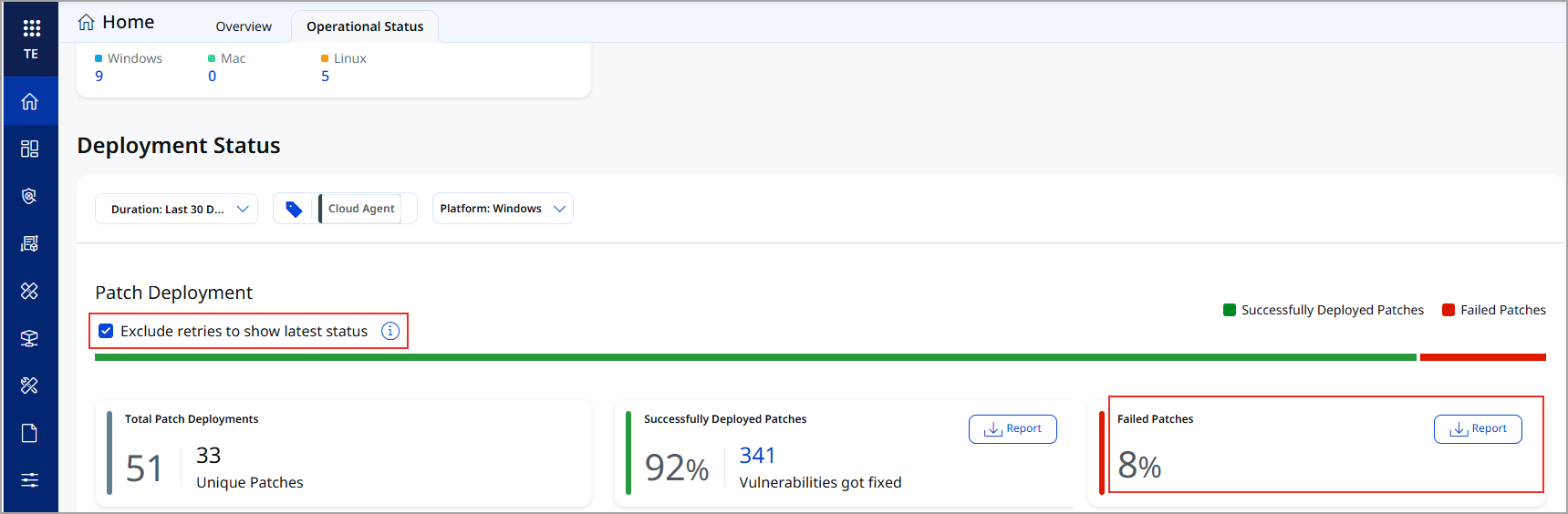
When a recurring job tries to install a patch several times before it succeeds, each failed attempt used to count as a failure. This made the deployment success rate look lower than it was.
On Home > Operational Status > Deployment Status, you can now select Exclude retries to show latest status checkbox. TruRisk™ Eliminate then counts only the latest result for each patch on each asset:
- If a patch failed several times and then installed successfully, it counts as one success.
- If all attempts fail, they count as one failure.
The deployment percentages and the Successfully Deployed Patches and Failed Patches reports reflect your selection. In the Failed Patches report, each patch on each asset is displayed in a single row showing its latest failure, and only if no later attempt succeeded. Clear the option to count every attempt, as before.
Enhancement
Expand Patch Coverage to macOS 27 GoldenGate
What Changed For You
You can now upgrade your Mac assets to macOS 27 GoldenGate without losing patch coverage.
You can now patch assets running on macOS 27 GoldenGate. You can find missing patches, deploy updates and track remediation on macOS 27 assets. This helps you close security gaps faster and keep your Mac assets compliant as you upgrade.
Enhancement
Keep Automated Jobs Aligned with Patch Tuesday
What Changed For You
You can now limit automated Windows jobs to patches published up to a set number of days after the latest Patch Tuesday.
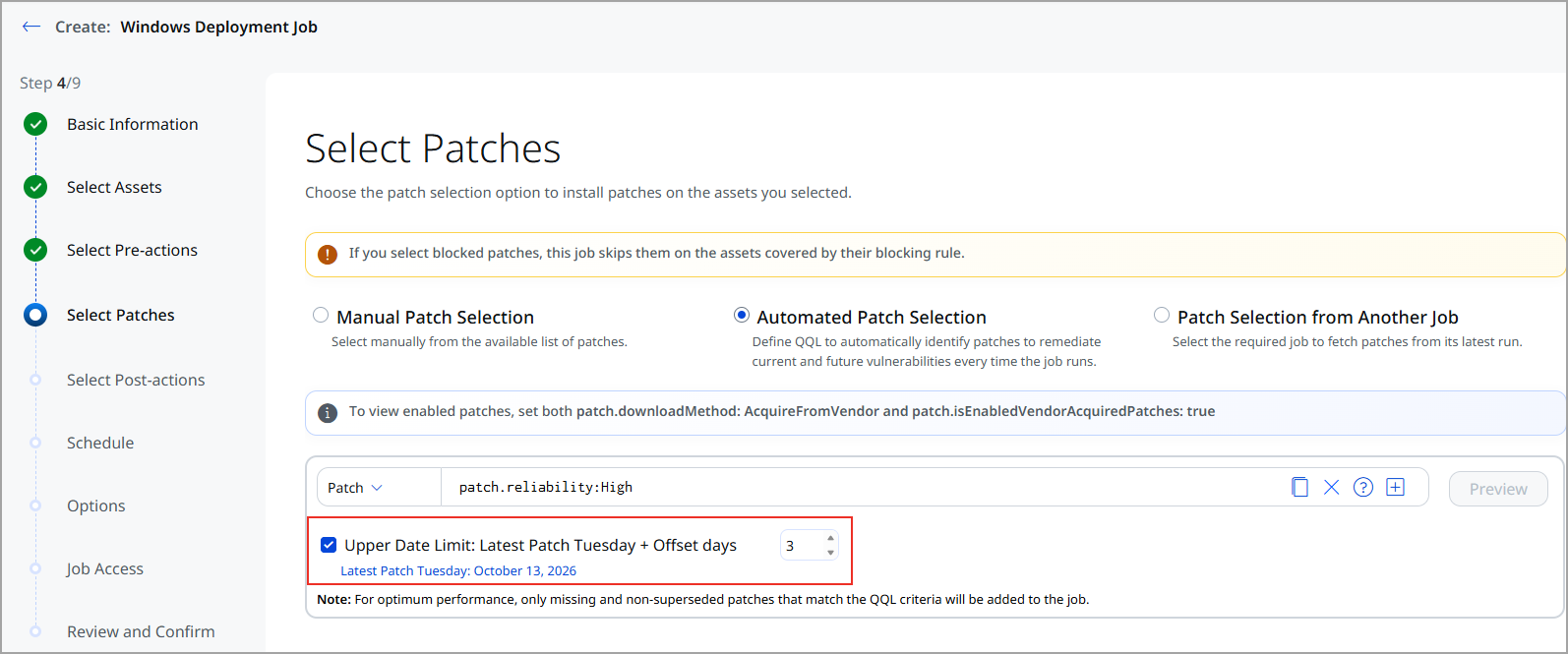
You now have more control over patch selection in your Windows deployment jobs using Patch Tuesday offset days. When you create a Windows deployment job with Automated Patch Selection, you can now select Upper Date Limit: Latest Patch Tuesday + Offset days checkbox and enter the number of offset days. The job adds only patches published up to that many days after the latest Patch Tuesday and skips patches published later. The date of the latest Patch Tuesday is displayed below the option so you can plan the offset. This feature is applicable only for Windows platform.
For example, if the latest Patch Tuesday is October 13, 2026, and you set the offset to 2 days, the job adds only patches published up to and including October 15, 2026. To add only patches published on Patch Tuesday, set the offset to 0.
Enhancement
Preview and Download Exactly Which Assets a Job Will Patch Before You Deploy
What Changed For You
You can now avoid patching the wrong assets by checking a tag-based job's final asset list, after exclusions, before you deploy.
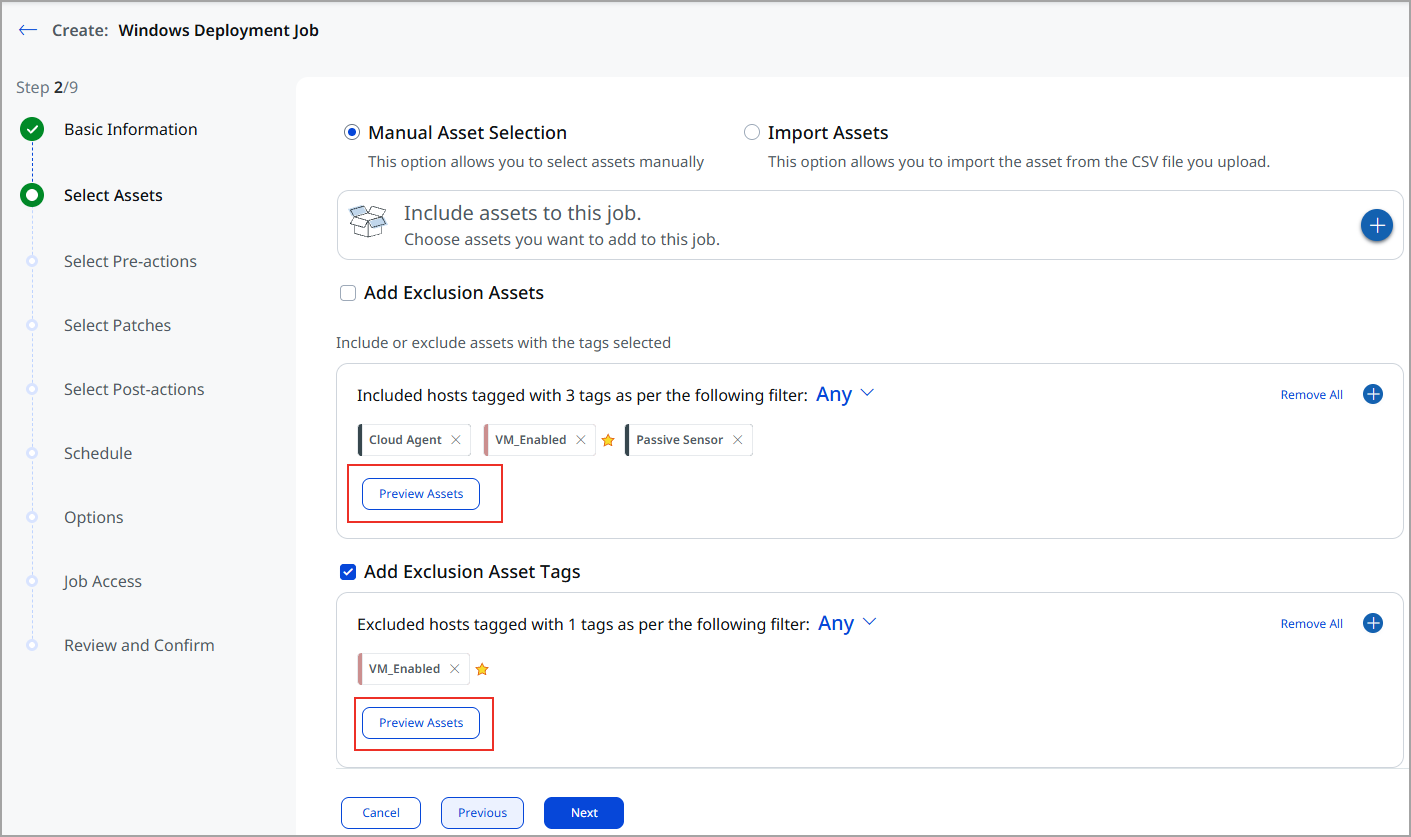
When you select assets by tags in a deployment job, you can now see exactly which assets the job includes and excludes, and download the list, before you create the job.
- Preview included and excluded assets: In the Select Assets step, click Preview Assets under the included tags or the excluded tags. The preview lists each matching asset with its operating system and tags and honors your Any or All tag matching.
- Review and download the final asset list: In the Review and Confirm step, view the final list of assets for the job, that is, the included assets minus the excluded assets. In the Final Preview Asset window, click the Download icon to download the list in a CSV file.
Enhancement
Share Job Results by Email with a Report Download Link
What Changed For You
You can now let notification recipients download the job progress report directly from the job completion email.
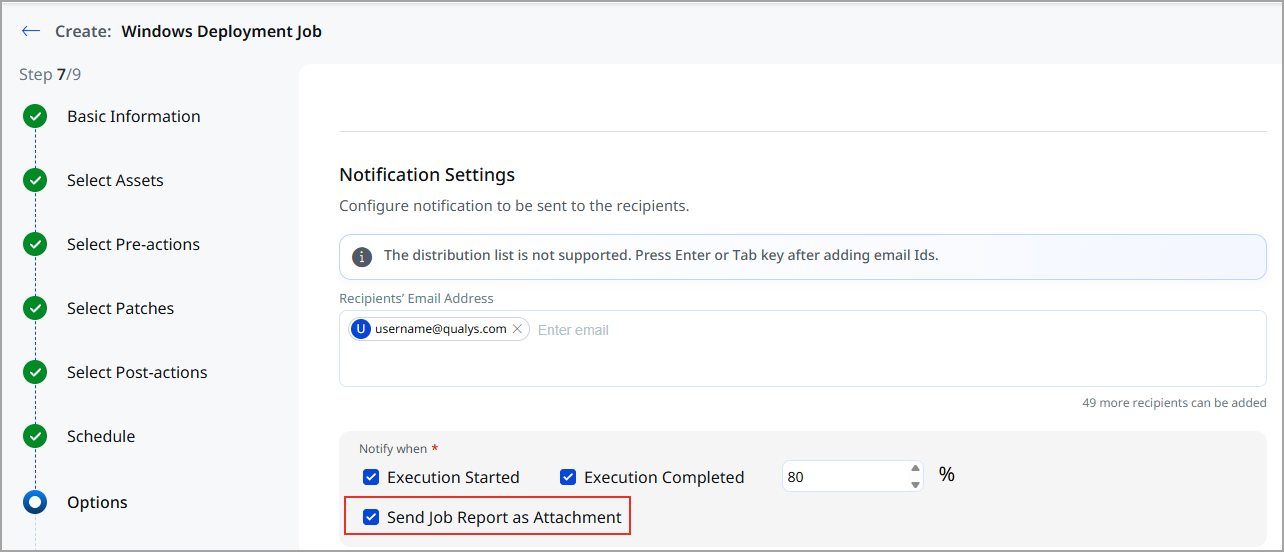
You can now share job results with your team through email. Job notification emails now include a job progress report for recipients. In the Options step of a deployment job, under Notification Settings, select Send Job Report as Attachment. When the job reaches the completion percentage you set for Execution Completed, the notification email includes a link to download the job progress report. The report has the same details as the job progress report you download from the job.
Enhancement
Get Accurate Missing Patches for Linux Assets with Extended Support Subscriptions
What Changed For You
You can now trust that missing patch results for RHEL assets match each asset's actual extended support subscription status.
See only the missing patches that your Red Hat Enterprise Linux (RHEL) assets can actually install. TruRisk™ Eliminate now uses information-gathered (IG) QIDs from vulnerability scans to confirm whether a RHEL asset has an active extended support subscription. Previously, extended support status was determined based only on the asset's OS version, which could result in inaccurate missing patch results for assets still using standard repositories
If the IG QID for an extended support subscription is detected on the asset, TruRisk™ Eliminate shows missing patches to the extended support version. If it is not detected, TruRisk™ Eliminate shows missing patches from the standard repositories.
Token
New QQL Tokens
Refer to the following table to learn more about the new token in this release.
On the VMDR application, the results display the QIDs and the patch titles. On the TE application, the results display the applicable patches fro the vulnerabilities.
| Tab | Token (New) | Usage |
|---|---|---|
|
patch.isPatchTuesdayPatch: true | To list all patches released on Patch Tuesday. Data is available for patches released from January 2025 onward. |
| patch.isLatestPatchTuesday:true | Lists the patches released on the latest Patch Tuesday. The list updates each month after the new Patch Tuesday. | |
|
finding.qualysPatchReliability | To find the vulnerabilities with the specified patch reliability value.
On the VMDR application, the results display the QIDs and the patch titles. On the TE application, the results display the applicable patches fro the vulnerabilities. |
| vulnerabilities.qualysPatchReliability | To find the vulnerabilities with the specified patch reliability value.
On the VMDR application, the results display the QIDs and the patch titles. On the TE application, the results display the applicable patches fro the vulnerabilities. |
|
| VMDR > Vulnerabilities tab > Vulnerabilities search bar | vulnerabilities:(scope | To find the vulnerabilities/findings detected in software installed in the user's own space. The supported value is USER_SCOPE.
These tokens are supported only for Windows platform. |
| finding:(scope |
Fix
| Component/Category | Description |
|---|---|
| PM - Job Windows |
Issue: An issue occurred in some cases, in which a deployment job scheduled relative to Patch Tuesday - X days, did not run on the scheduled time. For example, a job scheduled to run 9 days before Patch Tuesday ran 7 days before Patch Tuesday. Fix: This issue is now resolved, and the Patch Tuesday - X days job are executed correctly. |
| PM - Job Windows |
Issue: An issue occurred in some cases in which the job completion email notification for a deployment job arrived several hours after the job completed. Fix: This issue is now fixed, and job completion email notifications are sent soon after a deployment job completes. |
| PM - Job Results Windows |
Issue: An issue occurred where an on-demand patch deployment job showed the Timed Out status, even though the job had completed on the asset and the patches were reported as Not Applicable. Fix: This issue is now fixed, and the job status shows the actual deployment result on the asset. Patches that are skipped for reasons other than a timeout no longer make the job show Timed Out. |