Enterprise TruRisk™ Platform Release 3.25
Limited Customer Release
August 18, 2026
New Requests Tab for Report Download
The Agent Management window now includes a dedicated Requests tab to track agent report downloads, on-demand vulnerability scans, and vulnerability scan status. Previously, there was no option in Cloud Agent user interface to track these actions.
This feature has limited availability. Contact your Technical Account Manager or Qualys Support to activate it for your subscription.
The Requests tab helps you with your day-to-day activities by providing the following benefits:
- One point solution to track all submitted requests, request IDs, and processing status.
- Instant confirmation for Cloud Agent report download and on-demand scan progress.
- Track any request to view processing details for an individual Cloud Agent.
- Detailed Cloud Agent-level information for on-demand scan progress and status.
- Quick Actions to download Cloud Agent report.
- Filter required requests using new search tokens in the Requests tab.
By default, the Requests tab maintains the request history for the last 7 days. Requests older than 7 days are automatically archived.
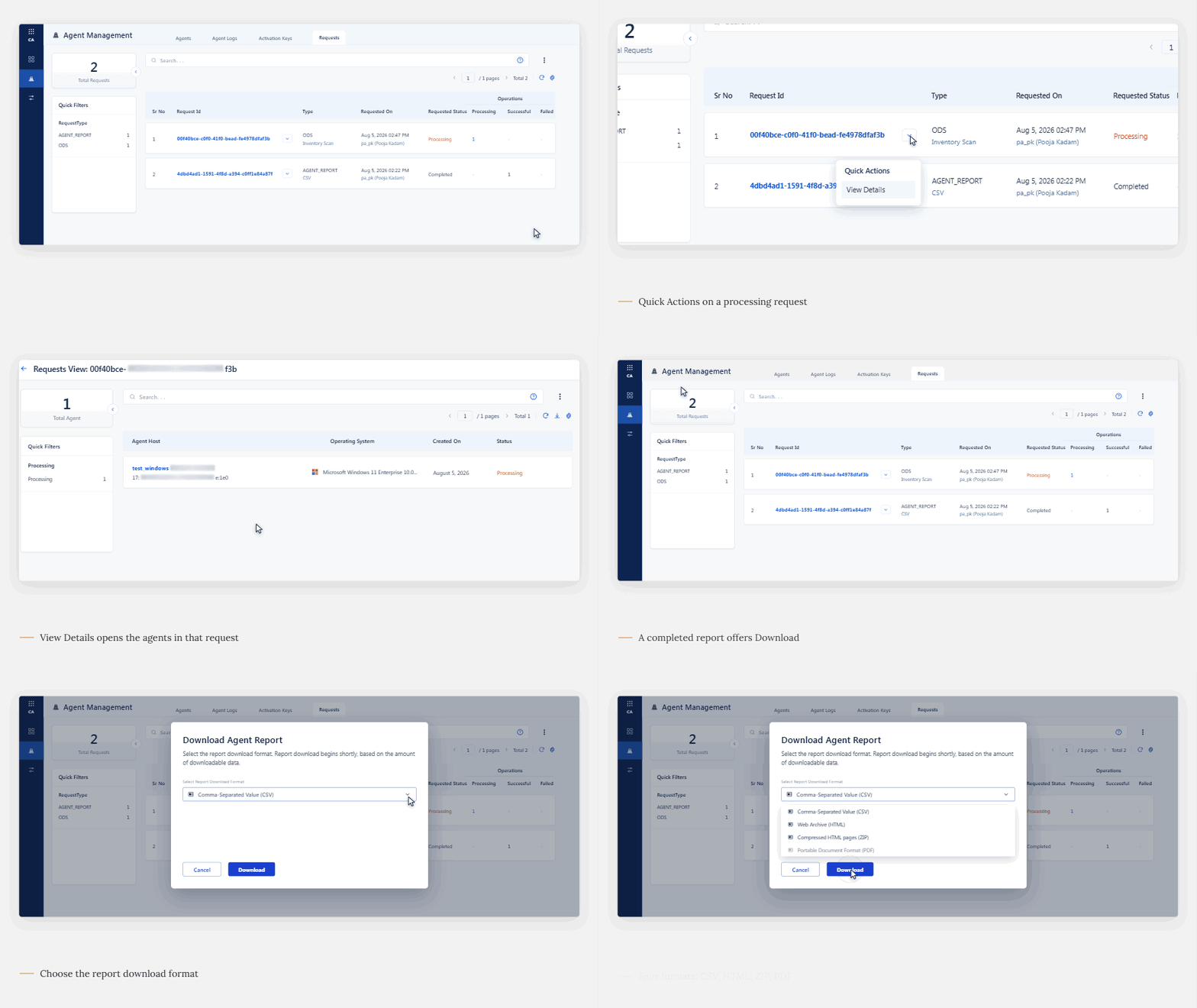
How Does New Request Tab Work
The following are the steps to download Cloud Agent Reports.
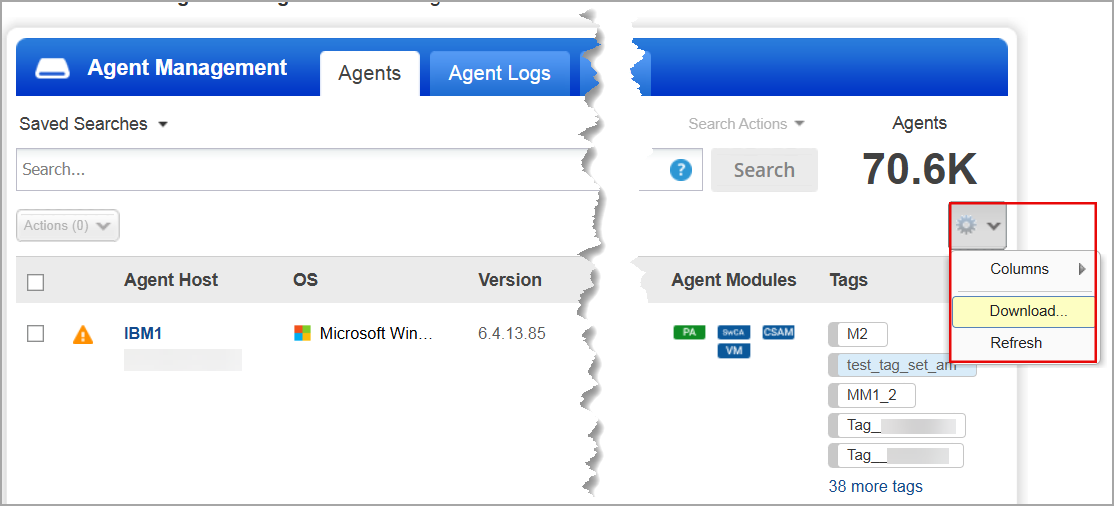
- To download the Cloud Agent reports, navigate to Agent Management > Agents tab.
- Click Download from the settings menu. The download request is added in the Requests tab with the request ID.
- Navigate to Agent Management > Requests tab.
- Locate the report download request and from the Quick Actions menu, click Download. The Cloud Agent report is downloaded to your machine.
Optimized Report Download
We have optimized the formats for downloading Cloud Agent reports. The Cloud Agent report can now be downloaded in CSV, HTML, ZIP, or PDF formats.
Behavioral Notes for Requests Tab
The following are the important behavioral notes for the Requests tab.
- The Requests tab only displays the status for report download, on-demand scans, and vulnerability scans. The other scan type request status is not displayed.
- To view the correct status for scan requests, the scanned asset must have a compatible Cloud Agent installed. If the host asset does not have a compatible Cloud Agent, the scan status is displayed as Processing even if the scan is successfully completed.
- For CSV format Cloud Agent reports, the maximum report size is 10 GB, and the maximum time to fetch the data is 60 minutes. The downloaded report is truncated if it is more than 5GB in size or takes more than 60 minutes for data collection.
- For PDF format Cloud Agent reports, the maximum report size is 800MB, and the maximum time to fetch the data is 180 minutes. The downloaded report is truncated if it exceeds the size or time limit for data collection.
- For HTML format Cloud Agent report, the maximum time to fetch the data is 60 minutes. The downloaded report is truncated if it exceeds the time limit for data collection.
Search Tokens for Request Tab
We introduced the following new tokens in the Requests tab to filter the report download and scan requests.
| Search Token | Syntax | Description |
|---|---|---|
| request.requestType | request.requestType:<request_type>Valid values - AGENT_REPORT, ODS |
Search the requests based on the request type, such as report download or on demand scan. |
| request.status | request.status:<status_value> |
Search agent hosts based on the request status, such as Accepted, Completed, Error, and so on. |