Roles and Permissions for NPS
Depending on the assigned roles and permissions, the user can perform actions such as accessing the UI and viewing various tabs. Roles and permissions are assigned to the user from the Administration application. We have provided some predefined user roles. Depending on the role you choose, you get the associated set of permissions. You can create users and then assign a role to them to grant access and permissions as per the role you define.
Only a Manager user with all permissions can manage roles and permissions for sub-users.
To access the permission while role creation, follow these steps:
- Navigate to the Administration > Role Management > New Role.
- Enter Role Details.
- Select UI Access and API Access for that role as per your requirements.
API access is needed so the user can access associated other product's APIs.
- Select Network Passive Sensor from the Modules list.
- Click Change next to the module name to view all permissions.
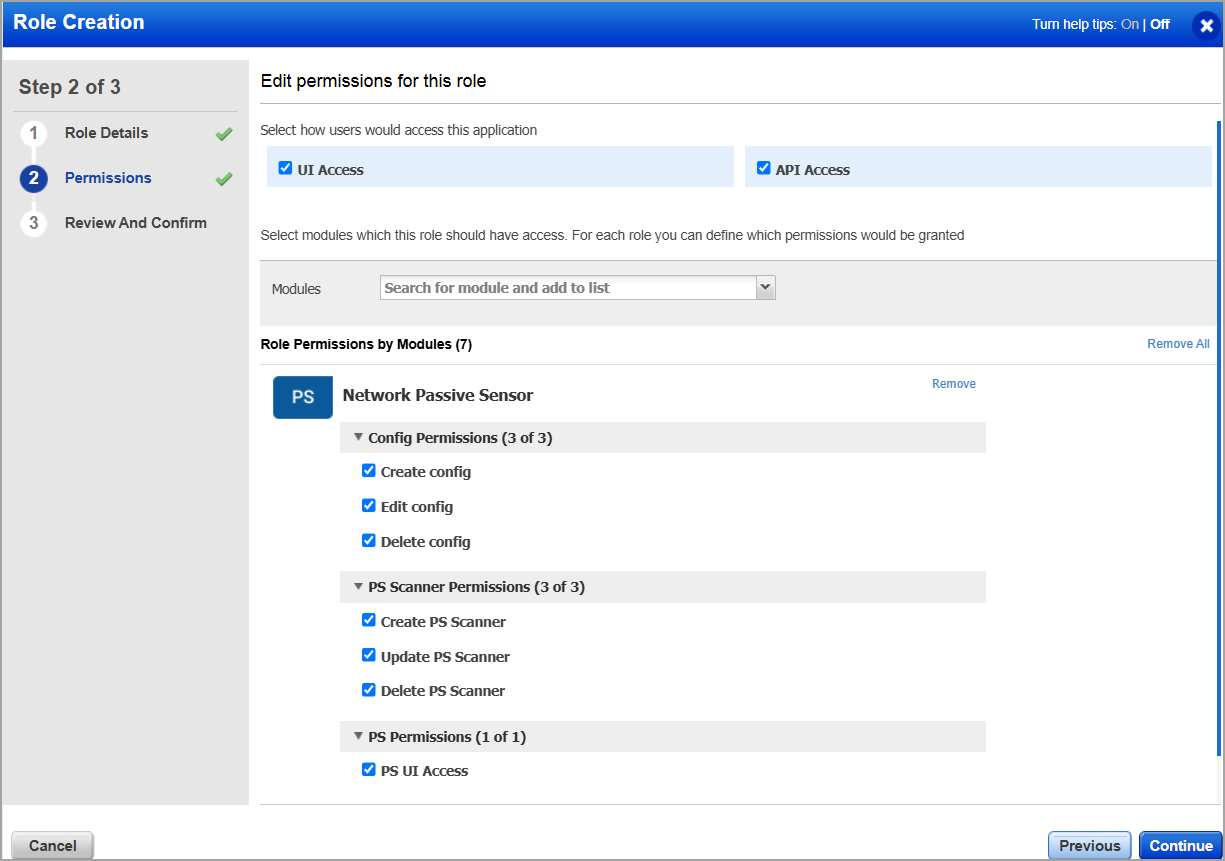
The following table provides all granular permissions you can assign to the roles and their significance:
| Permission | Description |
|---|---|
| PS permissions | |
| PS UI Access | Access the Network Passive Sensor user interface. |
| PS Scanner permissions | |
| Create PS Scanner | Create a sensor. |
| Update PS Scanner | Update a sensor. |
| Delete PS Scanner | Delete a sensor. |
| Internal Assets Config permissions | |
| Create Internal Assets Config | Configure an Internal Assets group. |
| Update Internal Assets Config | Update a configured Internal Assets group. |
| Delete Internal Assets Config | Delete a configured Internal Assets group. |
| External Assets Config permissions | |
| Create External Assets Config | Configure a Monitor External Assets group. |
| Update External Assets Config | Update a configured Monitor External Assets group. |
| Delete External Assets Config | Delete a configured Monitor External Assets group. |
| Excluded Assets Config permissions | |
| Create Excluded Assets Config | Configure an Excluded Assets group. |
| Update Excluded Assets Config | Update a configured Excluded Assets group. |
| Delete Excluded Assets Config | Delete a configured Excluded Assets group. |
| General Settings Config permissions | |
| Update General Settings Config | Update the General Settings. |
If you want to create a role with asset editing capabilities, ensure you also grant permission for the CSAM module. For more information on Roles and Permissions for CSAM, refer to CSAM Online help.