Generate a workflow with AI
Describe the workflow you want in plain language. QFlow builds a draft, you review and refine it, and you stay in control before anything is saved.
This feature is available for AWS and Azure workflows only. OCI and GCP are not supported yet.
How it works
- Click Create Workflow.
- Choose Generate with AI.
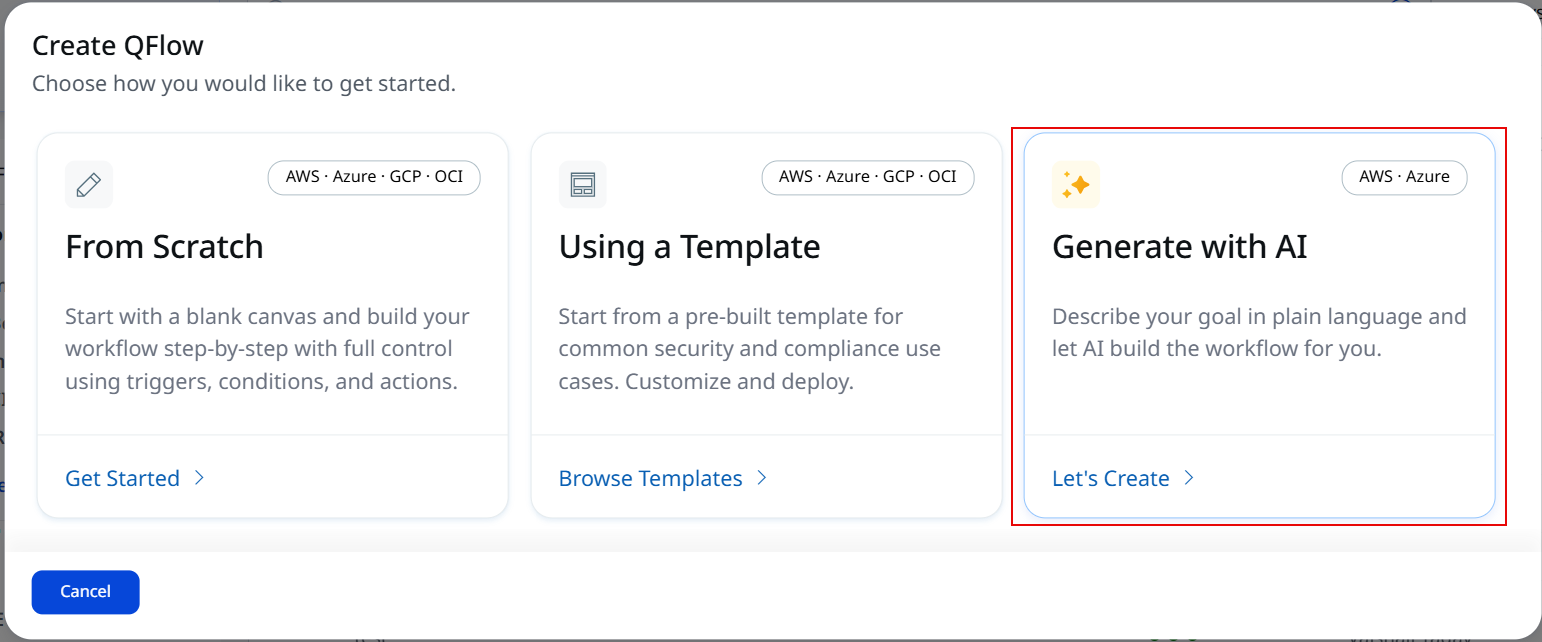
- Type what you want the workflow to do, in plain language, in the chat that opens.
- Confirm. QFlow repeats back what it understood, say yes to continue, or reply with a correction.
- Review the draft. Your workflow opens in the regular editor.
- Refine (optional). Send more prompts in the same chat to add or adjust nodes before saving.
- Choose your account and region, the same as any workflow.
- Save.
Example prompts
New to this feature? Start simple, then work up to a multi-step prompt once you're comfortable.
Simple
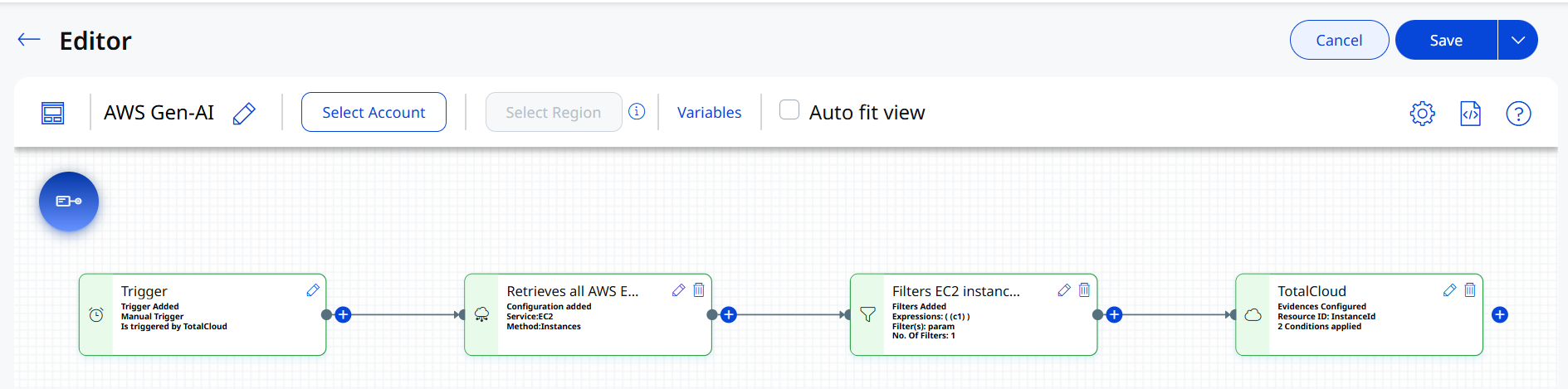
Create a UDC workflow named “AWS Gen-AI”. List all AWS EC2 instances, then use a Filter node to select only instances with type t2.micro. Add a TotalCloud node and configure the compliance criteria to check whether the selected EC2 instance is in the running state.
What you get: a short, four-node workflow. A good first try for getting a feel for the feature.
Complex
You can give these prompts step by step to generate a moderate to complex worflow
- Create UDC Workflow:
Name it “Gen-AI AWS 1 - EC2” and retrieve all AWS EC2 instances. - Filter Instances:
Include only instances with Instance Type = t2.micro and State = running. - Store Variables:
Store Instance Type and Instance State as global variables for reuse. - TotalCloud Security Check:
Add a TotalCloud node to identify selected instances whose security groups allow public access through 0.0.0.0/0 or ::/0.
What you get: a complex workflow with filters and variables.

Reviewing and refining
The AI-generated workflow might not always be perfect, especially with more complex processes. Give the draft a quick review before saving. It is advisable to review node configurations and details carefully before live deployment.
Limitations
- Editing existing workflows. AI only creates new workflows; you cannot direct it to modify an existing one, whether manually created or AI-built.
- Resuming AI edits after you leave the chat. Once a workflow from that chat is saved, further AI changes to it aren't available. Start a new workflow to use AI again.
- Manual editing always works. Any workflow, AI-built or not, can be edited by hand in the editor at any time.
AI-generated workflows show an "AI Generated" tag in your workflow list, so you can spot them at a glance.
Daily usage limit
You get 100 AI chat messages a day. If you run out, QFlow shows the time remaining until it resets, along with a way to contact support if you need a higher limit.