Appendix - Things to Remember
Additional resources that can help you with your QGS experience.
- Qualys Gateway Service detects only one secondary hard disk.
- To retain more logs, you can extend the primary hard disk.
- To retain more patches, you can extend the secondary hard disk.
- Extending any QGS hard disks must be done from your hypervisor console with appropriate permissions with the QGS in question, powered off.
- You can only have a maximum of 5 proxies, QGS appliances, DNS aliases, or Load Balancer VIP entries.
- The direct connection from a cloud agent is attempted after all proxy/QGS/DNS/VIP options have been attempted and works only if the firewall rules allow it.
- You can nest QGS appliances, but only the QGS device that the cloud agent communicates directly with can be used in proxy, cache, or patch mode. Any QGS above the first QGS must be defined as the upstream proxy for the first QGS, using only the proxy port on the second QGS.
- Restart the CAMSD service unit if you see your appliance is inactive on the UI.
Restart the CAMSD Service Unit
The following are the steps to restart the CAMSD service unit to active your appliance on the UI:
- Connect to the appliance Text user interface.
- Go to the Diagnostics and select Units.
- Go to the CAMSD unit and click Restart.
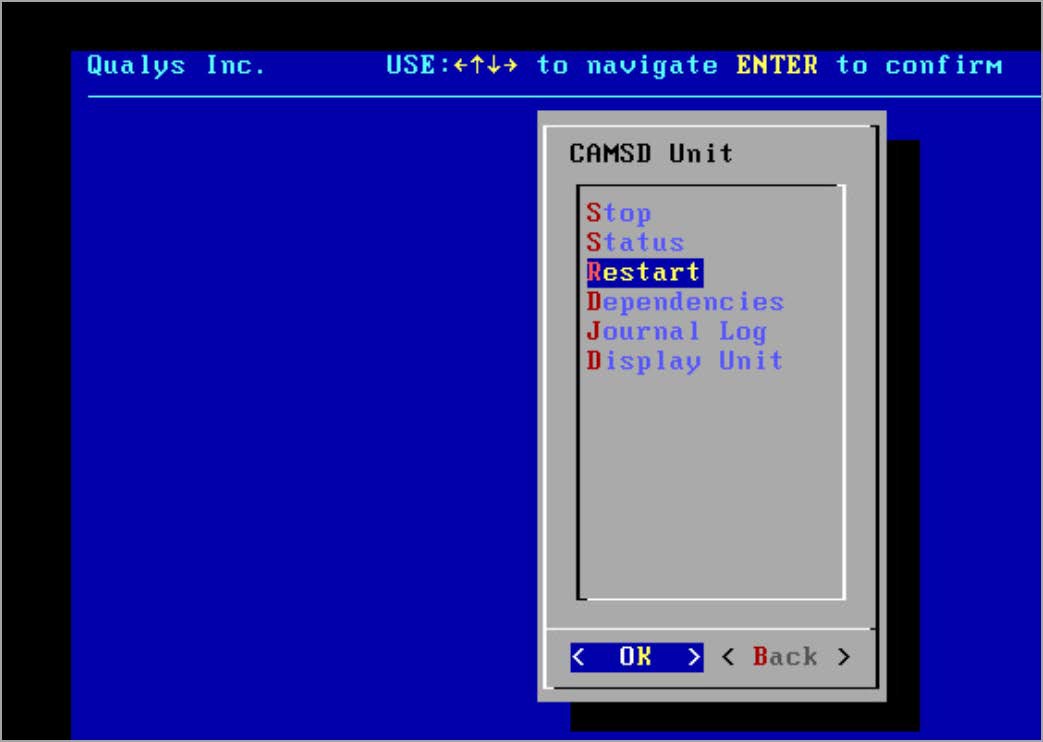
- Wait at least 45 minutes to 1 hour for the appliance to become active on the UI.
The appliance logs are not immediately available directly on the root location if the diagnostics logs are generated repeatedly on the same appliance. Instead, it can be found in the "/var/diagnostics" location.
Troubleshoot Manifests and Flatcar OS Updates
Use the following steps to resolve issues related to out-of-date manifests and Flatcar OS updates on CAMS appliances.
Manifests Not Updating
If manifests are out of date, follow these steps:
-
Check connectivity and service health
Run a connectivity test from the appliance's TextUI. Confirm that all backend service health checks succeed. Learn More. -
Inspect SSL settings
If SSL inspection is activated on the upstream proxy or firewall, deactivate it for QGS. This applies to CAMS/QGS backend URLs. -
Review firewall rules
Look for any restrictions in your environment that might block image downloads. -
Verify proxy configuration
If an upstream proxy is configured, ensure it does not block image downloads. -
Check disk space
Ensure the appliance has sufficient disk space. -
Reboot the appliance
A simple reboot may resolve the issue.. -
Run Docker pull commands
From a Windows or Linux machine on the same network as the appliance, run the following commands to verify image access:docker pull camsrepo.qg1.apps.qualys.eu:443/cams-confd:1.5.4-3docker pull camsrepo.qg1.apps.qualys.eu:443/cams-squid:1.5.4-3docker pull camsrepo.qg1.apps.qualys.eu:443/cams-haproxy:1.5.4-3docker pull camsrepo.qg1.apps.qualys.eu:443/camsd:1.7.5-29docker pull camsrepo.qg1.apps.qualys.eu:443/cams-mgr:1.7.4-8docker pull camsrepo.qg1.apps.qualys.eu:443/cams-logstash:1.7.5-6docker pull camsrepo.qg1.apps.qualys.eu:443/cams-metrics:1.5.4-3docker pull camsrepo.qg1.apps.qualys.eu:443/cams-rsyslog:1.7.5-7The above commands use the EU pod as an example. You must use your appropriate platform URL, you can obtain them from QGS section of Qualys Platform Identification.
Replace the domain and image versions with the appropriate pod suffix and released image versions for your account.
Flatcar OS Update Issues
If the Flatcar OS update fails or stalls, follow these steps:
-
Run connectivity and health checks
Use the appliance's TextUI to verify backend service health. Learn More. -
Check firewall rules
Ensure no restrictions are blocking image downloads. -
Verify update URL accessibility
From the appliance, confirm that the Flatcar update URL is reachable. Follow the steps below-
Check the OS version in the INFO screen
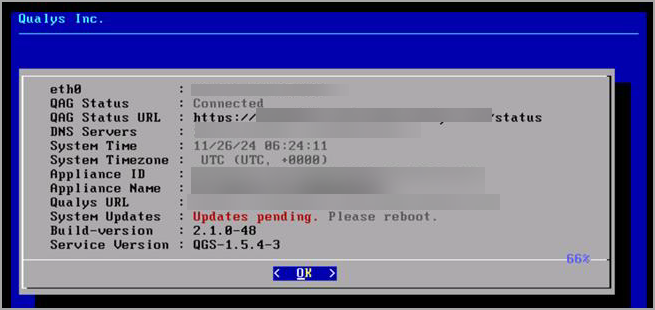
Access the serial console (QGS TextUI) and open the INFO screen.- If the OS is on CoreOS, redeploy the appliance.
- If the INFO screen indicates a pending update, manually reboot the appliance to complete the update.
-
-
Run CURL command to test update URL
From a machine on the same network, run:
curl -ivk https://update.release.flatcar-linux.net/amd64-usr/3033.3.5/flatcar_production_update.gz -o flatcar_production_update.gz
Frequently Asked Questions
How do I know whether the appliance is upgraded to the latest services or not?
Go to the appliance's Text User Interface (TUI), click the Info tab and click OK to see the details.
- When the minimum requirement for the primary disk and RAM are not fulfilled, the following message is shown on the appliance TUI under the Info tab.
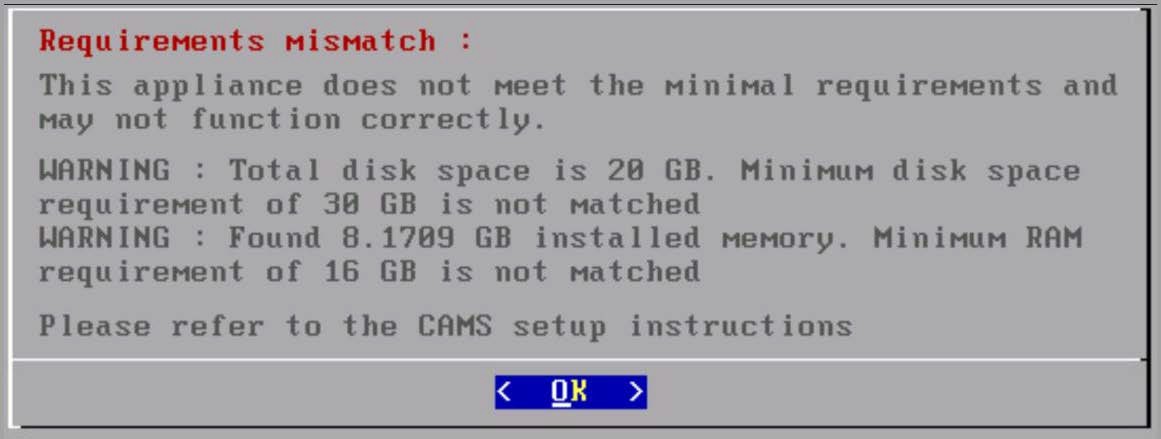
- A Minimum 16GB of RAM is recommended for CAMS/QGS appliances. A total of 2000 concurrent cloud agent requests are supported by a QGS appliance. You can increase the limit to 10,000 concurrent connections by contacting Qualys Support.
How do I know whether the appliance is upgraded to the latest version or not?
Go to the appliance's Text User Interface (TUI), click the Info tab and click OK to see the appliance is upgraded to the latest version or not.
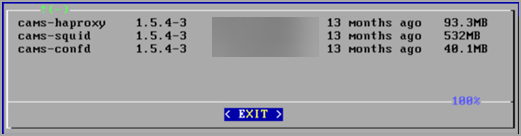
You can verify that all the latest images are present on the appliances by navigating to
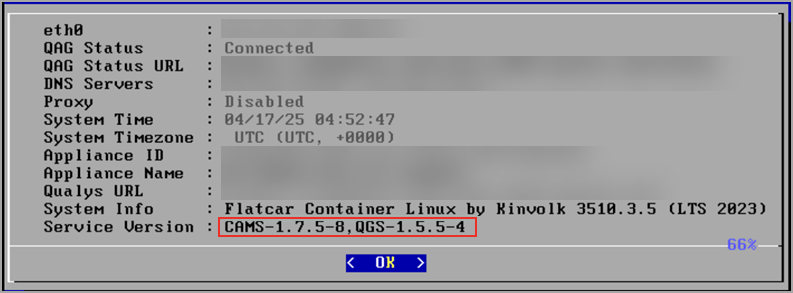
TextUI > Diagnostics > Images. Refer to the following screenshot.
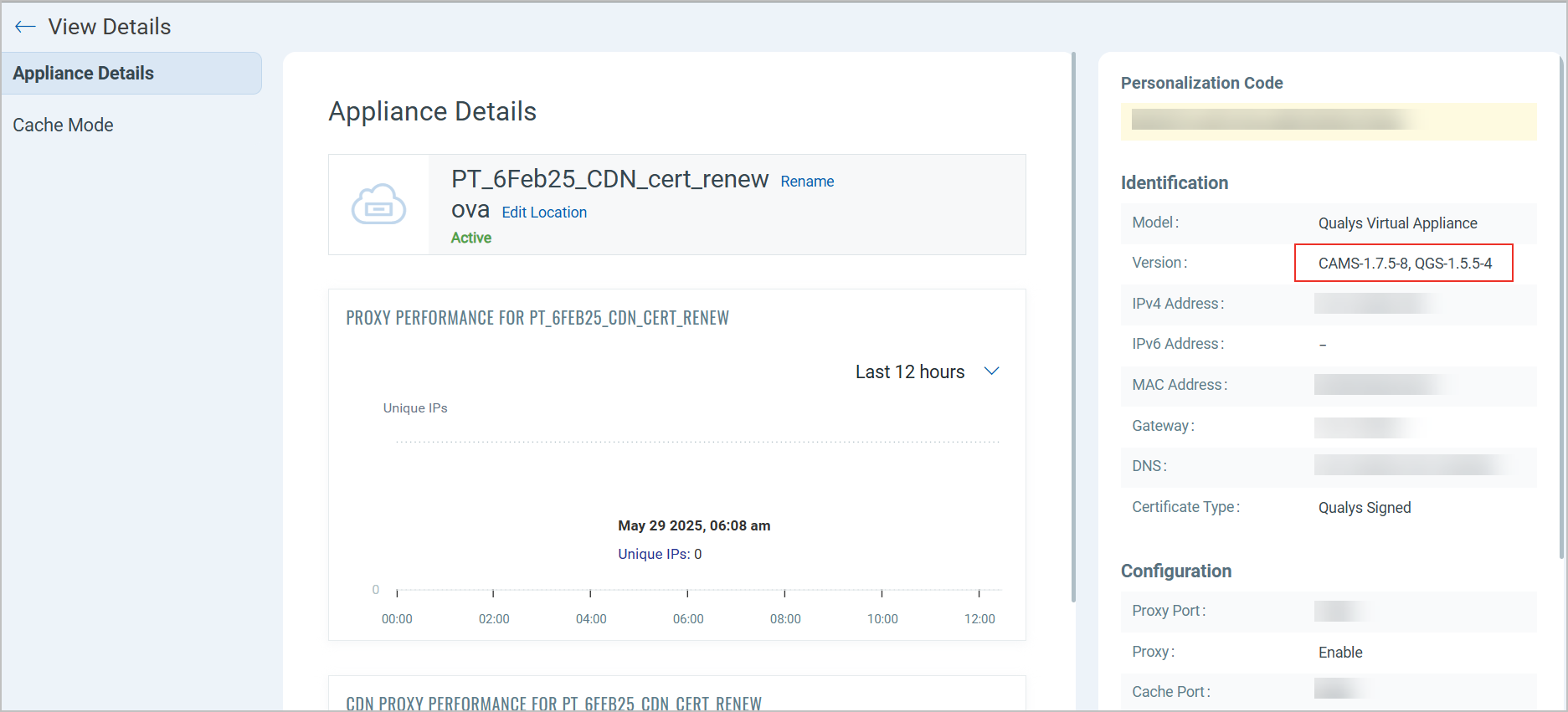
- Also, you can verify the appliance with the latest image version by navigating to the QGS UI > APPLIANCES > clicking the Appliance. As shown in the following screenshot.
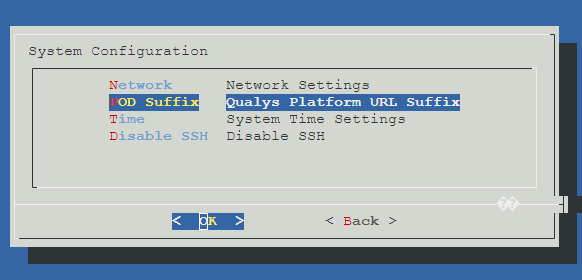
How to add POD suffix details for the image version 2.1.0 and above using TextUI?
You can add a POD suffix details for the image version 2.1.0 and above for all supported formats; go to the TextUI > System Settings > POD Suffix.
The POD Suffix option is grayed out after the successful upgrade of the existing appliances deployed with image version 1.1.0.
To know the POD suffixes for corresponding PODs, refer to the POD Suffixes table.
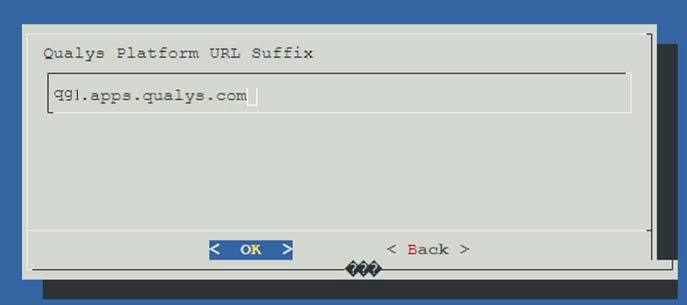
We recommend entering the correct POD suffix because the cloud metadata services always overwrite an incorrectly entered POD suffix.
Connectivity Check
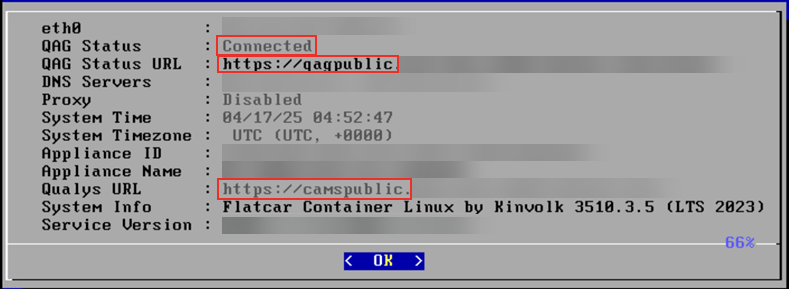
Go to the Information tab to check the connected status and pod suffix with qagpublic and camspublic. As highlighted in the following screenshot.
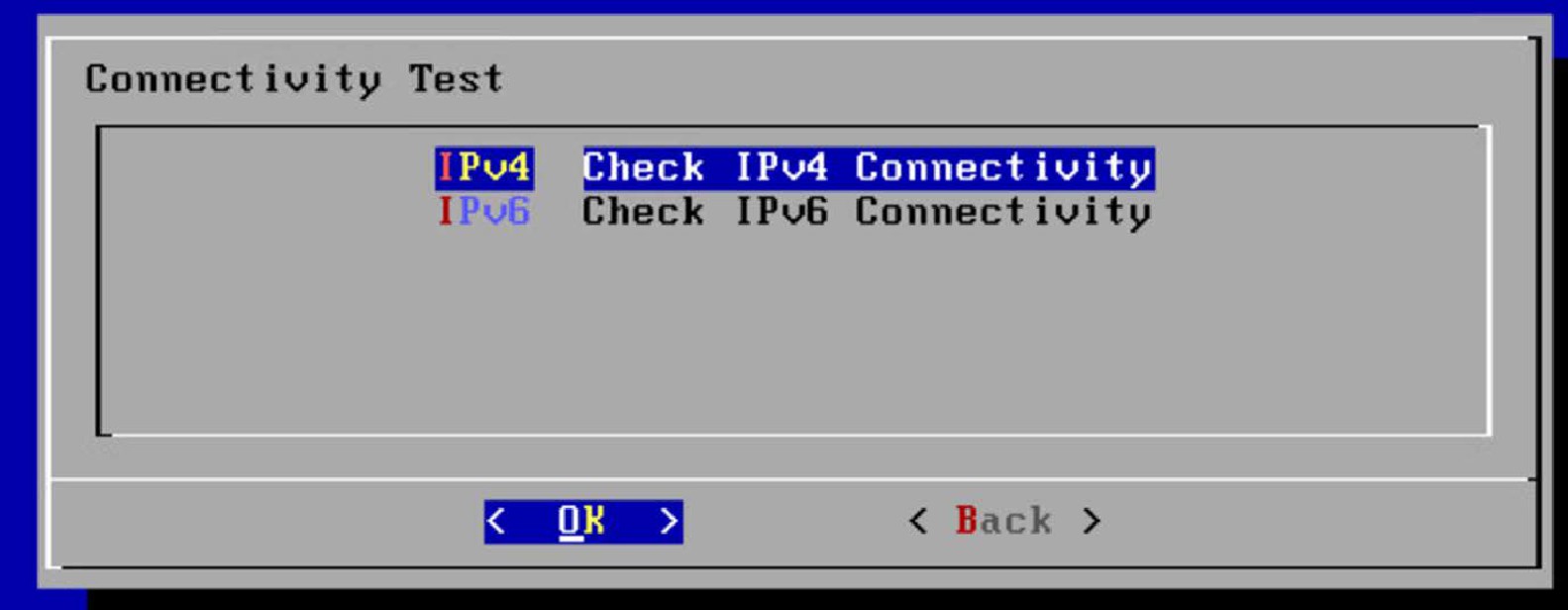
To check the connectivity with the backend services; go to the TextUI > Diagnostics > Connectivity.
Select whether to check connectivity for IPv4 or IPv6 protocol.
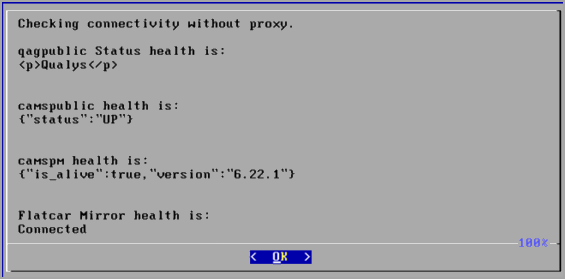
The connectivity check returns healthy if the screen is displayed as below.
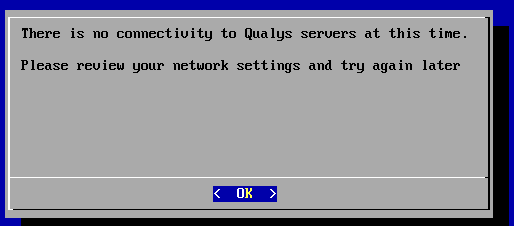
If any of the services from CAMSPM, CAMSREPO, camspublic, and qagpublic is not connected to the appliance, you cannot register the appliance. You can observe the following error shown on the screenshot.
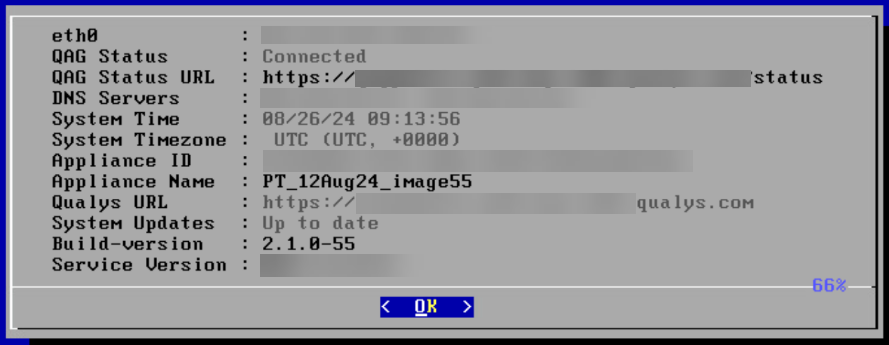
If you use appliance image version 2.1.0 and above, you must provide a POD Suffix as the mandatory field.
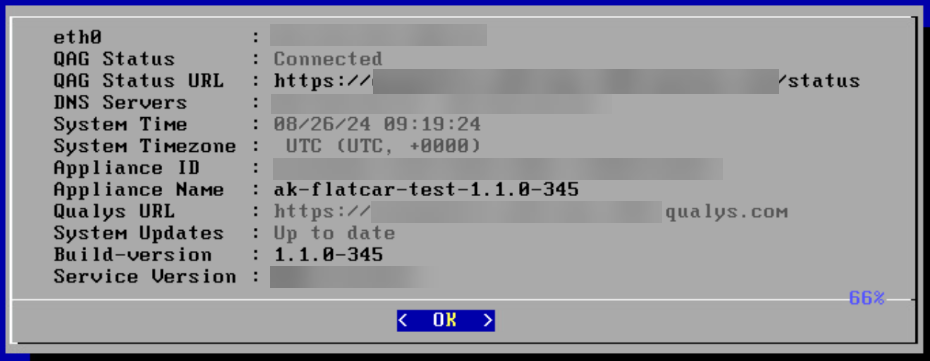
If you use appliance image version 1.1.0 -X, the pod suffix option is not be available.
Why do I see the "SSH host key generation failed" error after deploying an Azure VM with the CAMS QGS Image?
You may observe the following after successfully deploying the Azure VM with the CAMs QGS image -
"SSH host key generation failed. Error details: [ProvisionError] Failed to generate ssh host key: ret=255, out= ssh-keygen: /etc/ssh/ssh_host_rsa_key.pub: No such file or directory\n. To resolve this issue verify if Linux agent is set up properly. \r\n You can check the instructions at: https://azure.microsoft.com/documentation/articles/virtual-machines-linux-agent-user-guide/\r\n "
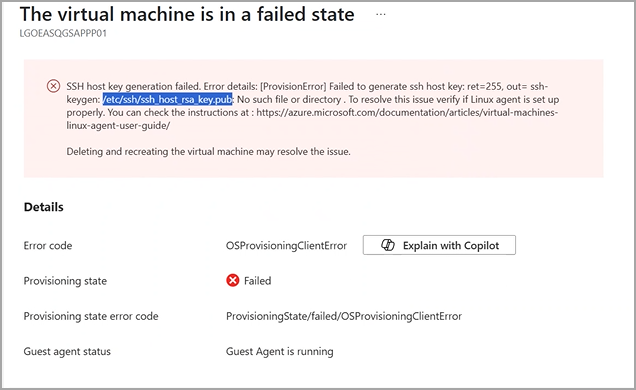
This error is a result of the CAMS QGS Appliance being a hardened appliance where SSH is shut down or removed. Let's go over why this error occurs.
The Azure provisioning process (specifically the Linux VM Agent) attempts to:
- Generate SSH host keys (e.g.,
/etc/ssh/ssh_host_rsa_keyand.pub) - Configure SSH so that remote login is possible after provisioning.
In a standard Linux VM, this is normal.
But in your case, you are configuring the VM with a hardened appliance, which typically includes security controls such as:
- No SSH service
- No
/etc/sshdirectory - Restricted Host key generation tools
- Cloud-init / Linux Agent unable to modify OS-level settings
Since Azure assumes SSH availability for provisioning unless intentionally configured otherwise, the absence of SSH components triggers this failure.
This error is expected when provisioning a hardened appliance where SSH is intentionally turned off or stripped out.
The Azure provisioning agent is failing because it cannot perform the default SSH configuration, which is normally required.
You need not be concerned with this error and proceed to configure the CAMS appliance on your Azure environment following the steps mentioned in the Microsoft Azure Deployment Guide.
Why is SSL Inspection incompatible with Qualys Gateway Service (QGS), and why must it be disabled?
SSL Inspection must be disabled for all QGS-related traffic because it interferes with the secure communication mechanisms required for proper QGS operation. Enabling SSL Inspection can cause connection failures and disrupt service functionality due to the following reasons:
Certificate Pinning Enforcement
QGS backend services use certificate pinning to validate trusted connections. This ensures that only certificates explicitly trusted by Qualys are accepted. SSL Inspection introduces a Man-in-the-Middle (MITM) proxy that replaces the original certificate with a device-generated certificate. As a result, the certificate validation fails, and the connection is rejected.
Disruption of Secure Tunneling
QGS establishes secure TLS tunnels between the client and Qualys backend, often functioning similarly to a forward proxy. Applying SSL Inspection to this traffic attempts to decrypt and re-encrypt an already secure connection (TLS over TLS). This breaks the tunnel encapsulation, particularly when CONNECT methods or layered TLS sessions are used, leading to communication failures.
To ensure reliable and secure communication with Qualys backend services, configure your network devices (such as firewalls, proxies, or security appliances) to bypass SSL Inspection for all QGS-related domains, IP ranges, and ports. This preserves tunnel integrity and allows certificate pinning validation to succeed.
Why does QGS not display graphs or active agent data when an upstream proxy is configured?
This issue occurs because to upstream proxy configuration on the QGS appliance is incorrect. The Puppet configuration file may include the proxy URL with http:// or https://, whereas QGS expects only the hostname or IP address. This mismatch disrupts communication with backend services, resulting in missing graphs and agent data.
Resolution
Remove the upstream proxy configuration.
Reconfigure the proxy on the appliance.
Wait up to 1 hour for changes to take effect.
Ensure the proxy entry contains only the hostname or IP (without protocol prefixes).
Can the Qualys Gateway Service (QGS) be configured as a proxy for a Qualys Virtual Scanner?
Yes, QGS can be configured as a proxy for a Qualys Virtual Scanner during scanner appliance setup. However, this configuration is supported only in Tunnel/Proxy Mode.
Supported Mode (Tunnel/Proxy Mode)
In this mode, QGS acts as a forward proxy, securely forwarding traffic between the virtual scanner and the Qualys Cloud Platform.
Unsupported Mode (Cache Mode)
Cache Mode is not supported for virtual scanners because it requires installation of a proxy certificate for SSL inspection. Virtual scanner appliances are managed as closed systems (black box) and do not allow certificate installation or remote modification.
QGS can be used with a Qualys Virtual Scanner only in Tunnel/Proxy Mode. Configure proxy settings directly within the virtual scanner’s network configuration to enable this setup.
Why does QGS GCP deployment automatically use the asia-east1 region when asia-south1-a is selected?
When deploying QGS on Google Cloud Platform (GCP), you may notice that selecting the asia-south1-a zone either automatically triggers deployment activity in the asia-east1 region or displays an additional region in the deployment details. This behavior is not caused by Qualys but is due to a GCP limitation related to Google Cloud Marketplace deployments. Google Cloud uses Cloud Build and Marketplace Infra-Manager in the background to manage deployment resources such as logs and artifacts. If the selected region does not support this functionality, GCP automatically selects the nearest supported region, such as asia-east1, to handle these backend deployment resources. The VM deployment itself still proceeds normally in the selected zone.
How do I Connect Cloud Agent to Qualys Gateway Service (QGS)?
This procedure describes how to configure a Qualys Cloud Agent to communicate through a Qualys Gateway Service (QGS) appliance. The connection is established by configuring the Cloud Agent to use the QGS as an HTTP proxy.
This configuration allows Cloud Agent traffic to be routed through the QGS appliance.
Prerequisites
Before configuring the proxy, ensure the following:
- The Qualys Gateway Service (QGS) appliance is deployed.
- The Qualys Cloud Agent is installed on the host.
- Network connectivity exists between the Cloud Agent host and the QGS appliance.
For detailed deployment instructions, refer to the Cloud Agent Deployment Guide and Qualys Gateway Service Setup.
Configuration Overview
Connecting a Cloud Agent to QGS requires the following steps:
- Deploy the Qualys Gateway Service (QGS) appliance.
- Install the Cloud Agent on the host.
- Configure the Cloud Agent to use the QGS appliance as an HTTP proxy.
Configure Proxy for Cloud Agent
Windows Hosts
Run the following command on the host where the Cloud Agent is installed:
C:\Program Files\Qualys\QualysAgent\QualysProxy.exe /u <QGS_IP>:<PORT>
Parameters
|
Parameter |
Description |
|---|---|
|
<QGS_IP> |
IP address of the Qualys Gateway Service appliance |
|
<PORT> |
Listening port configured on the QGS appliance |
Linux Hosts
Append the proxy configuration to the system environment file:
echo 'qualys_https_proxy=http://<QGS_IP>:<PORT>' >> /etc/environment
Parameters
|
Parameter |
Description |
|---|---|
|
<QGS_IP> |
IP address of the Qualys Gateway Service appliance |
|
<PORT> |
Listening port configured on the QGS appliance |
After updating the environment file, restart the Cloud Agent service or reboot the host if required.
Additional Parameters
The proxy configuration commands support several additional parameters. For the complete list and usage details, refer to the Cloud Agent Installation Guide.
Important Notes
- When configuring QGS as a proxy, HTTP must be used. HTTPS proxy configuration is not supported for this setup.
- The following configuration applies only to Cache Mode and Patch Mode deployments.
- For these modes, the QGS certificate must be installed on the Cloud Agent host.
POD Suffixes
To identify the Platform URL Suffix for your subscription, refer to the Platform URL Suffix section of the Qualys Platform Identification.
How do I download the Appliance Details?
You can export comprehensive details for all your QGS appliances with a single click, instead of opening each appliance individually. The downloaded file provides a consolidated, offline view of every appliance's configuration, status, and traffic statistics useful for auditing, reporting, and capacity planning.
To download the Appliance details:
- On to the Appliances page, select More options
 , and click Download.
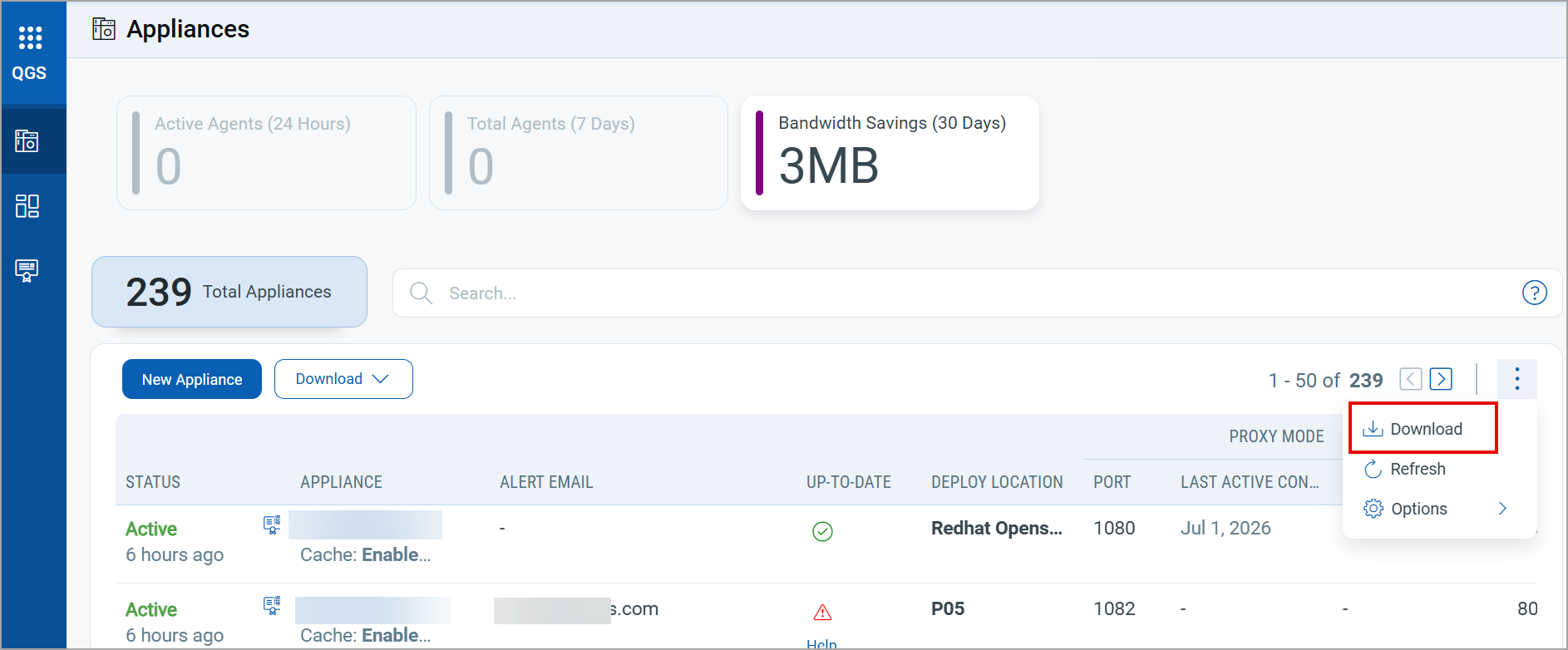
- In the Download Formats window, click Download.
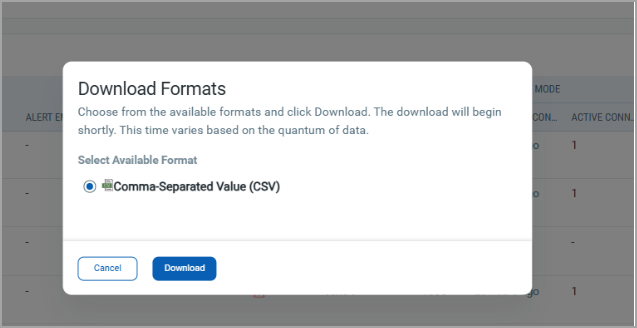
The downloaded file is in CSV format.
The export includes the following information for each appliance:
- Identity Status: Friendly Name, UUID, IP Address, Status, OS Version, Manifest Versions, Certificate Date, Last Updated Date, Last Sync Time
- Connections: Connectivity status, Proxy Mode, Tunnel Enabled, Tunnel Port
- Caching Patch: Cache Mode, Caching Enabled, Caching Port, Patch Enabled
- Storage: Primary Disk Usage, Secondary Disk details (if applicable)
- Traffic Bandwidth: Data Sent, Data Downloaded, and Bandwidth Savings (last 1 day and last 30 days).
Recommended concurrent connections sizing configurations
A QGS appliance supports 2,000 concurrent connections by default in each operating mode, and can be configured for up to 10,000. To increase the capacity, contact Qualys Support. Size the appliance according to the following recommendations before you request an increase.
The following are the recommended sizing configurations for concurrent connections:
Proxy Mode
| Concurrent connections | Recommended configuration |
|---|---|
| 2,000 (default) | 16 GB RAM, 4 cores |
| 5,000 | 16 GB RAM, 4 cores |
| 10,000 | 16 GB RAM, 8 cores |
Cache/Patch Mode
| Concurrent connections | Recommended configuration |
|---|---|
| 2,000 (default) | 16 GB RAM, 4 cores |
| 5,000 | 16 GB RAM, 8 cores |
| 10,000 | 32 GB RAM, 16 cores |