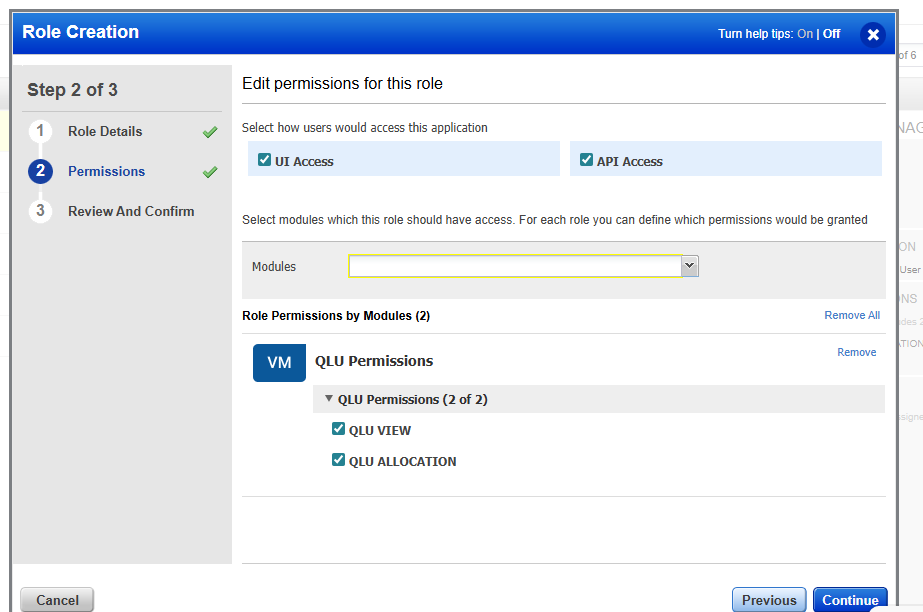
Manage Roles and Permissions
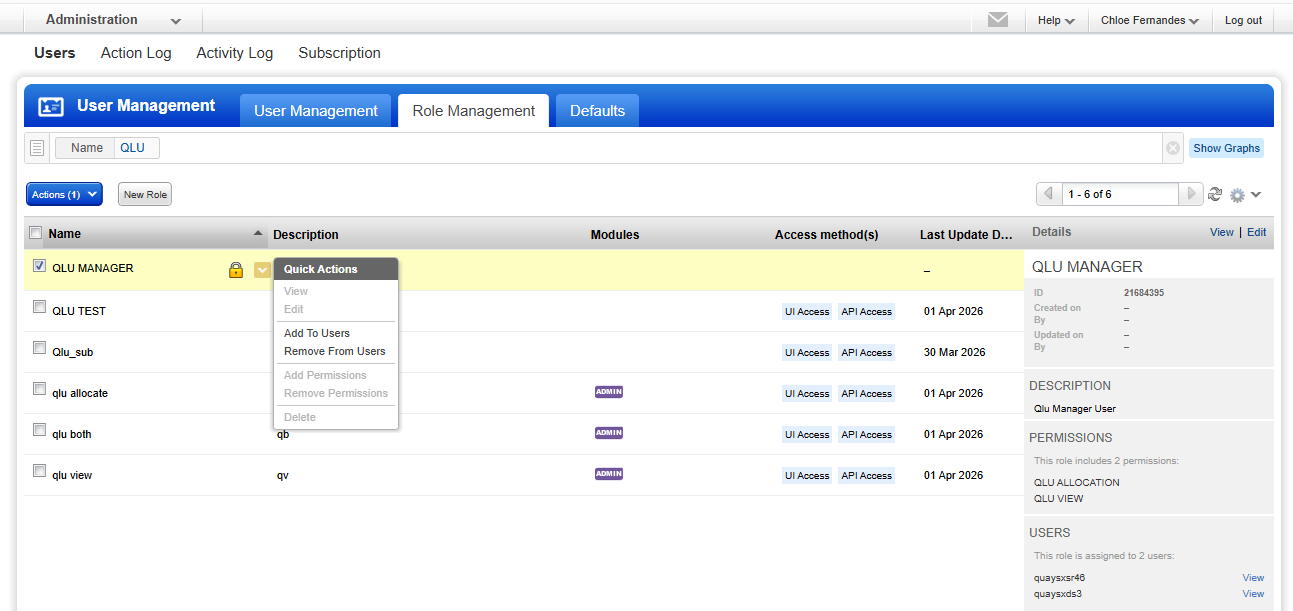
The QLU Manager role is defined in the Admin > Role Management tab. By default, the POC Manager user and Super users have QLU permissions. To extend those permissions to other users, the customer can use the QLU Manager role. The manager can view QLU usage across products. They can allocate and reallocate QLUs as requirements change. The role supports oversight of QLU distribution, usage, and capacity planning across the organization.
QLU Manager Role
To assign the QLU Manager role, follow these steps:
1. Navigate to Administration > Role Management.
2. Select the QLU Manager role.
3. Go to Quick Actions and select Add to Users.
4. Choose the required user from the drop-down list.
Custom Role with QLU Permissions
If you need a custom role with QLU permissions, perform the following steps:
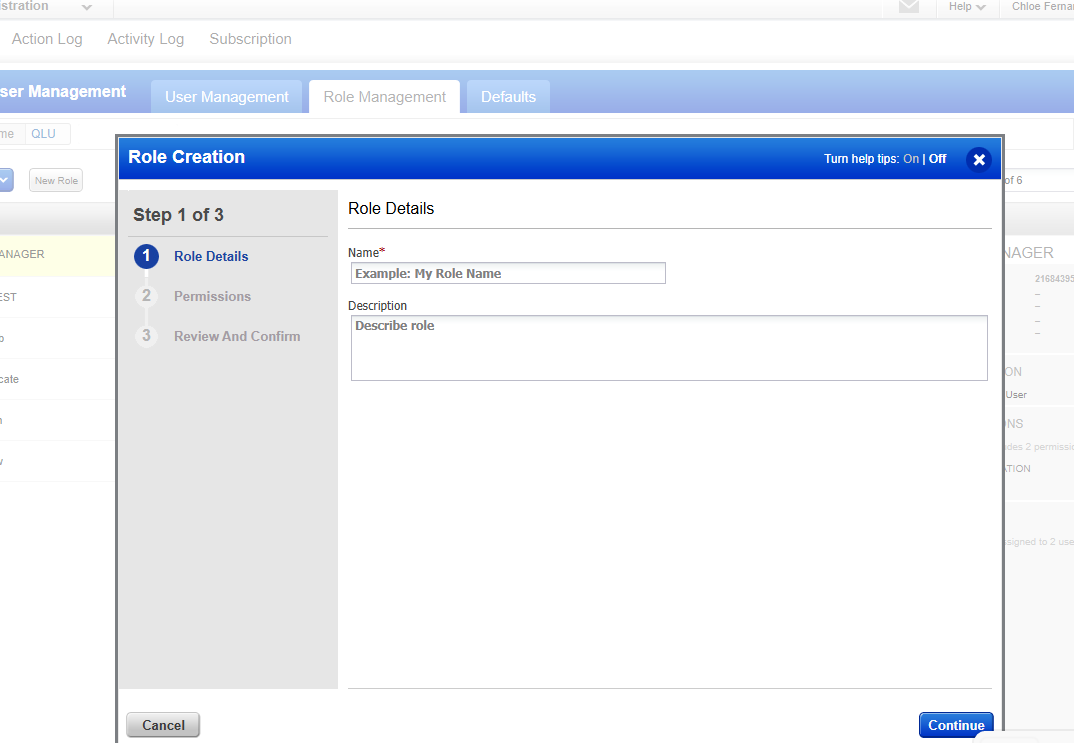
1. Navigate to Administration > Role Management and select New Role.
2. Enter the role details: Name and Description.
3. In the Permissions section, select both API and UI access.
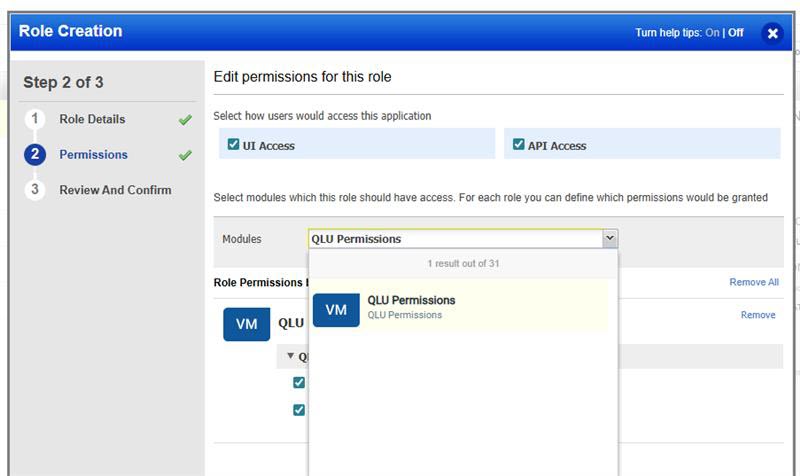
4. From the Modules drop-down, select QLU Permissions.
5. Assign the required permission level (View or Allocate) based on your requirements.
6. Review the role configuration and confirm.