Subscription Overview
The My Subscription page displays your Qualys subscription details, including account status, QLU usage, and the current state of all your products - purchased, trial activated, and so on. Use this page to monitor QLU usage, track trial periods, and identify products that need attention.
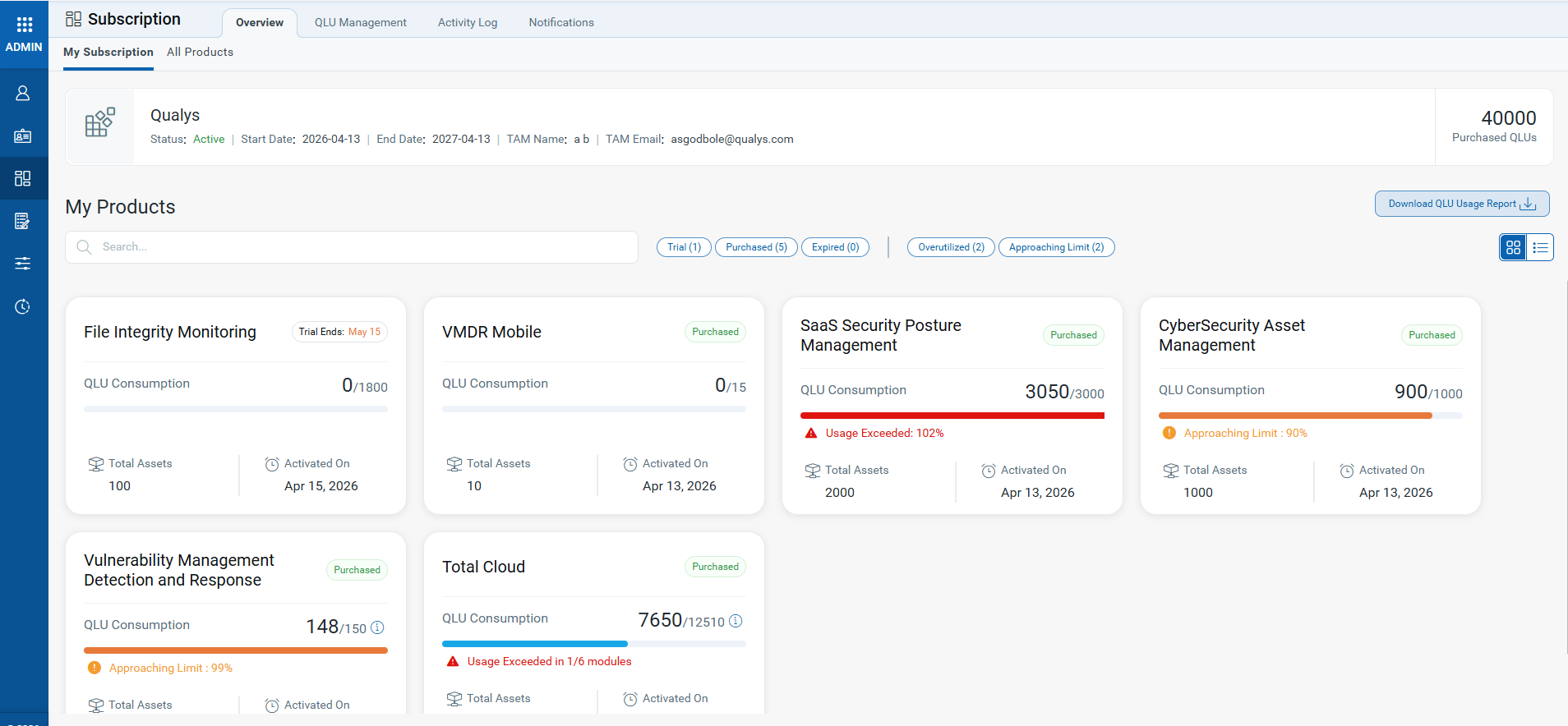
Subscription Summary
This section displays the following details for your subscription:
Status: The current state of your subscription, for example, Active or Expired.
Start Date and End Date: The subscription period start and end dates.
TAM Name and TAM Email: The Technical Account Manager (TAM) assigned to your account.
QLU Counter: This counter displays the QLU balance; that is, the number of remaining QLUs out of the total number of QLUs purchased.
Search and Filters
Use the Search bar to find products included in your subscription. The filters are available based on the type of subscription and QLU usage:
- Trial
- Purchased
- Expired
- Overutilized
- Approaching Limit
These options allow you to efficiently identify products that may require immediate attention or QLU optimization.
Product Cards
Each subscribed product is displayed as an individual overview card, providing quick insights into its unit usage. An option on the left displays product cards in a list format.
The following details are available on each product card:
-
Product Name: The name of the Qualys application.
-
Product Status: The status of the product displays whether the product is purchased or enabled under trial. It also displays the number of trial days.
- QLU consumption: The number of QLUs used out of the total allocated QLUs. The progress bar visually indicates QLU usage and displays a percentage as it approaches the allocated QLUs.
- Total Assets: The total number of assets associated with the product.
- Activated On: The date the product was activated for the account.
Product Usage Status
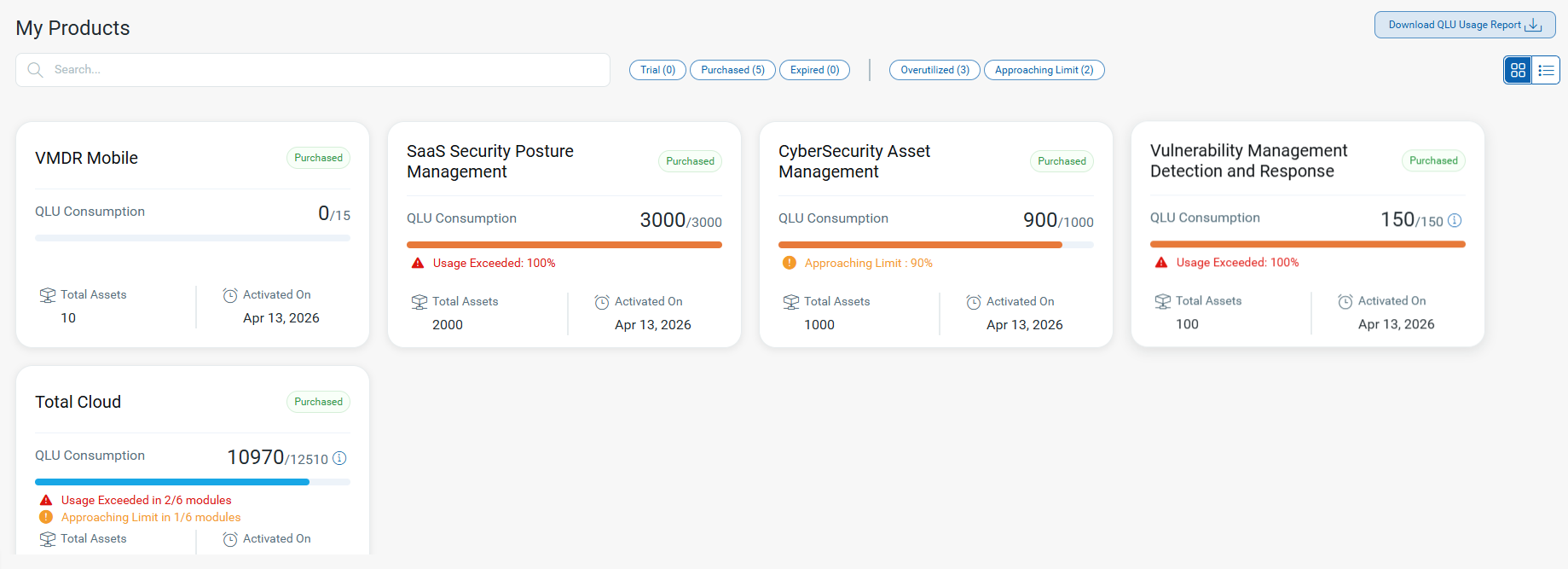
The Subscription page displays the overall QLU usage status for each subscribed product under the QFlex plan. Each product is shown as a card with usage information measured against the purchased QLUs.
Usage Indicators
Each product card uses color‑coded bars to represent usage status:
-
Within limit (Blue bar): Indicates normal usage within the purchased QLU limits.
-
Approaching limits (Amber bar): Indicates that usage has reached approximately 80%–90% of the purchased QLUs.
-
Overutilization (Red bar): Indicates that QLU usage has exceeded the purchased limits.
Download Usage Report
To export a summary of your subscription and product usage, click Download QLU Usage Report. The report includes subscription details and QLU usage data across all your products. The report is downloaded in CSV format.
The View Details Page
To view detailed information on asset usage and historical trends, click the corresponding product card.
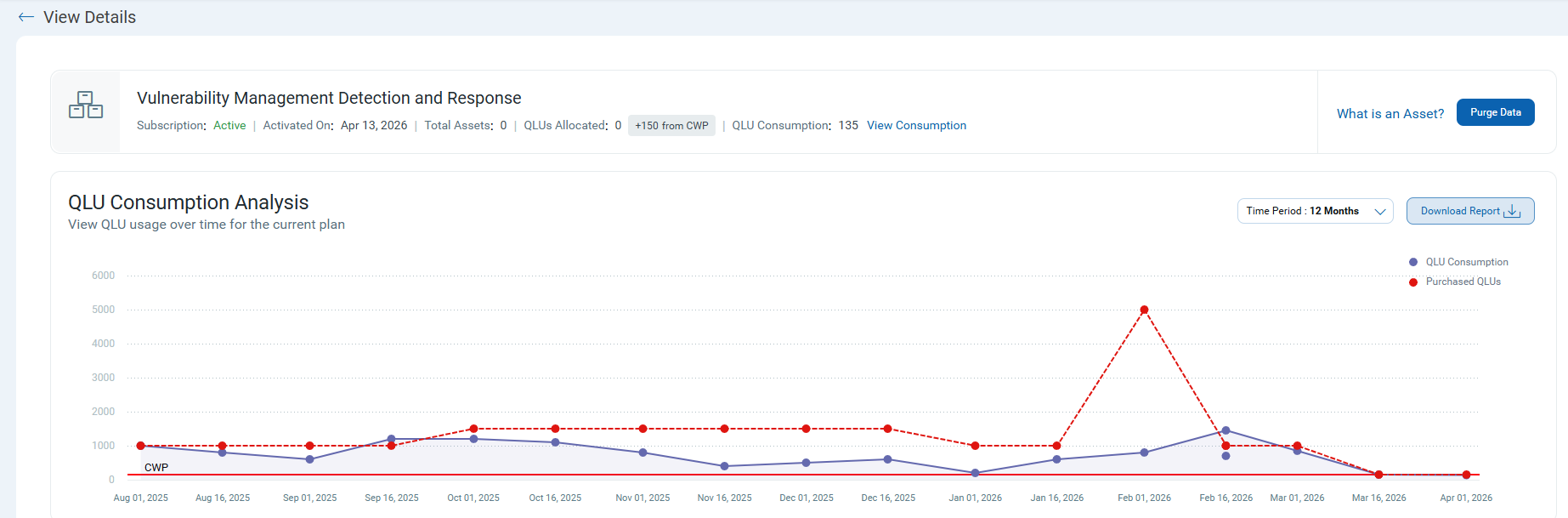
The View Details page provides details for the selected product - the current subscription status, the date the product was activated, the total QLUs allocated, the total number of assets currently associated with the product, and the number of QLUs consumed till date.
Usage Analytics
The Usage Analytics section displays a usage chart of QLU over the selected period. The usage graph updates every 15 days and displays the peak unit usage for each period.
- Real-time QLU usage Tracking: Displays real-time tracking of Qualys Unit (QLU) usage across all enabled products.
- Usage Visualization: Select the duration from the Select Time Period drop-down to view the trend for the selected duration.
- View Consumption: Displays QLU consumption details per asset. The View consumption redirects you to the CSAM page, where asset‑level usage is displayed for Qualys Endpoint Detection Response (EDR), File Integrity Monitoring (FIM), VMDR, TotalAppSec (TAS), and Web Application Scanning (WAS). Usage data is available only for the listed products.
- What is an Asset: Defines the asset and how QLU usage is calculated for each product. For details, refer to Asset Definition and QLU Calculation.
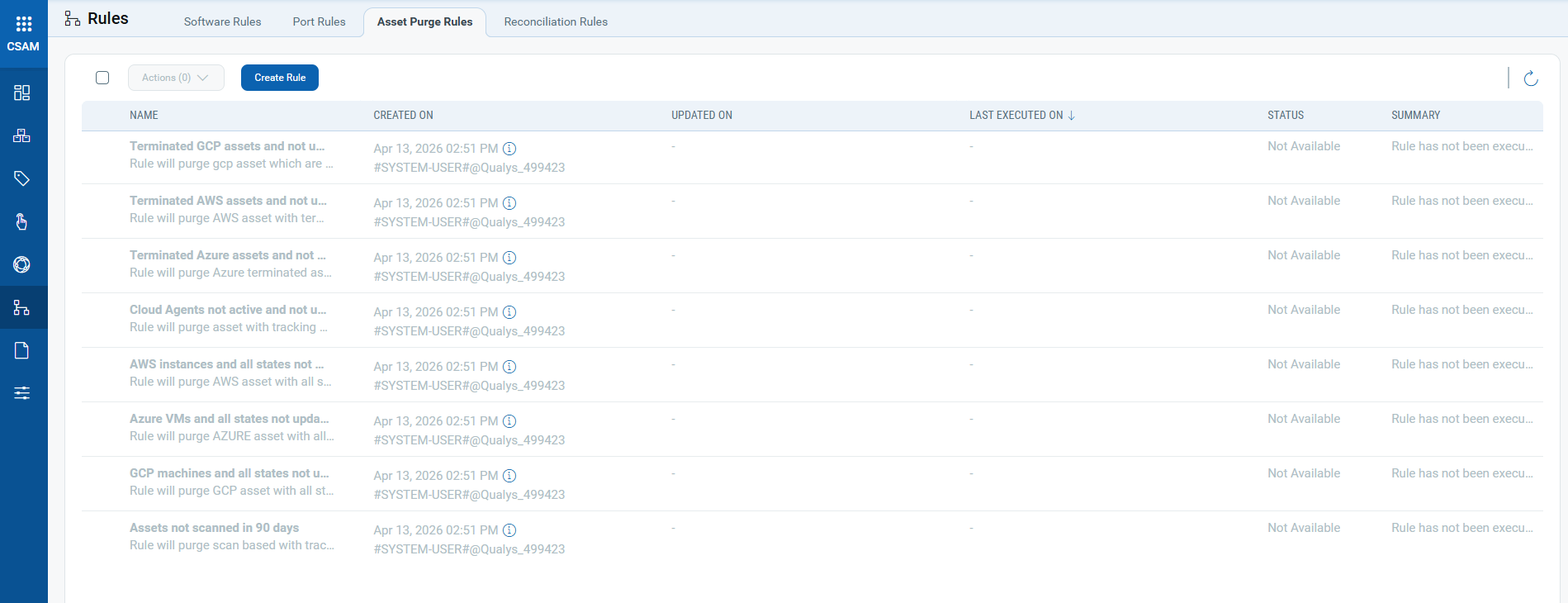
- Purge Data: Delete selected assets’ log data from active QLU processing using Purge Asset Rules.
- Download Report: Downloads the usage analytics for your reference. The report is downloaded in CSV format.
Allocation History
The Allocation History table provides a chronological record of all QLU allocation changes for the product. The Allocation History contains the change creation date, the user who made the change, the product impacted by the change, and the change recorded.
