Deploy QScanner on Harbor Registry
The Harbor Scanner Adapter acts as a bridge between Harbor and QScanner, enabling Harbor to perform container image security scans. As a part of Harbor Scanner Adapter feature for deployment purpose we have created docker image supporting both 'arm' and 'amd' platform. Which can also be executed as a container for scanning images apart from Harbor Registry.
Harbor Cluster Deployment
This is when Harbor is deployed as clustered setup. This section guides you to install using the helm chart. The installation will deploy the Qualys Harbor Adapter Service on each worker node as a statefulset. By default, it assumes 'containerd' as the default runtime on Kubernetes cluster.
Prerequisites
Kubernetes & Helm
- Kubernetes 1.17+
- Helm v3.x.x
Get Repository Info. Run the following commands.
helm repo add adapter-svc-helm-charthelm repo update
Installing the Helm Chart (values.yaml)
In 'values.yaml', enter mandatory values from your environment as mentioned in the Configuration section and keep this file in helmInstallationPath directory.
Note: All Important flagged are mandatory parameters.
values.yaml is being used for,
- Helm chart deployment
- Service configuration (these changes are one time and if modified then pod restart is required.)
- Scanner Flags (these flags are kept configurable and will get reflected for each scan job request without service restart)
Use the following command to install the chart -
helm install [NAME] [CHART] [flags]
Install on Kubernetes cluster with containerd runtime (Default) -
helm install qualys-harbor-demo adapter-svc-helm-chart/qualys-harbor
Install on Kubernetes cluster with docker runtime -
helm install qualys-harbor-demo adapter-svc-helm-chart/qualys-harbor
Upgrading the Release
Use the following command to upgrade the chart -
helm upgrade [RELEASE] [CHART] [flags]
Where,
[RELEASE] is the release name.
[CHART] is the chart path.
For example,
helm upgrade qualys-harbor-demo adapter-svc-helm-chart/qualys-harbor
Uninstalling the Chart
Use the following command to uninstall the chart -
helm uninstall RELEASE_NAME [...] [flags]
For example,
helm uninstall qualys-harbor-demo
Persistent Cache requirement
With caching enabled we can increase scan job performance. The first scan may take longer time but subsequent scans will be faster. To support this, local as well as persistent cache is available.
cache-dir: location of cache mounted within pod.
- Local cache - This cache will not be persisted if your pods restart or gets redeployed. By default, it is enabled and will be used as default location - </opt/qualys/.cache/qualys/qscanner>. Other location can be set through cache-dir flag.
- Persistent cache - This cache will be persisted across redeployments or if pods restart. For enabling this cache persistence.enable=true. This will create persistent volume claim for all the replicas hence for this storage class should already be created with certain provisioning. If storage class is manual then we need persistent volume created for every replica of scanner-pod.
Sample persistent volume yaml
 {{- if .Values.persistence.enable }}
    apiVersion: v1
    kind: PersistentVolume
    metadata:
      name: qscanner-cache0
      labels:
        type: local
    spec:
      storageClassName: manual
      capacity:
        storage: {{ .Values.persistence.size }}
      accessModes: [ "ReadWriteMany" ]
      hostPath:
        path: {{ index .Values.scannerArgs "cache-dir" }}
    {{- end }}
Sample storage class yaml
kind: StorageClass
    apiVersion: storage.k8s.io/v1
    metadata:
      name: manual
    provisioner: kubernetes.io/no-provisioner
    volumeBindingMode: WaitForFirstConsumer
Configuration Parameters
The following table lists the configurable parameters for the Qualys Harbor Adapter chart and their default values.
| Parameter | Description | Default | Notes | Service restart required? |
|---|---|---|---|---|
| fullnameOverride | This name will be used as service name which needs to be added under Interrogation Service as new Scanner. | qualys-scanner | Important: If TLS is enabled then certificate should have this name as dns. | No |
| helmInstallationPath | The absolute path of values.yaml helm chart installation. | --- | Important: This is required as persistent volume would be mounted from this path within pod | Yes |
| persistence.enabled | This is required to mount persistent cache within pod. | TRUE | Important: This is required if persistent cache is required. | Yes |
| persistence.storageClass | This is Storage class used for mounting persistent share. The same applies to in the case of persistent cache being enabled. | manual | Important: This is mandatory if persistent cache is required. If manual, then persistent volumes should be created as per replicas on respective nodes | Yes |
| persistence.accessMode | This is access mode for persistent share same is referred if persistent cache is enabled. | ReadWriteMany | Important: This is mandatory if persistent cache is required. | Yes |
| persistence.size | This is the disk size that will be allocated for the persistent share. | 3Gi | Note: 3Gi is the minimum required size | Yes |
| redis.url | Scanner service creates redis client connection to store job details which is referred on harbor UI. | --- | Important: This has to be updated based on the environment. Format: redis://harbor-redis:6379/ -> redis://<redis-svc-name: default port is always 6379 in harbor environment |
Yes |
| redis.maxActiveConnections | This is maximum number of concurrent redis connections. This is configurable and if modified pod restart would be required. | 5 | Note: 5 is the minimum number of connections | Yes |
| redis.maxIdleConnections | This is maximum no of Idle connections without getting quickly closed port operation. | 5 | Note: 5 is the minimum number of connections. | Yes |
| service.workerThreads | The number of workers to spin-up for the scan jobs queue. | 2 | Note: 2 is the minimum number of connections. | Yes |
| service.scanJobTTLHour | The time to live for persisting scan jobs and associated scan reports. | 1 | No | |
| service.maxTimeout | The maximum duration for all network requests [redis calls, api responses] | 1m | - | No |
| service.replicaCount | This count is for how many instances of Qualys Harbor Scanner processes will run, serving job requests | 1 | Note: 1 is the minimum no of connections. | Yes |
| service.logLevel | This is log level for Qualys Harbor Scanner Service | debug | Yes | |
| service.port | On this port Qualys Harbor Scanner Service will listen for incoming scan requests from Harbor. | 5000 | Yes | |
| service.tlsEnabled | This value is to spawn Qualys Harbor Scanner Service with TLS enabled | false | Note: This service runs in same cluster as other Harbor Services. | Yes |
| service.tlsCertData | This is absolute path for TLS certificate file. | --- | Yes | |
| service.tlsKeyData | This is absolute path for TLS key file. | --- | Yes | |
| service.disable-qualys-tls | This is to mount tls certs for Qualys Backend if set to false. | TRUE | No | |
| persistence.enable | This is for enabling persistent local cache which will prevent loss of data even during pod crash/restart issue. | false | Note: With this option scannerArgs.cache-dir must be set to some local path that will get mounted. There might be certain performance degradation for the first scan subsequent scans will get optimized. | Yes |
| scannerArgs.log-level | This log-level is for each scan request job. | info | No | |
| scannerArgs.cache | This is for enabling local cache. If this is set to local and persistence.enable=false then local cache which won't be persisted in case of pod restart. | local | No | |
| scannerArgs.cache-dir | If this is set then cache will be created on this location else default location will be used. | /root/.cache/qualys/qscanner | No | |
| scannerArgs.pod | Specify Qualys Platform (POD) for QScanner communication with Qualys Enterprise TruRisk™ Platform. For e.g: [US1 US2 US3 US4 EU1 EU2 EU3 IN1 CA1 AE1 UK1 AU1 KSA1].If your platform is not mentioned here, provide the gateway URL using --gateway-url | --- | Important: This is mandatory; without it, the scan job will fail to fetch the vulnerability report. | No |
| scannerArgs.gateway-url | Specify Qualys Platform (POD) gateway URL for backend communication. Please find the gateway URL for your POD at https://www.qualys.com/platform-identification. Alternatively, you can provide POD identifier using --pod flag. | --- | Important: This is mandatory; without it, the scan job will fail to fetch the vulnerability report. | No |
| scannerArgs.access-token | Specify Qualys access token to be used for backend communication | --- | Important: This is mandatory; without it, the scan job will fail to fetch the vulnerability report. | No |
| scannerArgs.skip-verify-tls | This is to skip TLS communication with Qualys Enterprise TruRisk™ Platform. | FALSE | No | |
| scannerArgs.cert-path | This is path for TLS certificate. Applicable only if skip-verify-tls=false. | --- | No | |
| scannerArgs.proxy | Specify proxy URL to use. If not specified, it will use from environmental variables. | --- | No | |
| scannerArgs.offline-scan | This is to disable external API requests to identify dependencies. | FALSE | No | |
| scannerArgs.scan-timeout | This is a scan job maximum timeout | 5m 0s | No | |
| scannerArgs.max-network-retries | Set the max network retries value. After this number of retries, QScanner will not poll the backend. | 10 | If '0' value is provided, no retries will be performed for any backend communication. | No |
| scannerArgs.network-retry-wait-min | Time elapsed before QScanner sends the next poll request. | 5s | Certain communications include an additional wait before the first retry.For example, fetching the vulnerability report waits 15 seconds before retrying. | No |
| scannerArgs.cache-cleanup-duration-threshold | Qualys Harbor Service will cleanup cache after this threshold | 4320h0m0s | No | |
| scannerArgs.cache-cleanup-frequency | This is the duration after which Qualys Harbor Service will attempt to perform the cleanup of old unused local cache entries | 720h0m0s | No | |
| scannerArgs.enable-cache-cleanup | If true, Qualys Harbor Service will perform a cleanup of old unused cache entries. | TRUE | No |
Standalone Docker Deployment
This section guides you to deploy QScanner when Harbor is deployed as standalone docker setup where each Harbor Service corresponds to docker container.
Sample command to spawn QScanner image as docker container within Harbor.
docker run --name qualys-scanner \

    --network=harbor_harbor

    -v /home/ubuntu/qualys-scanner/values.yaml:/usr/share/qscanner/values.yaml \

    -v /home/ubuntu/accesstoken:/usr/share/qscanner/accesstoken/token \

    -p 5000:5000 \

    qualys/qscanner:latest \

    harbor-registry-service --file-logging=true --log-level=debug
In above example, you need to
- mount `values.yaml` within container at this location - `/usr/share/qscanner/values.yaml`
and - mount access token file at this location - `/usr/share/qscanner/accesstoken/token`.
Viewing Vulnerabilities on Harbor UI
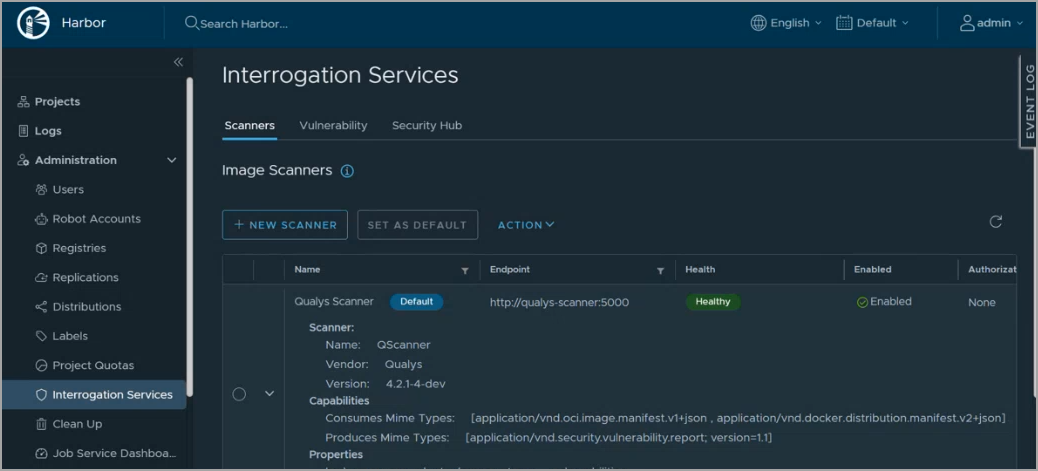
In order to see Harbor registry scan data on Harbor UI, you need to add a QScanner instance in your Harbor Account. To do this, login to your Harbor account, and navigate to Interrogation Services > Scanners > + NEW SCANNER > QScanner
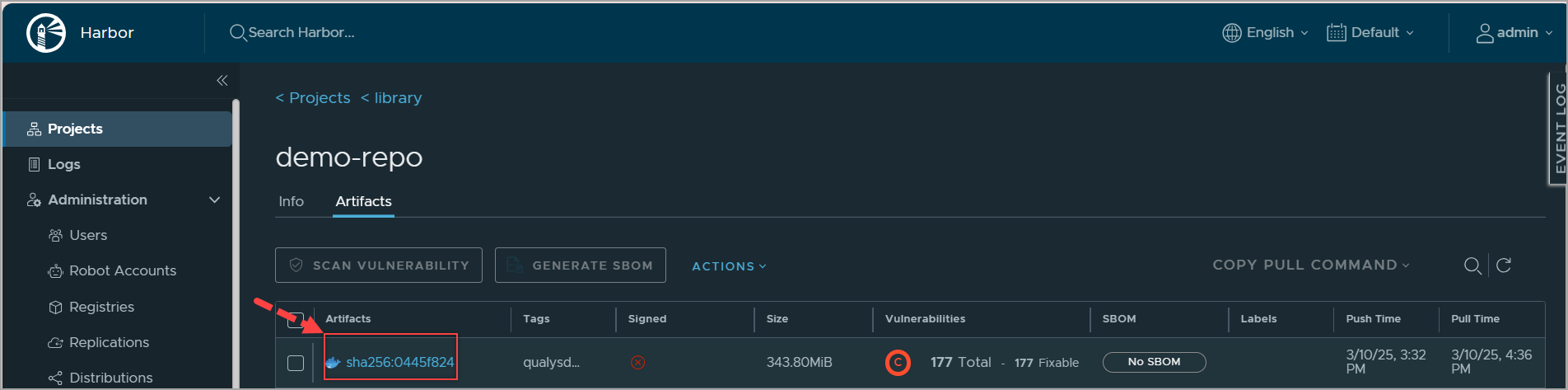
Once QScanner scans your Harbor artifact, and provides its detailed vulnerability report in your Harbor account.
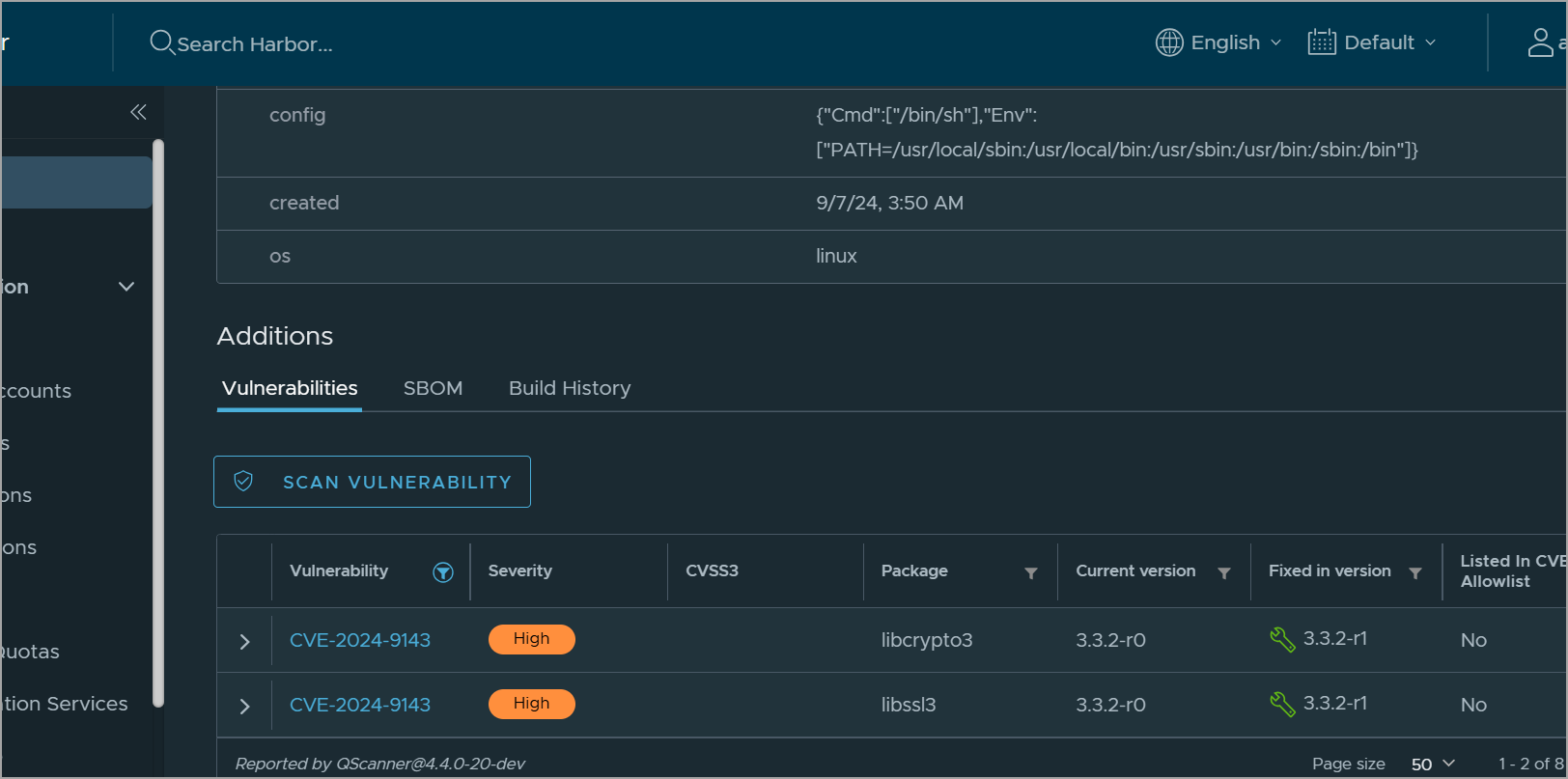
- In a case, when a CVE ID has multiple associated QIDs, Harbor UI considers only one of the QIDs. In such scenario, the Qualys Enterprise TruRisk™ Platform shows you more QIDs as compared to the Harbor UI.
- Harbor considers CVE ID and package name for listing the vulnerabilities. Qscanner reports vulnerabilities with or without packages. A vulnerability without packages will not be listed on Harbor UI.