Claude Connector
SaaSDR supports a SaaS connector for Claude. The connector collects and monitors information from your Claude environment, including users, groups, files, and activity.
To set up the connector, you only need a Claude API key. Administrator access is required only to generate the API key and is not required afterward to use or maintain the connector.
After the connector is configured, SaaSDR automatically discovers and regularly updates information about your organizations, users, groups, projects, and files.
- Users and files discovered through the connector are classified as Internal.
- Files are available on the Resources tab.
- File-related activity is available on the Events tab.
- Events are categorized by severity (High, Medium, or Low) and grouped by activity type, such as login and compliance-related activities, making it easier to review and filter events.
Generate Claude Compliance API Key
The Claude Compliance API is an enterprise feature provided by Anthropic. It allows you to securely access compliance-related information, including user activities, organizational information, audit logs, and compliance events.
Prerequisites
To generate a compliance API key, the following prerequisites must be met:
- You have access to an Anthropic Enterprise organization.
- You are either the Primary Owner or an Organization Administrator with permission to manage API keys.
- The Compliance API has been enabled for your organization.
Follow these steps to generate the API key:
- Open your web browser and go to https://claude.ai. Sign in using your organization account.
- Click your profile icon and open Organization Settings.
- Navigate to API > Keys.
- Click Create Key.
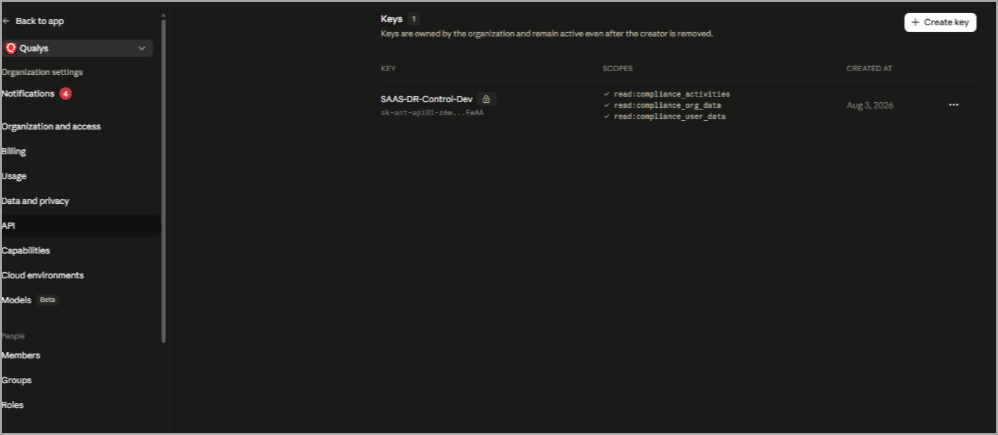
- Select Compliance API Key (if prompted) and enter a descriptive name for the key.
- Add the following required scopes (permissions):
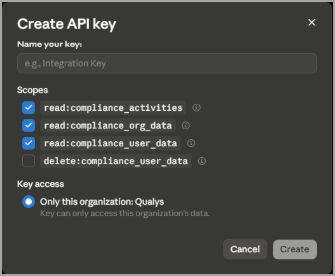
- read:compliance_activities
- read:compliance_org_data
- read:compliance_user_data
- Click Create Key to generate the API key. Copy and save the key securely.
Create Claude Connector in SaaSDR
Follow these steps to create a Claude connector:
- On the SaaSDR UI, go to Configuration > Connectors and click Create Connector.
- Select Claude from the SaaS drop-down menu on the Create Connector page.
- Provide the following details:
- Name - Enter a name for the connector.
- Description - Add a brief description for the connector.
- API Key - Enter the Claude API key.
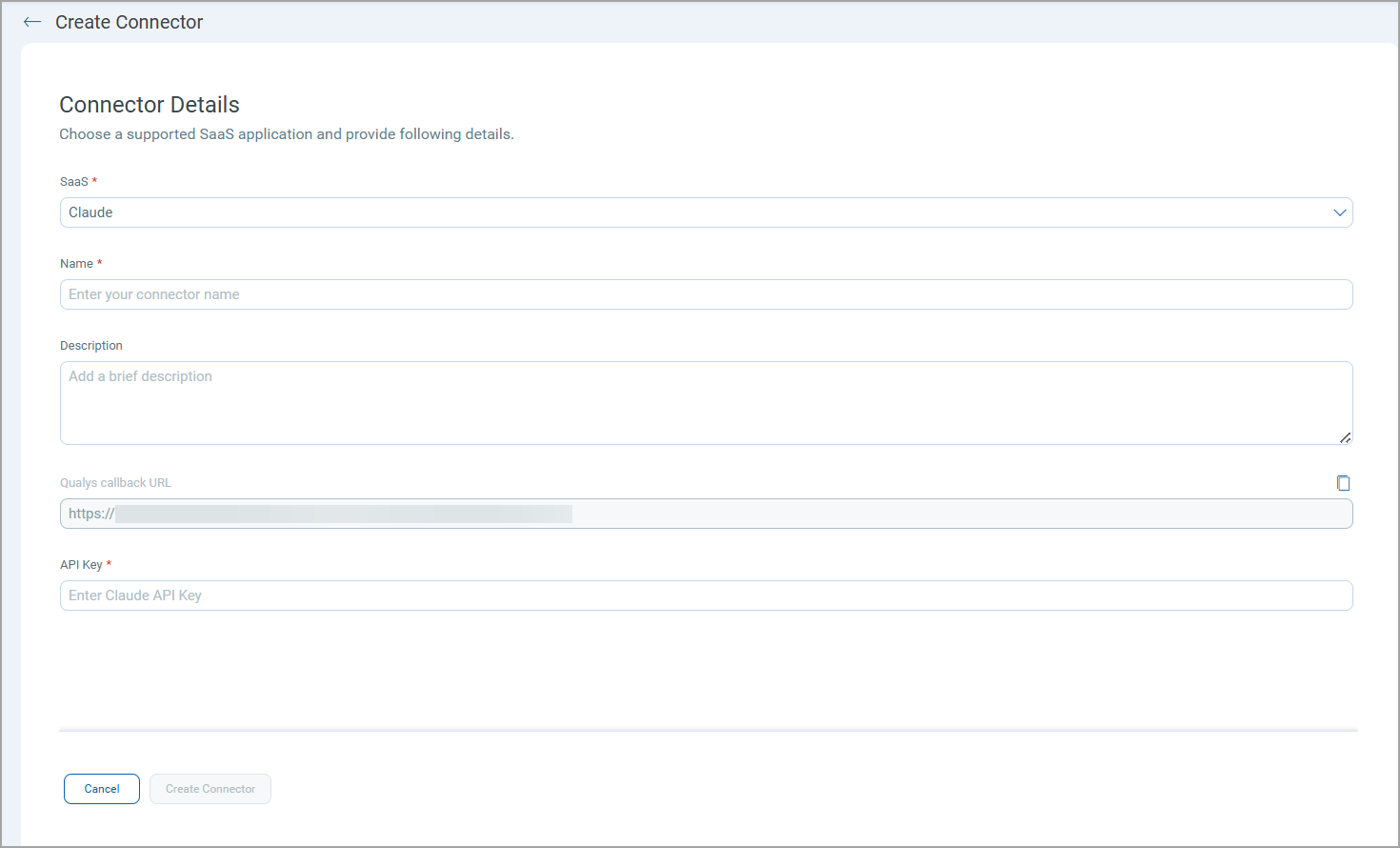
- Click Create Connector.
Once your connector is created, it is listed in the Configuration > Connectors list.
Once the application is connected, a scan is initiated to pull metadata from it. Depending on the number of resources to be cataloged in your application, this step may take some time to complete.