OpenAI Connector
SaaSDR supports a SaaS connector for OpenAI. The connector uses the OpenAI Administration API with an OpenAI Organization Admin API key to collect organization-level information, including:
- Users
- Groups
- Group members
- Pending invitations (users who are invited to your OpenAI organization but have not yet accepted the invitation)
- Audit logs
After the connector is configured, SaaSDR scans your OpenAI organization and keeps the information up to date with incremental scans that run every 24 hours.
- Users discovered through the connector are classified as Internal.
- Audit log activity is available on the Events tab. Events are grouped by category, such as Authentication, Project Activity, User Management, and API Key Management, and are categorized by severity (High, Medium, or Low).
File inventory is not supported for OpenAI. Therefore, no OpenAI data is shown on the Resources tab.
Generate OpenAI Admin API Key
To access the OpenAI organization-level APIs, the connector requires an OpenAI API Platform Organization Admin API key.
An Admin API key is different from a regular OpenAI API key used for model inference. Organization Admin API keys are intended for administrative operations, such as managing users, projects, invitations, and audit logs.
Prerequisites
Before you create the Admin API key, make sure that:
- You have access to the OpenAI Platform and to the required OpenAI API Platform organization.
- You are an Organization Owner. Only API Platform organization owners can create organization Admin API keys.
- You know which organization you want to connect to SaaSDR.
Follow these steps to generate the Admin API key:
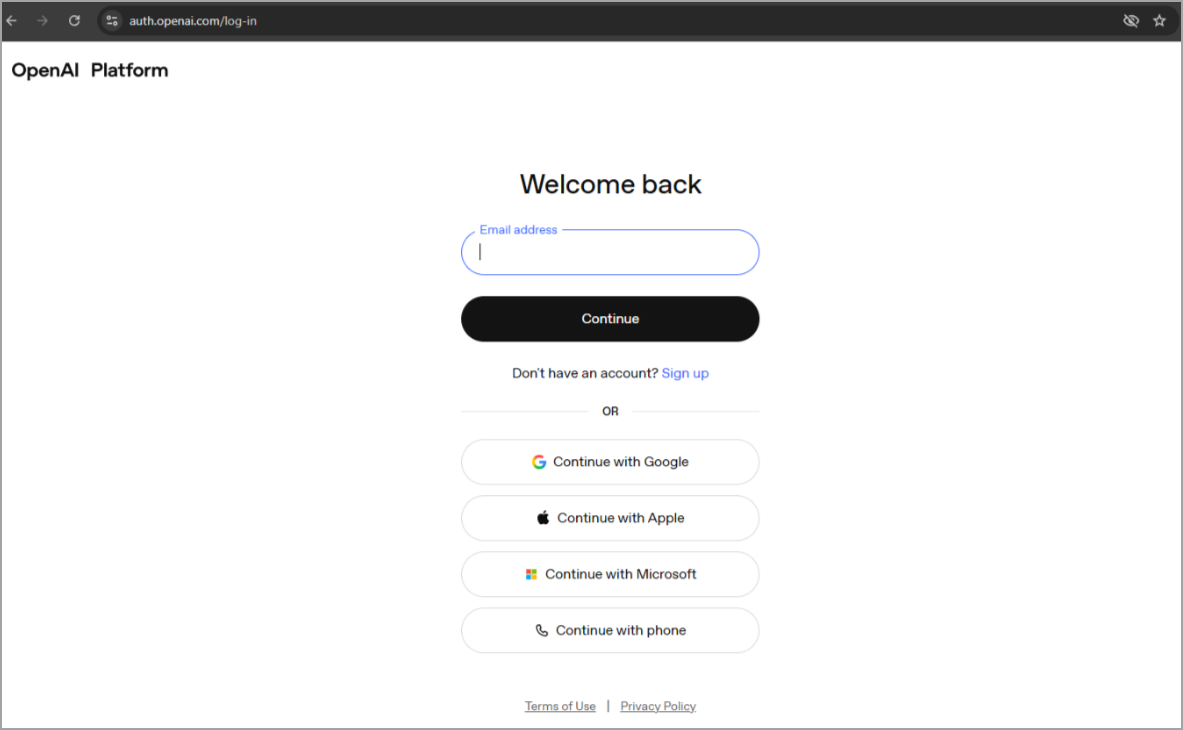
- Sign in to the OpenAI Platform using the account that has Owner access to the required organization.
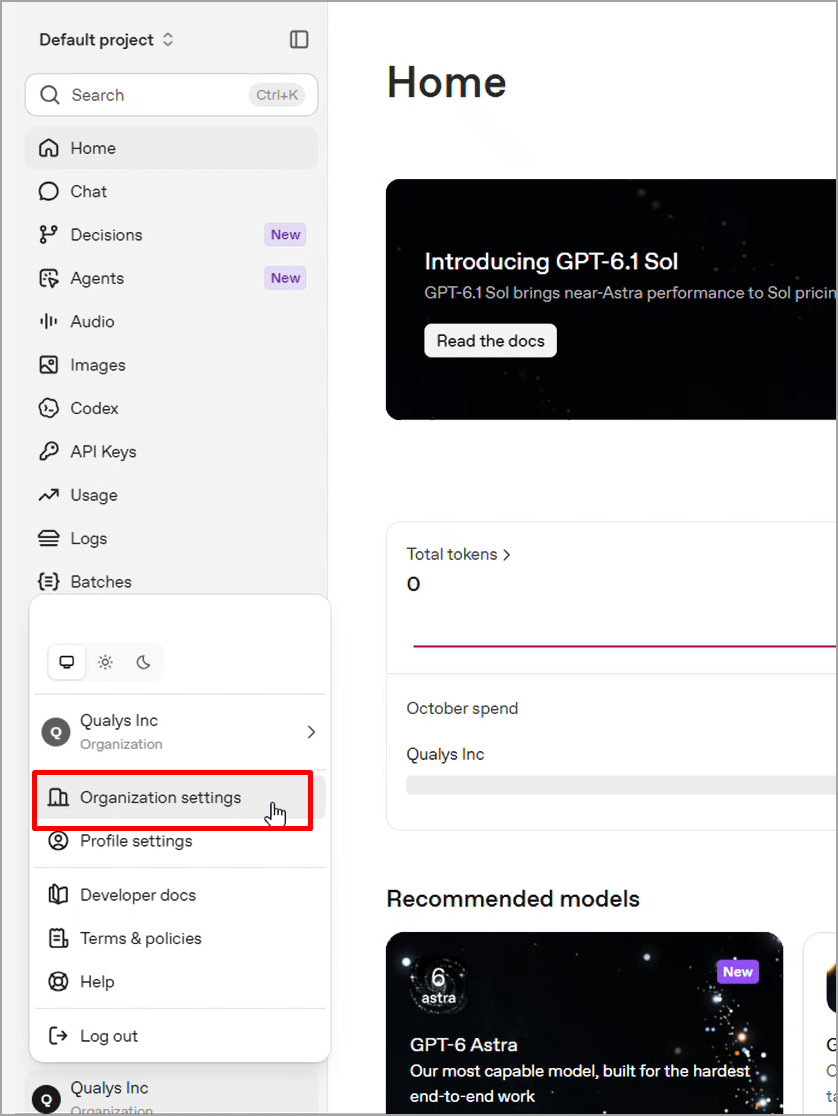
- Select the required organization and open the organization settings. Make sure you are working with the correct organization before you create the key.
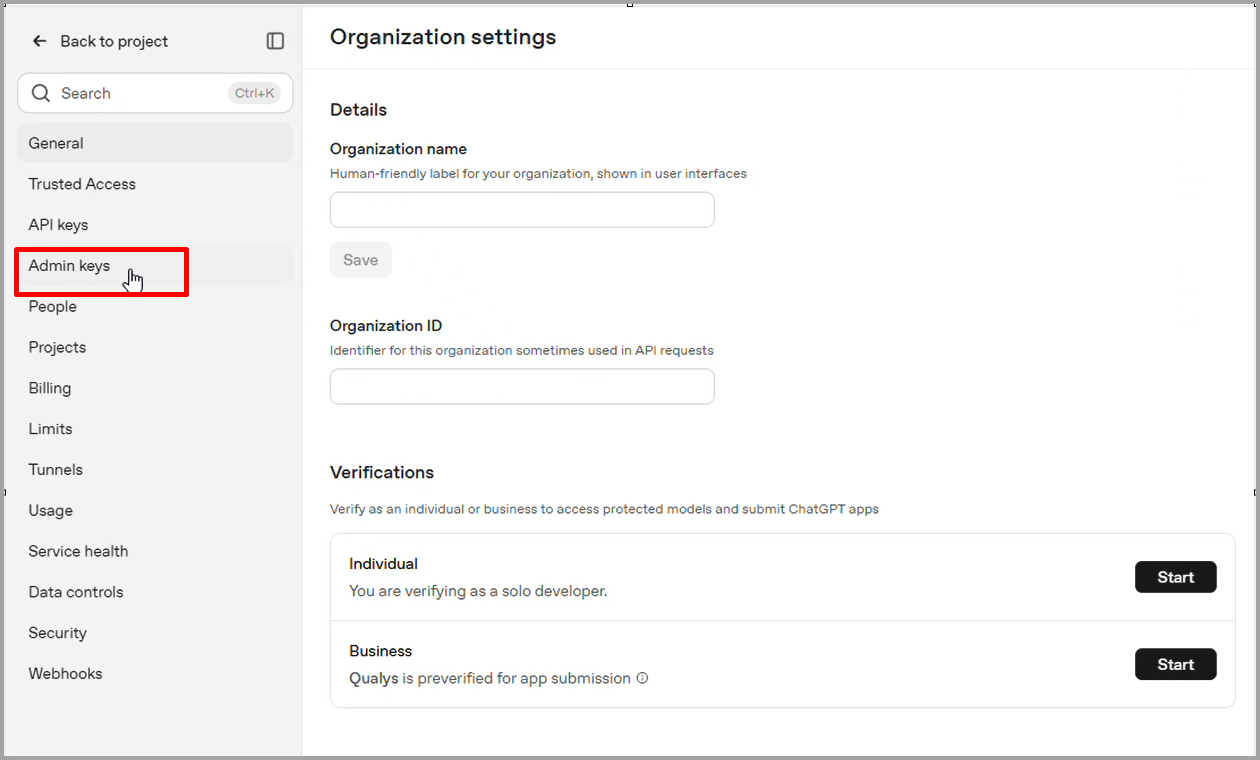
- Navigate to Admin Keys.
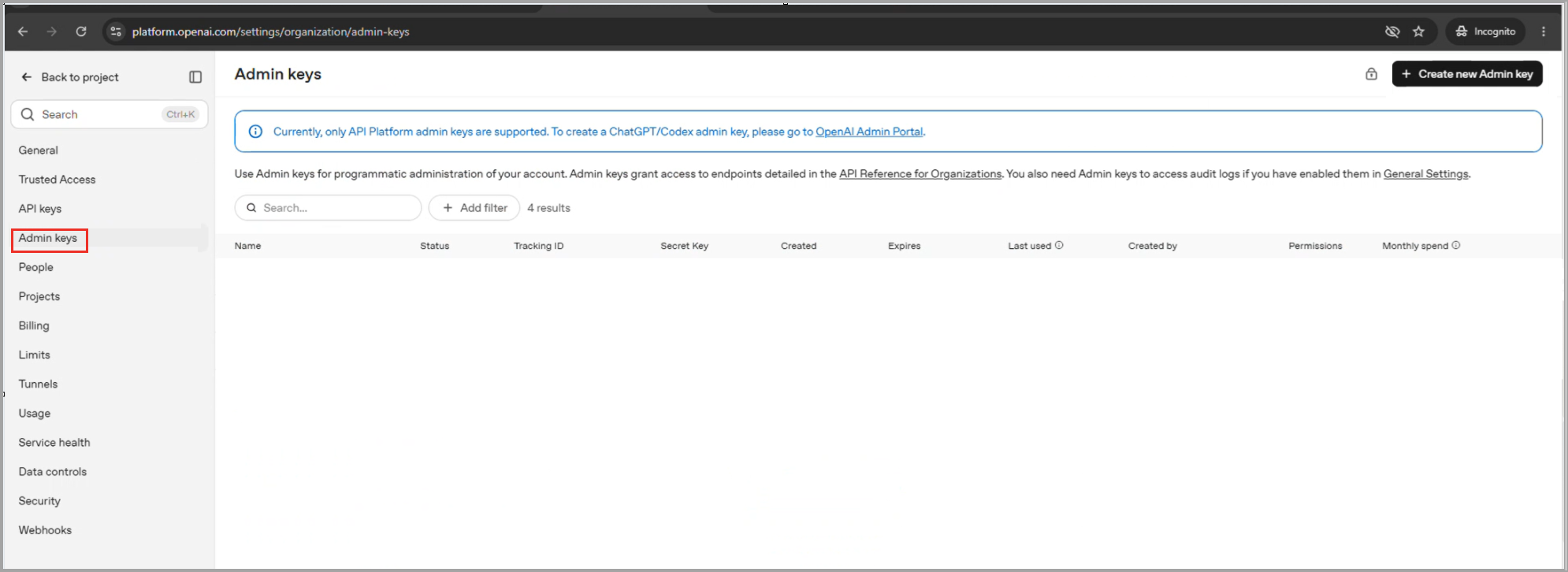
- Click Create new admin key.
- Enter a descriptive name for the key, for example, Qualys SaaS Connector. A descriptive name makes it easier to identify which integration uses the key.
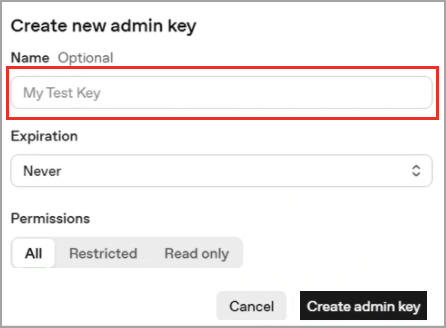
- Select the Read only permission.
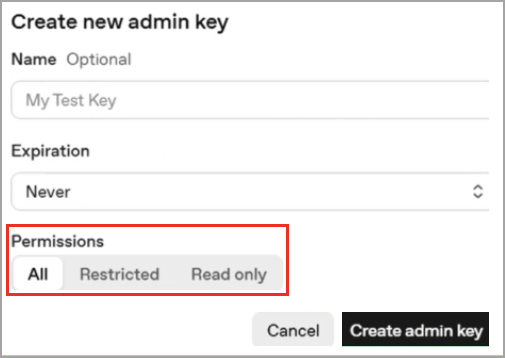
If the key has the Restricted permission, the connector moves to the Unauthorized state.
- Set the expiration for the key. When the key expires, you must create a new key.
- Create the key. OpenAI displays the secret key value, which begins with sk-admin-.
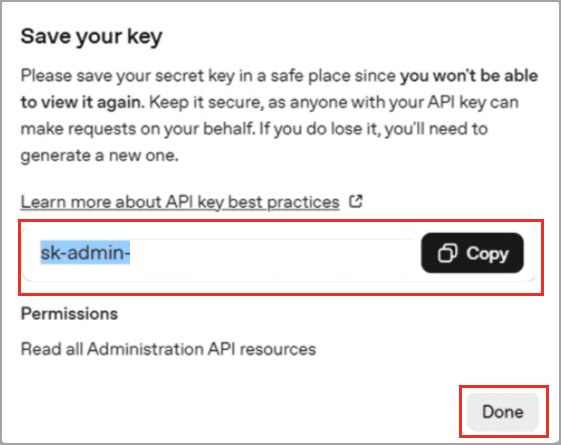
- Copy the key immediately and store it securely. The key cannot be retrieved later. If the key is lost, delete the old key and create a new one.
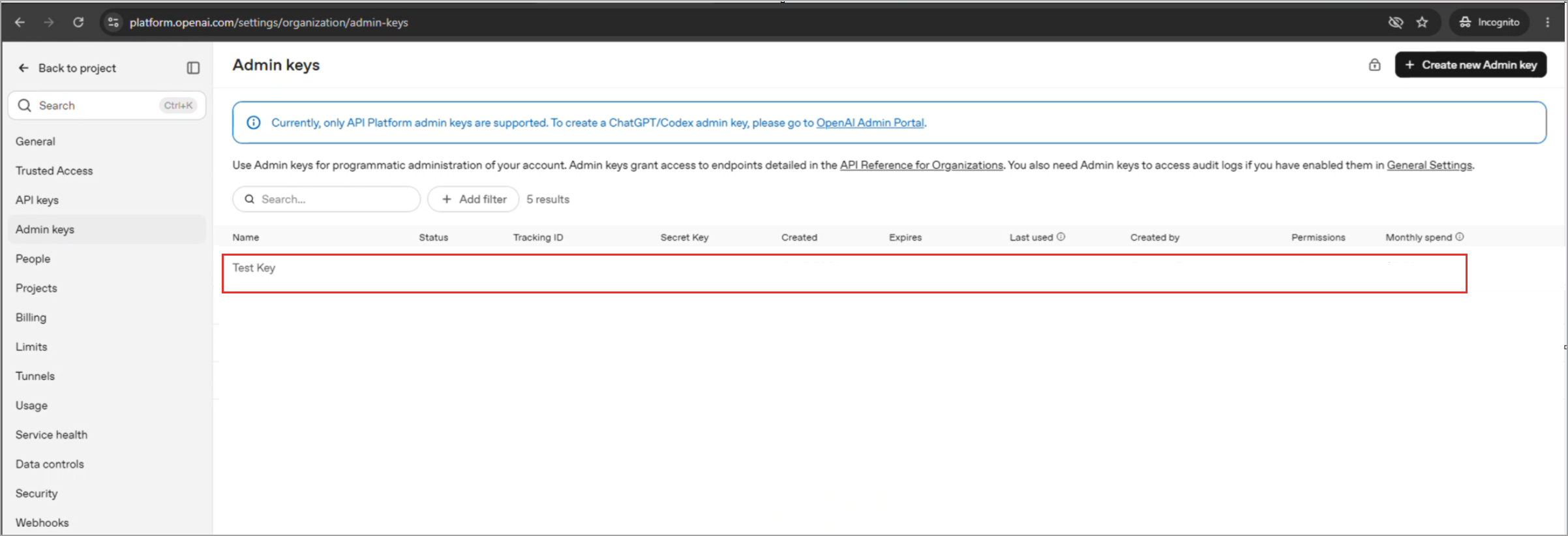
Do not share the key through email or chat, commit it to Git, add it to source code, store it in a plain-text configuration file, or upload it to a public repository.
Create OpenAI Connector in SaaSDR
Follow these steps to create an OpenAI connector:
- On the SaaSDR UI, go to Configuration > Connectors and click Create Connector.
- Select OpenAI from the SaaS drop-down menu on the Create Connector page.
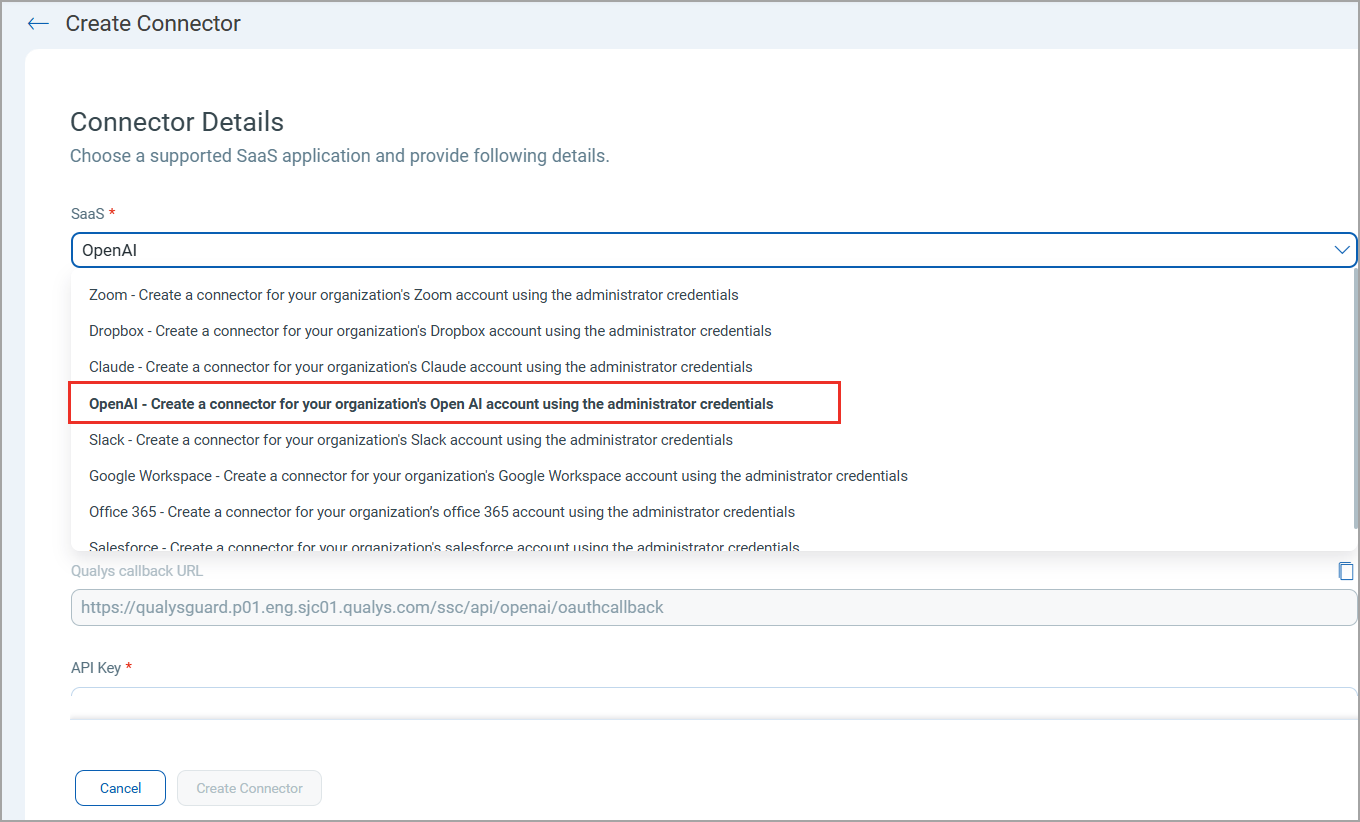
- Provide the following details:
- Name - Enter a name for the connector.
- Description - Add a brief description for the connector.
- API Key - Enter the OpenAI Admin API key.
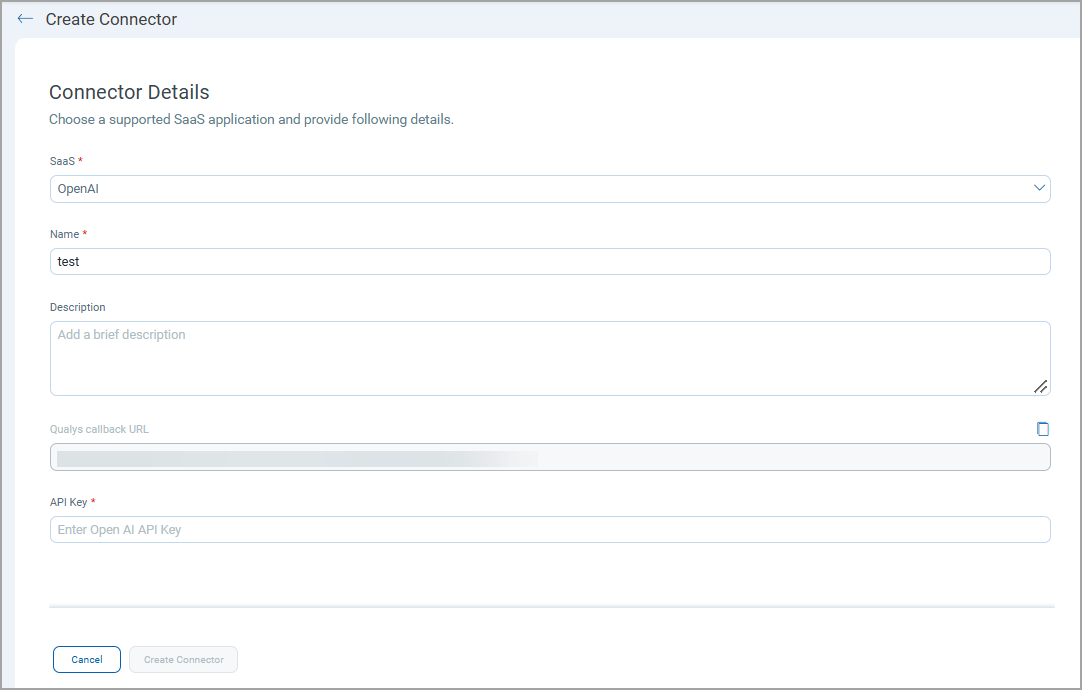
- Click Create Connector.
SaaSDR validates the Admin API key. If the key is valid, the connector is created and is listed in the Configuration > Connectors list. If the key is invalid, authentication fails, and the connector does not proceed with scanning.
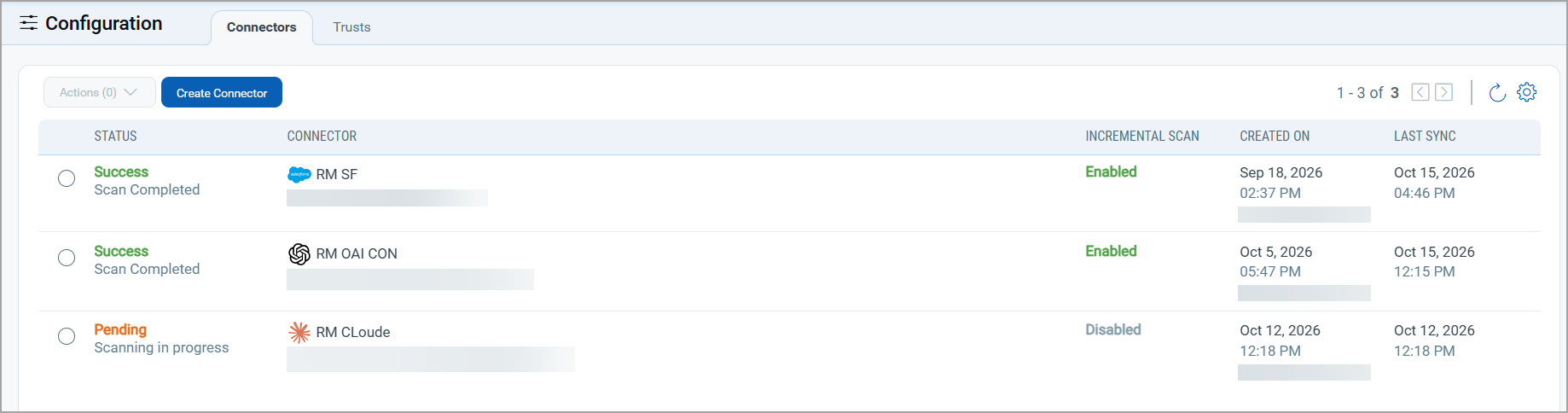
Once the application is connected, a scan is initiated to pull metadata from it. Depending on the number of resources to be cataloged in your application, this step may take some time to complete.