Scan Performance Settings
Use the Scan Performance Settings section to configure the level of parallelism used during capacity calculations. These settings help model how aggressively scanners process scan targets and directly affect the estimated scanning capacity and scan completion times.
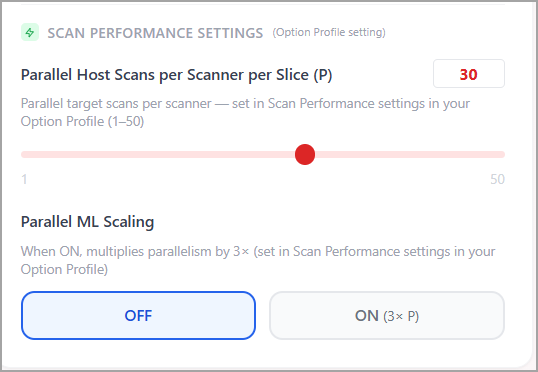
To configure the scan performance settings, follow these steps:
-
Use the Parallel Host Scans per Scanner per Slice (P) slider to specify the desired parallelism level. Select a value between 1 and 50.
Verify that the selected value matches the Parallel Hosts setting in the corresponding Scan Option Profile. -
Locate Parallel ML Scaling.
Select one of the following options:-
OFF – Uses the configured Parallel Host Scans per Scanner per Slice (P) value.
-
ON (3 × P) – Multiplies the configured parallelism value by three.
Example:
If Parallel Host Scans per Scanner per Slice (P) is set to 30:OFF = 30 parallel host scans
ON (3 × P) = 90 parallel host scans -
'P' is the primary driver of slice and job math. Avoid extreme values (For example, 50) unless scanners are well-resourced and the network can handle it. A value of 30 is a good default when live IPs exceed 30.
|
Input |
Description |
Default |
|---|---|---|
|
Parallel Host Scans per Scanner per Slice (P) |
Specify the number of target IPs scanned concurrently within one slice. Configure this value in the Scan Performance settings of your Option Profile. Supported range: 1–50. |
30 |
|
Parallel ML Scaling |
Enable or disable Parallel ML Scaling. When enabled, the Qualys ML engine creates 3×P parallel processes per scanner. Ensure this setting matches the configuration in your Option Profile. |
OFF |