Start Offline Scanning
This section helps you launch a vulnerability scan on your secure air gap network using the offline virtual scanner that you created at Qualys Enterprise TruRisk™ Platform.
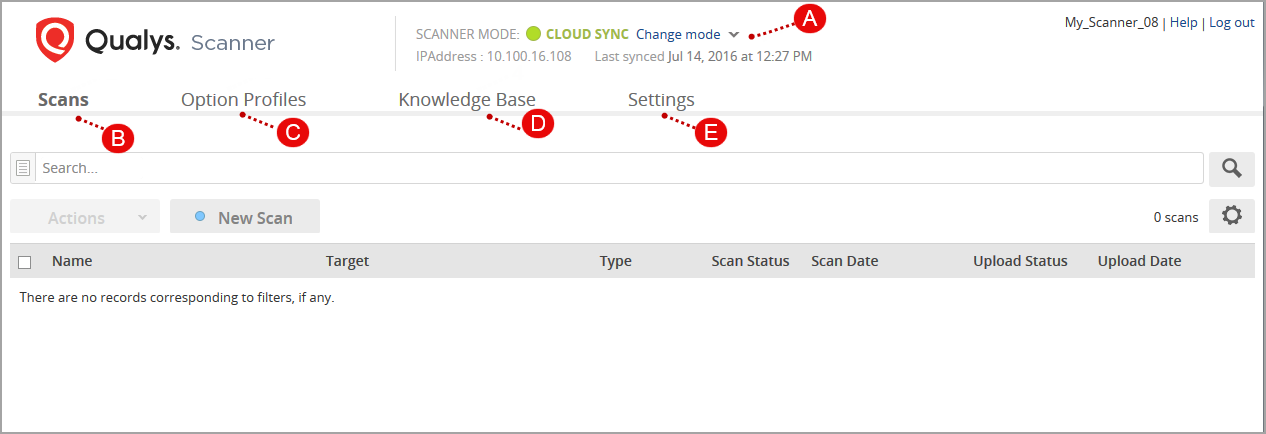
The following table includes details of various tabs on the VM app:
| Lable | Description |
|---|---|
| A | At the top of the screen, you can see important details about your virtual scanner, such as its assigned IP address on the current network, the mode it is in - CLOUD SYNC or OFFLINE SCANNING - and when it last connected (synced) to the Qualys Enterprise TruRisk™ Platform. |
| B | Start new scans, view and download scan results, and mark scans to be uploaded. |
| C | Check out the option profiles available for offline scanning. |
| D | Search and view the vulnerability checks (QIDs) that your offline scanner can perform. |
| E | Set up a static IP configuration for offline scanning and a proxy for cloud syncing. |
CLOUD SYNC vs OFFLINE SCANNING
The first time you log in to your virtual scanner (and every time your appliance comes online from a hard boot), it is in CLOUD SYNC mode. Your virtual scanner can connect to Qualys Enterprise TruRisk™ Platform, which is used to download option profiles, get the latest vulnerability checks, and upload scan results to your Qualys account.
When you are ready to start a scan, you need to switch to OFFLINE SCANNING mode. In this mode, your virtual scanner is connected to the secure network you want and does not communicate with the Qualys Enterprise TruRisk™ Platform via the internet.