Switch to CLOUD SYNC Mode in Oracle VirtualBox
To configure CLOUD SYNC mode for a scanner deployed in Oracle VirtualBox, perform the following steps:
- Choose Change mode to get started.
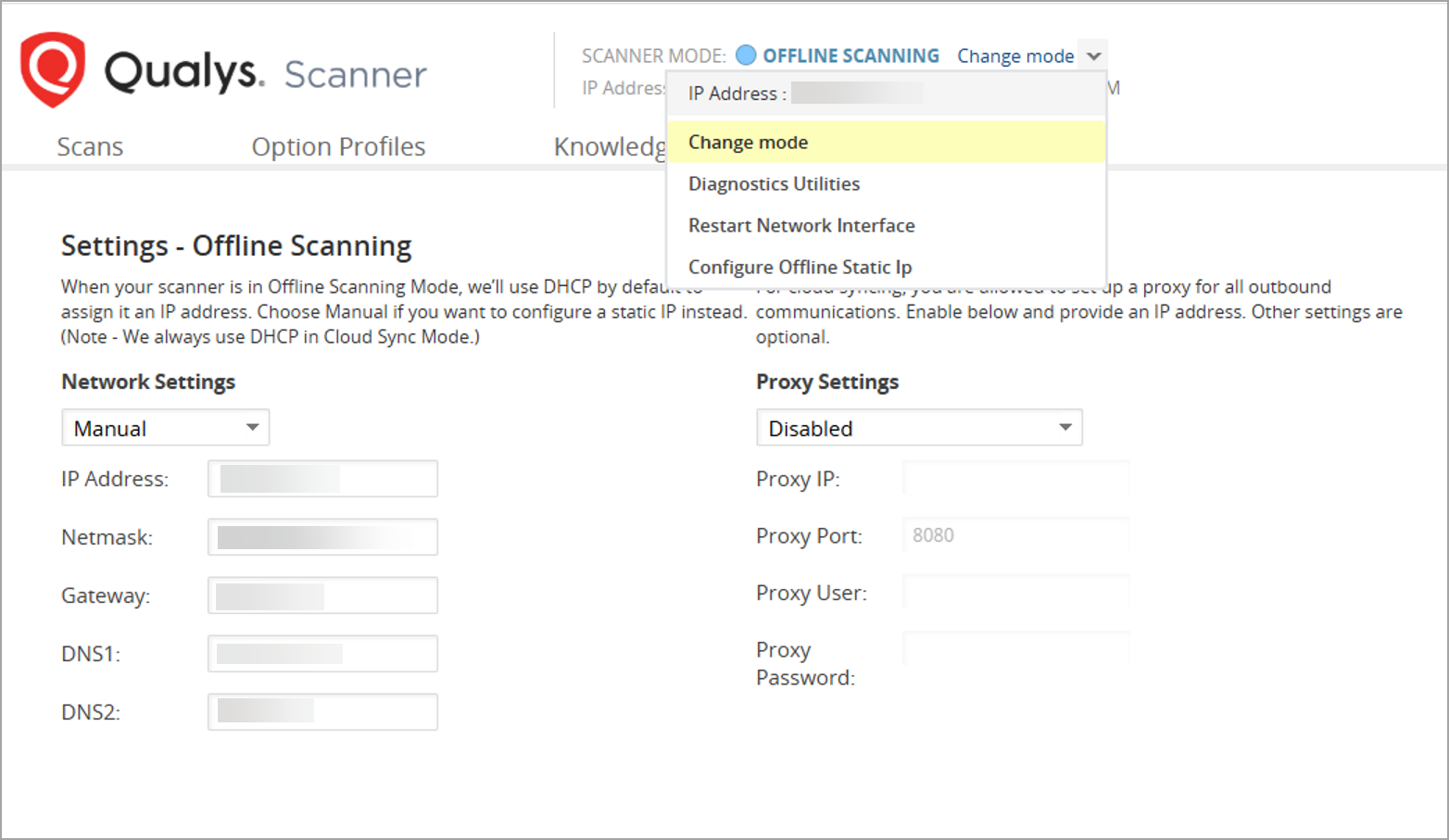
Do not click the Switch Mode Now button yet. You need to do this later, after configuring the networking settings of your Scanner VM.
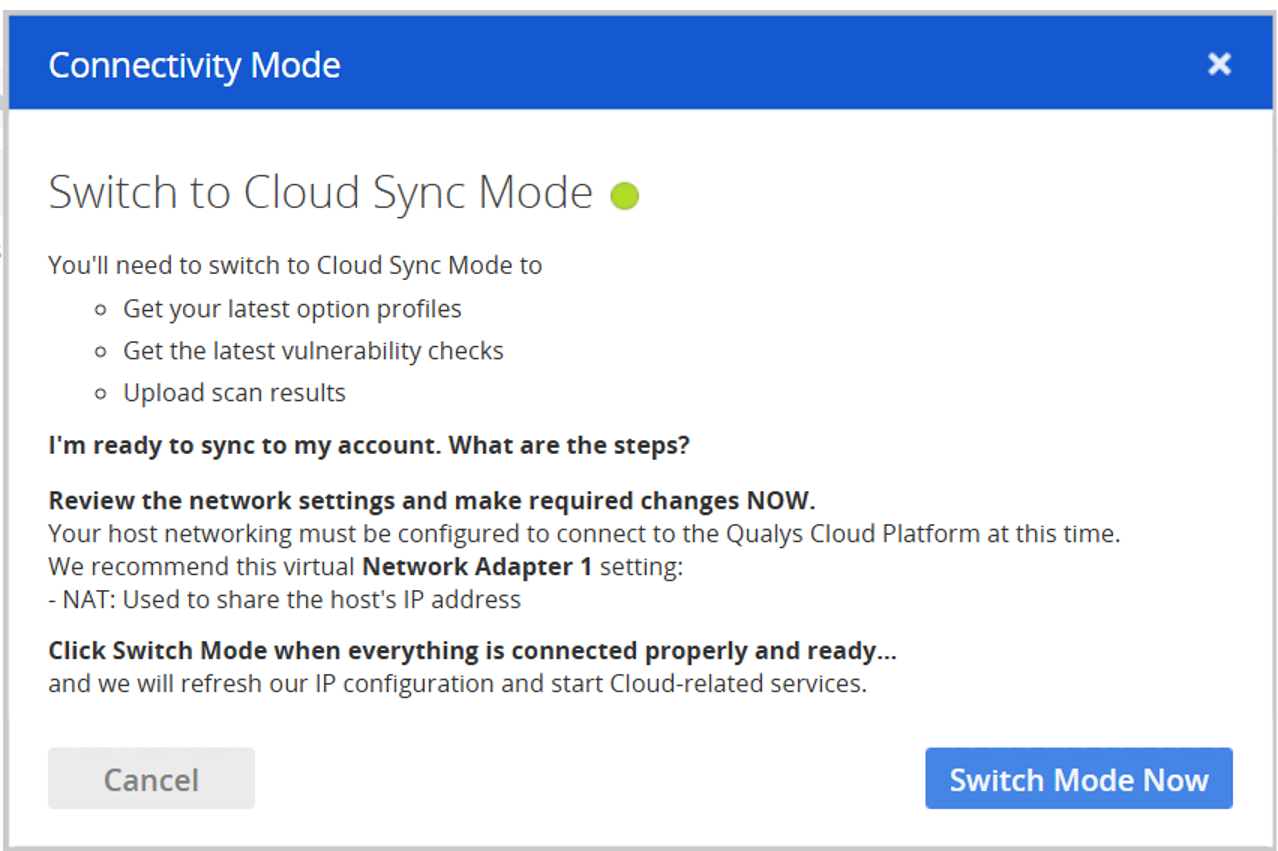
- Configure your VM’s network settings.
For CLOUD SYNC mode, NAT mode for Network Adapter 1 is recommended.
To configure NAT in Oracle VirtualBox for your scanner, go to Settings > Network.On Oracle VirtualBox, the Offline scanner should not be configured with Intel PRO/1000 MT Server and Paravirtualized network adapter types

-
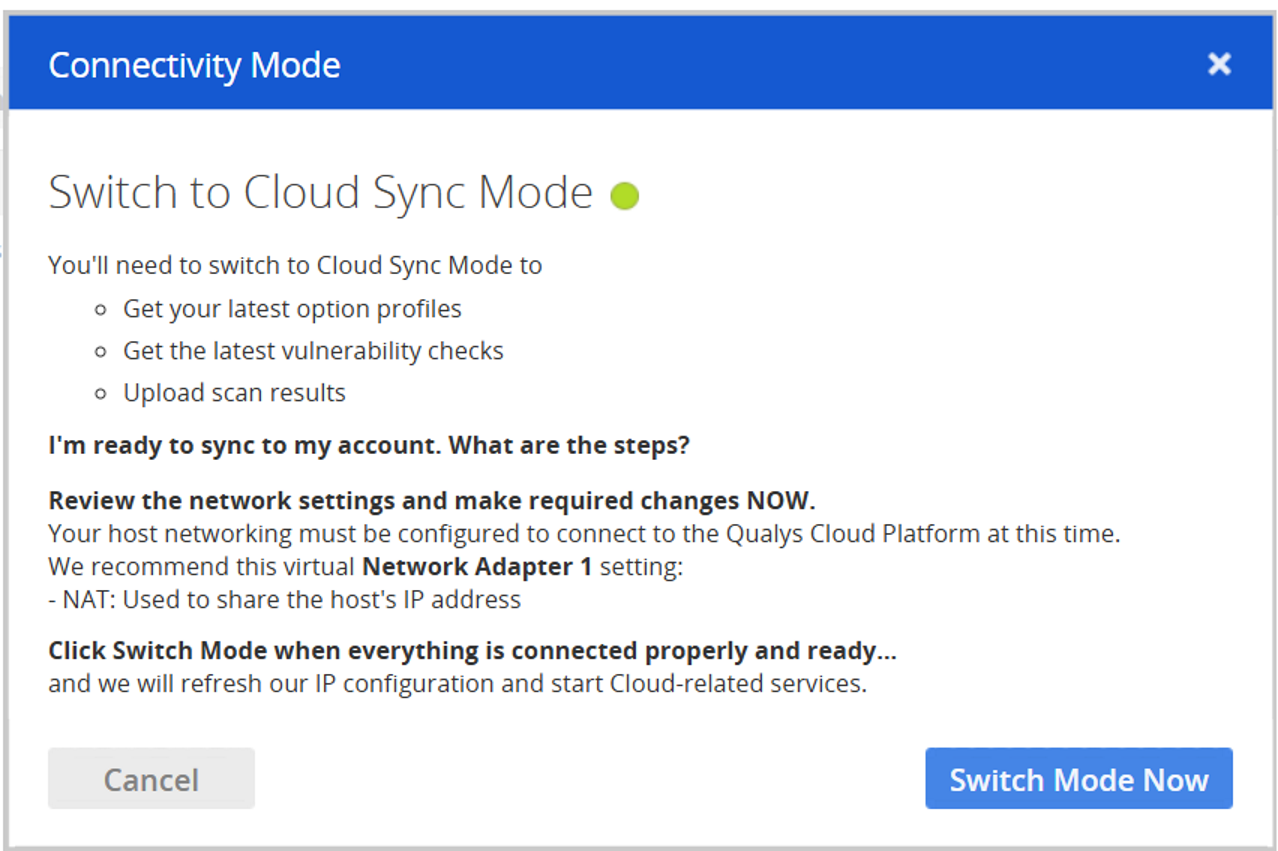
Now, your network is configured in CLOUD SYNC mode. Return to the Scanner WEB UI and click Switch Mode Now.
-
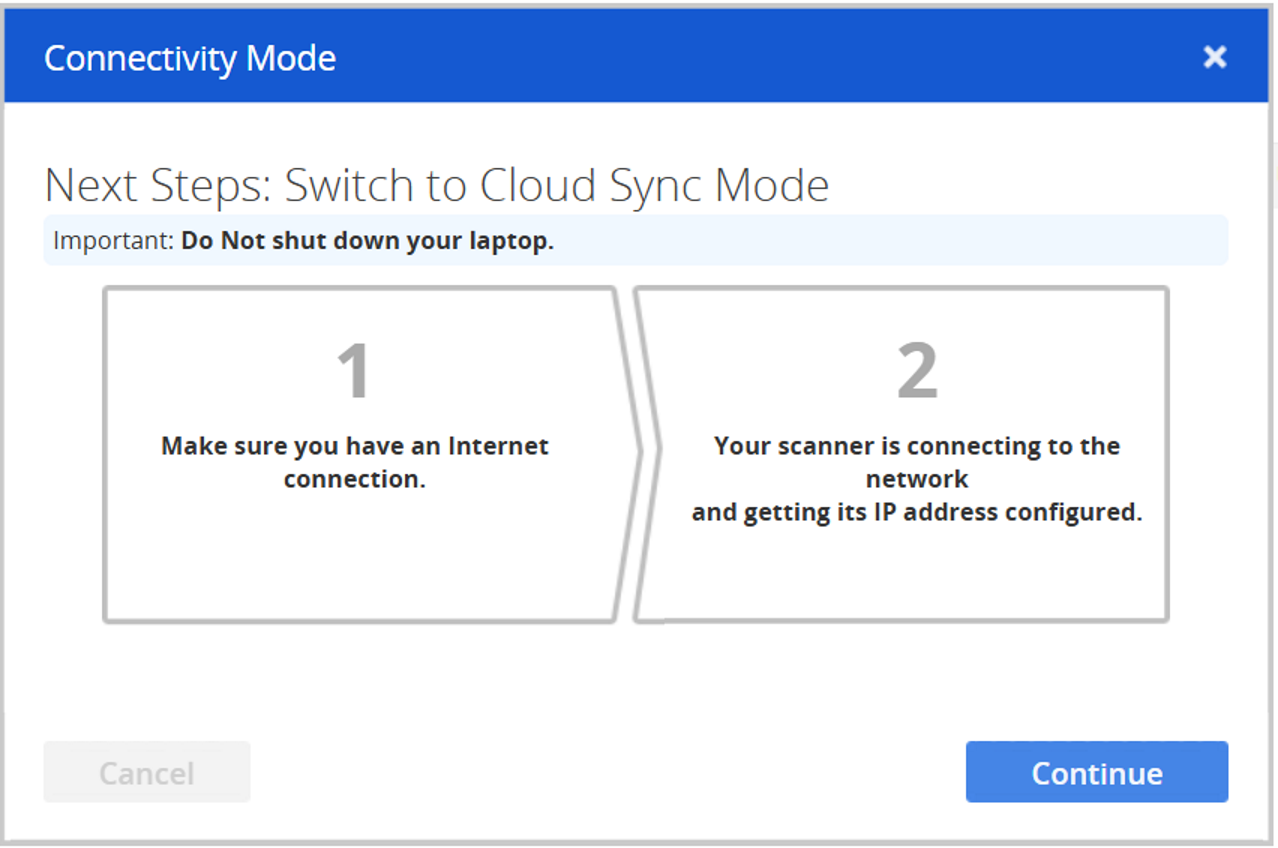
To complete the switch to CLOUD SYNC mode, click Continue.