VMware Configuration
The Qualys Offline Scanner Appliance must be configured with two virtual network adapters using your virtualization platform (which means, VMware Workstation).
Your virtualization software must automatically create an instance of the appliance with the correct network adapters in place.
On VMware Workstation, these interfaces are Network Adapter and Network Adapter 2. Initially, Network Adapter must be default as type NAT; and Network Adapter 2 must be default as type Host-only.
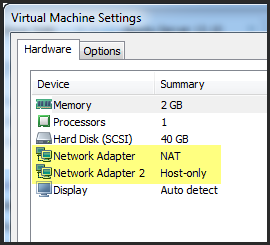
Network Adapter 1 must be configured for Bridged networking when in OFFLINE SCANNING MODE.
It can be NAT or Bridged when in CLOUD SYNC MODE. Network Adapter 2 should always be configured for Host-only networking.
Network Requirements
Here are the required network settings, depending on the mode.
|
|
VMware Workstation default label |
Appliance OS |
Appliance Mode |
Purpose |
Required VMware |
Connect |
Local |
|---|---|---|---|---|---|---|---|
|
Virtual NIC #1 |
Network Adapter |
eth0 |
CLOUD SYNC |
Communicate with the Qualys Enterprise TruRisk™ Platform |
NAT* - or - Bridged** |
enabled
n/a |
enabled
n/a |
|
|
|
|
OFFLINE SCANNING |
Scan hosts |
Bridged** |
n/a |
n/a |
|
Virtual NIC #2 |
Network Adapter 2 |
eth1 |
any |
Local scanner web UI |
Host-only |
enabled |
enabled |
NAT Configuration
NAT is practically the only choice if your external connection goes over a VPN. Bridging from a virtual machine does not work over host VPN adapters.
Bridging to External Networks
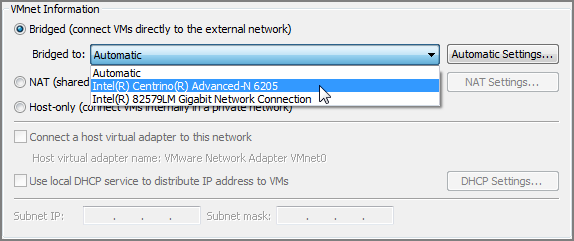
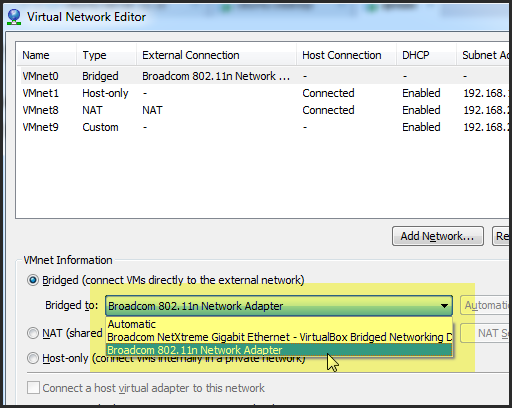
VMware Workstation may be installed on a host system with multiple network adapters (wired, wireless, VPN). In the Virtual Network Editor, you need to determine which network adapter is appropriate for the external connection and select it. We do not recommend leaving the Bridged virtual network in Automatic mode because it almost never works and it is often problematic over wireless adapters.
Sample Network Configurations
The following are the sample network configurations:
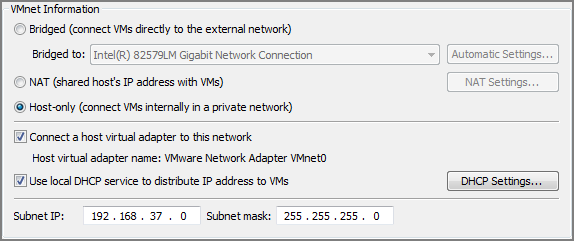
Host-only type
NAT Type
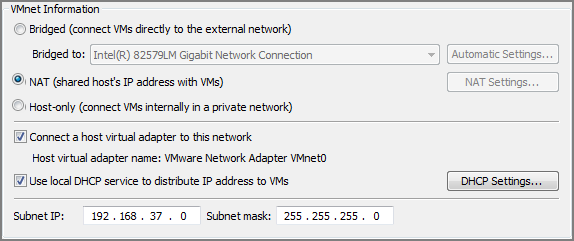
Bridged Type
If you have plugged into the physical network with an Ethernet cable, it is strongly recommended that you manually bridge your virtual network to the physical NIC of your host machine.
Setting the Bridge to Automatic mode allows your virtual network to bind to a VPN port or another network adapter.