Activate Scanner Appliance
You need a Qualys user account with the role of Manager or Unit Manager. Ensure you have your account information.
- Open a browser and go to the platform URL where your account is located.
Refer to your registration email containing your platform URL and login credentials. A Manager or Unit Manager account is required. - On the Qualys LOGIN page, enter your user name (login) and password, and then click LOGIN.
You are prompted to review and accept the licensing agreement when you log into your account for the first time. Your Qualys Home page displays upon successful login. - Select VM/VMDR from the application picker. Then go to Scans > Appliances.
- Select New > Scanner Appliance and enter the activation code for the appliance (as it displays in the ACTIVATION CODE screen in your Appliance’s user interface.
The activation code is shown only when the Appliance has not been activated yet.
- (Unit Manager only) From the Add To menu, select an asset group to which you want to add the Scanner Appliance. This makes the Appliance available to users in your business unit.
- Click Activate.
Then, the Intranet Scanner attempts to log in to the Qualys Enterprise TruRisk™ Platform.The scanner appliance activation may take a few minutes. If you prefer not to wait, you can complete the activation manually by restarting the Scanner Appliance. Just press the down arrow until the SYSTEM REBOOT screen displays, and then press ENTER. When REALLY REBOOT SYSTEM? displays, press ENTER.
-
The SCANNER APPLIANCE NAME–IP ADDRESS message displays after the Intranet Scanner successfully logs in to the Qualys Enterprise TruRisk™ Platform. Do you refer toanother message instead? Refer to Troubleshooting, and we help you with this.
That is all there is to it!
You are ready to start scanning with your Qualys Scanner Appliance! You can refer tothe Intranet Scanner name and IP address in the interface (LCD or Remote Console), this indicates you have completed the Quick Start, the Intranet Scanner has been added to your subscription.
Before you launch scans using the Scanner Appliance, we recommend you log into the Qualys user interface and check the Appliance status on the appliances list.
Intranet Scanner Name and IP Address
The Intranet Scanner name and IP address displays as shown below.
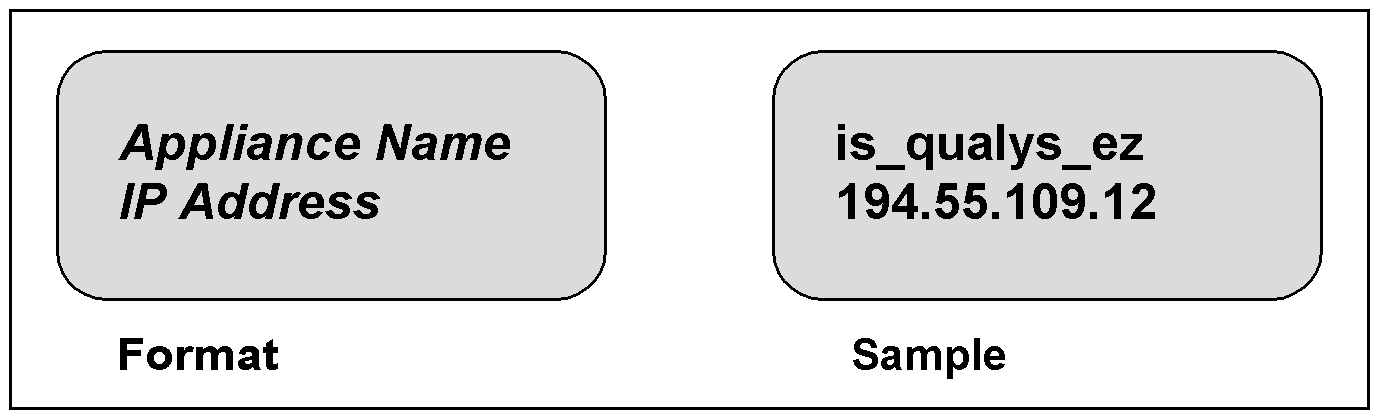
The Intranet Scanner name displayed is is_username, where username is your Qualys user name. The name can be changed using the Qualys user interface.
The IP address is available for information purposes only. The Intranet Scanner is remote controlled by the Qualys Enterprise TruRisk™ Platform, and the Appliance does not allow incoming logins or connections from the network. If split network configuration is enabled, the IP address for the LAN interface is displayed.
The Qualys Enterprise TruRisk™ Platform indicator for your account displays in the lower right corner.
Proper Shutdown
To shut down properly, perform the following steps:
- Go to the LCD display on the front panel.
- Press the down arrow until SYSTEM SHUTDOWN displays, and then press ENTER.
- When you refer toREALLY SHUTDOWN SYSTEM? press ENTER.
You can notice the Scanner Appliance lights and LEDs are turned off. - Then, you can safely disconnect the power supply.
Do not want to use the LCD interface? No problem, you can press the power button on the back panel instead.