Split Network Configuration
Split network configuration is supported only in IPv4+v6 mode (the default). It is not supported in IPv6-only mode.
The Qualys Scanner Appliance provides two network traffic configurations: Standard and Split. The Standard configuration is enabled by default. You can choose to enable the Split network configuration. For a virtual appliance, you can do this by configuring the WAN interface using the Scanner Console.
In the Standard network configuration, the LAN interface services scanning traffic and all management traffic (software updates, health checks, scan data upload) to the Qualys Enterprise TruRisk™ Platform over the Internet.
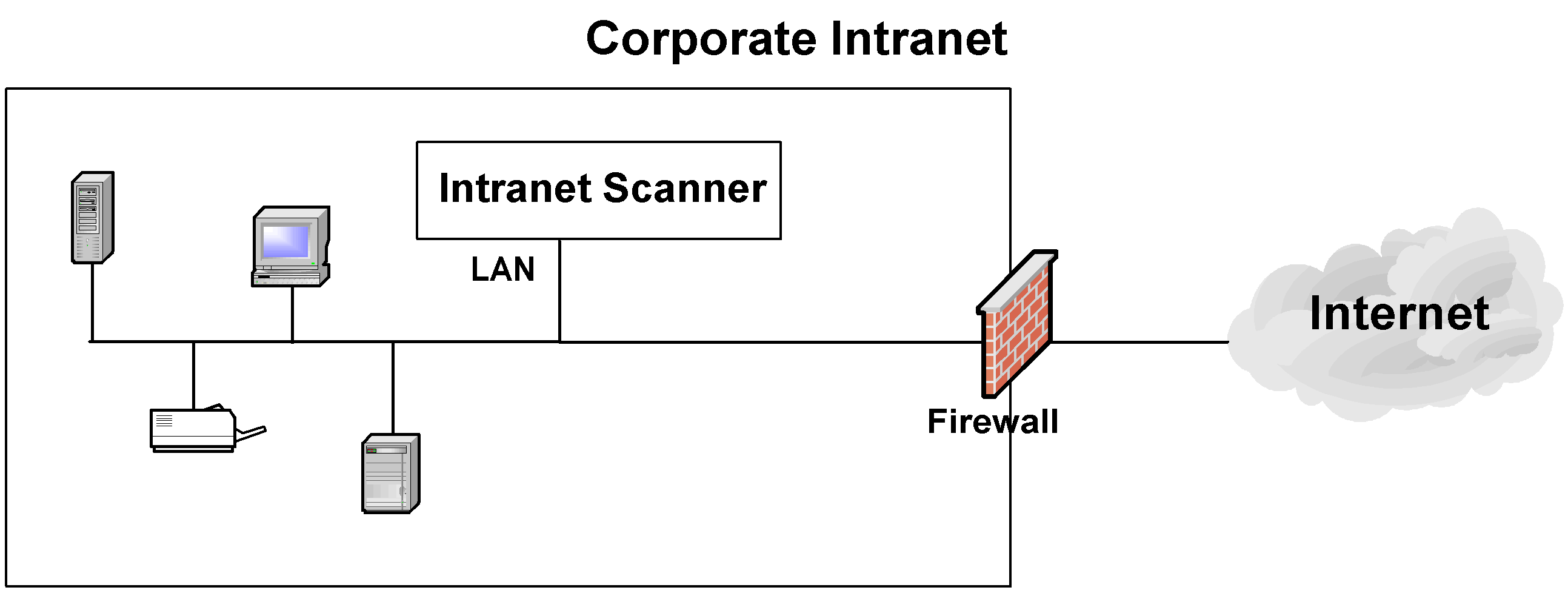
The Split network configuration allows users to split the scanning traffic from the management traffic. The WAN interface by default is only used to communicate with the Qualys Enterprise TruRisk™ Platform for Scanner Appliance management traffic like scan/map job pickup, scan/map data upload, software updates and health checks. The LAN interface is used for scanning traffic. This configuration enables customers to use Scanner Appliances to scan networks that do not have direct Internet access. Split network configuration also keeps scanned data and internal targets secure by isolating internal LAN traffic from Internet traffic by using the WAN interface. Once configured, no internal traffic is routed or bridged to the WAN interface and no management traffic is routed or bridged to the LAN interface.
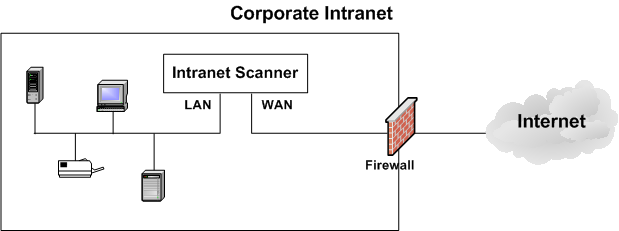
LAN is expected to be used for all internal/scan traffic. In Split network configuration, WAN has special limited routes required for platform connections only. If WAN is needed for scanning, then a static route via the WAN interface to the scan target host or network range is needed.
The Scanner Appliance implements logical separation of scanning traffic and management traffic regardless of whether you configure the Standard or Split option.
A few things to consider
Review these tips and best practices before you configure a Split Network Configuration.
- Check to be sure that the network connection to both the LAN and WAN interfaces has been set up properly.
- The scanner appliance must be configured with DHCP or a static IP address on the LAN interface first.
- Do not configure the LAN and WAN interfaces on the same subnet. This type of configuration is not supported.
Steps for Split Network Configuration
Perform the following steps for split network configuration:
- Access the Scanner Console.
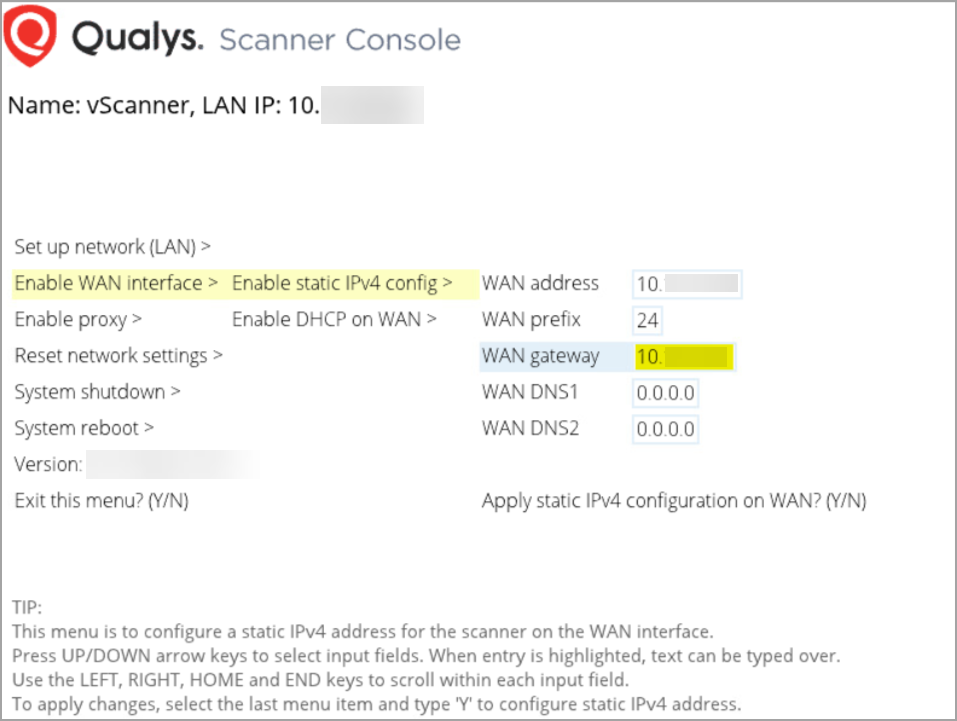
- Navigate to Enable WAN interface.
- Press the Right arrow and provide the required settings.
All software updates and health checks are routed through the WAN interface, and scanning traffic is routed through the LAN interface.