Troubleshooting
Following are the commonly faced issues while using virtual scanner and their troubleshooting solutions:
Personalization Code Error
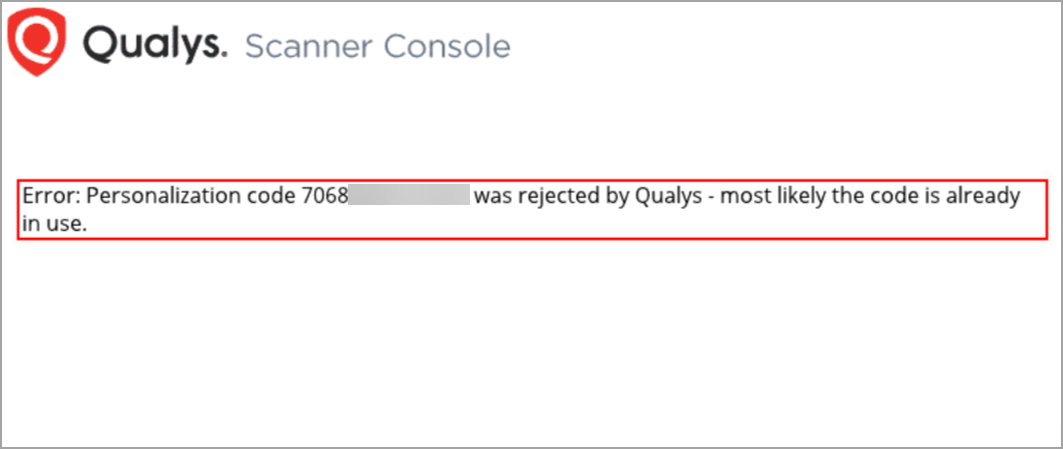
The Scanner Console displays the personalization code error in these cases:
- You entered a personalization code that is already in use by another scanner.
- You entered a personalization code for a different type of scanner. For example, you’ll get this error if you entered a code for an Offline Scanner in the Scanner Console.
Appliance Network Errors
An appliance network error indicates the Scanner attempted to connect to the Qualys Enterprise TruRisk™ Platform and failed. For details on troubleshooting and a list of possible errors, please visit Scanner Appliance Troubleshooting and FAQs.
The Scanner is not functional until the error is resolved.
Trouble connecting or seeing the wrong IP returned for your scanner?
You may need to change the network adapter selected for the virtual scanner.
Your virtualization software should automatically create an instance of the appliance with the correct network adapters in place. These interfaces will be Network Adapter and Network Adapter 2. Both interfaces default to type Bridged (Automatic). This means the network adapter is automatically selected for you.
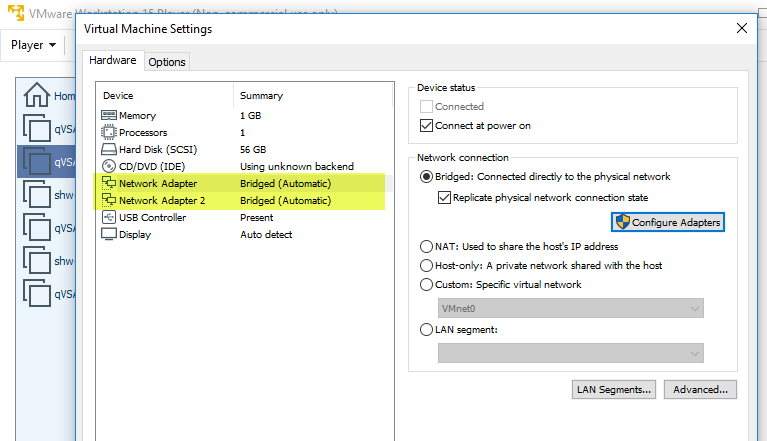
If your virtual machine is installed on a host with multiple network adapters, then it’s possible the automatic setting is choosing the wrong adapter. You may need to change the automatically selected network adapter to the one the virtual machine should be using based on the network you want it to be in.
First, determine which network adapter installed on the host is the right one for your virtual machine. On Windows, you can do this by dumping IP logs with full details to see the network adapter name for the IP belonging to the host.
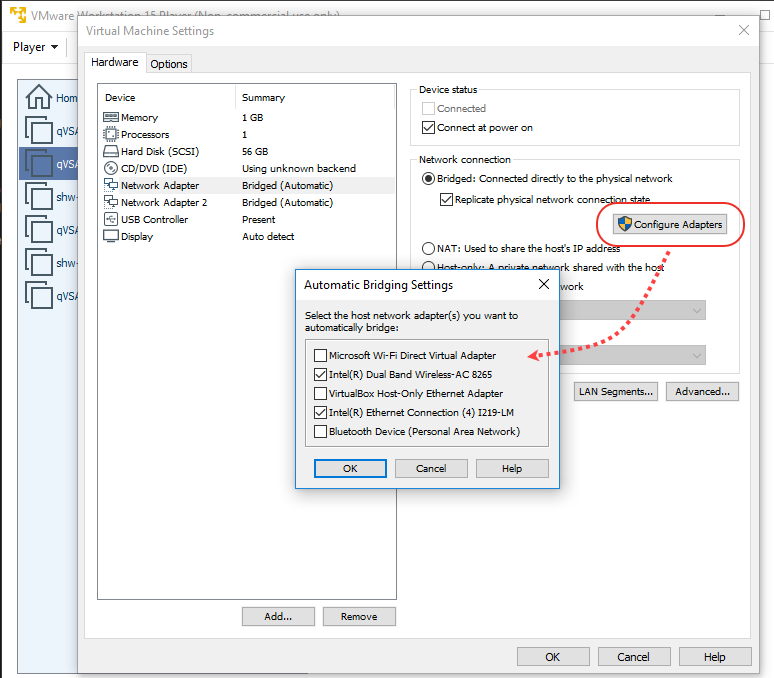
Then go to your Virtual Machine Settings to select the network adapter(s) for the host that you want to automatically bridge. Here’s an example from VMware Player. Click the Configure Adapters button to see the network adapters available for automatic bridging.
Communications Failure Message
The COMMUNICATION FAILURE message appears if there is a network breakdown between the scanner and the Qualys Enterprise TruRisk™ Platform.
The communication failure may be due to one of these reasons: the local network goes down, Internet connectivity is lost for some reason, or any of the network devices between the scanner and the Qualys Enterprise TruRisk™ Platform goes down.
Note the sequence of events following a network breakdown:
If there are no scans running on the Scanner: The next time the scanner sends a polling request to the Qualys Enterprise TruRisk™ Platform, the polling request fails, and then the COMMUNICATION FAILURE message appears.
If there are scans running on the Scanner: The COMMUNICATION FAILURE message appears after the running scans time out. In this case it is recommended you cancel any running scans and restart them to ensure that results are accurate.
Once the network breakdown is resolved, you'll see the scanner friendly name and IP address and you scan start new scans.
The COMMUNICATION FAILURE message remains until the next time the Scanner makes a successful polling request to the Qualys Enterprise TruRisk™ Platform. There may be a lag time after the network is restored and before the scanner is back online, depending on when the next polling request is scheduled. Additional time is necessary for communications to be processed by a Proxy server if the scanner has a Proxy configuration.