View AI Workloads
The AI Workloads tab displays the AI-related processes, binaries, and applications detected on hosts in your environment.
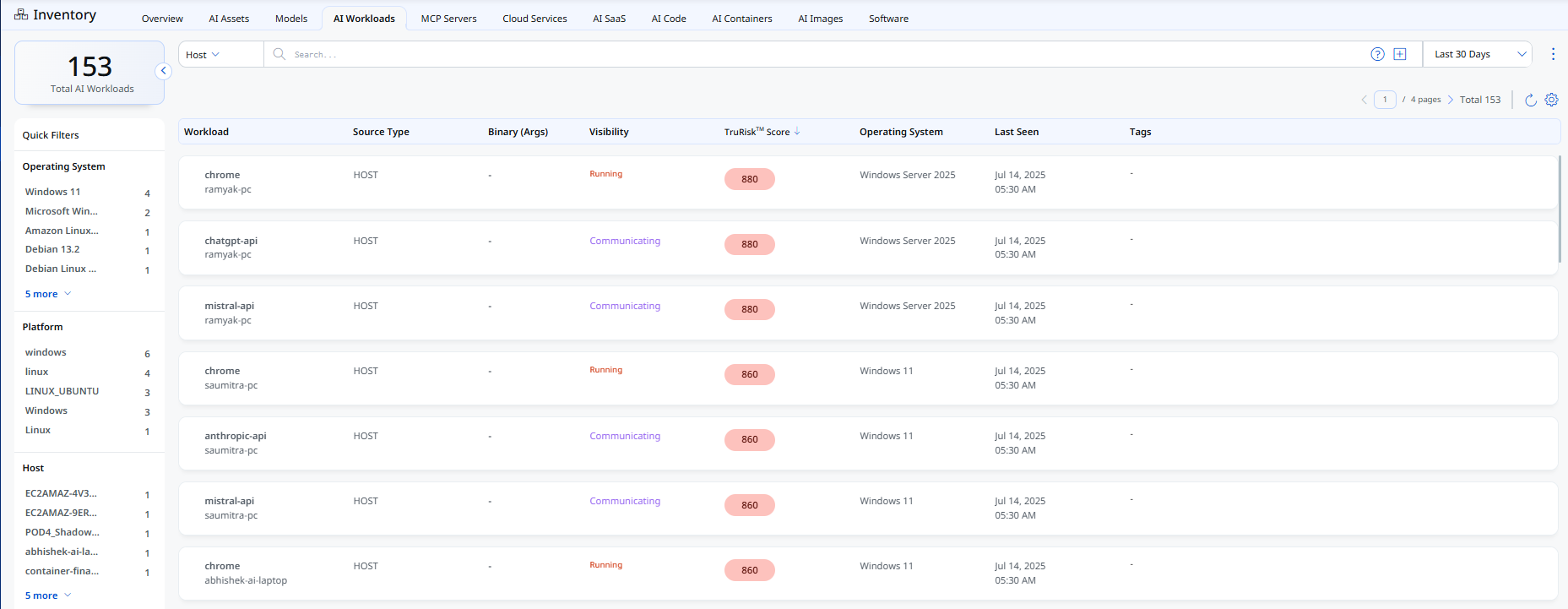
The total count of detected workloads is displayed at the top left of the tab. Use the Host/Workload dropdown to switch between a host-wise and workload-wise view, the search bar to search workloads using QQL, and the time filter at the top right to view workloads detected within a specific period.
For each workload, the list shows the workload name and host, source type (see Source Types), binary and arguments, visibility state (see Visibility States), TruRisk™ score, operating system, last seen date, and tags. Click the TruRisk™ Score or Last Seen column header to sort the list.
Quick Filters
Use the Quick Filters panel to filter the list by Operating System, Platform, and Host.
Visibility States
Installed - The AI application or binary is present on the host but is not running.
Running - The AI application or binary is actively running on the host.
Communicating - The AI application or binary is actively exchanging network traffic.
Source Types
Browser Plugin - Detects AI tools accessed through supported browsers.
Process Activity - Detects AI-related processes and binaries running on a host.
Network/DNS Activity - Detects workloads communicating with AI-related domains and services.
Installed Application (QSP) - Detects browser-based AI tools installed on the host, collected through the Qualys Secure Plugin (QSP) on Windows hosts with the Chrome extension installed.
Installed Software Inventory - Detects AI and machine learning software installed on a host.
The AI Workloads list is view-only. Workload entries do not support actions.