Custom Authentication
You may want to scan the same web application multiple times with different credentials for authentication. Use custom authentication to discover and validate vulnerabilities by performing more in-depth assessment of your web applications using different fields.
How to add custom fields for authentication record
- Go to the Authentication tab and click New Authentication Record.
- On the Basic Information step, enter the details for the record, and then click Next. For details, see Authentication - Basic Information.
- On the Authentication step, under Record Information, select Custom from the Type list.
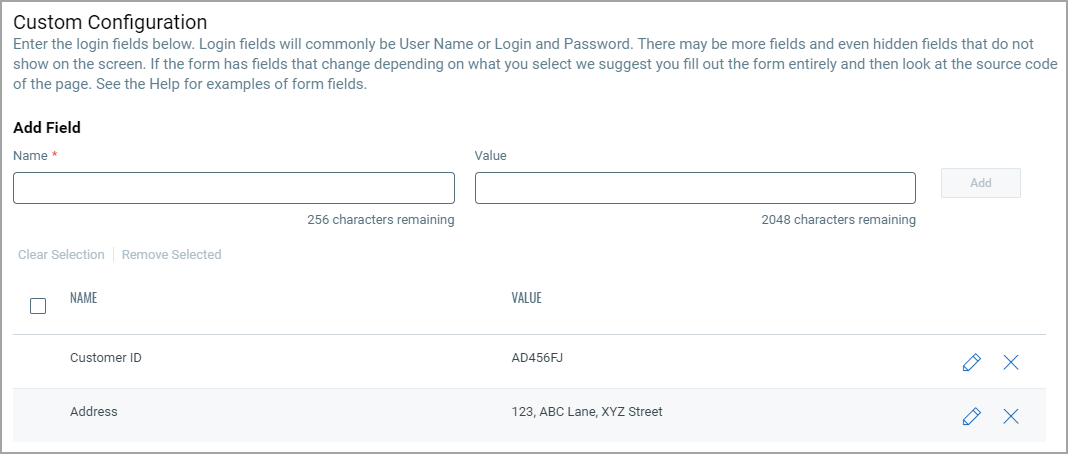
Add Field: If your form contains fields other than login and password, you could add them.
Enter the field name in Name and the corresponding value in Value, and then click Add. You can enter a maximum of 256 characters in Name, and a maximum of 2048 characters in Value.
Example 1: Form with custom fields. You need to add field name as input and the corresponding value.
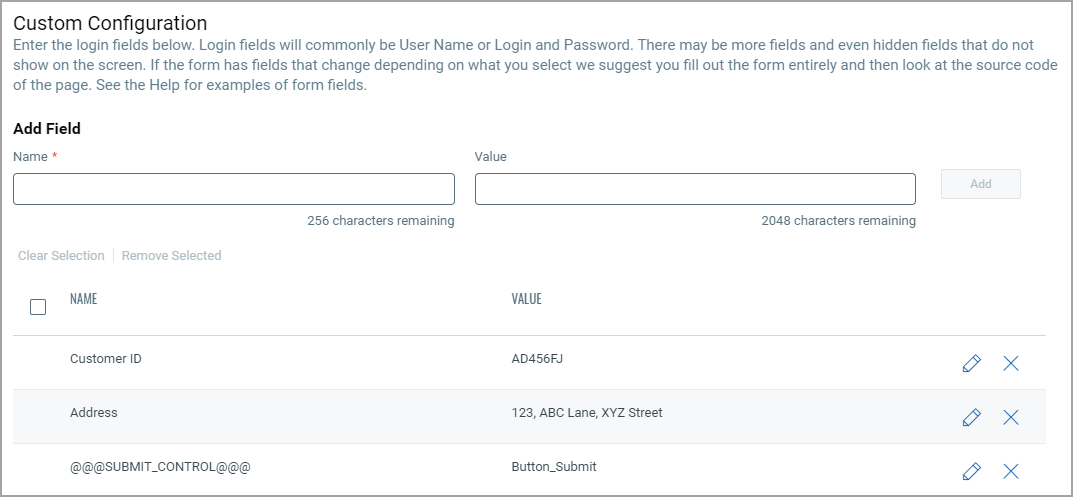
Example 2: Form with Submit button. You need to add input field with default name @@@SUBMIT_CONTROL@@@. Set the value of this input fields with submit element name or submit element id or submit element CSS selector.
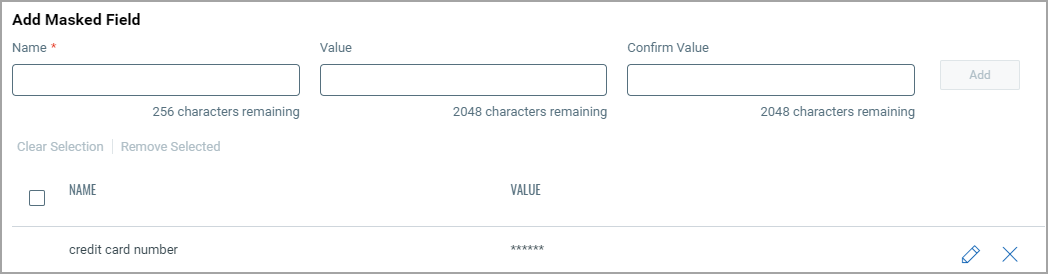
Add Masked Field: If your form contains fields such as credit card number or other confidential information that needs to be masked, you can use masked fields.
Enter the field name in Name, enter the value in Value, enter it again in Confirm Value, and then click Add. You can enter a maximum of 256 characters in Name, and a maximum of 2048 characters in Value and Confirm Value.