AWS API Gateway API Discovery Connectors
Connector Configuration
To Enable the feature you should have TAS module.
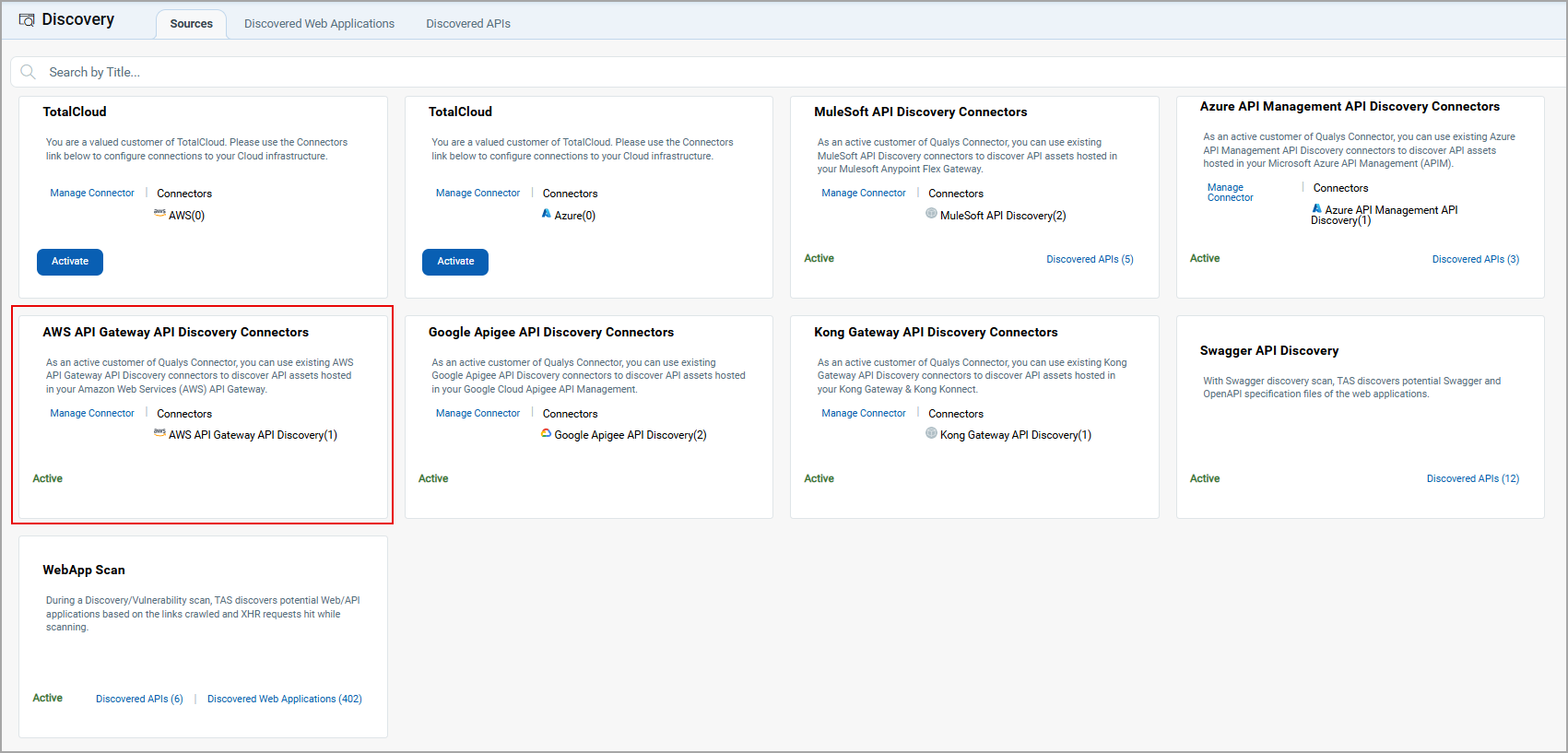
TAS > Discovery > Sources > AWS API Connectors.
Permission Setup for AWS API Discovery Connector
- Log in to your AWS Management Console.
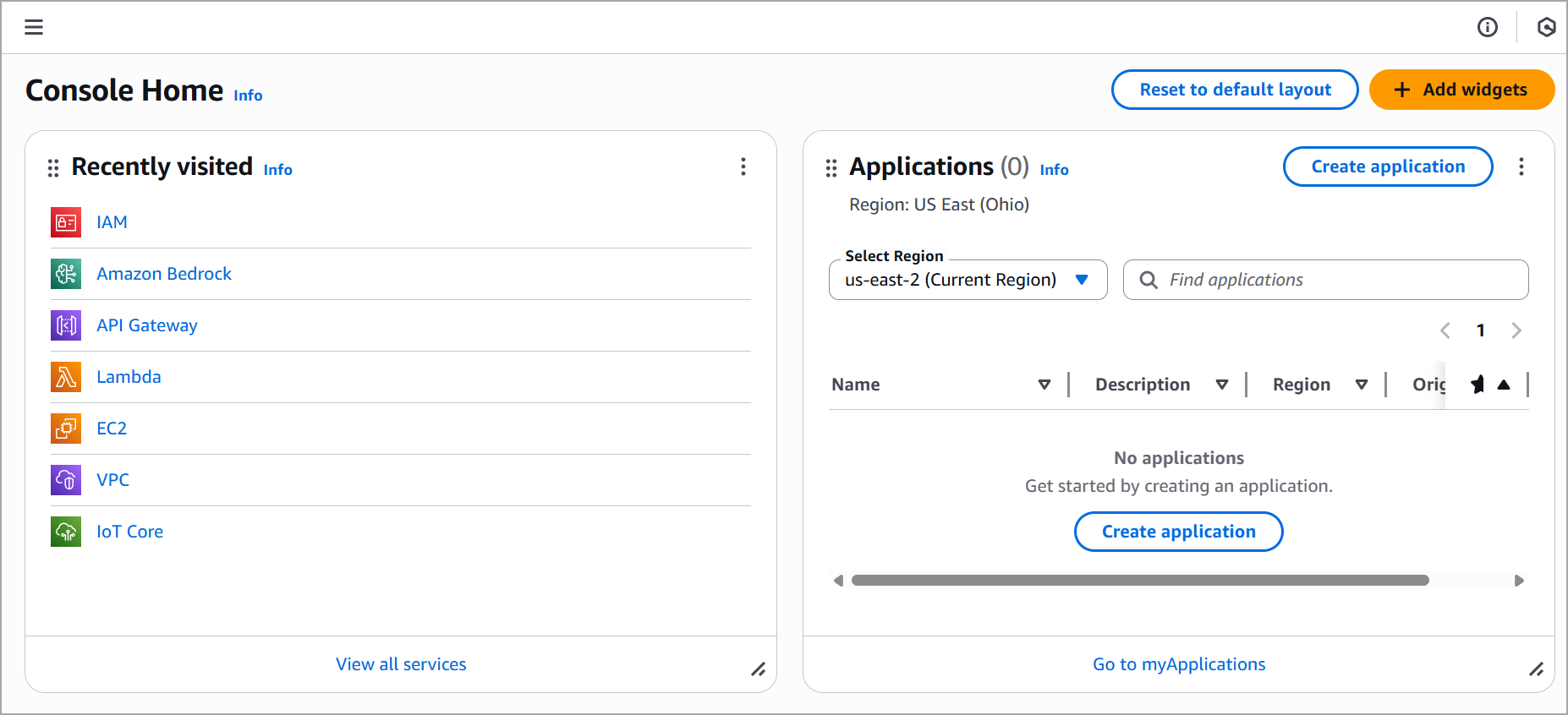
- Navigate to Identity and Access Management (IAM) service.
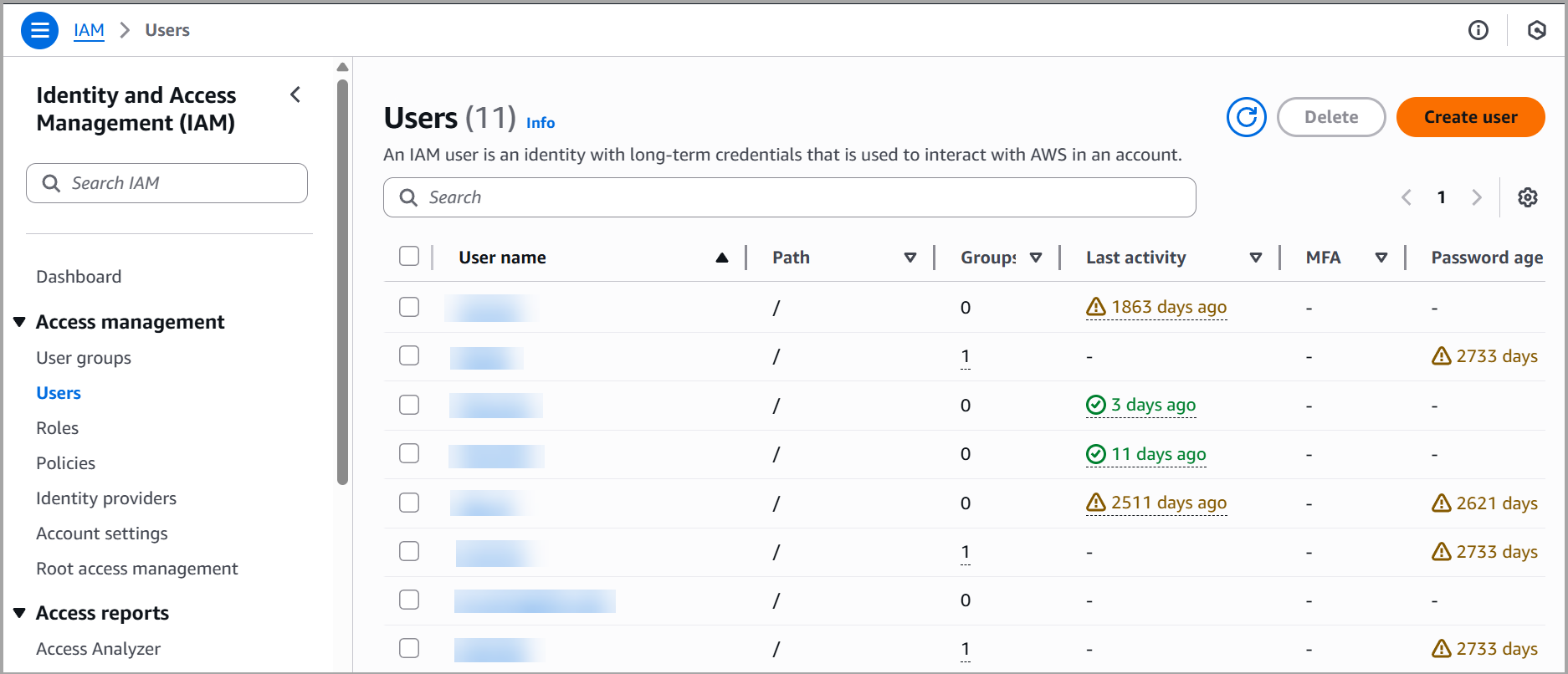
- In the IAM dashboard, click Users > Create user.
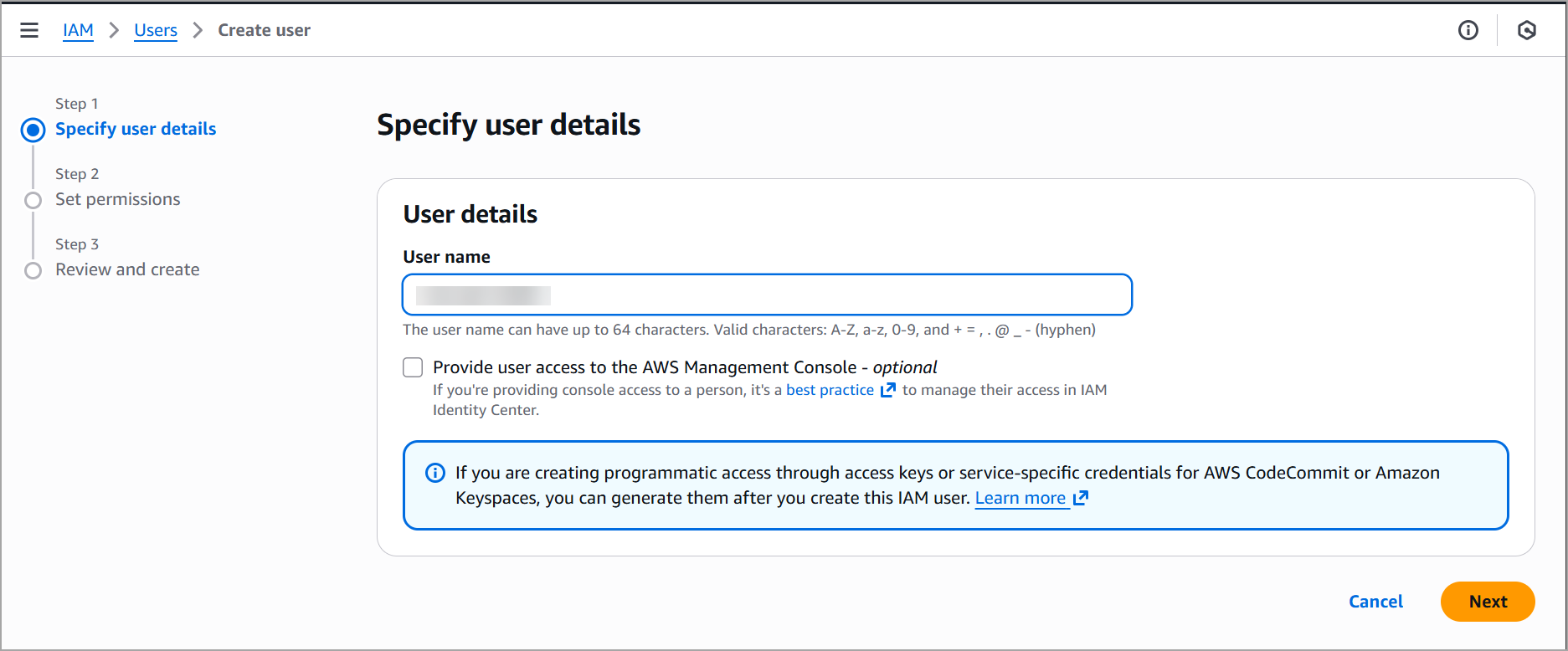
- Specify user details:
- Enter the username.
- Select Access type.
- Click Next.
- After creating the user, select the user from the list.
- Click Add permissions.
- Choose Create inline policy.
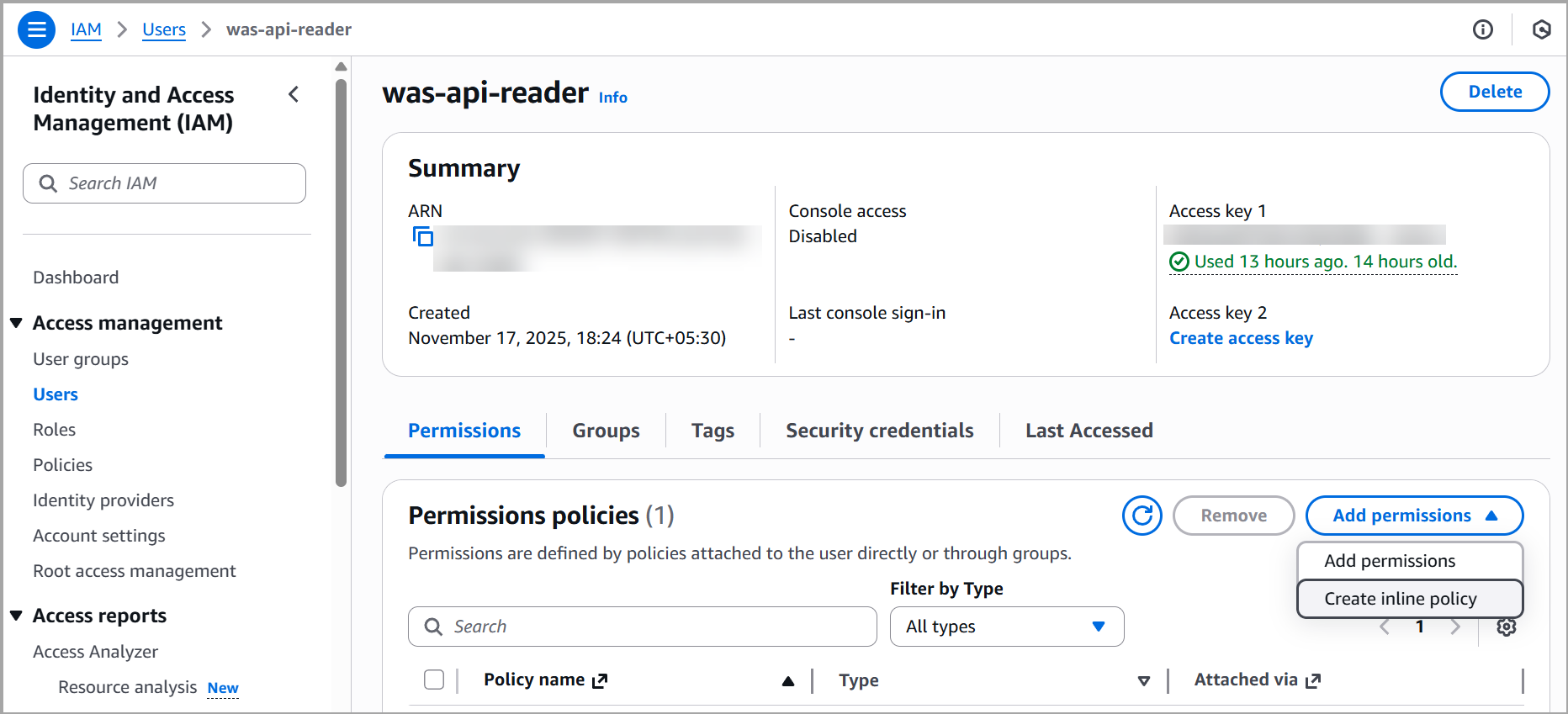
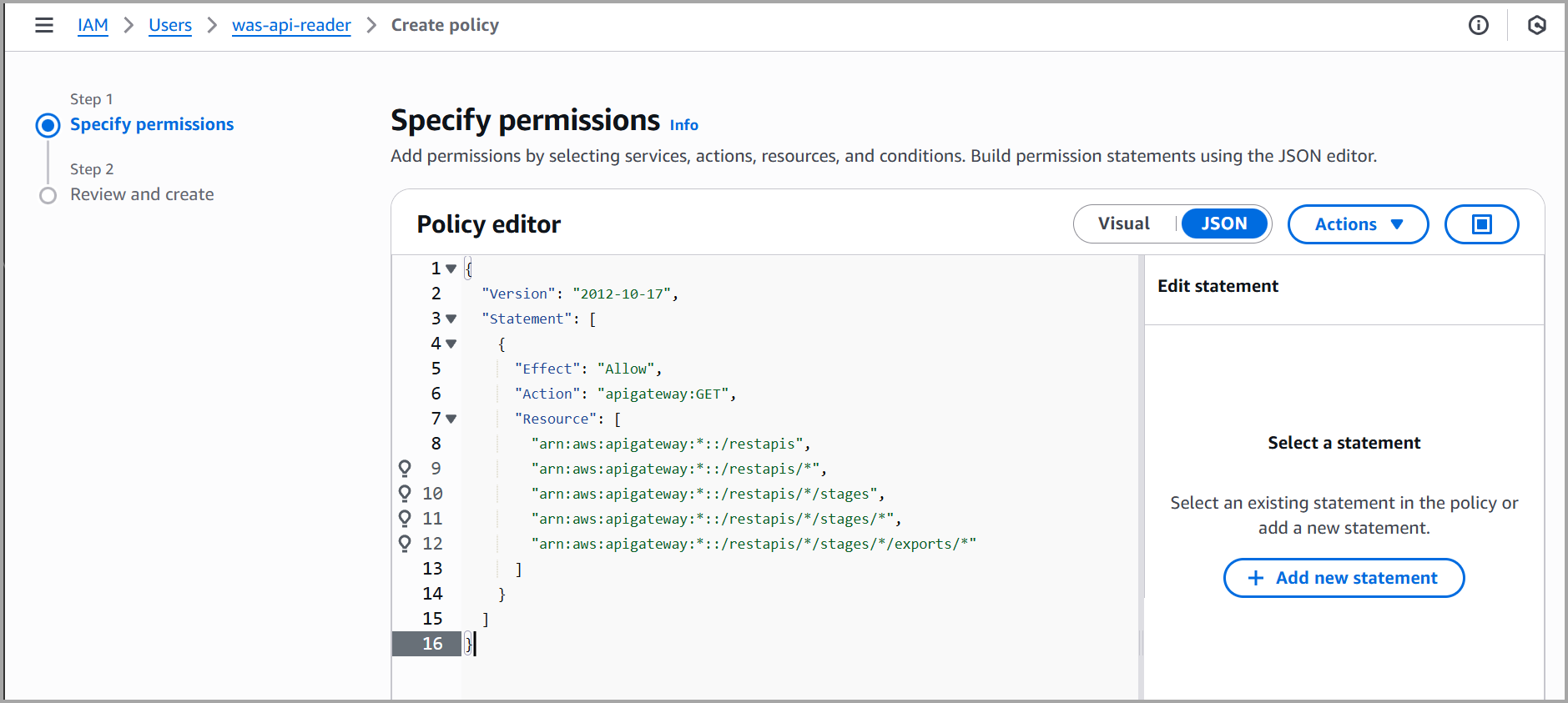
- In the policy editor, switch to the JSON tab.
- Paste the required Policy JSON.
- Validate the JSON and click Review policy.
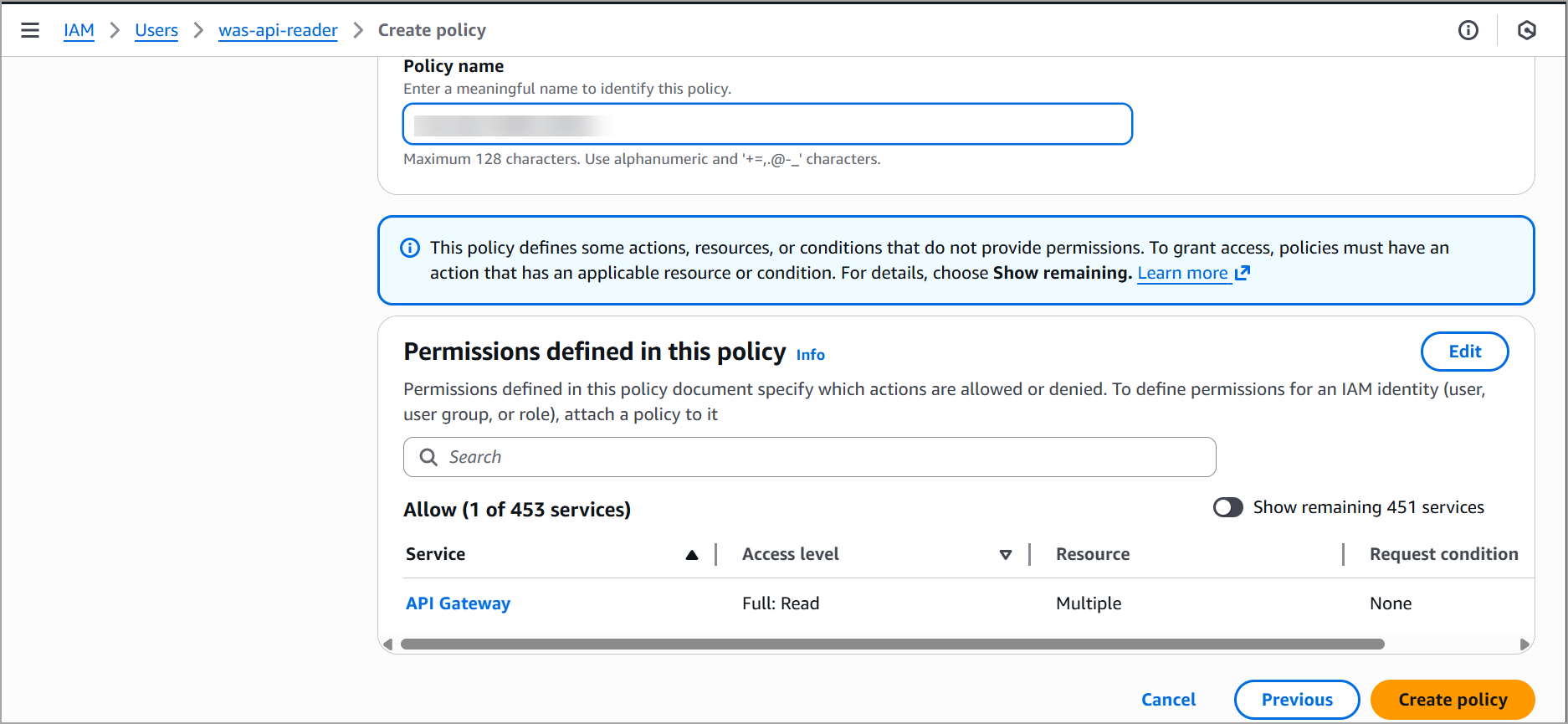
- Enter the policy a name > Click Create policy.
Use Access Id and Secret ID of this user while setting up WAS AWS API Discovery connector.
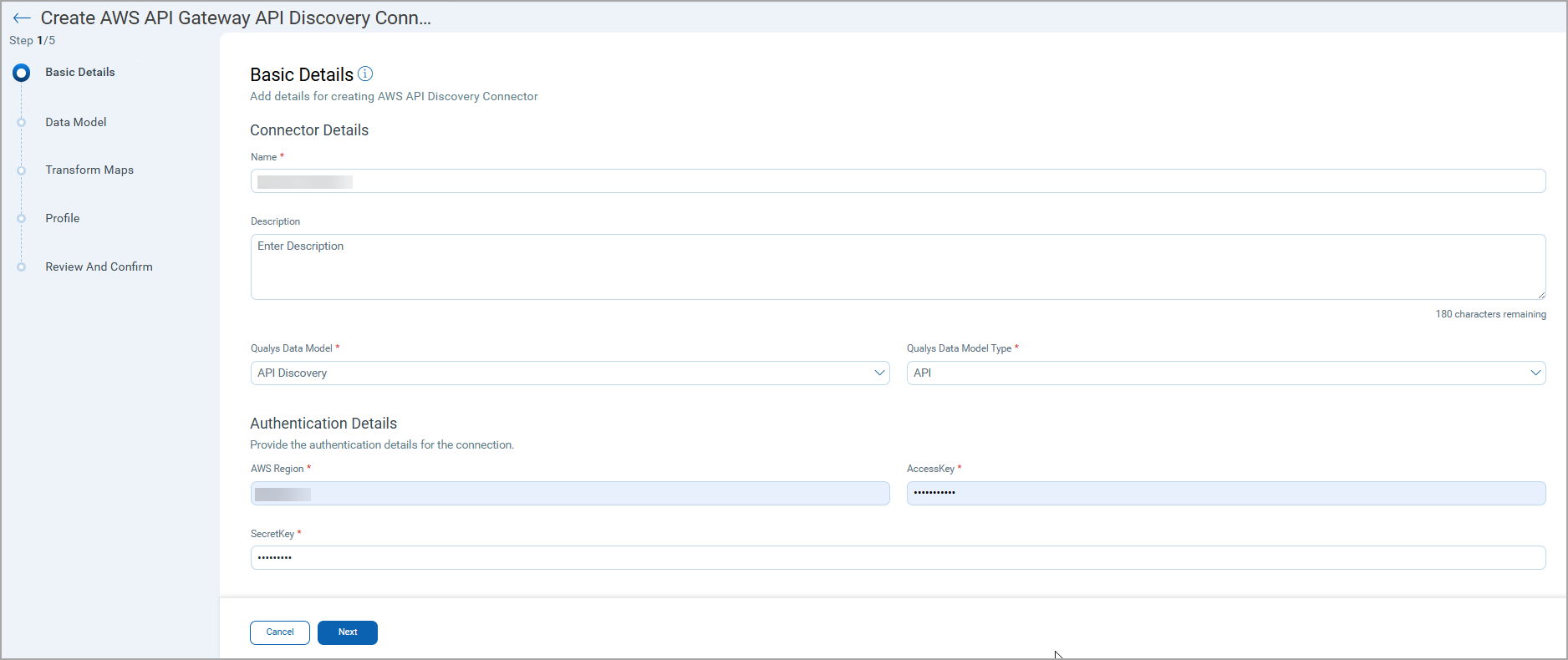
Basic Details
- Provide a Name and Description for the connector.
- Select the Qualys Data Model API Discovery) and Data Model Type (API).
- Provide required Authentication Details.
- AWS Region
- AccessKey
- SecretKey
Data Model
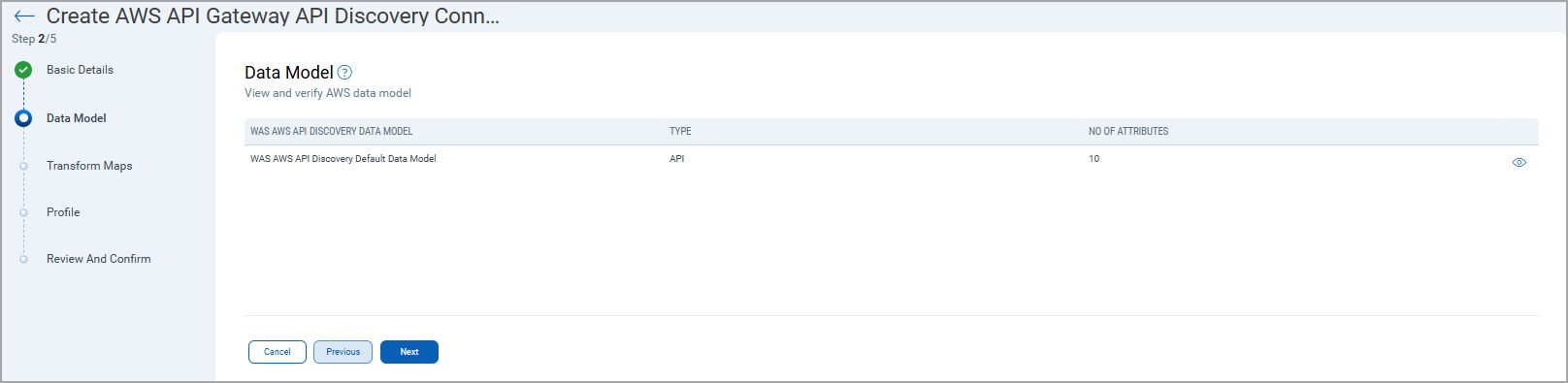
The WAS AWS API Discovery Default Data Model offers an out-of-box data model mapping for you to map with the Qualys WAS schema. You can view the schema to understand the attributes in the data model.
Transform Maps
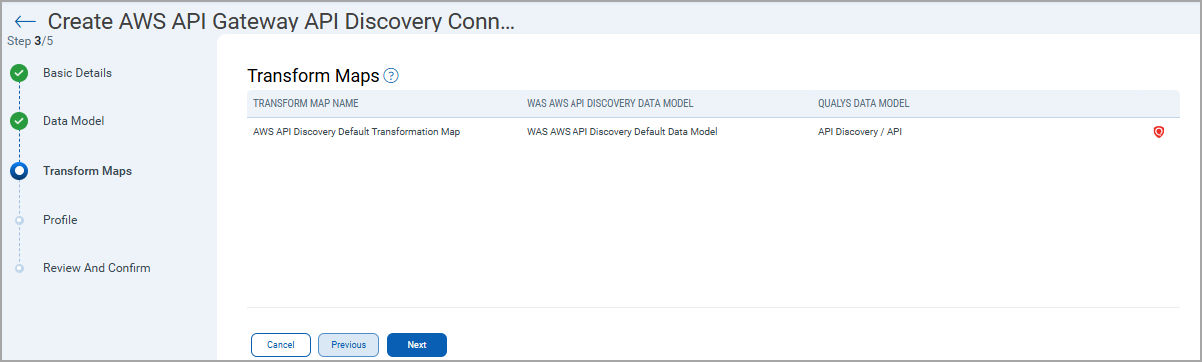
Map the fields from the CSV file to the corresponding fields in your target system. Transform Maps ensure the data is transformed correctly during the import or export process.
The WAS AWS API Discovery offers an out-of-box transform map for you to proceed without further configuration. View the map to understand the data transformation.
Profile Configuration
Create a profile for your connector. A profile decides the connector status, execution schedule, and transform map to choose. The connector follows the configurations of this profile for all future executions.
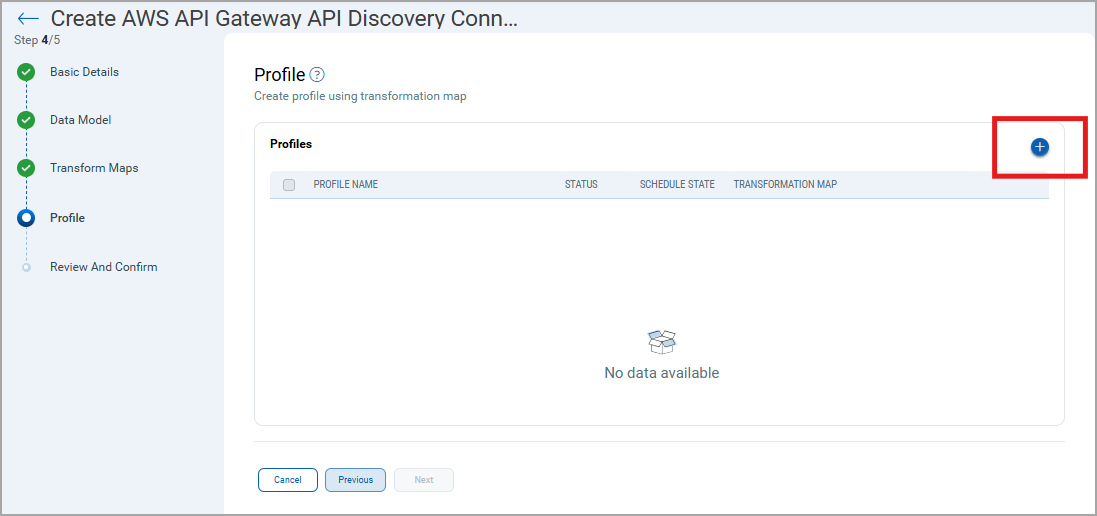
To create a Profile, follow the given steps:
- Click the
 to create a new profile.
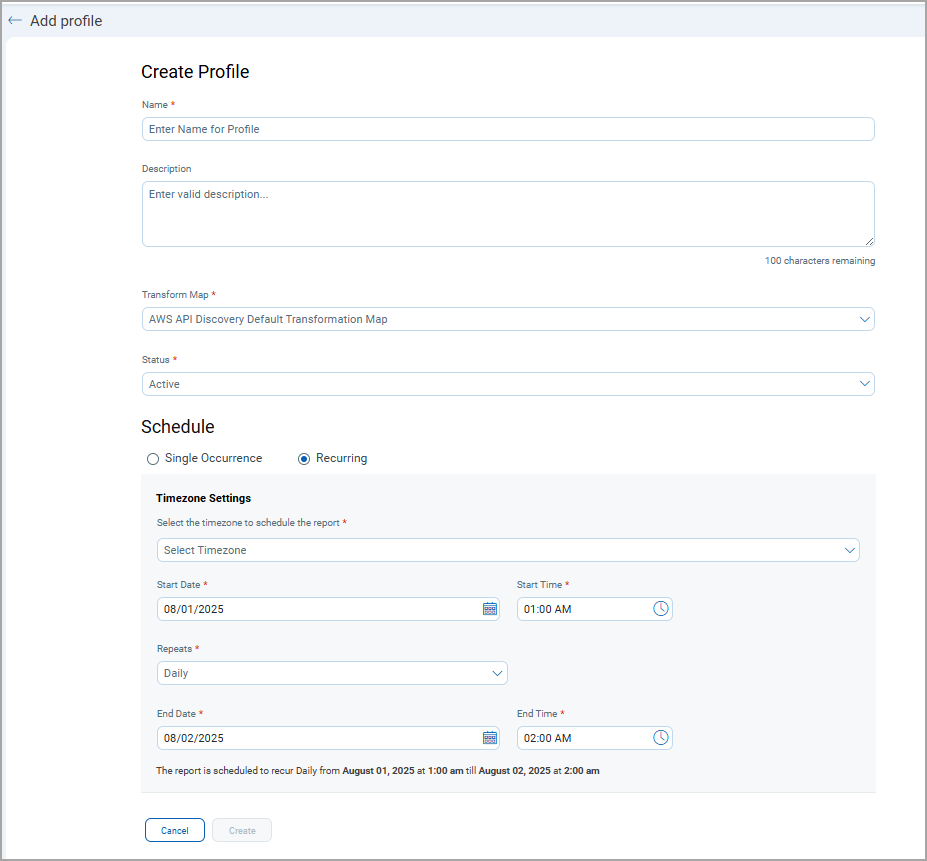
- In the Create Profile screen, provide the necessary inputs for your new profile:
- Provide a Name and Description.
- Select the required Transform Map for the data mapping.
- In the Status field select whether the connector should be in Active or Inactive state after creation.
- In the Schedule section, select Single Occurrence schedule or a Recurring schedule. For the Single occurrence, select the timezone, start time, and end time. For recurrent scheduling, select the timezone, frequency, start time, and end time.
- Click Create to add a new profile.
Connector States
After configuration, the connector progresses through these states:
| State | Description |
|---|---|
| Registered | Connector created and registered successfully |
| Scheduled | Connection execution is scheduled |
| Processing | A connection is executed and the connector is retrieving asset data. |
| Processed |
Asset discovery completed; findings ingestion may still continue. The Processed state indicates that the Connector is successfully configured but it is under the process of importing all your assets. This process may take some time. |
Logs
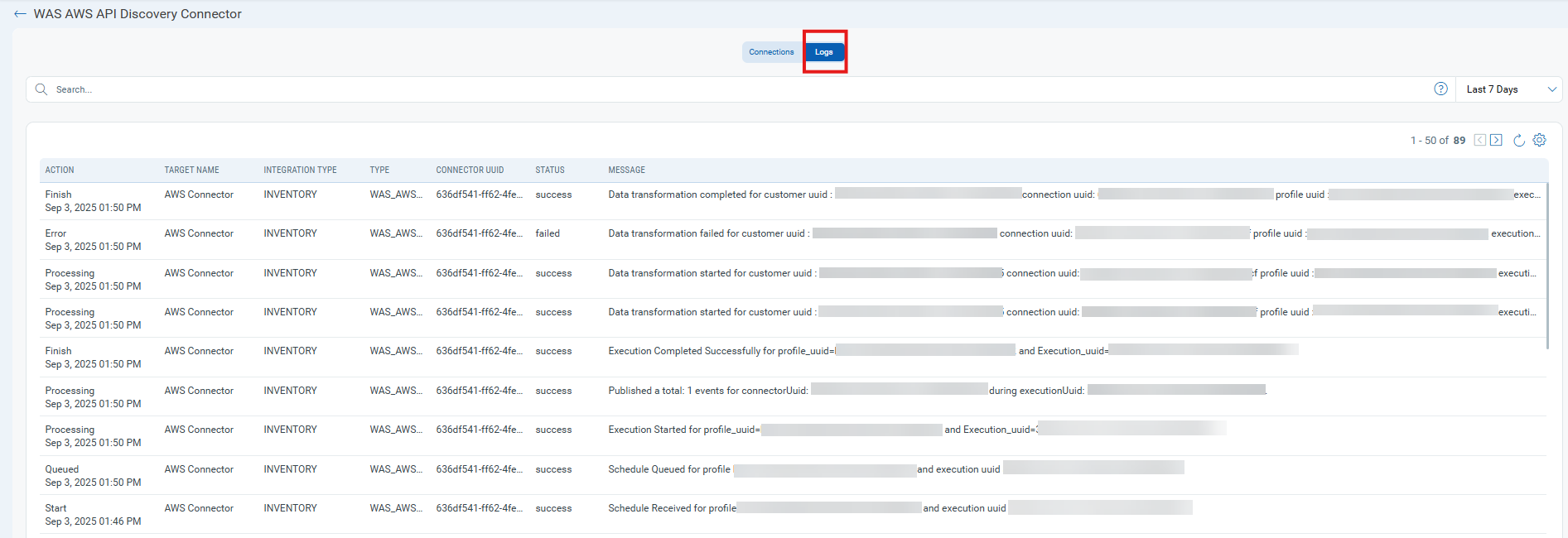
End-to-end logging provides enhanced visibility into connector activities from the TotalAppSec, enabling more effective analysis and troubleshooting. You can access these logs from the Logs tab.
View Assets under Discovery Tab
Sources
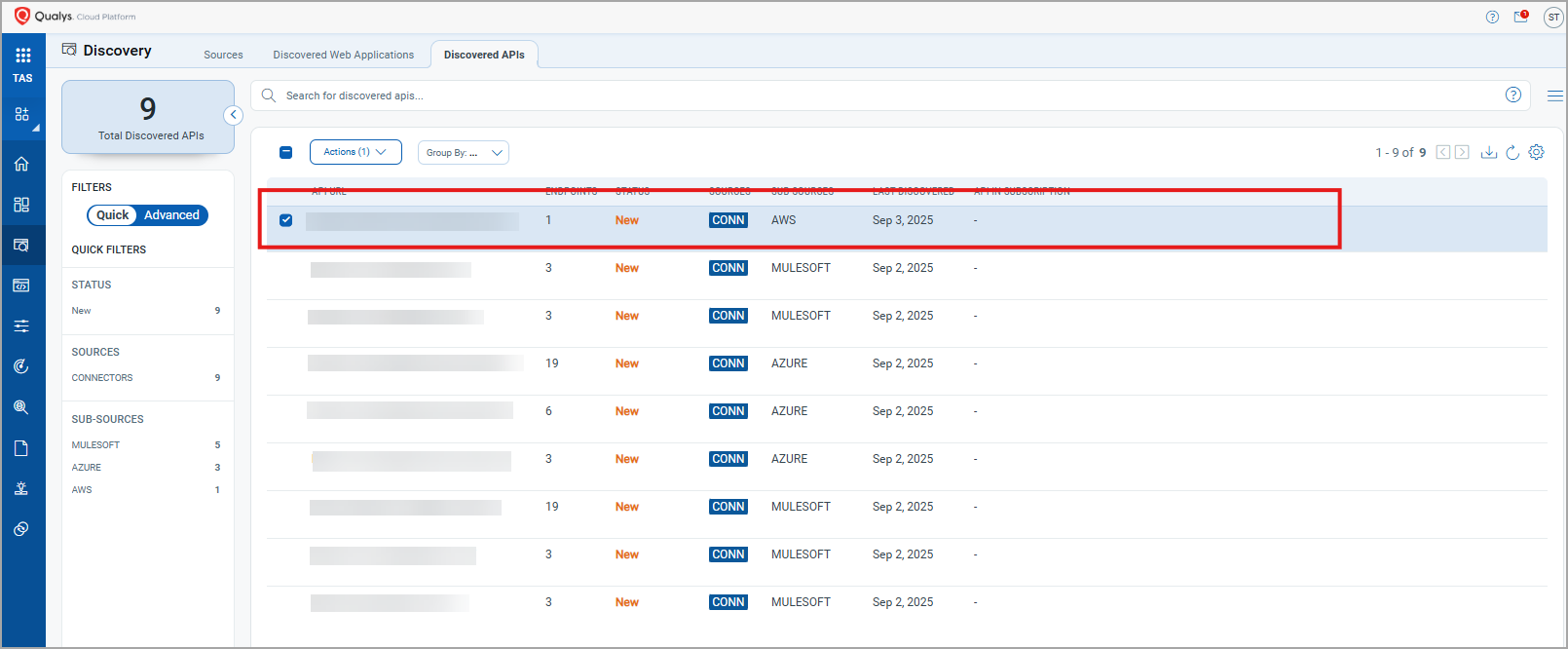
You can find the Discovered APIs count under the AWS API Connectors in Discovery > Sources.
Discovered APIs
Here, you can view all the API assets discovered by the AWS API connector with additional details like Status, URL, Endpoints, etc.
Additional Resources
Additional Information related to AWS API Connector.
APIs of AWS API Discovery used to fetch the data
Here are the APIs executed for the AWS API connection and the IAM permissions required for each operation.
| Operation | API Endpoint | IAM Permissions |
|---|---|---|
|
getExport(...) |
GET /restapis/{restapi_id}/stages/ |
The user must have |
| getStages (String restApiId) |
GET /restapis/{restapi_id}/stages |
The principal must have |
| getRestApis() | GET /restapis |
The principal must have |