Kong Gateway API Discovery Connectors
The Kong Gateway API Discovery Connectors enables automated integration between your Kong API Gateway environment and Qualys. The connector discovers APIs managed through Kong Gateway, collects their metadata and specifications, and imports them into Qualys to support API inventory, visibility, and scan readiness.
| Category | Supported Asset Type | Supported Finding Type |
|---|---|---|
| API Connector | APIs | N/A (Discovery only) |
Prerequisites
- An active TotalAppSec module subscription
- Access to your Kong Gateway with the required permissions as specified in the Permissions section.
How to Obtain a Token for Connector Configuration
- Login to Kong https://cloud.konghq.com/
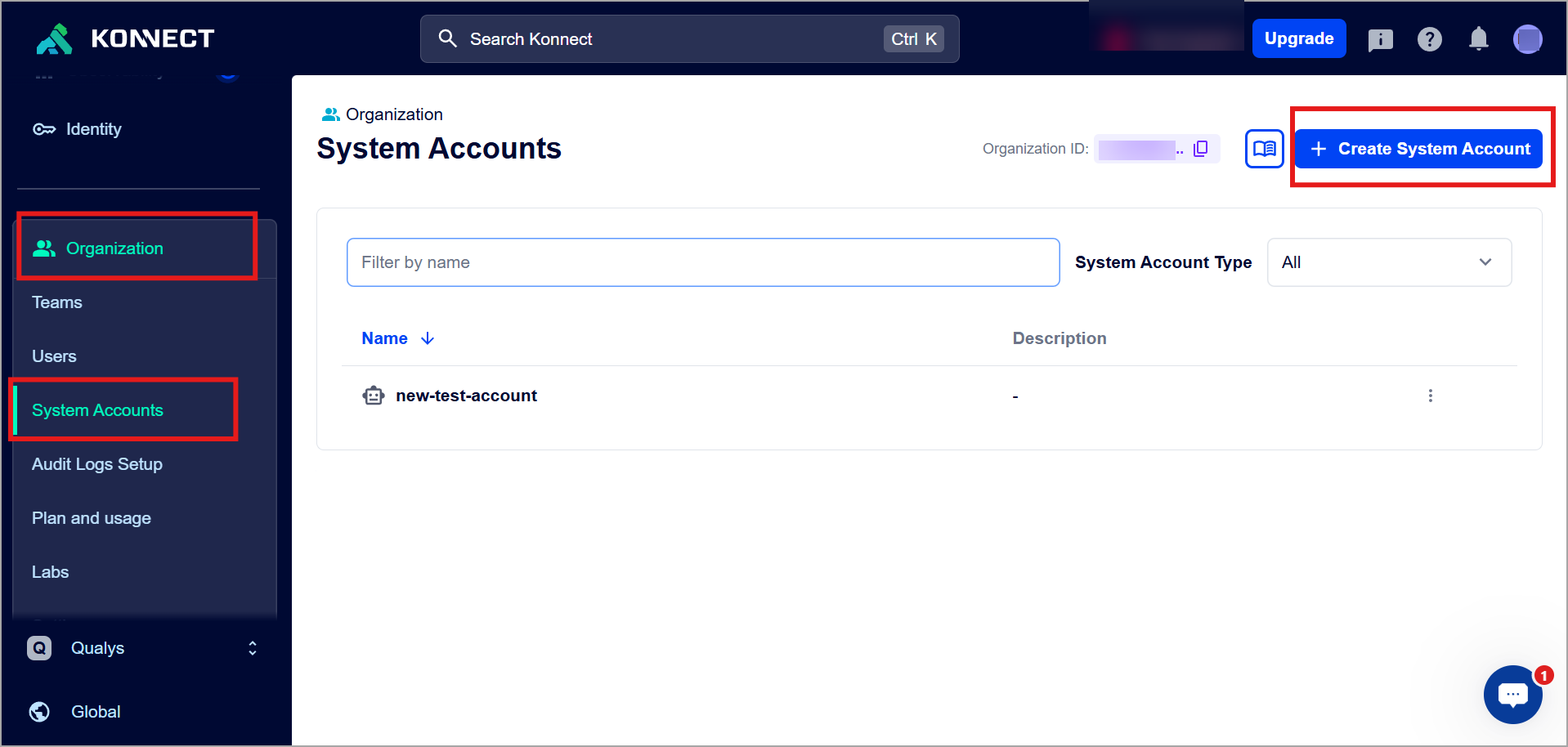
- Navigate to Organization > System Accounts, and click Create System Account.
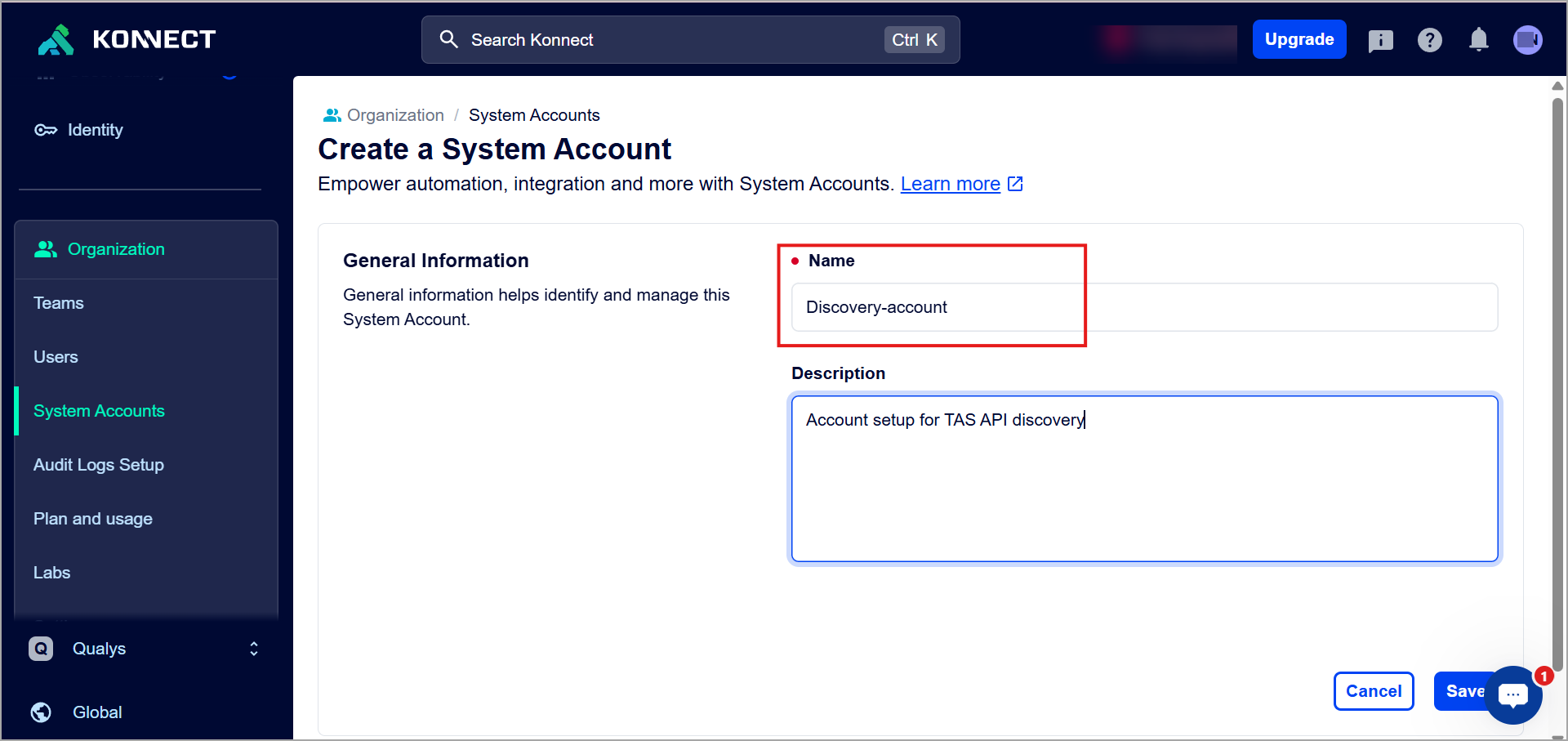
- Add a name and description for the system account, and click Save.
The system account is created. - In the Role Assignments, click Add roles.
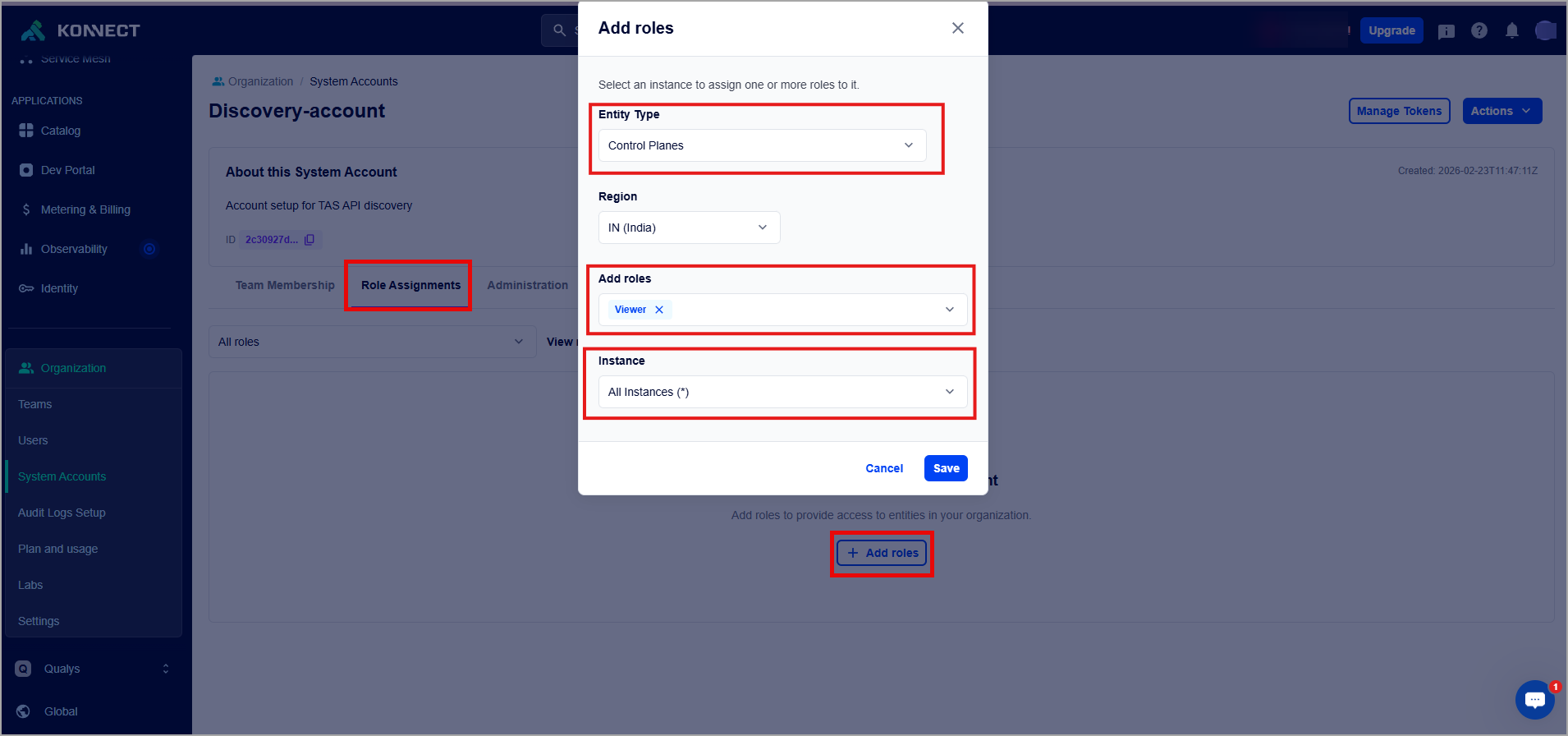
- In the Add Roles dialog box, select appropriate values for the following fields:
- Entity Type - Control Planes
- Add Roles - Viewer
- Instance - All Instances (*)
- Click Save. The new role is created and assigned to the System Account.
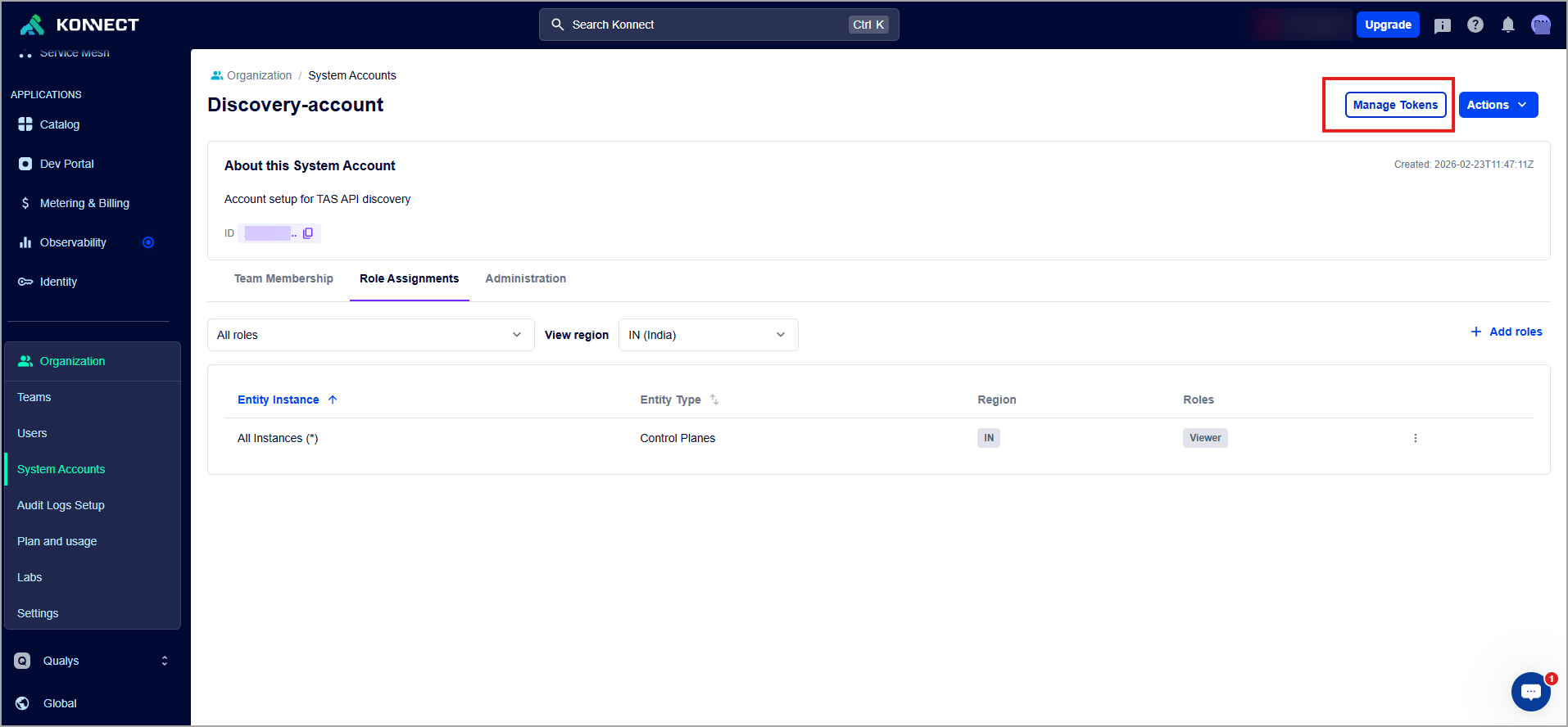
- Click Manage Tokens.
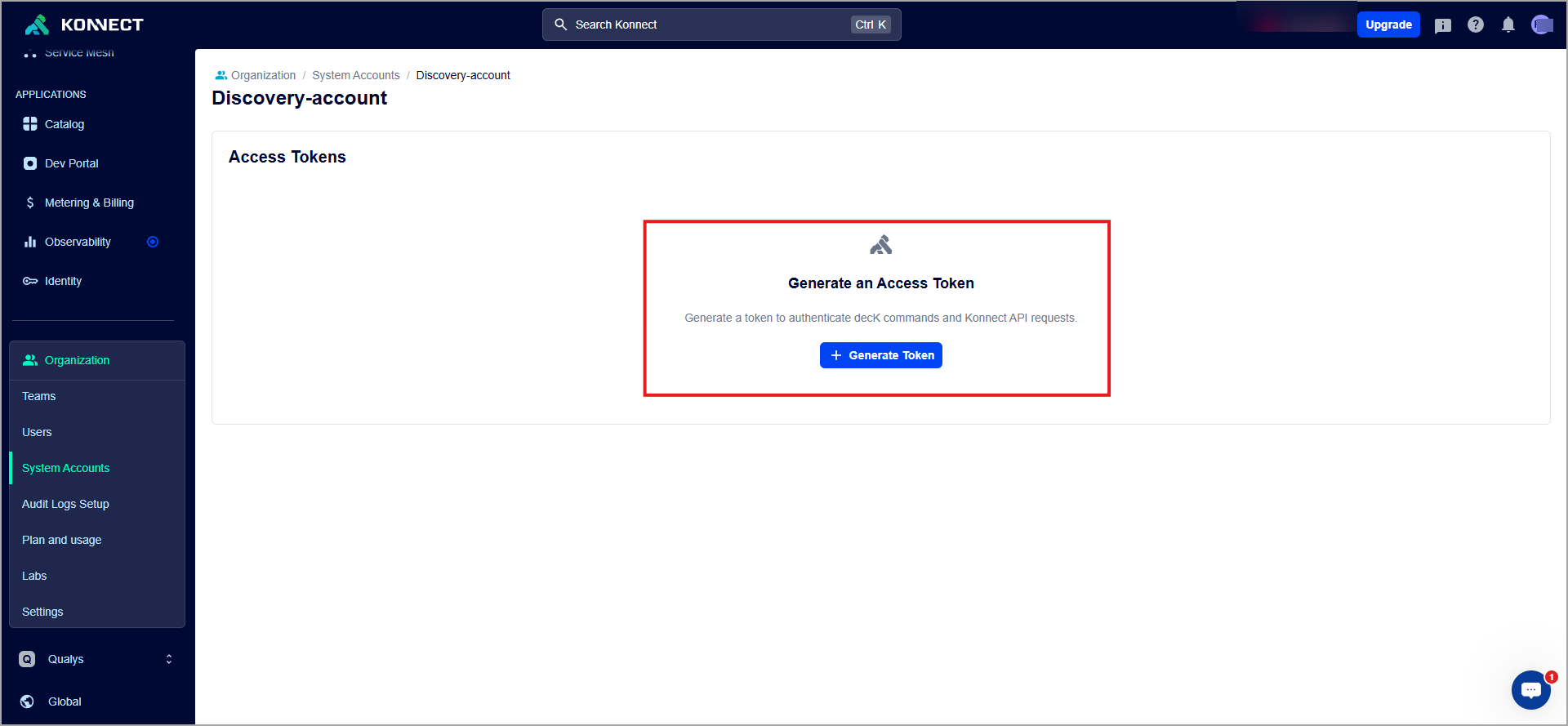
- In the Access Tokens page, click Generate Token.
- In the Generate an Access Token dialog box, perform the following steps:
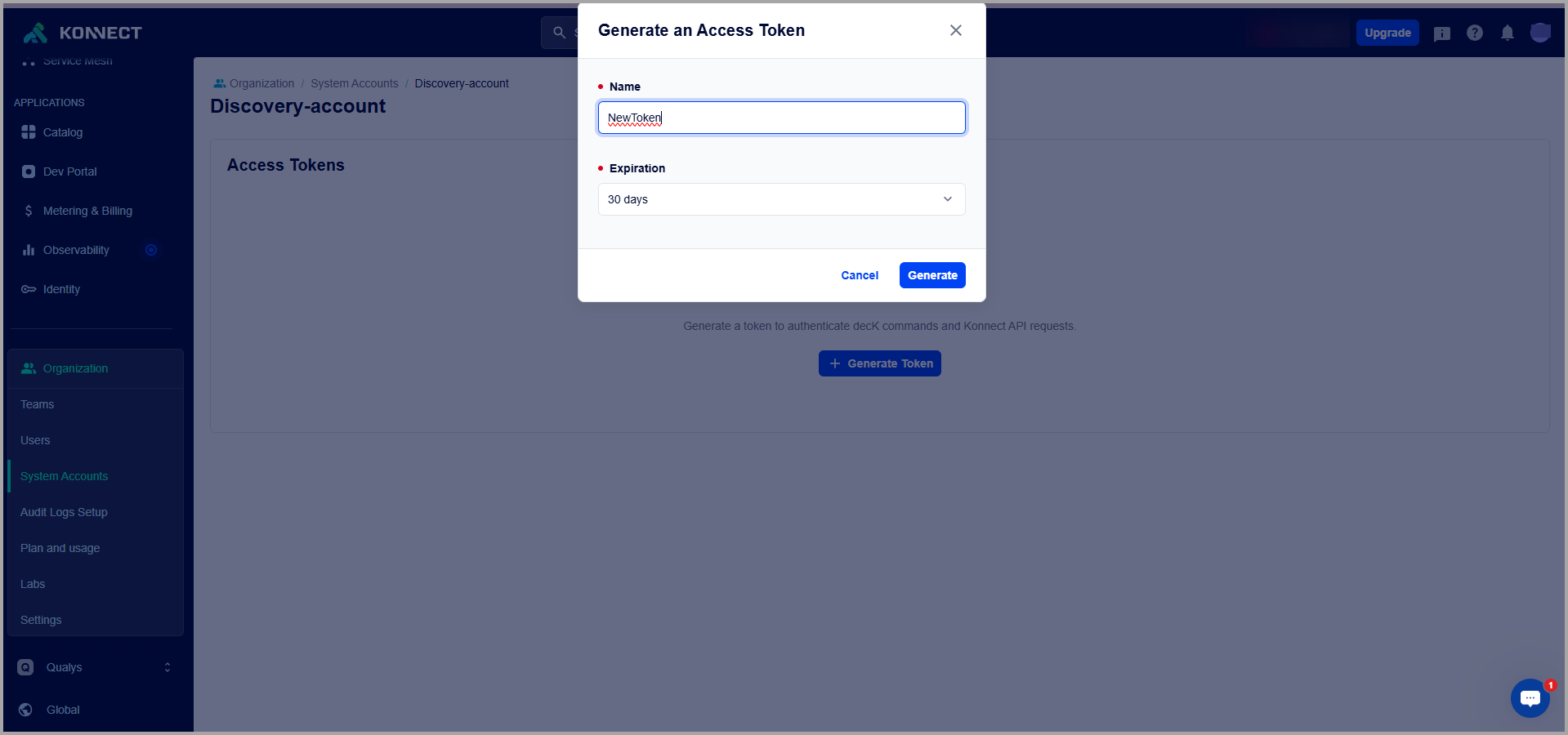
- Add a Token Name.
- Select the Expiration time.
- Click Generate.
- Once the token is generated, click Copy token and close.
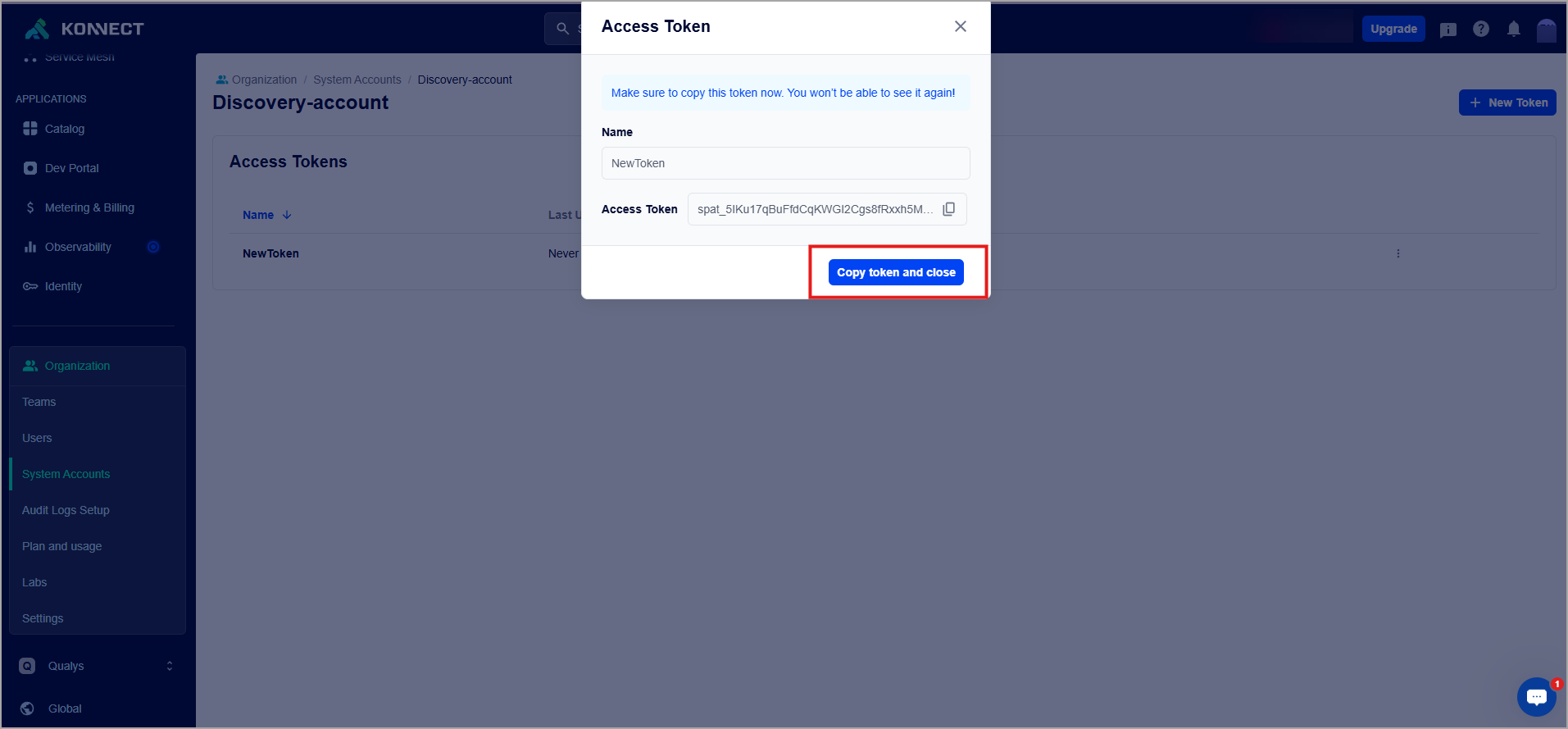
Use this token to setup Kong API Discovery Connector in the Basic Details step.
Permissions
The following table presents the Kong Gateway APIs used to retrieve data and the required IAM permissions required for each operation.
| API Endpoint | IAM Permissions |
|---|---|
|
GET /v2/control-planes/ |
Minimum permission needed: Control Planes: View or List (read access to control planes at org level) |
|
GET /v2/control-planes/{CONTROL_PLANE_ID}/core-entities/services |
Minimum permission needed (for that control plane):
|
|
GET /v2/control-planes/{CONTROL_PLANE_ID}/core-entities/routes |
Minimum permission needed:
|
|
GET /v2/control-planes/{CONTROL_PLANE_ID}/core-entities/plugins |
Minimum permission needed:
|
|
GET /v2/control-planes/{CONTROL_PLANE_ID}/core-entities/consumers |
Minimum permission needed:
|
Connector Configuration
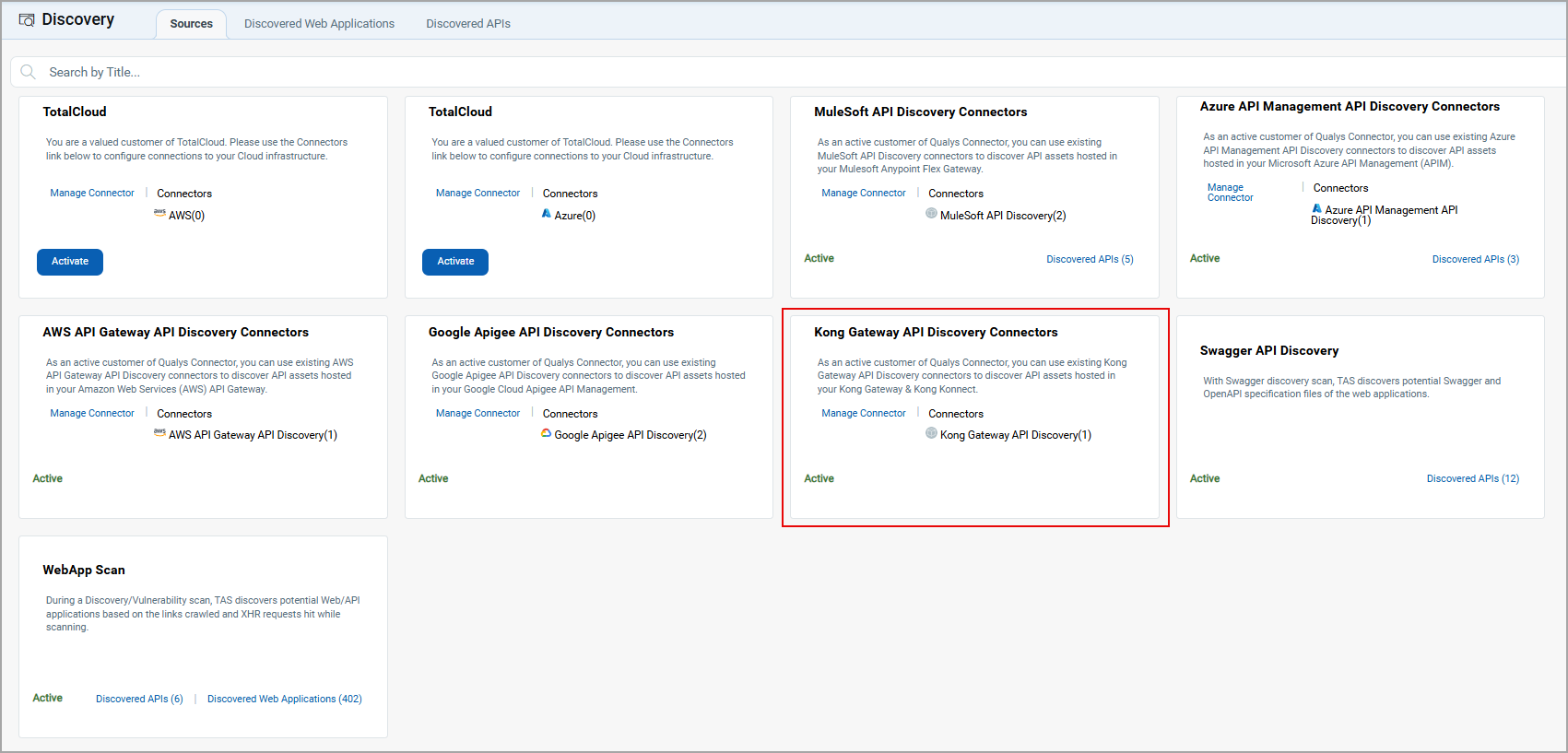
To create a new Kong Gateway API Discovery connector, navigate to the Discovery tab > Sources > Kong Gateway API Discovery Connector, and click Create Connector.
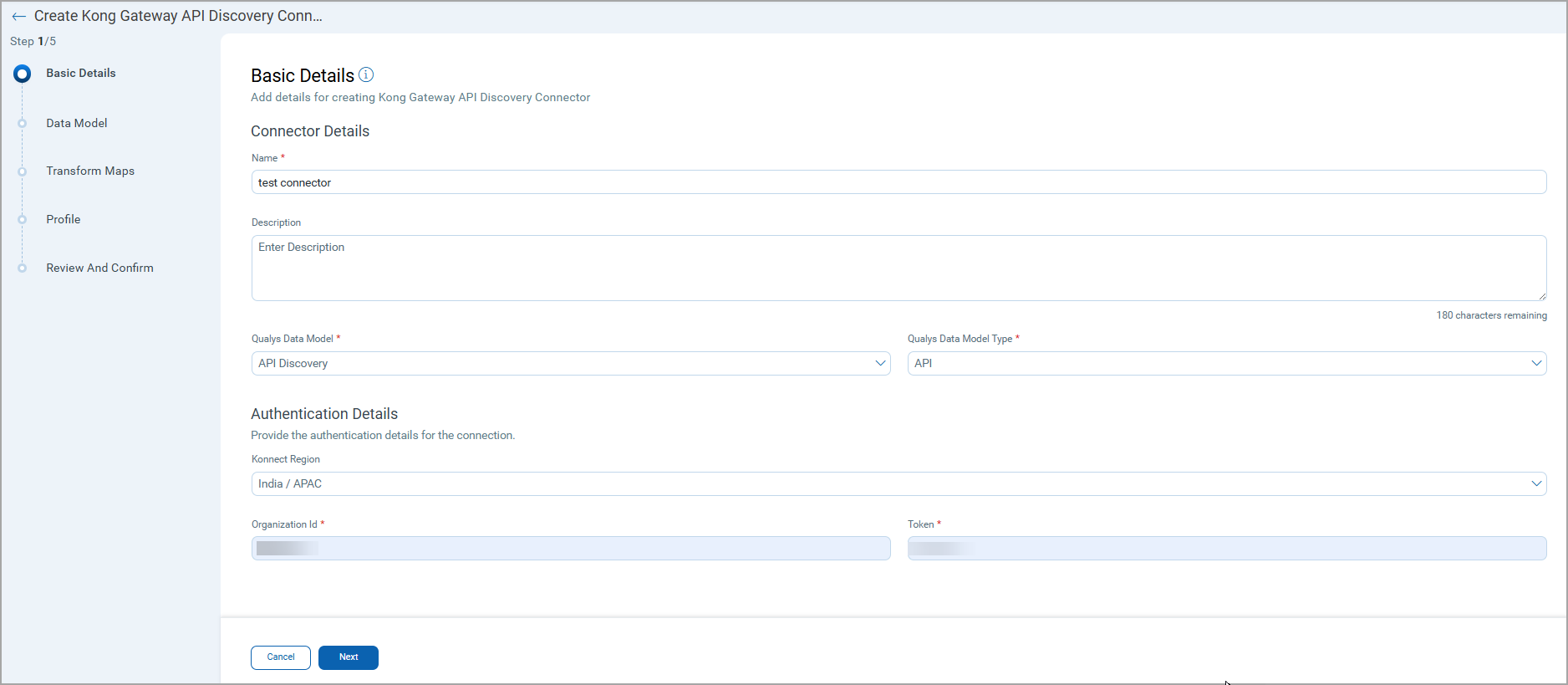
Basic Details
- Provide a Name and Description.
- Select the Qualys Data Model - API Discovery and Data Model Type - API.
- Provide required Authentication Details.
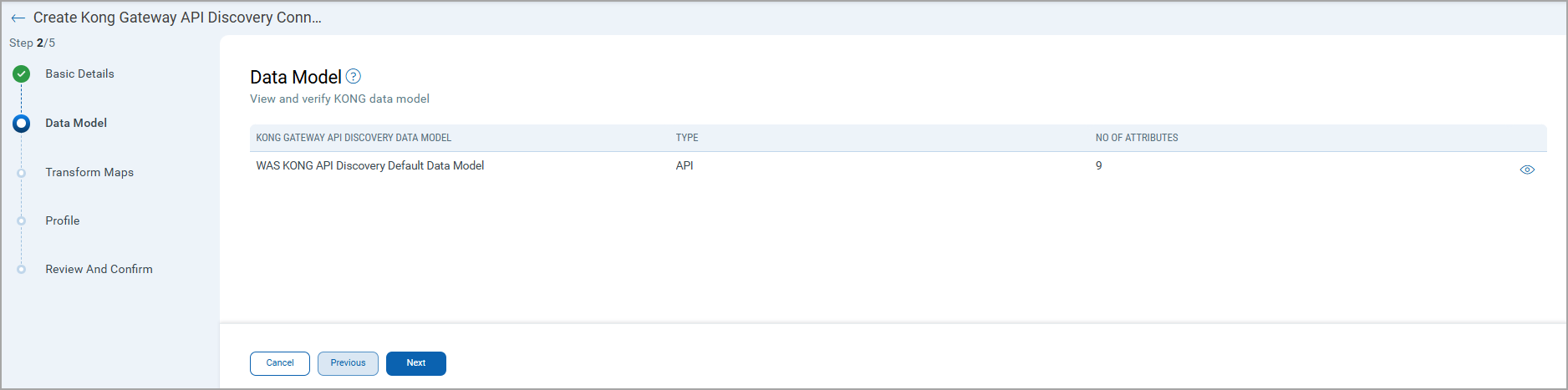
Data Model
The Kong API Discovery Default Data Model provides an out-of-the-box schema aligned with the Qualys schema.
Use the schema view to understand the attributes and structure of the imported API data.
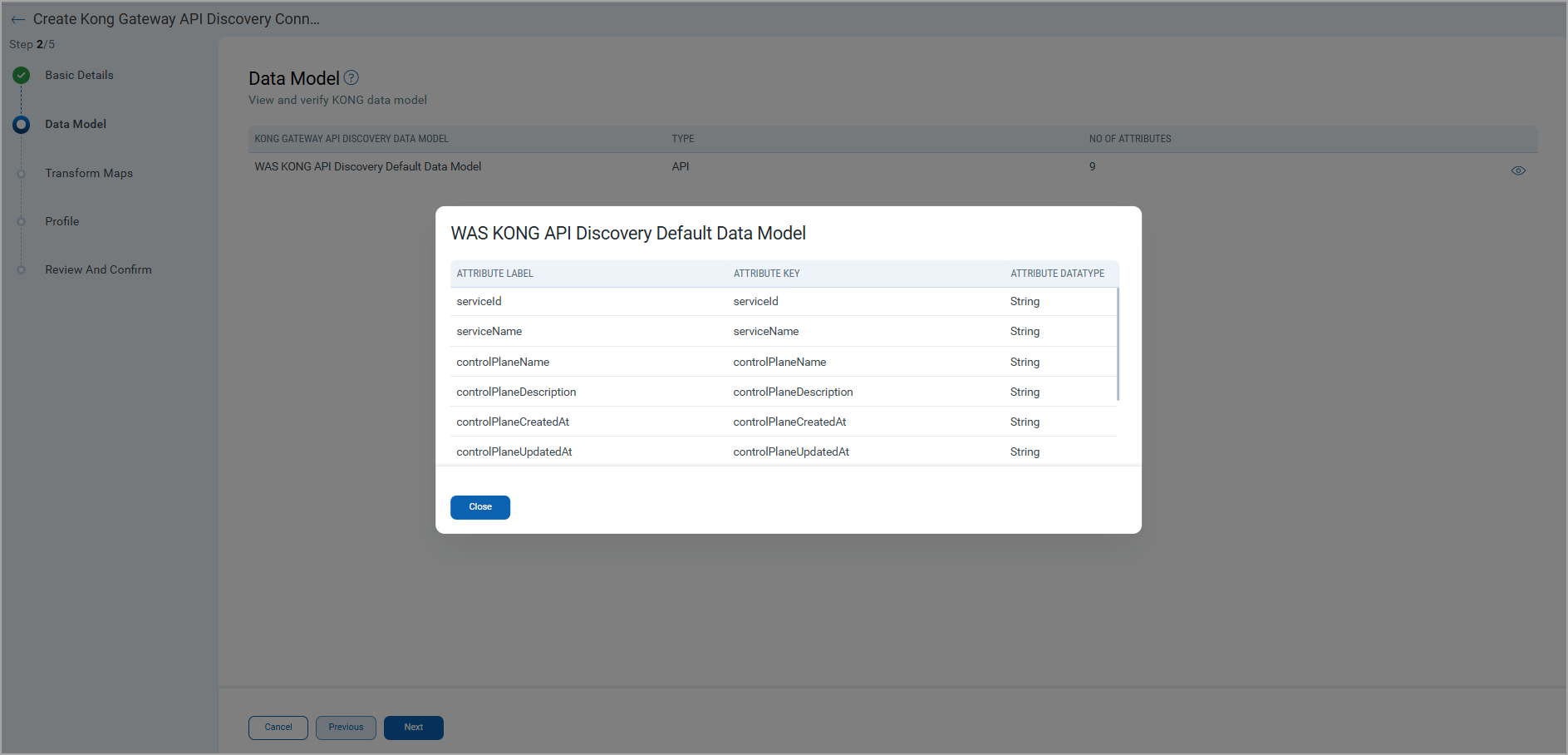
Here Is the default data model mapping.
Transform Maps
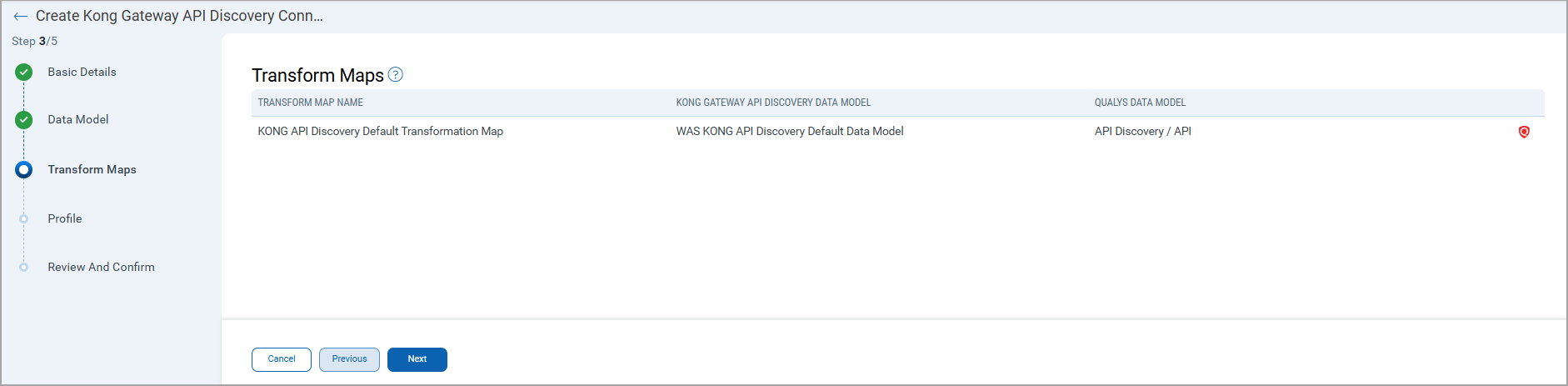
Transform maps ensure data is correctly transformed during data import. Qualys provides the default transform map, and it cannot be edited.
Profile Configuration
Create a profile for your connector. A profile decides the connector status, execution schedule, and transform map to choose. The connector follows the configurations of this profile for all future executions.
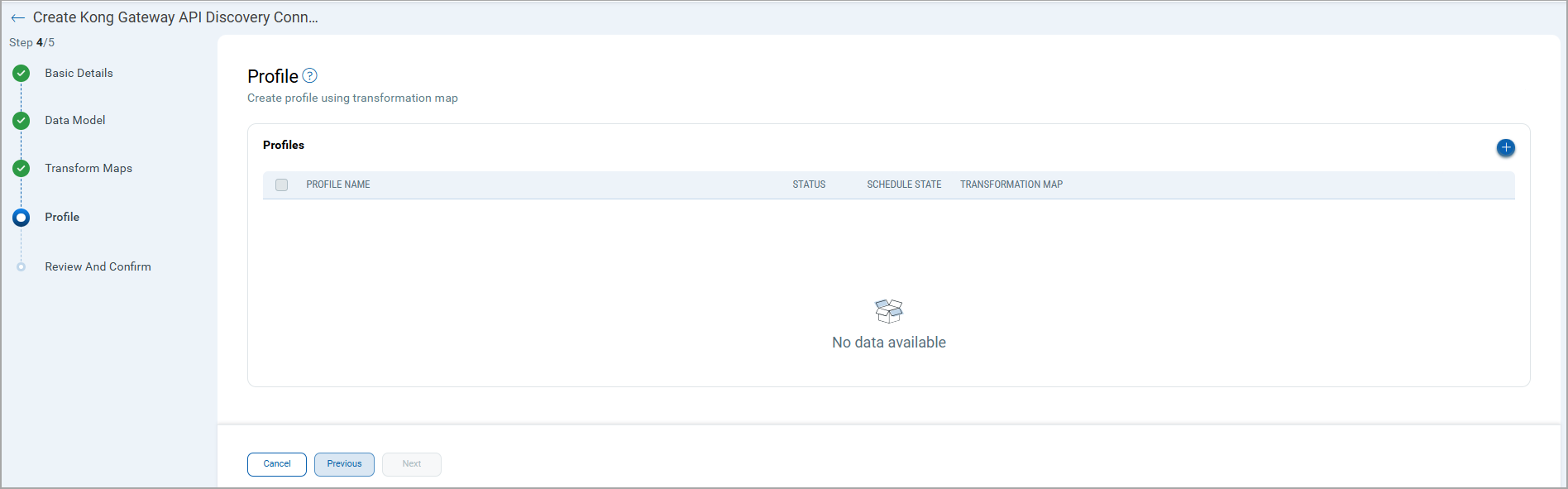
- Click
 to create a new profile.
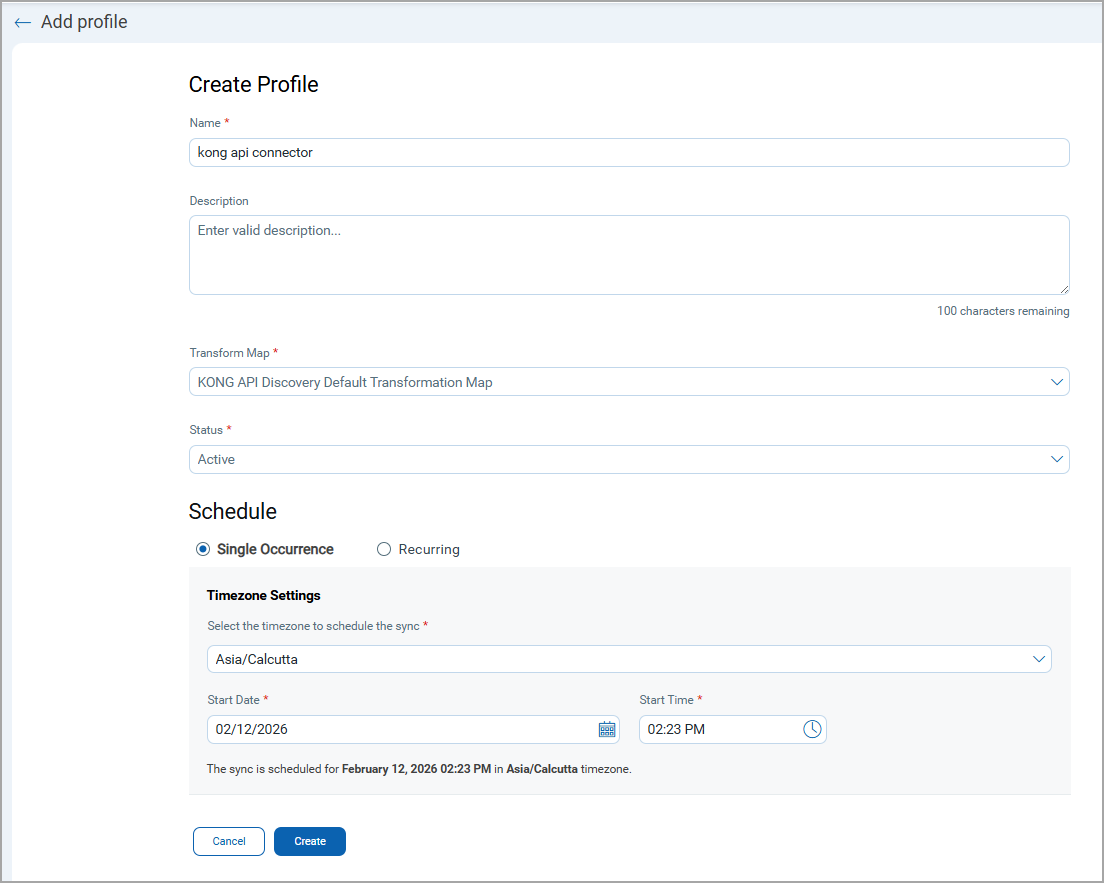
- In the Create Profile screen, provide the necessary inputs for your new profile:
- Provide a Name and Description.
- Select the required Transform Map for the data mapping.
- In the Status field select whether the connector should be in Active or Inactive state after creation.
- In the Schedule section, select Single Occurrence schedule or a Recurring schedule. For the Single occurrence, select the timezone, start time, and end time. For recurrent scheduling, select the timezone, frequency, start time, and end time.
- Click Create to add a new profile.
Connector States
After configuration, the connector progresses through these states:
| State | Description |
|---|---|
| Registered | Connector created and registered successfully |
| Scheduled | Connection execution is scheduled |
| Processing | A connection is executed and the connector is retrieving asset data. |
| Processed |
Asset discovery completed; findings ingestion may still continue. The Processed state indicates that the Connector is successfully configured but it is under the process of importing all your assets. This process may take some time. |
Logs
End-to-end logging provides enhanced visibility into connector activities from the TotalAppSec, enabling more effective analysis and troubleshooting. You can access these logs from the Logs tab.
View Discovered Assets in TotalAppSec
Follow the steps to view your assets in the TAS application.
Sources
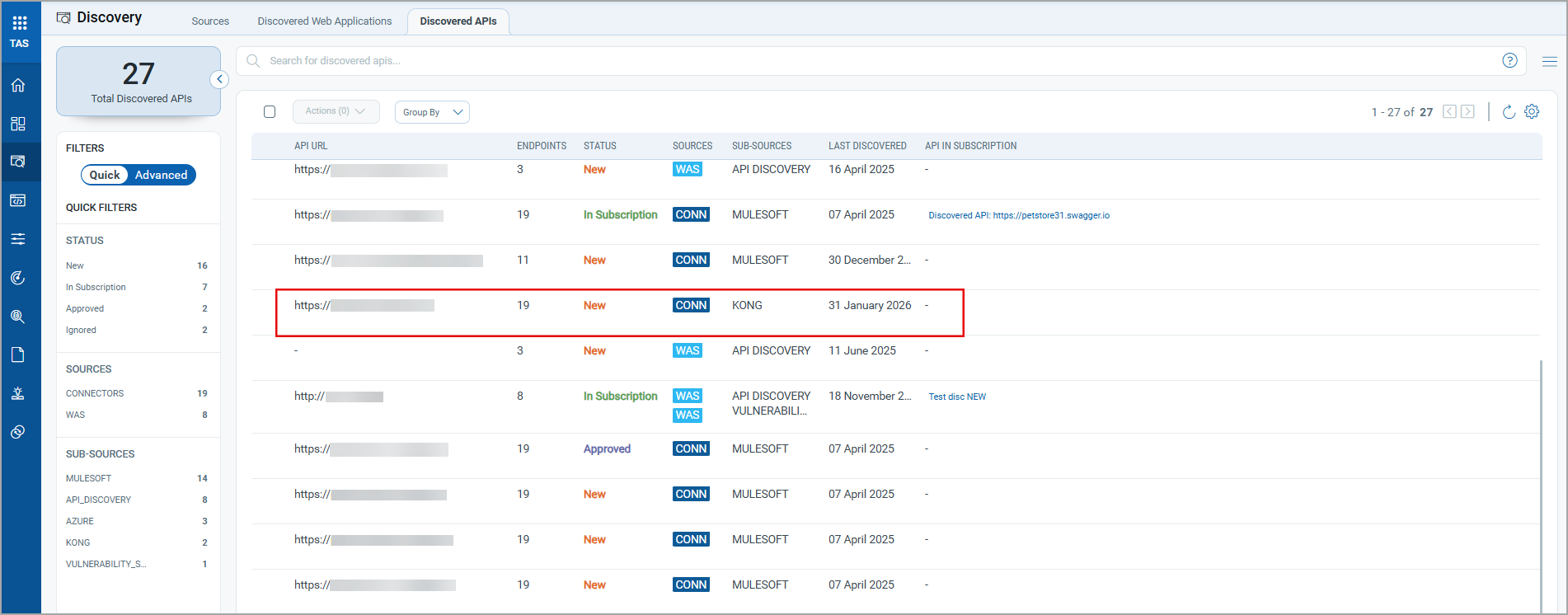
Discovered APIs
Here, you can view all API assets discovered by the KONG connector, along with additional details such as Status, URL, Endpoints, and so on.