Building Test Cases
You could build a test case from scratch involving the following steps:
Step 1: Recording
Many first-time users begin by recording a test case from their interactions with a website. When you open Qualys Browser Recorder, the record button is at the upper right corner. Click the record button and it will start recording your actions.
During recording, Qualys Browser Recorder automatically inserts commands into your test case based on your actions. Typically, this may include:
- Clicking a link: Click or clickAndWait commands.
- Entering values: Type command.
- Selecting options from a drop-down listbox: Select command.
- Clicking check boxes or radio buttons: Click command.
Qualys Browser Recorder records full URL paths for commands that store URL paths. For example, the Open command records the full URL path of the opened Website. If you import a script that has relative paths, Qualys Browser Recorder automatically converts these to full paths while importing.
Step 2: Editing
Once you complete recording the interactions, you could either edit the commands or insert new commands.
Inserting a Command
Select the command and then right-click and select Insert Command from the right-click menu; the Qualys Browser Recorder will add a blank line just below the line you selected. Alternatively, you can click ‘+’ in the Editing toolbar.
Now, use the command editing text fields to enter your new command and its parameters.
Editing a Command
Simply select the line to be changed and edit it using the Command, Target, and Value fields.
Advanced users can open a saved test case script in a text/xml editor and edit the script.
Step 3: Saving a test case
Qualys Browser Recorder distinguishes between test cases and test suites. You can add one or more test cases and form a test suite.
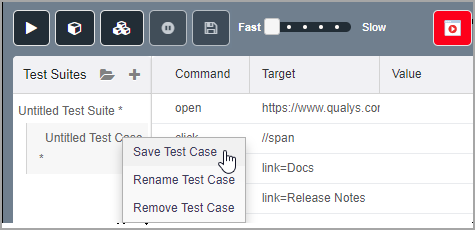
To save your tests for later use you can either save the individual test cases or add the test cases to a test suite and then save the test suite. If the test cases of your test suite have not been saved, you’ll be prompted to save them before saving the test suite. To save a test case/suite - in the ‘Test Suite’ pane, select the test case/suite and then right-click on a particular test case/suite to save. You cannot have any special characters except the underscore “_” in the file name.
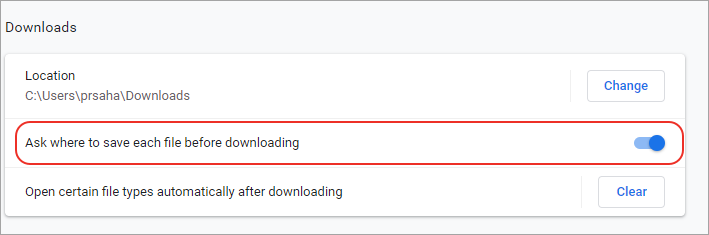
Qualys Browser Recorder saves the test case or test suite files to a default location. To enable the option to save the file to a different location, go to the Chrome browser and then Settings > Advanced > Downloads. Enable the “Ask where to save each file before downloading” option.
To open a test case/suite in the ‘Test Suite’ pane, click Open Test Suites on the toolbar, which lets you browse your existing file, and when you open an existing test suite, Qualys Browser Recorder displays its commands in the command Pane.
Step 4: Running test cases
Qualys Browser Recorder allows many options for running your test case. You can execute a test case all at once, stop and start it, run one line at a time, run a single command you are currently developing, and you can do a batch run of an entire test suite. Execution of test cases is very flexible.
Run a Test Case
Select the test case and click the play button to play the current test case.
Run a Test Suite
Select the test suite and click the play button to execute all the test cases in the currently loaded test suite.
Stop and Start
The Play button toggles between play and stop. When you execute the test case, you can use the same button to stop the test case while it is being executed. When you stop the test case, use the same stop button now to play the test case.
Stop in the Middle
You can set a breakpoint in the test case to cause it to stop on a particular command. This is useful for debugging your test case. To set a breakpoint, select a command, right-click, and select Toggle Breakpoint.
Run Any Single Command
Click any single command on command pane and then right-click and select Execute this command. This is useful when you write a single command. It lets you immediately test a command you are constructing. You can run a single command to see if it runs correctly.
Example
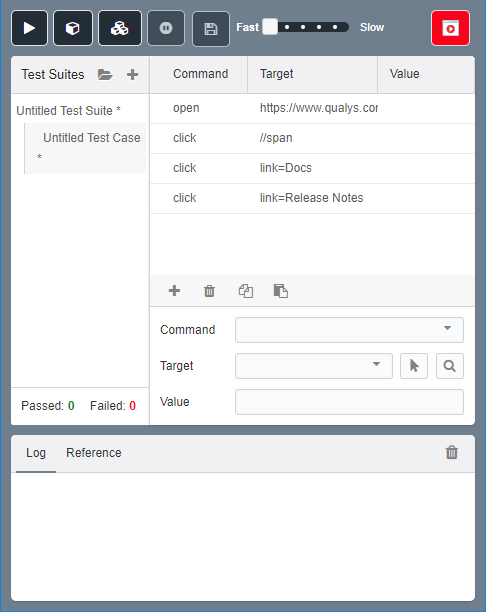
Let us build a sample test case to understand the sequence better. For example, let us record the steps needed to open the Qualys website.
- Open Qualys Browser Recorder and click Record.
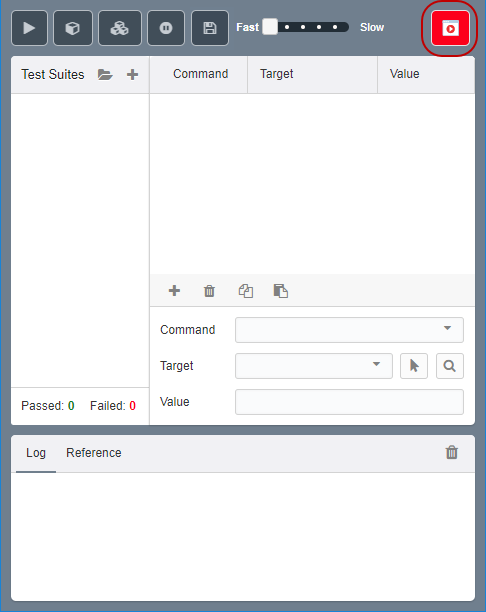
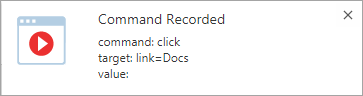
- Type the URL in the browser in the browser and perform few clicks. For every click, Qualys Browser Recorder displays a prompt on the screen.
- After you complete the sequence of clicks, click Record button to stop the recording. Qualys Browser Recorder automatically populates all the actions in the editor pane.
- Save the test case and test suite.
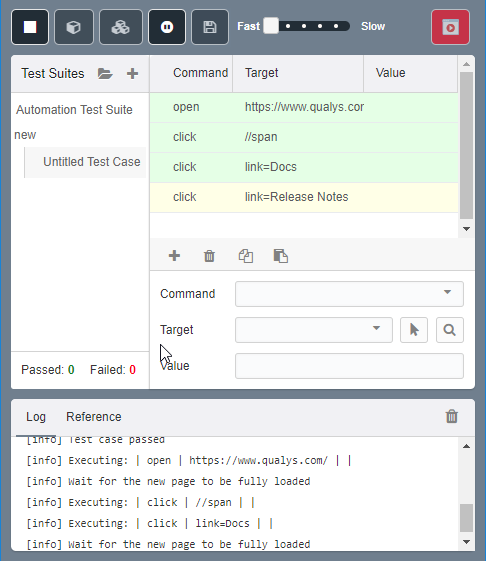
- You can now replay the recorded steps. the background will change to light green color if the script gets executed successfully and the log statement gets printed.