Test Authentication - Scan Settings
On this page, select the settings for performing the test authentication scan.
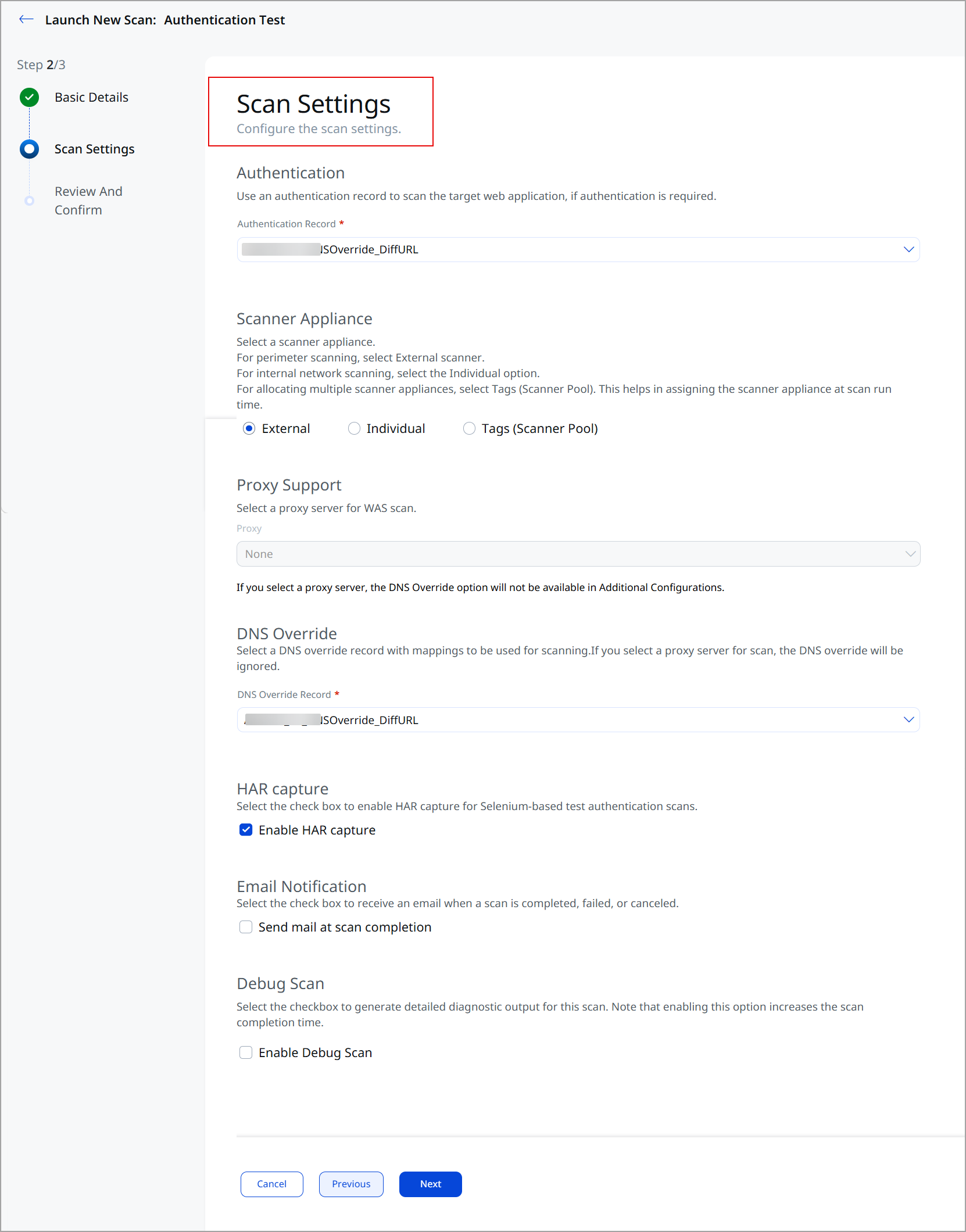
Authentication
Select an authentication record from the Authentication Record list. This field is mandatory, because a test authentication scan always tests the authentication record that you select.
Choose from records already defined for your target web application (in the web application settings). This tells us the access methods and credentials (form-based and/or server-based) used to perform authenticated scanning.
You can upload Selenium scripts to your authentication records, and we'll use them for authenticating your applications at scan time.
Scanner Appliance
- If you have an external-facing web application, select External. Perimeter applications can be scanned by Qualys Cloud scanners.
- If you have a web application on your internal network, select Individual, and select the scanner from the list of scanners.
- If you want to allocate multiple scanners, select Tags (Scanner Pool), and select tags from the list of tags. The scanner appliances with any of the selected tags are added to the scanner pool and can be assigned at the scan run time.
Proxy Support
Select a proxy configuration from the Proxy list. The proxy configuration that you selected while creating the web application is populated automatically. However, you can override the default selection.
If you select a proxy server, the DNS Override option is not available under Additional Configurations.
DNS Override
Select a DNS Override record from the DNS Override Record list to use the mappings in the selected record instead of the default value for the web application URL. If you select a proxy server for the scan, we ignore the DNS override.
HAR Capture
Select the Enable HAR capture check box to enable HAR (HTTP Archive) capture for Selenium-based test authentication scans.
Email Notification
Select the Send mail at scan completion check box to receive an email when the scan is completed, failed, or canceled.
Debug Scan
Select the Enable Debug Scan check box to generate detailed diagnostic logs (for the Qualys support team) for this scan.
Enabling debug scan increases the scan completion time.