TotalAppSec Release 2.11 | Web Application Scanning Release 1.31
September 30 2026
This release adds CyberArk Central Credential Provider vault support, automatic redundant link pattern detection, WAS dashboard trending widgets, and expanded PCI and OWASP Top 10 compliance coverage, along with a duplicate-URL check for discovered applications and a set of reporting, scanning, and authentication fixes.
 TotalAppSec
New Feature
CyberArk Central Credential Provider Support for Authentication Records
What's New for You
Once you connect a Vault to CyberArk’s Central Credential Provider (CCP), your authentication records can pull credentials from it automatically at scan time, instead of storing them directly in TotalAppSec.
You can now authenticate web application scans using credentials stored in an enterprise password vault instead of entering them directly into an authentication record. A new Vault object lets you connect to the CyberArk Central Credential Provider (CCP). An authentication record can reference credentials from the vault, and the scanner resolves them only at scan time.
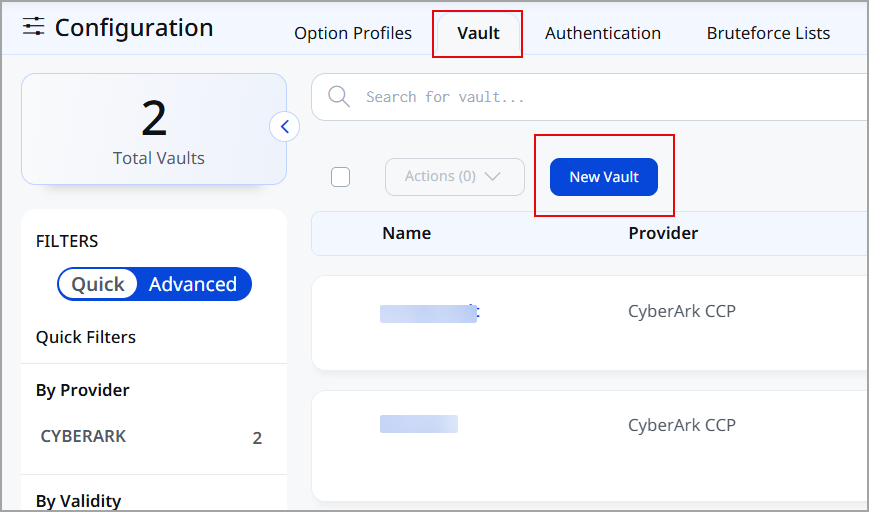
You can create a new Vault directly from the Configuration > Vault tab > New Vault by entering the connection details (URL, authentication mode, and account/safe mappings). This doesn't store the actual password; instead, it sets up a secure reference so credentials already saved in CyberArk can be pulled automatically at scan time. Once created, the vault can be linked to any authentication record, allowing users to select credentials from a drop-down instead of typing them.
If a Credential Cannot Be Retrieved
- If the scanner cannot retrieve a credential from the vault at scan time, the scan reports the failure through QID 150615 (Scanner Vault Diagnostics), which identifies the Safe and Account Name involved.
- The vault connection's Validity is set to Invalid and its Last Validated date is updated, so failures are visible from the Vault list without opening scan results.
- If authentication fails during a scan because the credential changed, the scanner retries with a freshly fetched value from the vault.
New QQL Tokens
The following Qualys Query Language (QQL) tokens are available for searching and grouping vault connections.
| Token | Description |
|---|---|
vaultConnection.id |
Use this token to find vault connections by their ID. |
vaultConnection.name |
Use this token to find vault connections by name. |
vaultConnection.provider |
Use this token to find vault connections by provider. Supported value: CyberArk CCP. This token supports Group By. |
vaultConnection.validity |
Use this token to find vault connections by their last reported connection status. Supported values: VALID and INVALID. This token supports Group By. |
vaultConnection.lastValidated |
Use this token to find vault connections by the date on which their status was last validated. |
vaultConnection.createdDate |
Use this token to find vault connections by the date on which they were created. |
vaultConnection.updatedDate |
Use this token to find vault connections by the date on which they were last updated. |
vaultConnection.createdBy.firstNamevaultConnection.createdBy.lastNamevaultConnection.createdBy.username
|
Use these tokens to find vault connections by the first name, last name, or user name of the user who created them. |
vaultConnection.updatedBy.firstNamevaultConnection.updatedBy.lastNamevaultConnection.updatedBy.username
|
Use these tokens to find vault connections by the first name, last name, or user name of the user who last updated them. |
vaultConnection.owner.firstNamevaultConnection.owner.lastNamevaultConnection.owner.username
|
Use these tokens to find vault connections by the first name, last name, or user name of their owner. |
vaultConnection.tag.name |
Use this token to find vault connections by the name of an assigned tag. This token supports Group By. |
Benefits
- Eliminates hardcoded credentials in authentication records, secrets stay in your vault, and only a reference is stored in the database.
- Automatically picks up credentials, since the scanner fetches the current value from the vault at scan time instead of using a stored copy.
- Removes a common security-review blocker for organizations that manage production credentials through a centralized vault.
- Lets you reuse a single vault-defined credential across multiple authentication records.
- Gives you ongoing visibility into vault connectivity and usage through the Validity status, Last Validated date, and the vault’s Usage tab.
- Records vault connection create, edit, and delete actions in the Action Log and Audit Log for auditing.
New Feature
Duplicate URL Validation for Discovered Applications
What's New for You
When you try to onboard a discovered application whose URL is already tracked elsewhere, you get a confirmation pop-up before creating a duplicate web application record.
You'll see a confirmation pop-up when adding a discovered application whose URL already exists, helping you avoid creating duplicate web application records for the same target.
Previously, adding a URL from the Discovered Application list did not check whether that URL was already onboarded under a different application name, which could result in the same target being scanned as multiple, separate applications.
With this release, you'll be prompted to confirm before proceeding if the tool detects an existing match. You can still add the URL as a new application if that is intentional, such as when tracking the same target under a different application name for organizational purposes.
 TotalAppSec and Web Application Scanning
Enhancement
Auto-Apply Detected Redundant Link Patterns
What Changed For You
Turning on Use Detected Redundant Link Patterns lets the scanner derive its own redundant-link rules from your web application's most recent scan, cutting scan time on sites with repetitive URL structures.
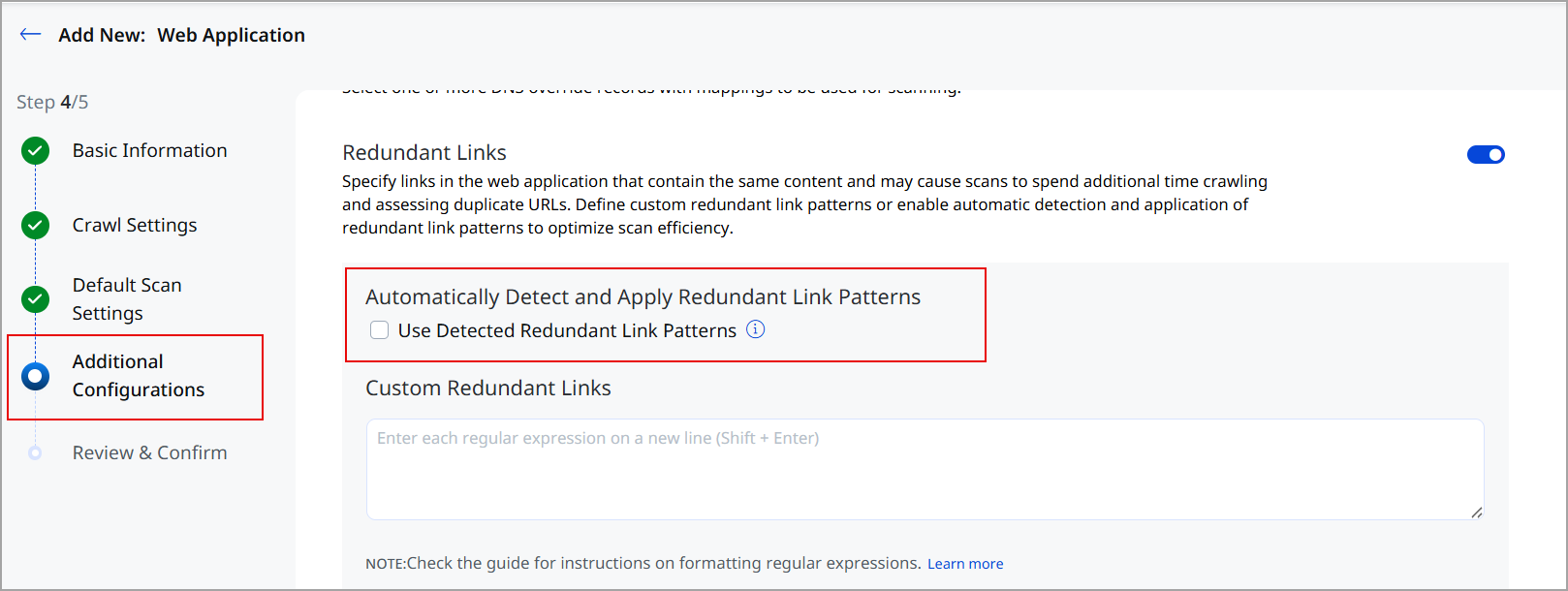
You can now automatically detect and apply redundant link patterns for a web application, on top of any custom patterns you have already configured. A new Use Detected Redundant Link Patterns setting derives redundant-link patterns from the web application's most recent completed scan and applies them during crawling, reducing scan time on applications with repetitive URL structures.
Enabling the Setting
- Navigate to Web Applications.
- Select a web application, and in Quick Actions, open Edit (the setting is also available while creating a new web application).
- Go to Additional Configurations > Redundant Links.
- Under Automatically Detect and Apply Redundant Link Patterns, select Use Detected Redundant Link Patterns.
Viewing the Setting
- Select a web application in Quick Actions > View > Additional Configuration > Redundant Links.
- Use Detected Redundant Link Patterns displays True or False. This view shows whether the setting is turned on. The patterns themselves are derived at scan time and are reported in the scan results, not in the web application configuration.
How It Works
- When enabled, the scanner derives redundant-link patterns from the findings of the web application's most recent completed scan and applies them during crawling, in addition to any custom patterns configured in Redundant Links. Your custom patterns are not replaced or modified.
- If the web application has no completed scan yet, there are no patterns to derive, so the first scan crawls without redundant-link limiting. Subsequent scans use the patterns detected by the previous scan.
- Each scan re-derives patterns from the latest findings, so detection keeps pace automatically as the application's URL structure evolves.
- Derived patterns are applied automatically and are not editable. The scan results report which patterns were applied through the QIDs listed below.
Reporting QIDs
When this setting is enabled, the scan job includes the following QIDs:
- QID 150140 (Redundant Links): Reports the base redundant link handling applied during the crawl.
- QID 530465 (Redundant Links Optimization Rules): Reports the auto-detected patterns that were applied.
- QID 530290 (Discarded Redundant Links): Reports the URLs skipped because of those patterns.
The Maximum Custom Links to Crawl setting continues to apply only to manually configured patterns. It does not limit URLs skipped as a result of auto-detected patterns.
Benefits
- Reduces scan time on applications with repetitive URL structures.
- Removes the need to hand-write and maintain a redundant-link regular expression.
- Adapts automatically as an application's URL structure changes over time.
- Reports the derived patterns and the URLs they skipped in the scan results, through dedicated QIDs.
Enhancement
PCI Compliance Coverage Improvements
What Changed For You
A read-only PCI Option Profile and PCI Compliance search list are now available by default, so you can scan or search for PCI-related findings without building your own configuration.
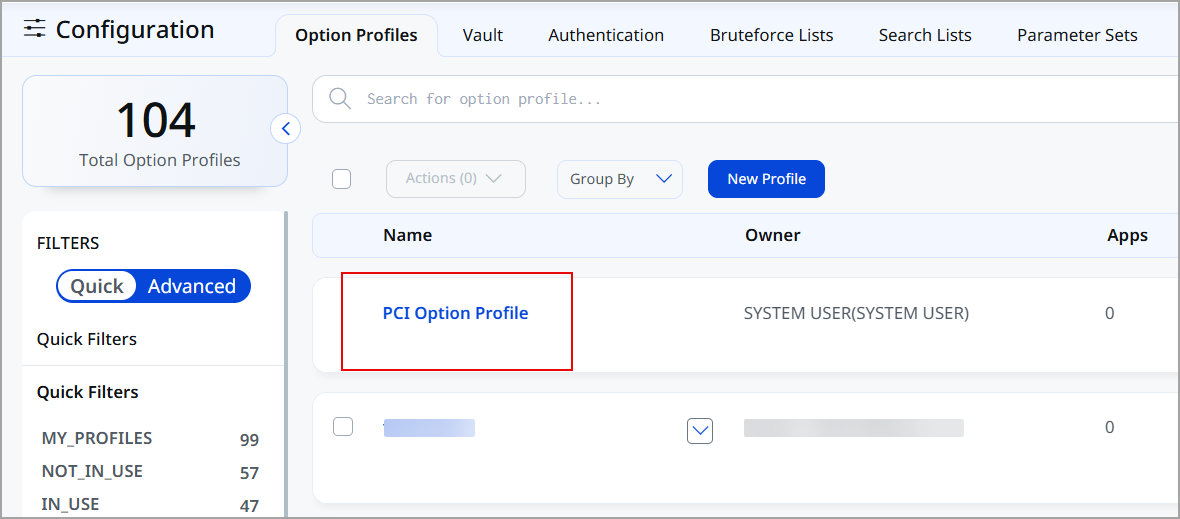
You now have a ready-to-use PCI Option Profile and PCI Search List for every customer, so you no longer need to build your own configuration to scope a scan to PCI-related findings.
Both are system-provided and read-only — you can use them directly, but they cannot be edited or deleted. The PCI Search List is a dynamic search list, so newly published QIDs are picked up automatically. It covers QIDs flagged for PCI compliance together with all Information Gathered (IG) QIDs published for Web Application Scanning and API Security, and scans launched with the PCI Option Profile include that full set.
Accessing These Defaults
- The PCI Option Profile is available under Configuration > Option Profiles, listed alongside your existing profiles.
- The PCI Search List is available under Configuration > Search Lists, and is already included in the PCI Option Profile.
Benefits
- Scan or search specifically for PCI-related findings without building your own option profile or search list.
- Removes the risk of an incomplete or misconfigured PCI scan definition, since the profile and search list are maintained by Qualys.
Enhancement
OWASP Top 10 (2021) Category Removed from Option Profile
What Changed For You
OWASP Top 10 (2021) has been removed from the Option Profile category selection; any existing profiles that referenced it were automatically migrated to OWASP Top 10 (2025), so no action is required on your part.
The Option Profile Categories list now shows only OWASP Top 10 (2025). The earlier OWASP Top 10 (2021) category is no longer available for new selections on the Create and Edit Option Profile screens.
Existing Option Profiles that previously referenced OWASP Top 10 (2021) were migrated to OWASP Top 10 (2025) and continue to display and scan correctly — no action is required from you. Retrieving or updating an Option Profile through the API also reflects only the OWASP Top 10 (2025) category going forward.
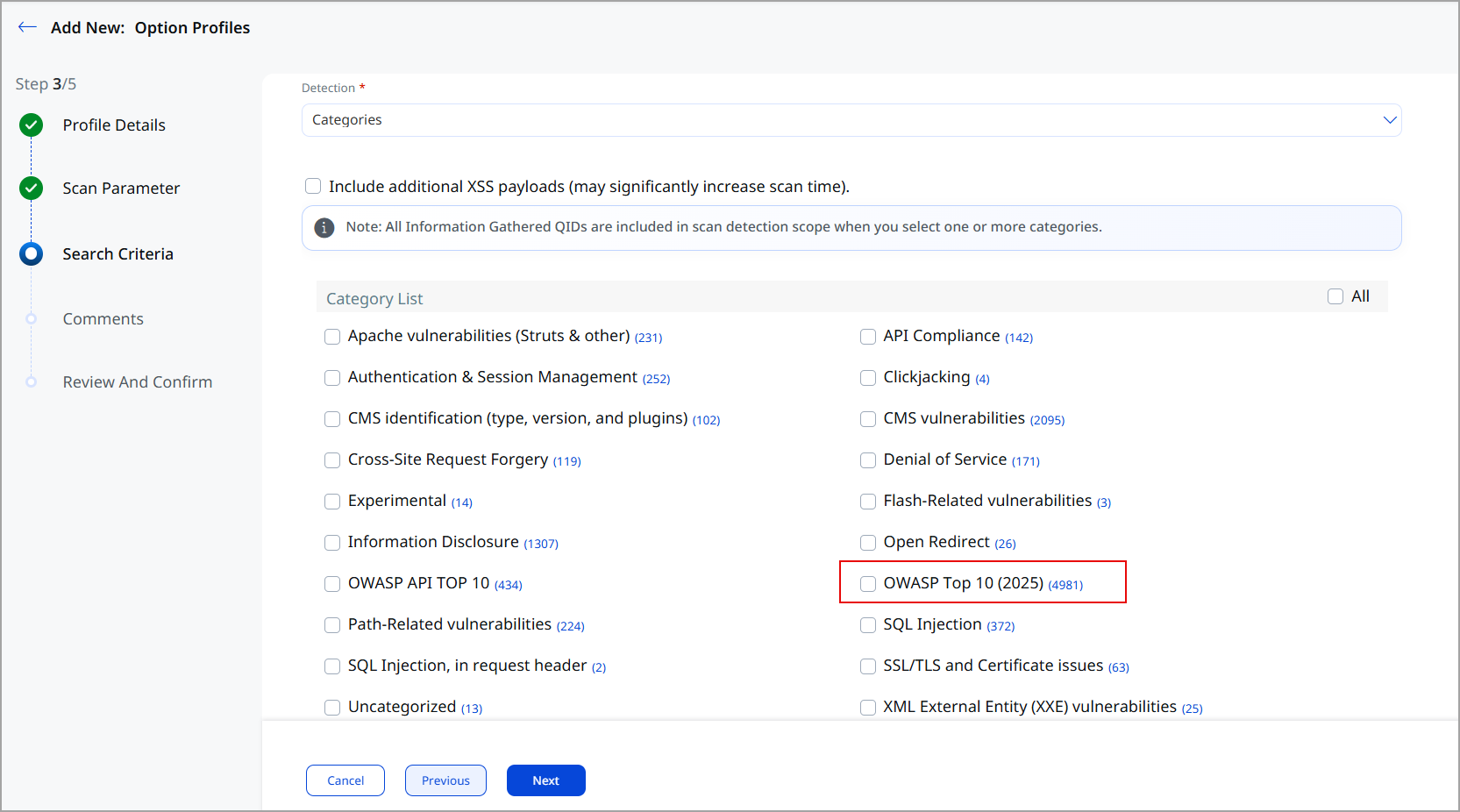
If you maintain automation, scripts, or integrations that reference OWASP Top 10 (2021), update them to reference OWASP Top 10 (2025). A request that sends the OWASP Top 10 (2021) category — by either ID or name — when creating or updating an Option Profile is now rejected with a validation error stating that the category is no longer valid. Requests that retrieve an Option Profile return only the OWASP Top 10 (2025) category, and searches for the OWASP Top 10 (2021) category return no results.
New Feature
Discover APIs using Source Code API Connectors
What's New for You
With the new Source Code Discovery Connectors, you can discover APIs directly from source code repositories, without requiring an API gateway.
With the new Source Code Discovery Connectors, you can discover APIs directly from source code repositories. This feature allows organizations to identify and onboard without requiring an API gateway.
The connectors enable you to automatically discover and import OpenAPI 3.x specifications directly from your repositories. By generating API specifications from your source code, this connector eliminates the need to manually upload Swagger or OpenAPI definition files, streamlining API onboarding for security assessments.
Key features of these connectors include:
- Connects to the configured repository and scans the specified branch or tag.
- Discovers APIs by scanning supported Python and Java source code and generating OpenAPI 3.x specifications from code annotations.
- Imports the discovered APIs as CODE_REPO web application assets.
- Automatically registers scans, enabling security assessments without requiring manual uploads of Swagger or OpenAPI specification files.
Source Code API Connectors
The following connectors are now available:
- Bitbucket Source Code API: Authenticate using Username and App Password (or Access Token).
- Azure Devops Source Code API: Authenticate using Personal Access Token.
- Github Source Code API: Authenticate using Personal Access Token.
- Gitlab Source Code API: Authenticate using Personal Access Token.
- Gitea Source Code API: Authenticate using Personal Access Token.
- Codeberg Source Code API: Authenticate using Personal Access Token.
New Feature
Trending Widget Support for WAS
What's New for You
Turning on trending for a count, ratio, or TruRisk widget adds a historical trend line to your WAS dashboard so you're no longer limited to a single point-in-time snapshot.
You can now view historical trend lines on WAS dashboard widgets, so you can compare today's value against previous days instead of seeing only a point-in-time count. Trending is available for count, ratio, and TruRisk aggregation widgets.
To Enable Trending on a Widget
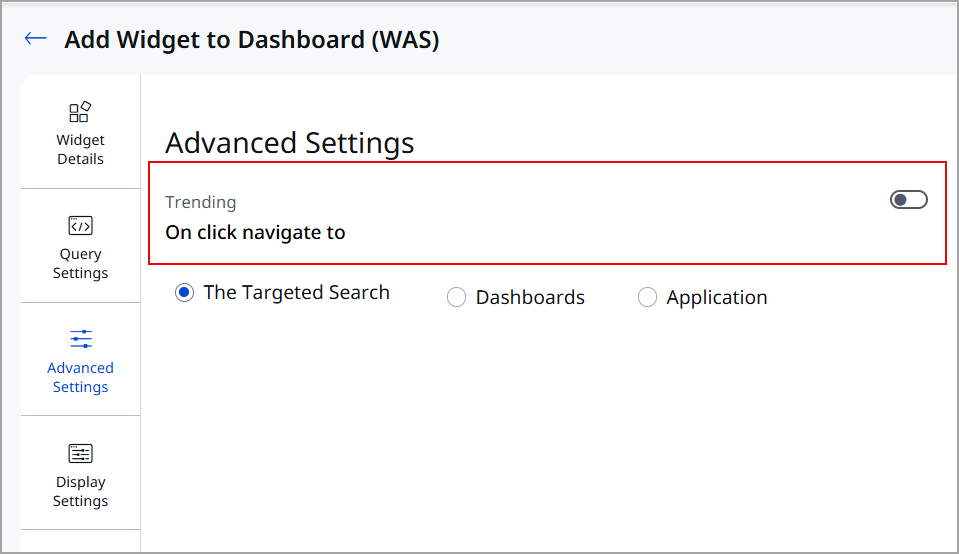
- Open the widget's configuration on your dashboard.
- Turn on the trending option for the widget.
- Select the period you want to track. The default period is 90 days.
How It Works
- Historical data is refreshed once per day. The trend line reflects daily snapshots rather than live, continuous updates.
- Trending is supported for count, ratio, and TruRisk aggregation widget types. Table and list widgets do not support trending.
- When you clone a dashboard, the historical trend data for its trending-enabled widgets is cloned along with it.
- Trend data is scoped to your subscription and user account.
- When you enable trending on a widget, historical data begins accumulating from that point forward — there is no backfilled history for dates before trending was enabled.
- Trend history is kept for the configured retention period, which is 90 days by default. Snapshots older than the retention period are removed and are not archived, so the trend line covers at most that period.
Trending must be enabled for your subscription before the trending option appears in widget configuration. To enable it for your account, contact your Technical Account Manager (TAM).
Benefits
- Lets you compare today's value against previous days without manually tracking changes over time.
- Helps you spot upward or downward trends in vulnerability counts, TruRisk scores, and other key metrics at a glance.
- Works across count, ratio, and TruRisk aggregation widgets, so trending applies to the dashboard metrics you already use.
Enhancement
PPT Format Disabled for Unsupported Reports
What Changed For You
The PPT format option is now disabled where it is not supported, so you no longer select a report format that cannot be generated.
The PPT format option is now disabled for report schedules and online reports that do not support it, including RSv2 and QSS schedules.
Previously, the PPT option remained selectable for RSv2 and QSS schedules.
With this release, the option is disabled wherever PPT is not a valid output, so you can see the supported formats at a glance and avoid configuring a report that cannot be produced.
Enhancement
Clear App Data Now Completely Removes Associated Scans and Detections
What Changed For You
Clear App Data now removes all scan and detection records for the selected asset, while leaving your scan and report schedules in place so they can continue to run.
When you run Clear App Data on a web application or API asset, the scans and detections associated with that asset are now fully removed from your subscription. Scan entries no longer remain on the Scans list, and scan findings are removed from the scan history.
Previously, clearing an asset removed the data but left scan records visible, making it difficult to confirm the asset’s data had actually been cleared.
What Is Removed
- Scans and detections for the cleared web application or API asset.
- Scan findings from the scan history for that asset. New reports no longer include findings from previously cleared scans.
- For a scan that targeted several applications, only the cleared asset is removed from the scan’s target list. If the cleared asset was the scan’s only target, the scan itself is removed.
What Is Retained
- Scan schedules and report schedules for the asset are retained, along with their target and exclusion lists, so existing schedules can continue to launch new scans.
- The asset itself remains active in your subscription. Clear App Data no longer deactivates its schedules.
This applies to Clear App Data only. Purge continues to remove the asset itself, and schedules left without a target are deactivated as before.
Enhancement
Custom Attributes Toggle for Web Applications
What Changed For You
Custom Attributes is now an optional section that you enable only when you need it, so its fields no longer appear or look mandatory in every web application you create.
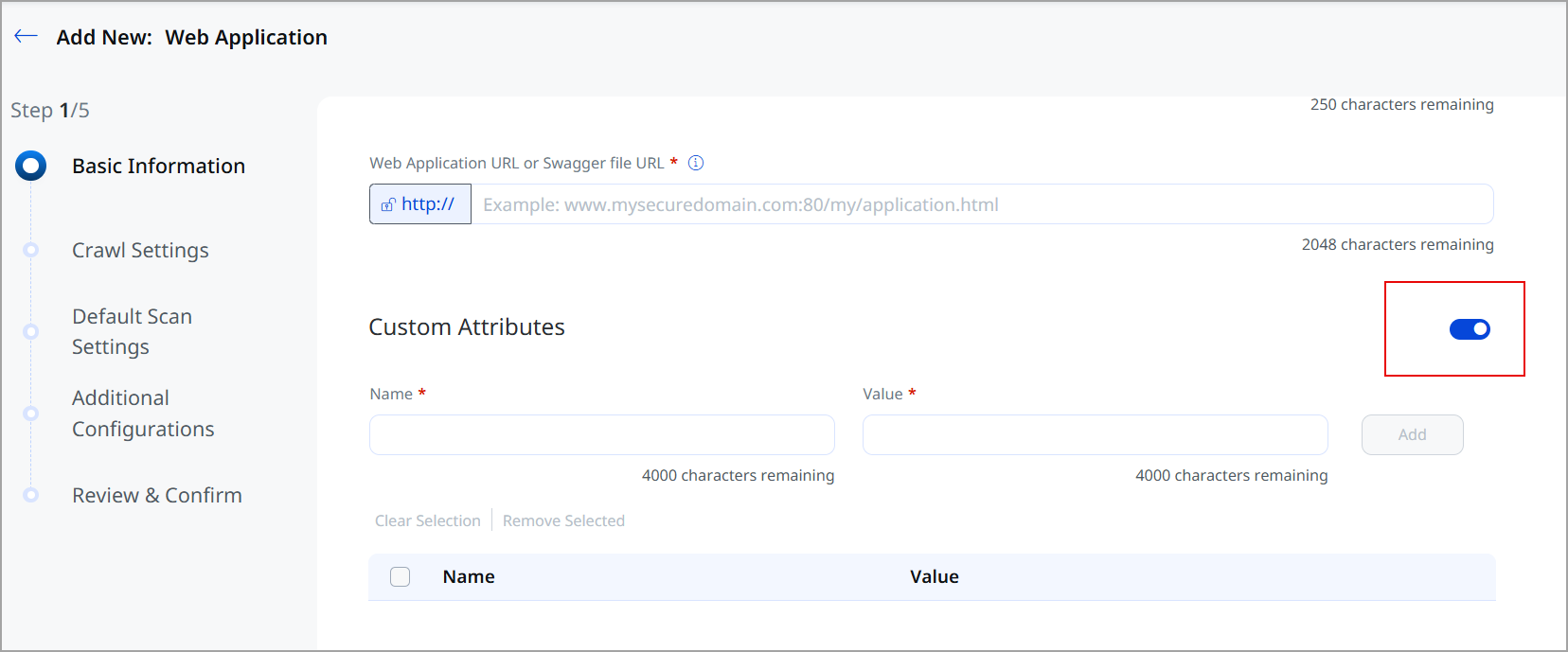
The Custom Attributes section on the web application Basic Information step now includes an on/off toggle, matching the pattern already used for Additional Configurations. Custom attributes are optional, so the fields remain hidden until you enable the section.
Previously, the Name and Value fields in this section displayed a required-field marker even though custom attributes are not needed to create a web application, which suggested you had to complete them.
How It Works
- The toggle is available on the Basic Information step when you create or edit a web application.
- For a new web application, or an existing one with no custom attributes, the toggle is off by default. For a web application that already has custom attributes, it is on by default and the saved attributes are displayed.
- Turning the toggle off hides the fields without deleting the custom attributes already saved on the web application.
- When the toggle is on, at least one custom attribute is required. If you turn it on without adding one, you cannot continue and a message prompts you to add a custom attribute.
Enhancement
CSV and XML Report Enhancements for Scorecard Reports
What Changed For You
Scorecard reports downloaded in CSV V2 or XML formats now include new fields and deliver faster download performance, giving security teams context to prioritize findings.
Scorecard reports downloaded in Comma-Separated Value (CSV), CSV V2, or Extensible Markup Language (XML) formats now include new fields and deliver faster download performance. The new fields provide security teams with richer vulnerability context to prioritize and remediate findings and focus on the prioritized risks.
The way you request and download a scorecard report does not change, and the existing group, OWASP, WASC, and total vulnerability counts are unchanged. The XML structure also stays compatible with the earlier format, so existing integrations that parse scorecard XML continue to work without modification.
New in the Scorecard Report
- Filters: The report now includes a Filters section that records the filter criteria applied when the report was generated, such as scan date, scan status, and scan authentication status.
- Target: A Target section has been added to the report layout.
- TruRisk Score: The summary statistics now include a TruRisk Score for each application in the report.
Fix
Issues Addressed
The following reported issues are fixed in this release.
| Component/Category | Description |
|---|---|
|
API Report Generation |
We fixed an issue where creating a web application PDF report through the API failed with a module not supported error for accounts with RSV2 enabled. Now, PDF report creation through the API completes successfully for RSV2-enabled accounts. |
|
Retesting |
We fixed an issue where a large number of findings could remain stuck in the Retesting status and never complete. Now, retest scans progress and complete as expected without requiring manual intervention. |
|
Scan Cancellation |
We fixed an issue where a scan with results already available could not be canceled. Now, you can cancel a scan with existing results without encountering an error. |
|
Scheduled Report Downloads |
We fixed an issue where downloaded scheduled report files no longer included the web application name in the file name, causing reports downloaded on the same day to overwrite each other. Now, downloaded report file names include the web application name so multiple reports remain distinguishable. |
|
Report Privacy Settings |
We fixed an issue where user names appeared in a report even when the Exclude Username option was selected in the report template. Now, reports generated with the Exclude Username option no longer display user names. |
|
Scheduled Report Notifications |
We fixed an issue where scheduled report notification emails were sent from an unexpected sender address instead of the standard Qualys notification address. Now, scheduled report notifications are sent consistently from the expected sender address. |
|
QQL Search: Scheduled Scans |
We fixed an issue where two similar QQL token queries for scheduled scan status returned inconsistent results, causing some schedules with a completed last scan to be excluded from search results. Now, QQL searches on scheduled scan status return consistent and complete results. |
|
Report Schedules |
We fixed an issue where a report schedule failed to launch, with no clear error, after the search list it depended on was deleted. Now, launching a report schedule with a deleted dependency displays a clear validation error instead of failing silently. |
|
Scan List |
We fixed an issue where the Scans list crashed for certain users when opened. Now, the Scans list loads correctly for all users. |
|
API Discovery |
We fixed an issue where a Swagger file exported directly from TotalAppSec could not be re-imported to onboard the corresponding API for scanning. Now, you can import a Swagger file that was previously exported from TotalAppSec without error. |
|
Report Email Delivery |
We fixed an issue where email notifications for encrypted PDF reports were not delivered due to an email formatting error. Now, encrypted PDF report notifications are delivered as expected. |
|
Scan Title Localization |
We fixed an issue where switching between TotalAppSec and other modules while using a Japanese locale caused the configured scan title format to display garbled characters, which then carried over into new scan titles. Now, the scan title format and resulting scan titles display Japanese characters correctly regardless of module switching. |
|
On Demand Scan |
We fixed an issue where launching an On Demand vulnerability or discovery scan on more than 200 applications at once displayed a blank application list, preventing you from selecting additional applications. Now, you can select and scan more than 200 applications in a single On Demand scan. |
|
Authentication Record Permissions |
We fixed an issue where a user without Tag management permission could still view and create tags from the Authentication Record page. Now, tag access on the Authentication Record page is restricted consistently with your assigned Tag permissions, matching the existing behavior for web applications. |
|
TruRisk Score |
We fixed an issue where the TruRisk score did not display in the WAS data list for some subscriptions because required baseline processing had not run. Now, the TruRisk score displays correctly in the WAS data list. |