New Qualys Scheduling Service
Limited Customer Release
July 31, 2025 (updated on March 18, 2025)
New Feature - Qualys Scheduling Service
We are now migrating to a new Qualys Scheduling Service (QSS), which is an independent and more efficient scheduling service for creating and managing scan schedules and report schedules.
There is no impact on the existing scan schedules and report schedules. The existing schedules will be automatically migrated to the Qualys Scheduling Service.
The limited customer release note presents the changes available with the new scheduling service.
TotalAppSec 2.7 | Web Application Scanning 1.27
Green Window Scheduling Details Visible in View Mode
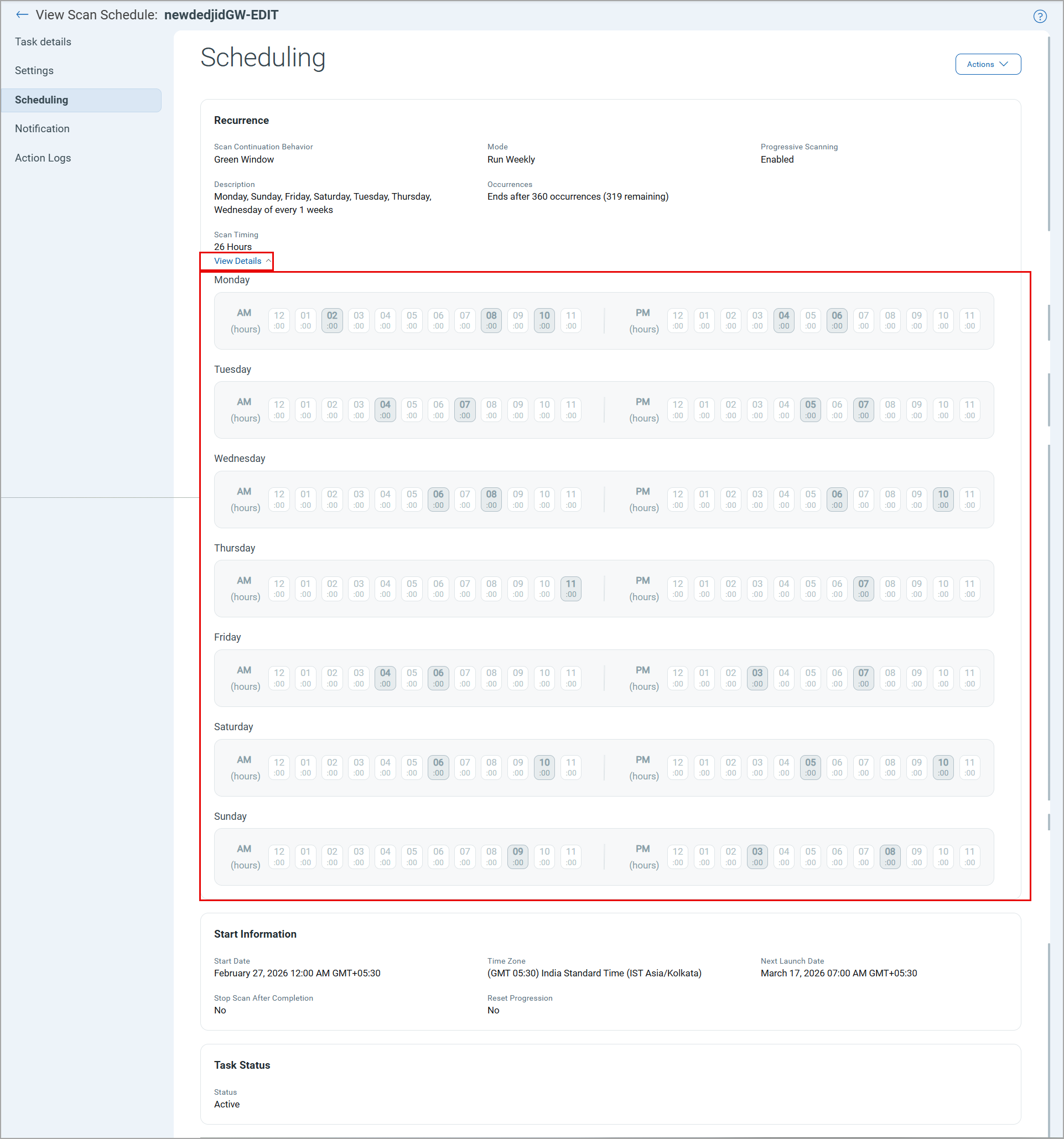
You can now view the selected Green Window time slot in View Scan Schedule mode. Previously, you had to edit the schedule to verify the configured time slot.
In the View Scan Schedule > Scheduling tab, click View Details to display the configured scheduled scan timeslot.
TotalAppSec 2.6 | Web Application Scanning 1.26
Green Window Scheduling for TAS Vulnerability Scans
You can now schedule vulnerability scans to run progressively within defined time windows using Green Window Scheduling. With Green Window Scheduling, you can control when vulnerability scans execute by defining specific hourly time windows across Daily, Weekly, or Monthly schedules. Scans run progressively across multiple scheduled executions until complete application coverage is achieved.
This feature helps you scan large or complex web applications end-to-end without continuous scanning or manual intervention. It minimizes operational impact by running scans only during approved maintenance windows while ensuring full coverage on a monthly or bi-monthly basis.
Prerequisite
You must have permission to create a scan schedule.
This applies only to the new vulnerability scan schedules. The existing scan schedules are not automatically updated.
How to Use Green Window Scheduling?
To configure the Green Window option, navigate to Scans > Schedules > New Schedule, and select Vulnerability Scan.
In the Scheduling page, select the Green Window option.
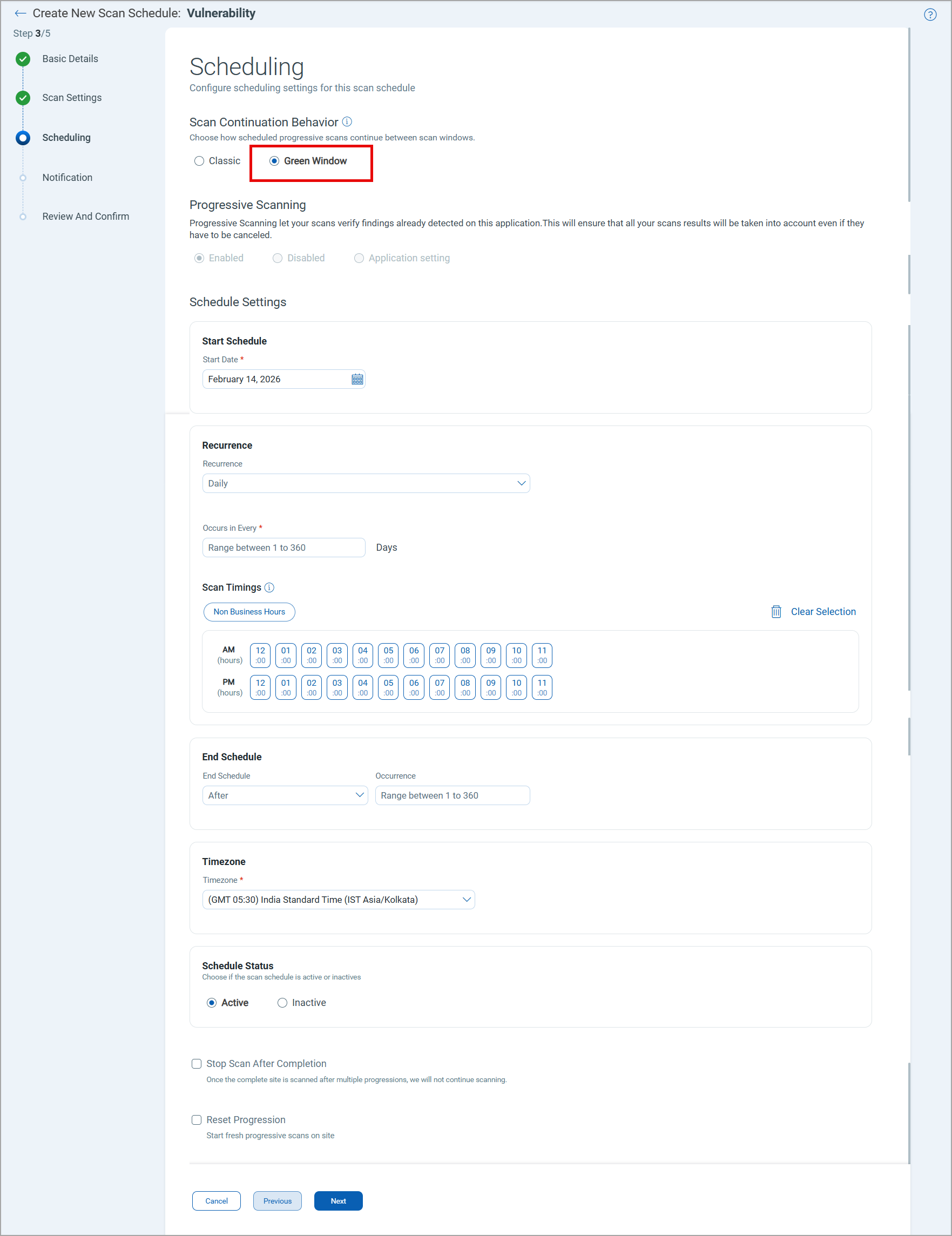
When you select the Green Window option, progressive scan is automatically enabled.
In the Schedule Settings section, select Recurrence - Daily, Weekly, or Monthly, then configure the scan execution days and time windows. Scans are performed only during the specified time slots.
Each scheduled execution represents a progressive scan run. Scans are launched within the configured time windows until the entire application is scanned. After completion, scan execution stops automatically and resumes in the next scheduled cycle.
Edit Distribution List for Scheduled Reports
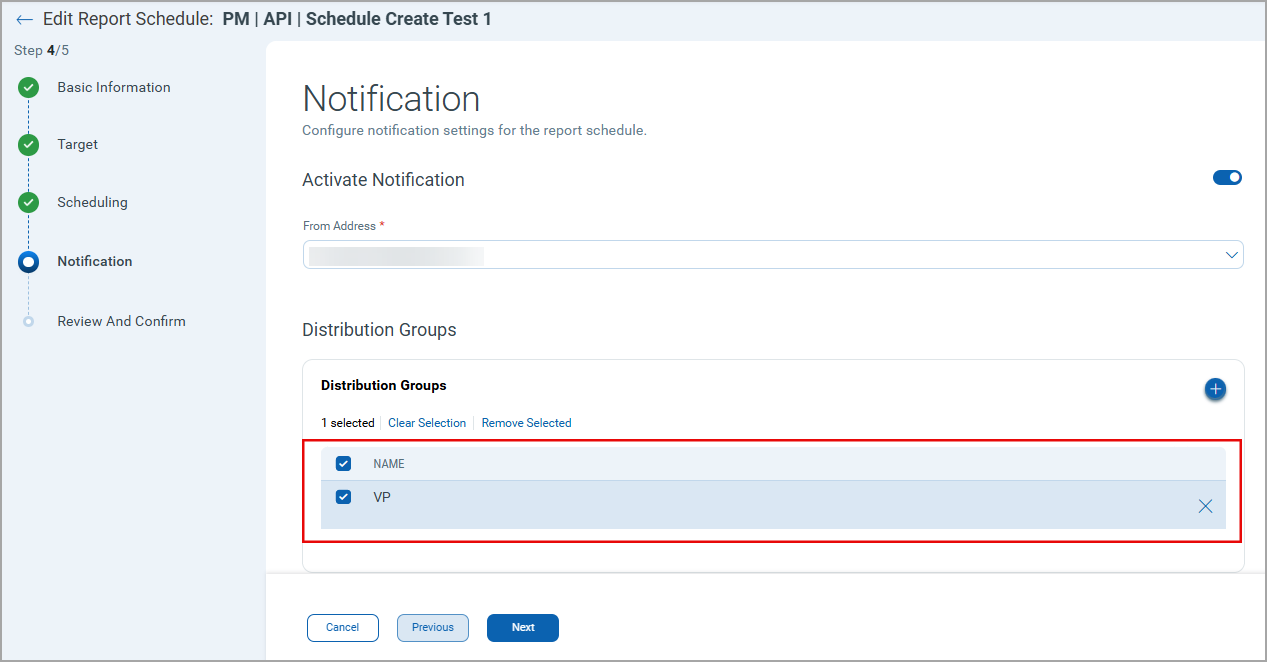
With this release, you can edit the distribution list for scheduled reports directly from the Notification page. Previously, users could only create distribution groups and add recipients during report scheduling.
To edit a distribution list, in the Reports tab, click Reports > Schedules > New Report Schedule > Notification window.
In the Distribution Groups section:
- Select one or more distribution groups.
- To remove a distribution group, select the distribution group and click Remove Selected.
- To delete a distribution group, click
 .
.
Create Distribution Group in Scan List and Scan Schedule
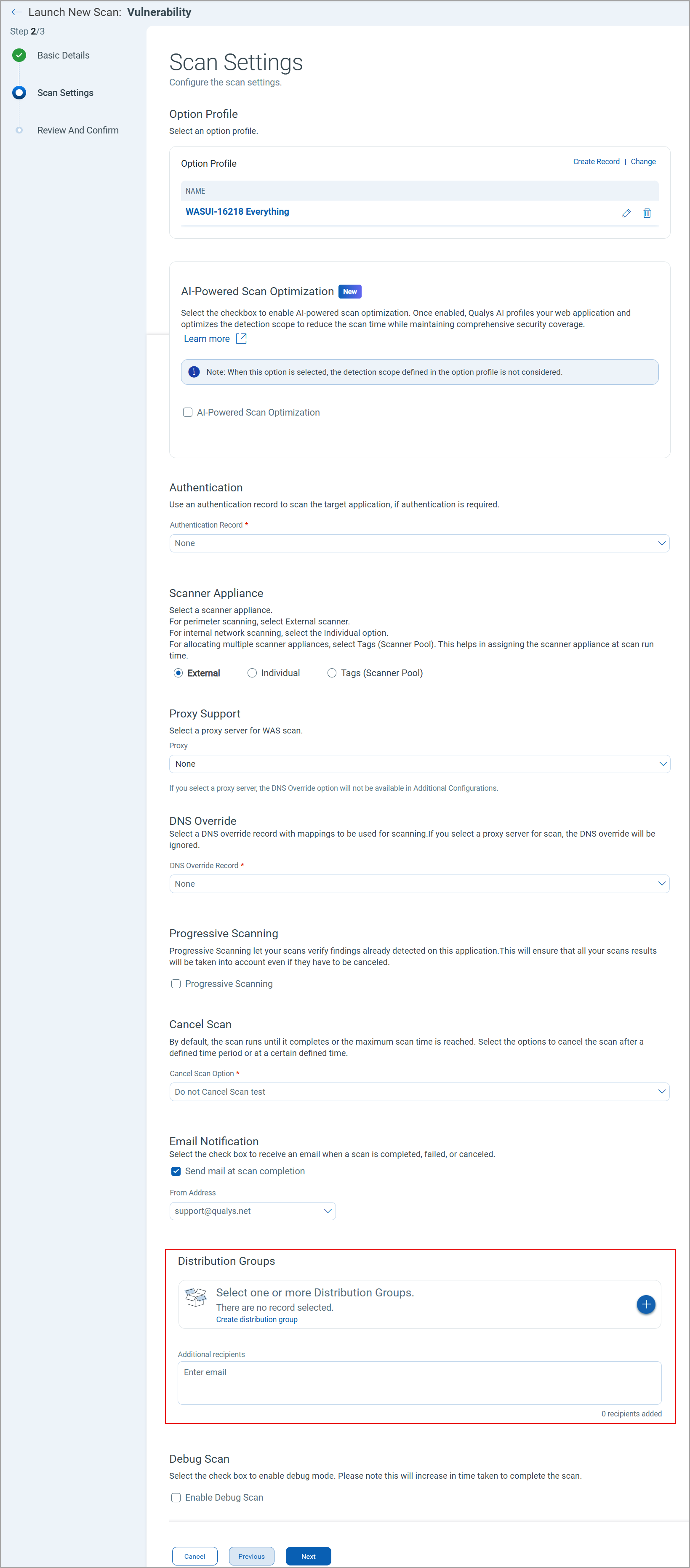
With this release, you can configure recipients for scan completion notification emails for both scans and scheduled scans. Previously, scan completion notifications were automatically sent to all users in the account. With this update, you can now select a Distribution List or add email addresses manually to ensure recipients are notified when a scan completes.
In the Scan Settings page, select Send mail at scan completion checkbox. Select at least one distribution list or enter one or more email addresses as additional recipients.
TotalAppSec 2.5 | Web Application Scanning 1.25
Reset Progressive Scan Option in Schedule Scan
We have introduced a new Reset Progression option in the Schedule Scan workflow for vulnerability scans. You can use this option if vulnerabilities are fixed and you want to restart before all progressions are submitted.
When you select the Reset Progression checkbox while creating or editing a scheduled scan, a fresh progressive scan starts during the next successful launch. Once the scan is submitted, the checkbox is automatically unavailable. If the scheduled scan fails to launch, the checkbox remains selected and retries on the next scheduled scan.
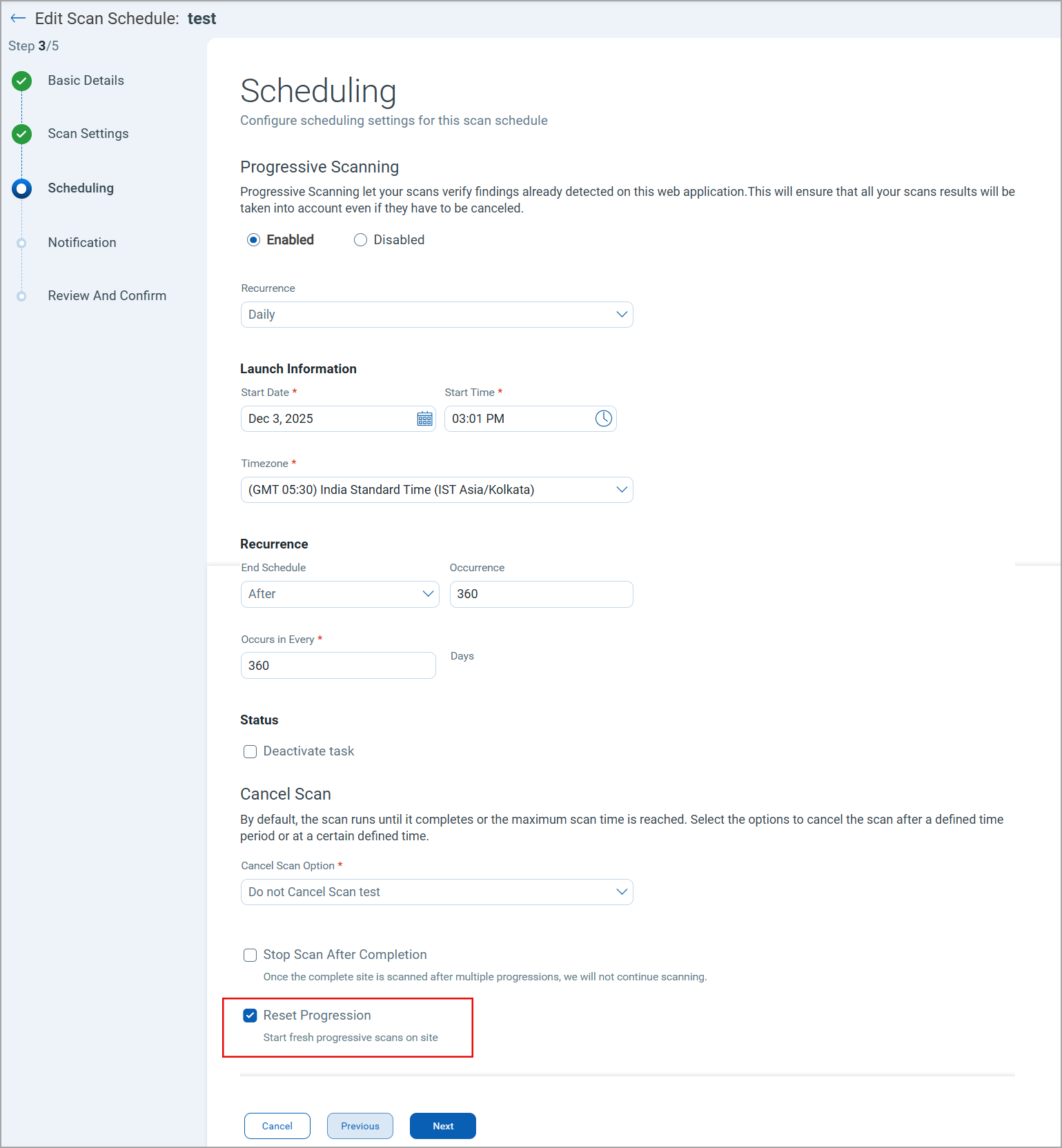
This feature is applicable only to progressive scan schedules and vulnerability scan schedules.
TotalAppSec 2.4 | Web Application Scanning 1.24
With this release, we have integrated the new scheduling service for the report schedules.
Launch On-Demand Report Generation
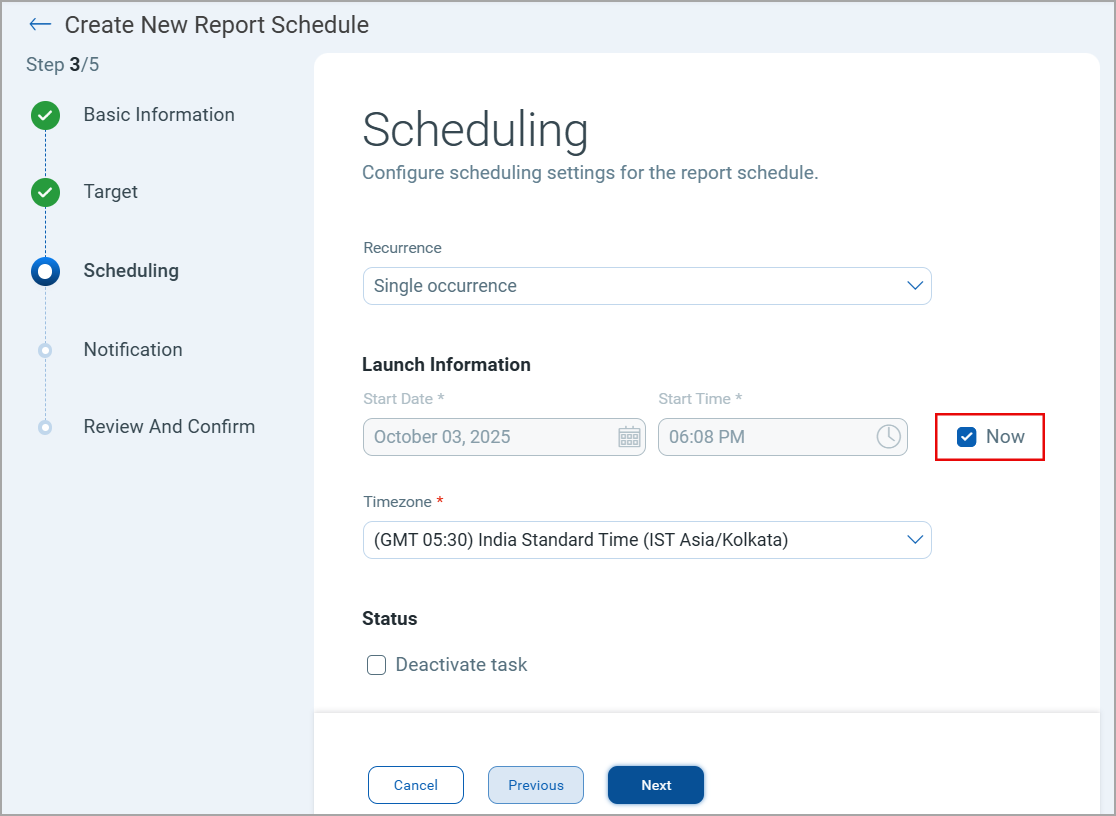
With this release, you can instantly create a report schedule by selecting the Now checkbox in the Scheduling section of the Create New Report Schedule workflow. This enhancement simplifies your scheduling process and saves you time when you want to generate reports on demand.
In the report scheduling workflow > Scheduling tab, under the Launch Information section, select the Now checkbox. When the Now option is selected, the report generation is launched immediately after the report schedule is created.
Create Distribution Group in Scan Schedule
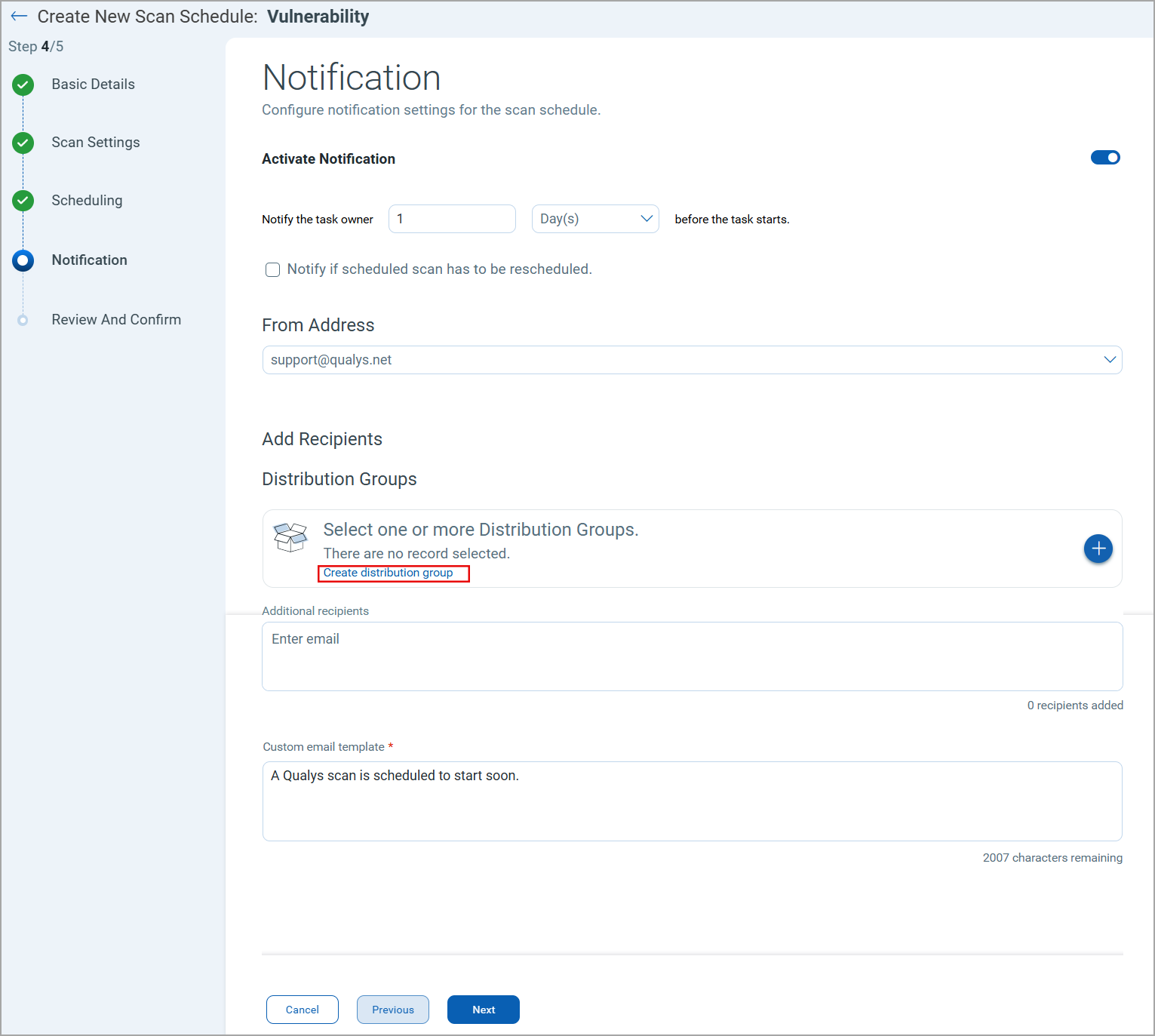
We have introduced an option to create and add distribution groups while creating new scan schedules. The recipients added to the distribution groups receive the scheduled scan notifications at the specified time. Earlier, only individual recipients could be added to the distribution group.
This saves you time and ensures that all the affected stakeholders are notified of upcoming schedule scans.
To add a distribution group, navigate to the Notification section in the New Scan Schedule workflow. Under the Distribution Groups section, you can add the available distribution groups to send the scan notifications. You can also create a distribution group using the Create distribution group option.
TotalAppSec 2.3 | Web Application Scanning 1.23
With this release, we have integrated the new scheduling service for the report schedules.
Schedule API Reports
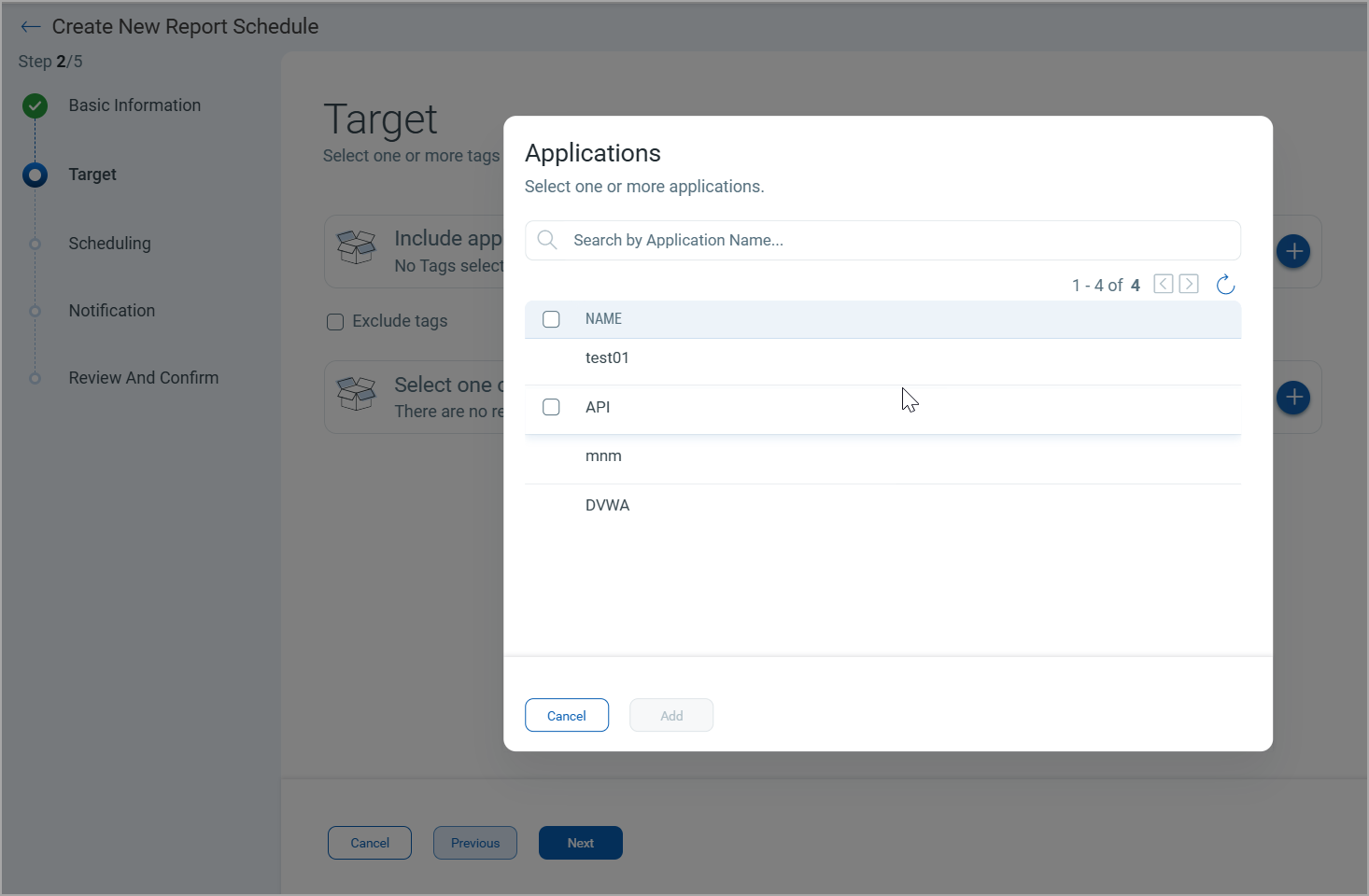
With this release, you can create schedules for API reports. The Web Application Report has been renamed to Application Report. Earlier, we could create schedules for the Web Application Report, Scan Report, Scorecard Report, and Catalog Report.
To create a new API Report Schedule, navigate to Reports > Schedule. In the Schedules tab, click New Report Schedule > Target. Under the Select one or more applications section, click  to select APIs.
We have provided the feature to enable the API security details.
CSV and XML types are not supported for API Security reports.
Launch On-Demand Vulnerability Scans
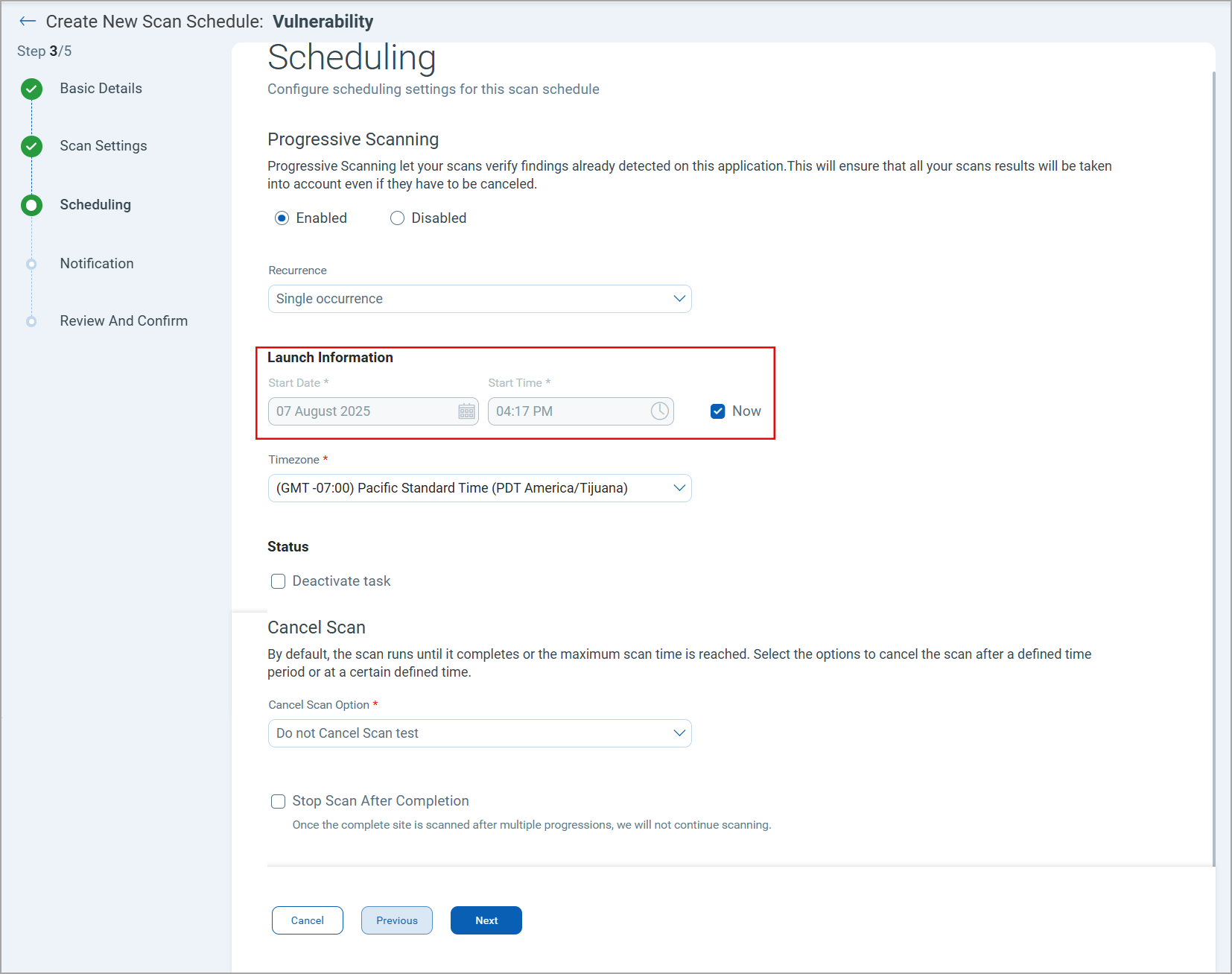
A new option to launch an on-demand vulnerability scan is available while creating or editing the scan schedule. This enhancement simplifies scan schedules. and prevents scan failure due to an inaccurate scan start time.
In the scan scheduling workflow > Scheduling tab, under the Launch Information section, select the Now checkbox. After this scan schedule is submitted, a vulnerability scan is triggered immediately.
TotalAppSec 2.2 | Web Application Scanning 1.22
With this release, we have integrated the new scheduling service for the scan schedules.
Scheduling Option for Compliance Scan and Web Application Retest
You can now create schedules for two types of scans- Compliance Scan and Retest Webapp, in addition to the discovery and vulnerability scan.
Scheduling Options from Scans > Schedules
You can view the scan schedule options in the Schedules tab under Scans as shown in the following image
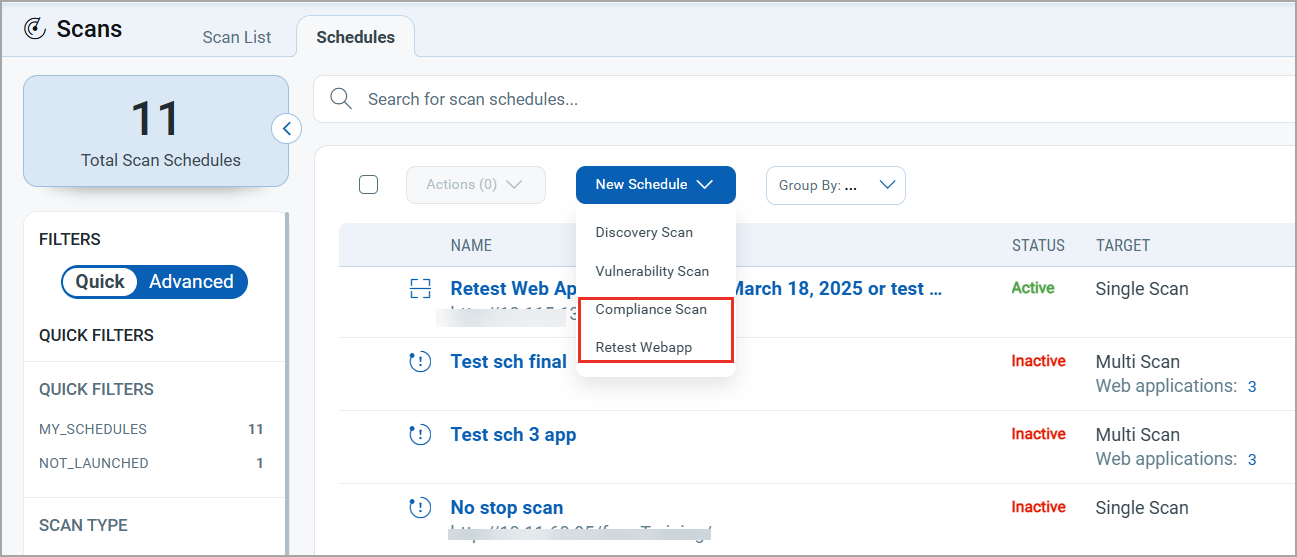
The Compliance Scan option is available only with the TotalAppSec subscription.
The schedules created for compliance scan and web application retest are listed in the Schedules tab, as shown in the following image:
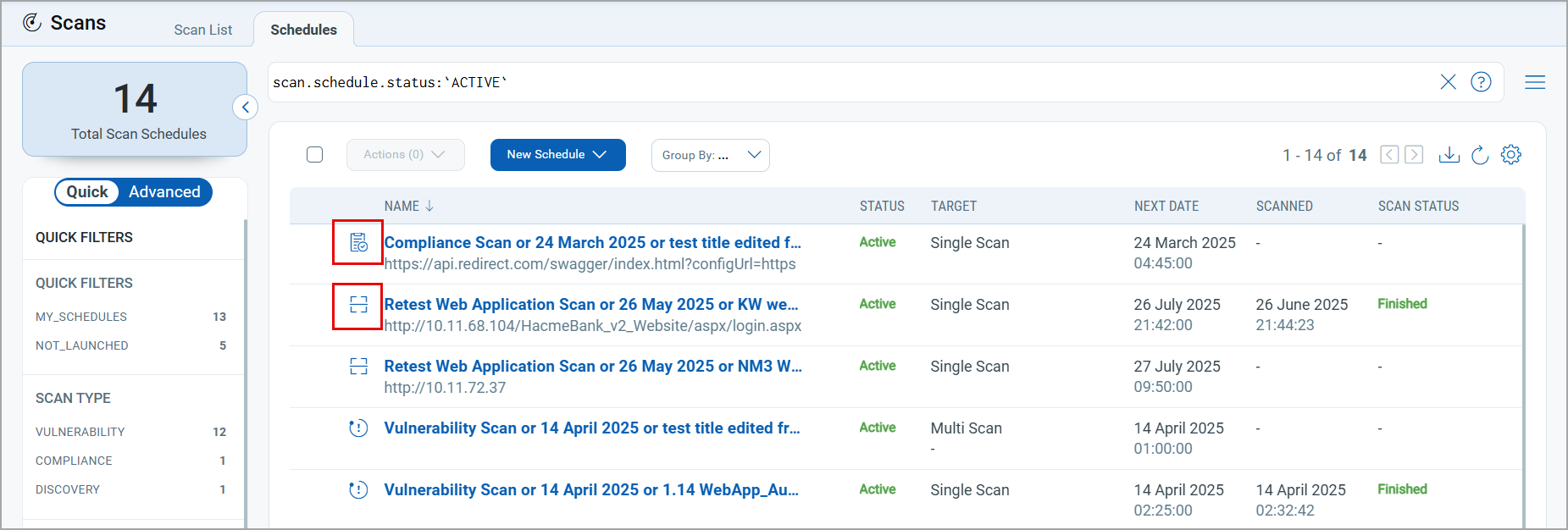
In the Schedules tab,  indicates the compliance scan schedule and
  indicates the retest web application schedule.
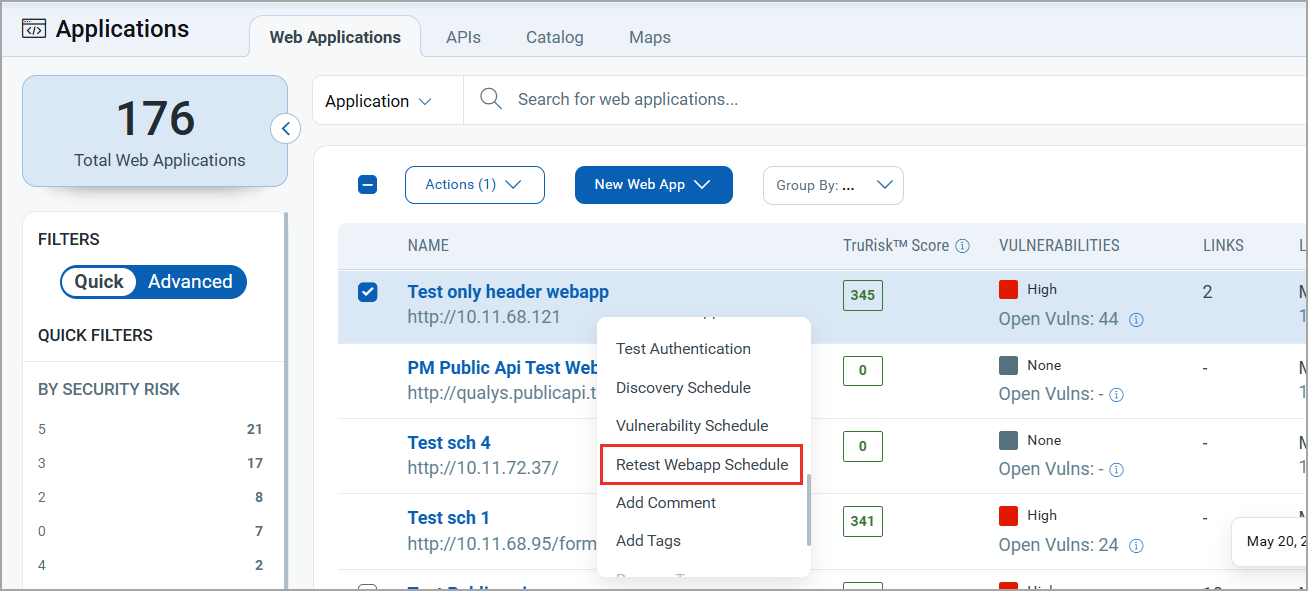
Scheduling Web Application Retest Option from the Web Applications
The option for scheduling web application retest is available from the Web Applications tab in the Quick Actions and Actions menu.
Scheduling Option from the APIs Tab
The option for scheduling a vulnerability and compliance scan is now available from the APIs tab in the Quick Actions and Actions menu.
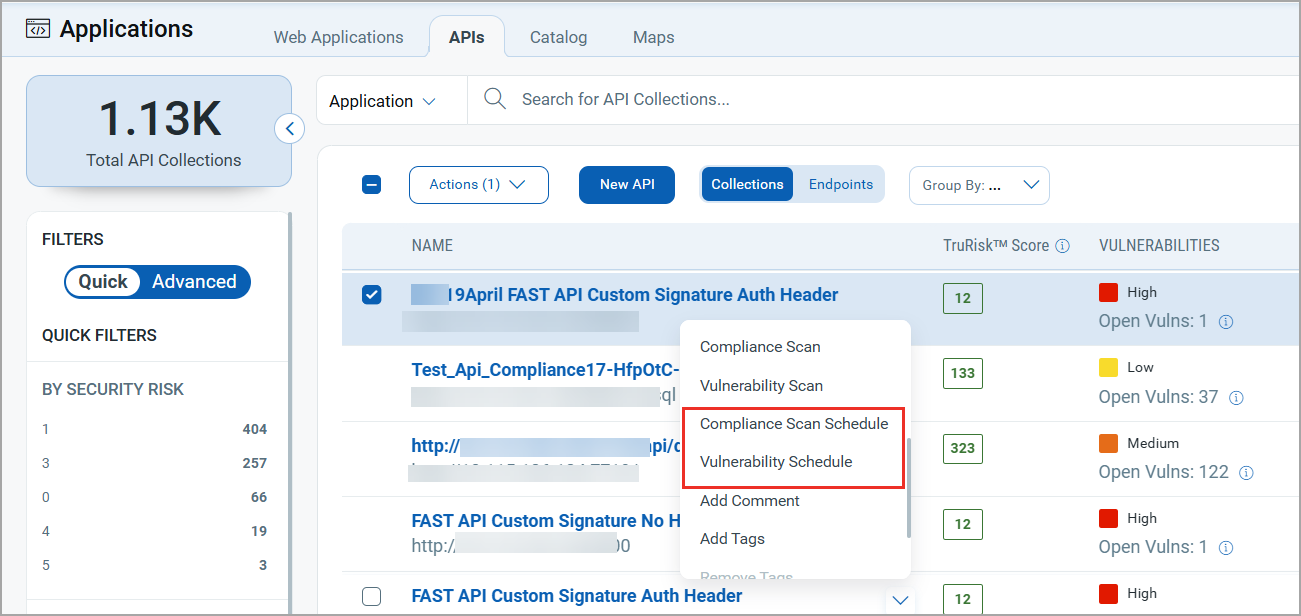
The APIs tab is available only with the TotalAppSec subscription.
Token Changes for Scan Scheduling
The following tokens are added to the Applications > APIs tab.
| Token | Description |
|---|---|
| application.scanScheduledType | Use this token to search APIs for which the selected type of scan is scheduled: VULNERABILITY, COMPLIANCE |
| application.scanScheduled | Use this token to search the web applications for which the scan is scheduled. |
The following tokens are updated with the new scheduling changes.
| Tab | Token | Description |
|---|---|---|
| Scans > Schedules | scan.scheduled.type | A new value - Compliance is added to search the scheduled compliance scans. |
| Applications > Web Applications | application.scanScheduledType | A new value - Compliance is added to search the web applications for which a compliance scan is scheduled. |
Stop Scan Option in Scan Schedule
A new option to stop the scan is now available in the vulnerability scan scheduling when the progressive scan is enabled. If you select the Stop Scan After Completion check box, the scan schedule ends after the progressive scanning is completed.
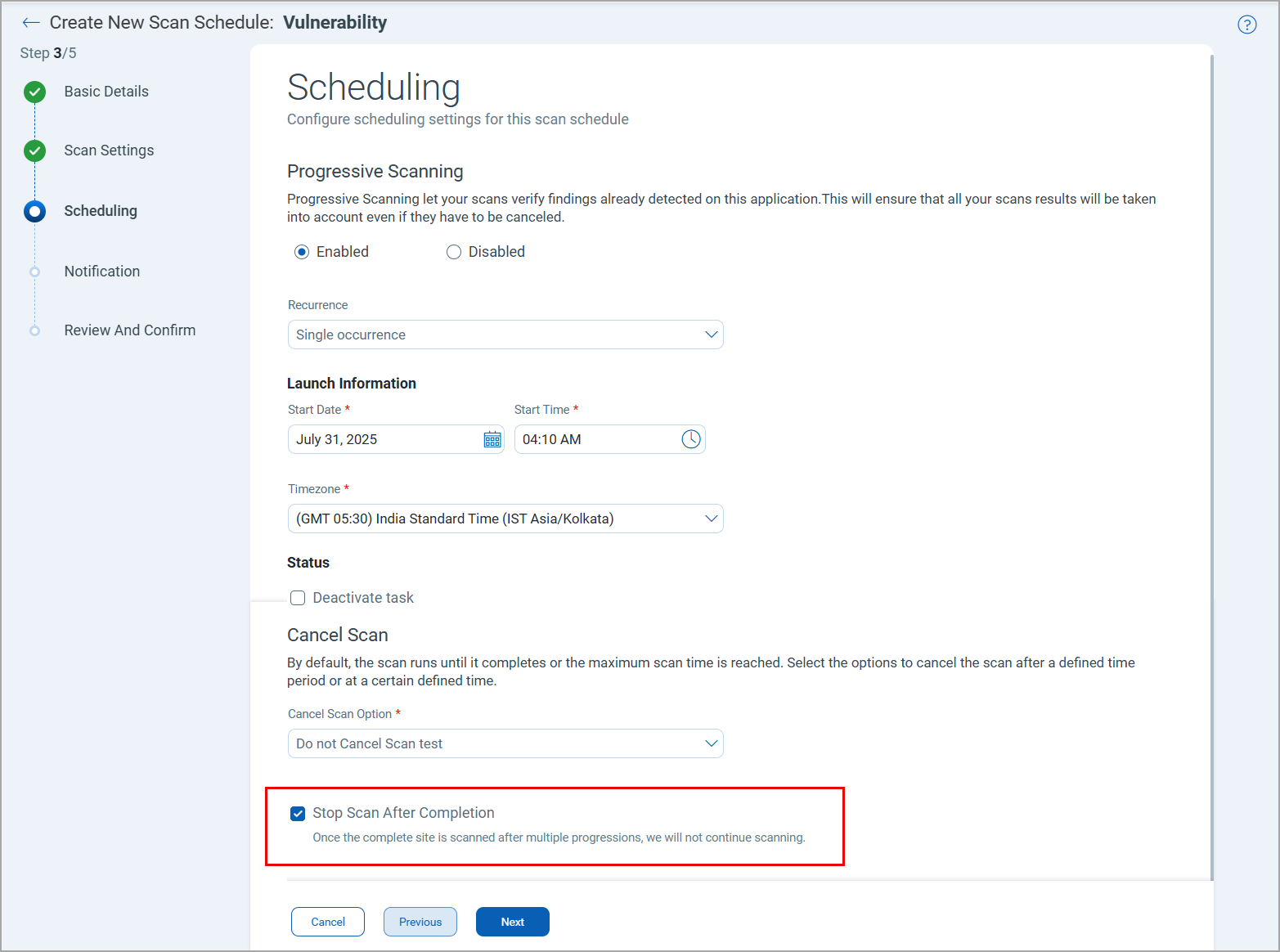
QID 150497 is reported when the progressive scanning is completed.
New Widgets on the Dashboard
You can now add the widgets based on the new scan schedules and report schedules on the TotalAppSec dashboard.