Create/Edit Azure MS SQL Record
The Scans > Authentication section is where you'll find authentication records saved in your account, including Azure MS SQL records. Each Azure MS SQL record identifies account login credentials, database information (unless you use auto-discovery), and targets.
See Azure MS SQL Record Settings below for help with the settings that appear in the Azure MS SQL record.
Note: This record type is only available in accounts with PA or SCA and is only supported for compliance scans.
Quick Links: Why use host authentication? | Authentication Technologies Matrix
What are the steps?
Follow these steps to create or edit an Azure MS SQL record:
1) Review the Azure MS SQL authentication  setup guide for system and account requirements.
2) Go to Scans > Authentication.
3) Take one of these actions:
3a - To create a new Azure MS SQL record, select New > Databases > Azure MS SQL.
3b - To make changes to an existing Azure MS SQL record, select a record in the list and choose Edit from the Quick Actions menu.
The New Azure MS SQL Record or Edit Azure MS SQL Record window appears (depending on the action taken). This is where you'll make your record settings.
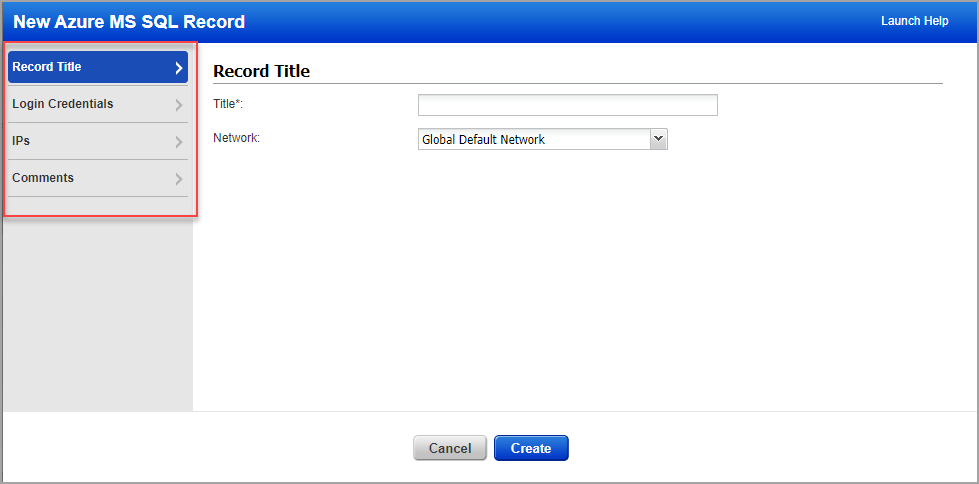
4) Choose a tab on the left side of the Azure MS SQL Record window to see the settings available. Provide the necessary inputs on each tab, then click Create (for a new record) or Save (when updating an existing record).
Azure MS SQL Record Settings
See help below for the settings that appear on each of the tabs within the Azure MS SQL record.
Note for Unit Managers: When a Unit Manager edits a record, the Unit Manager only sees the IPs in the record that they have permission to. Any changes made by the Unit Manager to the record settings will apply to all hosts defined in the record, regardless of whether all hosts belong to the user's business unit. The record may contain more IPs that are not visible to the Unit Manager.
This section has basic settings for the record.
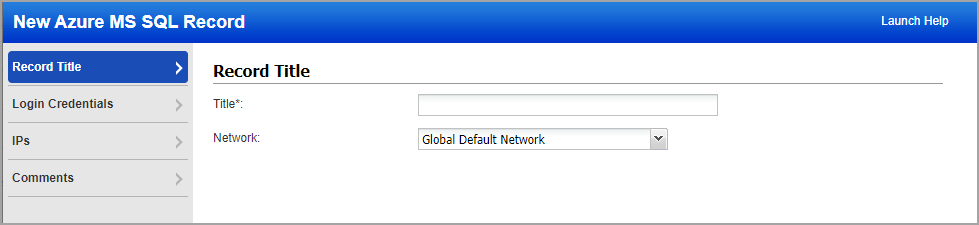
Title - Give the Azure MS SQL record a title for easy identification.
Network - (Applicable when the Network Support feature is enabled.) Select the network you want to use for this Azure MS SQL record. The Global Default Network is selected by default but you can choose a user-created network from the list.
Login CredentialsLogin Credentials
This section is where you'll provide credentials for the user account to be used for Azure MS SQL authentication and information about database instances.
Make sure you reviewed the setup guide mentioned in Step 1 under "What are the Steps?" to understand system and account requirements.
Authentication Type: Basic
Choose Authentication Type: Basic and then enter basic login credentials (username and password).
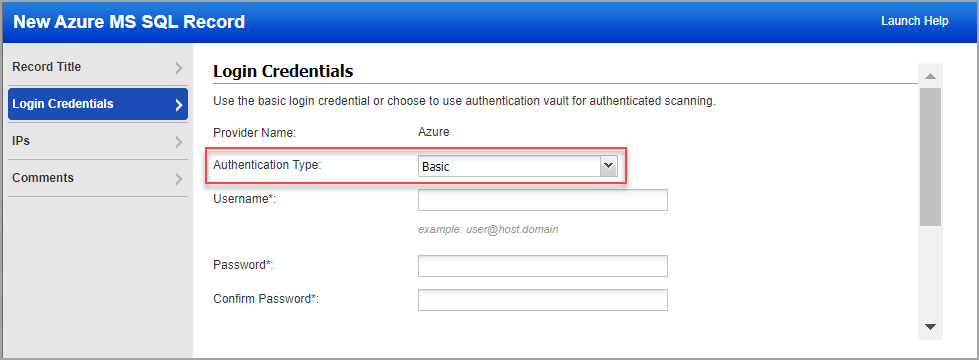
Username - Enter the username for the user account to use for authentication in [email protected] format.
Password / Confirm Password - Enter the password for the user account. Then confirm the password.
Authentication Type: Vault based
Choose Authentication Type: Vault based to retrieve the password from a password vault. You will need vault records already defined in your account to use this option.
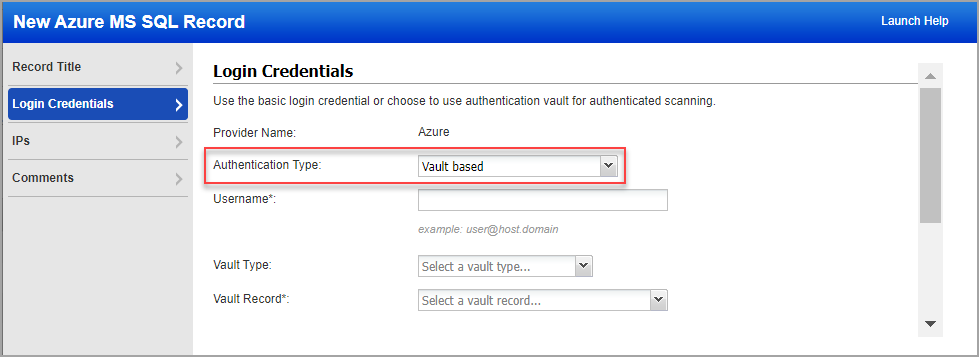
Username - Enter the username for the user account to use for authentication in [email protected] format.
Vault Type - Select the type of password vault you want to use. For each vault type there will be additional information required. The information required depends on the vault type. Please refer to the online help for your vault type to learn more.
Vault Record - Select a vault record that you have already configured in your account. The vault record has vault credentials to securely access sensitive information stored in the vault.
Quick Links: How to Use Vaults | Vault Support Matrix
Database information
Tell us the database instance(s) to authenticate to. You can define one instance (provide instance name, database name and port), or choose Auto discover and let us find all matching instances for you.
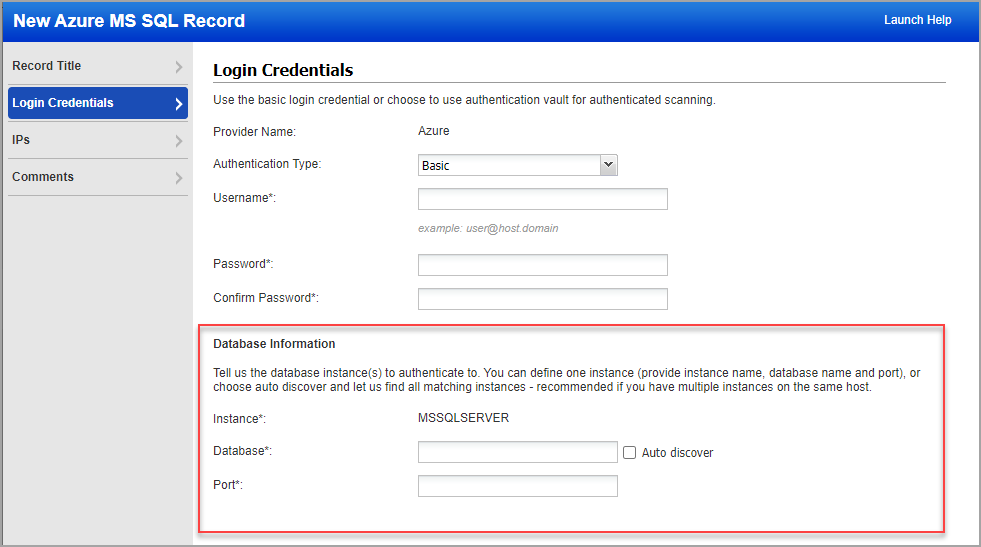
Instance -
- Assessing Azure SQL Database (PaaS) - Assign the instance name to the TCP/IP port (by default this is set to MSSQLSERVER). This is not the host name that is assigned to the MS SQL Server instance name.
- Assessing Azure SQL Managed Instance (PaaS) - Indicate the server FQDN as INSTANCE. Note that if you are connecting from the same vNET (the scanner is deployed in the same vNET), the private endpoint FQDN can be used, else use the public endpoint FQDN (for example somemanagedinstance.public.abcdef.database.windows.net).
Database - Enter the database name for the MSSQLSERVER instance. There is an option of Auto discover database instance in case you want to automatically discover database instances on your target hosts
Auto discover - Select this option and we'll automatically find database instances on your target hosts, so you don't have to provide the database name in your record. This is recommended if you have multiple database instances on the same host.
Port - Enter the port number where the database instance is running.
Enter or select the target compliance hosts (IPs) that you want to authenticate to with the credentials provided in this record. Each IP may be included in one Azure MS SQL Server record.
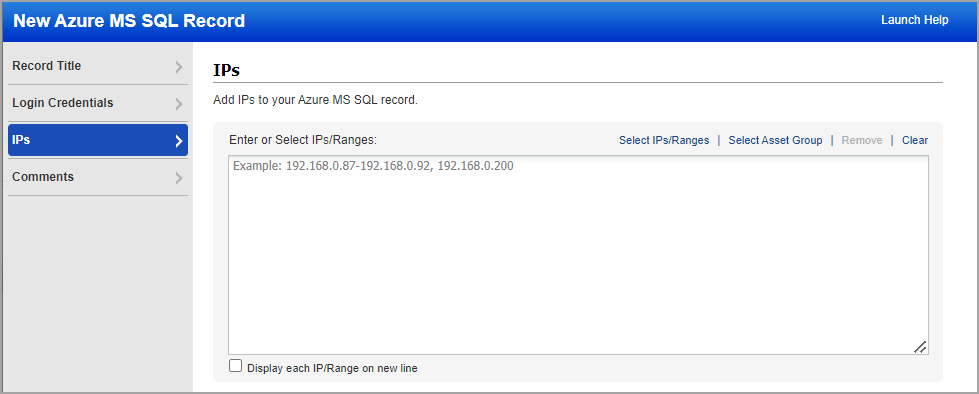
Select the required Asset Type.
- IPs/Ranges - Use this option to add IP addresses/ranges to the record. Enter the IP addresses/ranges in the field provided.
- IP Range in Tag Rule - Use this option to add tags that have IP address ranges defined in the tag rule. All IP addresses defined in the tag rule will be associated with the record, including IPs that don’t already have the tag assigned. Click Add Tag to pick tags to include or exclude. Note that only tags with the dynamic tag rule “IP Address in Range(s)” will be available in the tag selector.
- Asset Tags - Use this option to add tags to the record for the assets you want included. IP addresses with the selected tags already assigned will be associated with the record. Click Add Tag to pick tags to include or exclude.
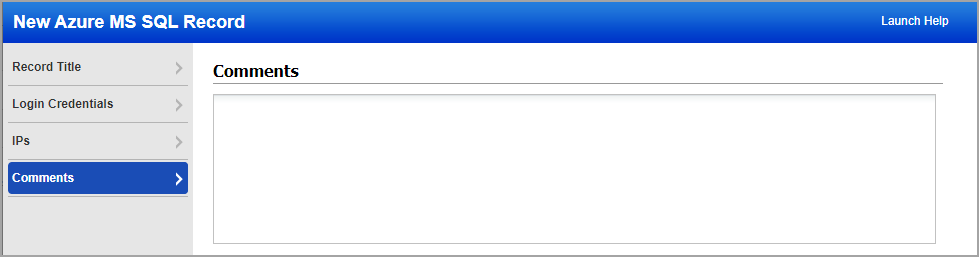
Provide important notes or comments for this record.