Set Up HP ILO
Qualys supports HP Integrated Lights-Out (ILO) authentication for compliance scans using Qualys apps PA. This section provides guidance for creating a dedicated scan user account in HP ILO with the minimum required privileges to execute show commands for successful vulnerability or compliance scanning.
Prerequisites
To create a scan user account, you must have an Administer User Accounts privilege on HP ILO.
HP ILO User Privileges
HP ILO provides predefined user privileges. However, for read-only scanning, only the Login privilege is required:
| Privilege | Description | Required for Scanning |
| Login | Basic authentication and read access to show commands | Required |
| Administer User Accounts | Create/modify/delete users | Not Required |
| Configure ILO Settings | Modify ILO configuration | Not Required |
| Host BIOS | Configure BIOS settings | Not Required |
| Host NIC | Configure network interface settings | Not Required |
| Host Storage | Configure storage settings | Not Required |
| Recovery Set | Recovery operations | Not Required |
| Remote Console | Access to remote console functionality | Not Required |
| Virtual Media | Mount virtual media (ISO, USB) | Not Required |
| Virtual Power and Reset | Power control and server reset | Not Required |
Commands to authenticate compliance scans on HP ILO
The following commands are required to authenticate compliance scans on HP ILO:
show -a- Displays all accessible system properties and configuration.show /map1- Displays the system mapping information and component hierarchy.
Minimum Required Privilege for Login (Read-Only Access)
The show -a and show /map1 commands are read-only commands that do not require Administrator privileges.
Other Common Scan Commands
| Command | Description | Privilege Required |
show /system1 |
Display system information | Login/read-only |
show /system1/health1 |
Show system health | Login/read-only |
show /map1/firmware1 |
Display firmware versions | Login/read-only |
show /map1/accounts1 |
List user accounts | Login/read-only |
show /map1/enetport1 |
Show network configuration | Login/read-only |
show /map1/config1 |
Display ILO configuration | Login/read-only |
Privilege Recommendation for Scanning
Login Privilege Only (Read-Only Access)
- Allows execution of show commands (
show -aandshow /map1) - Cannot configure any settings
- Cannot modify anything
- Cannot access console, power, or media functions
- True read-only access for compliance scanning
How do I perform a scan with Target HP ILO?
To scan target type with HP ILO, navigate to Scans > Authentication > New > Network and Security > Network SSH > Login Credentials > Target Type.
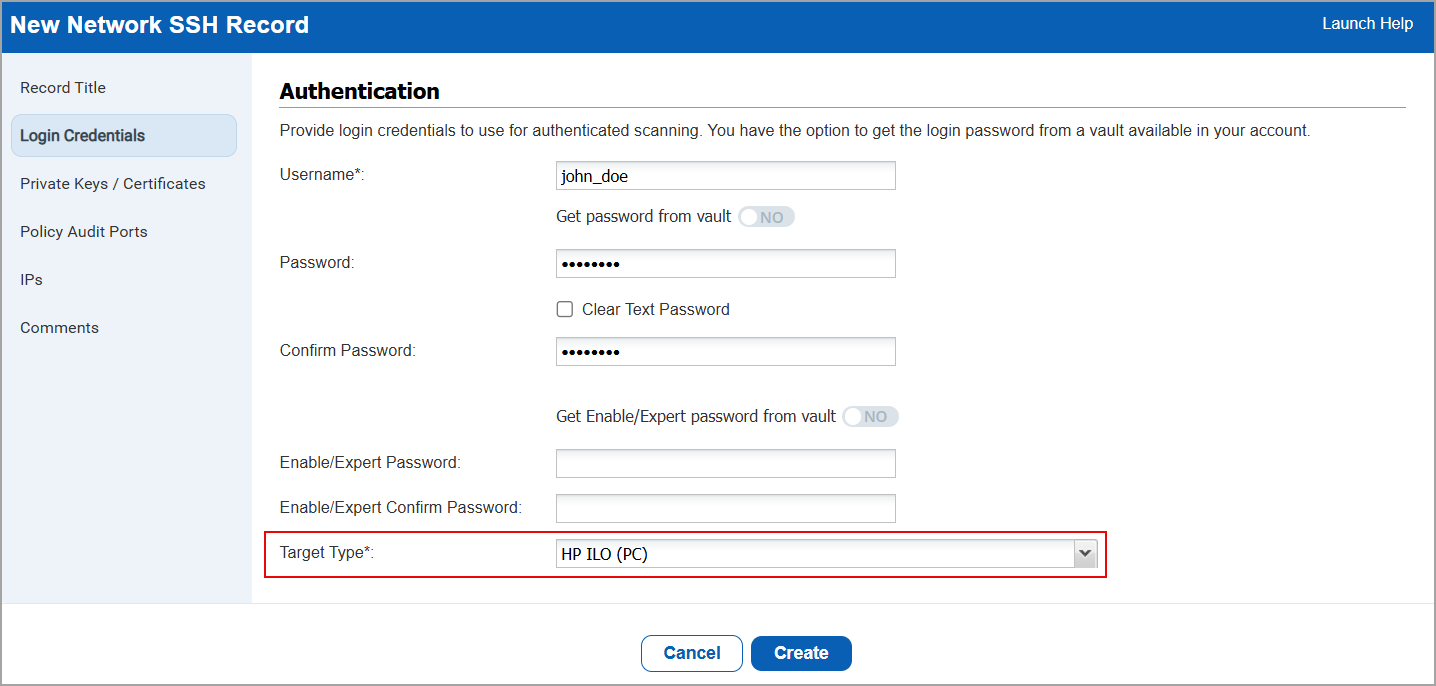
How do I create a scan user using HP ILO Application?
To create a scan user using HP ILO, refer to the Adding local user accounts section in the HP ILO User Guide.
When creating the account, ensure that an account is created with Login (Read-Only) access.
How do I create a scan user using CLI?
A new user can be created using the create command in ILO Command Line Interface (CLI).
Users with Administrator or Administer User Accounts privileges can create other users.
Command Syntax (via SSH CLI):
Create a user with Login privilege only:
create /map1/accounts1 username=qa_test_readonly_2 password=Password123 name=qa_test_readony_2
OR
create /map1/accounts1 username=qa_test_readonly_3 password=Password123 name=qa_test_readony_3 group=0
A read-only user that can execute show commands but cannot configure anything is created.
In show command output group=0 is for read-only access.
</>hpILO-> show /map1/accounts1/qa_test_readonly_2

/map1/accounts1/qa_test_readonly_2

Targets

Properties

username=qa_test_readonly_2

password=<password>

name=qa_test_readony_2

group=0

sshkeyhash=<No SSH public key installed>

Verbs

cd version exit show create set oemhp_loadSSHKey oemhp_deleteSSHKey