Steps to Create Minimum Privilege User for ESXi Scan (from vCenter)
To create a minimum privilege user for ESXi Scan from vCenter, refer to the following steps:
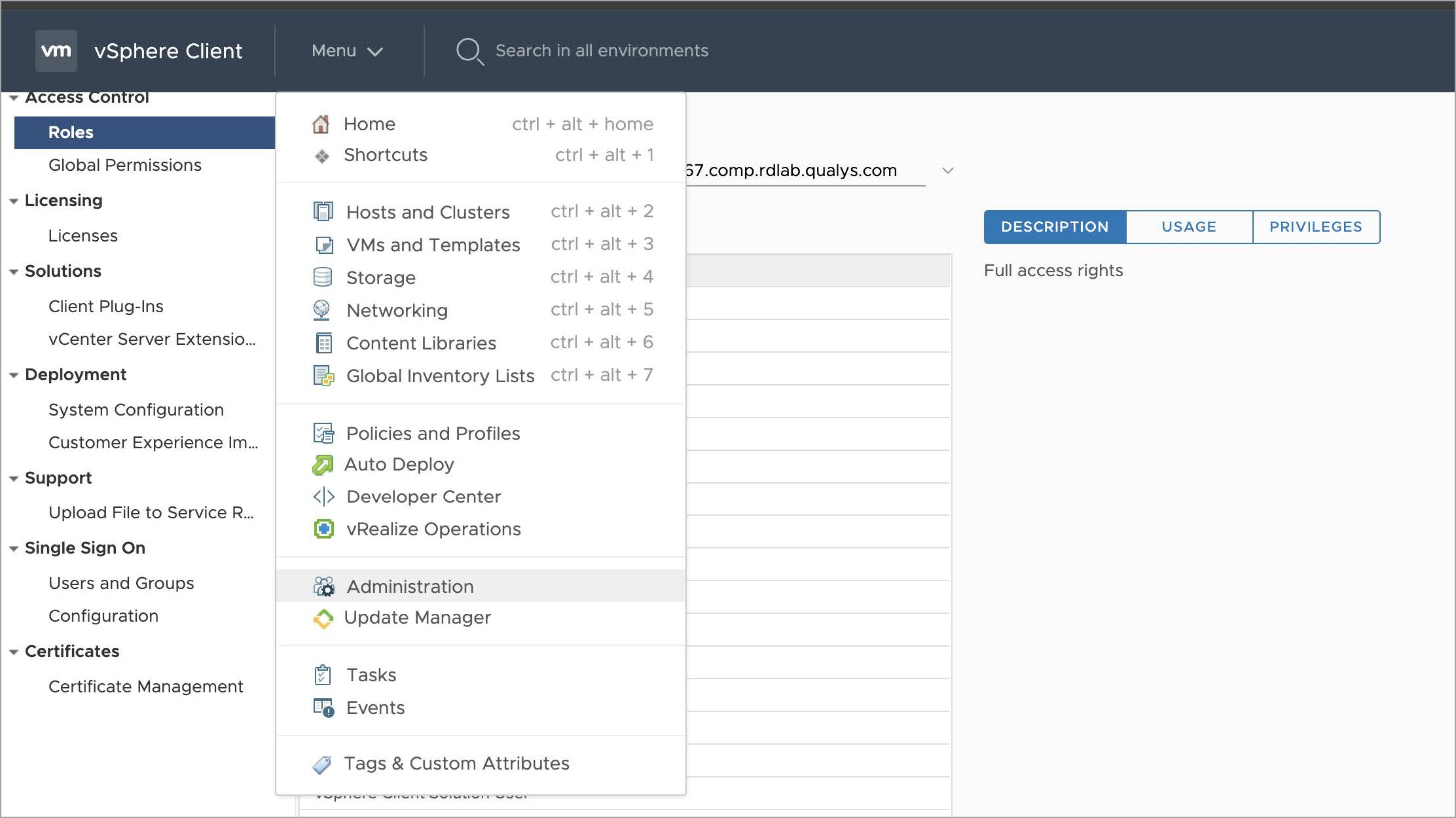
- Login to vSphere Client. Navigate to Menu > Administration.
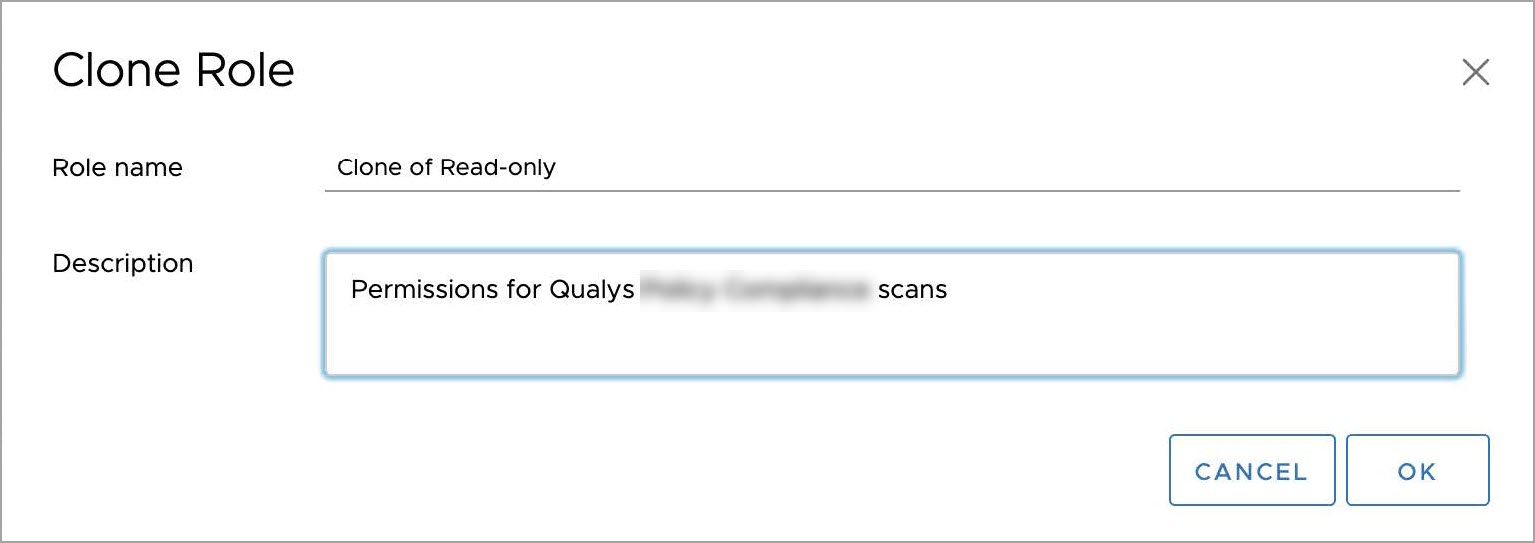
- Navigate to Access Control Roles Read-only and select Clone Role. Create a clone of the
Read-only role.
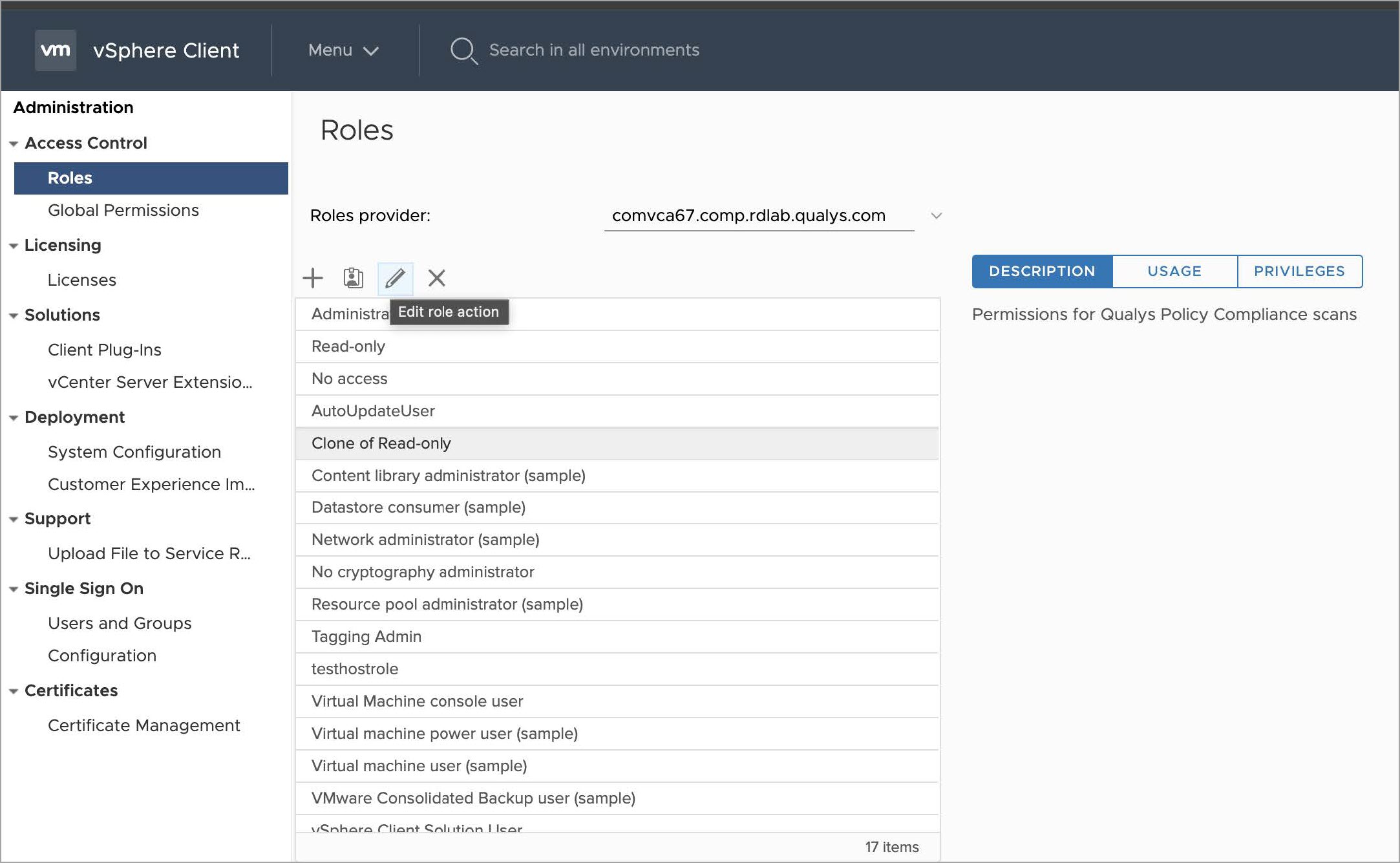
- Navigate to Clone of Read-only role and select Edit role action.
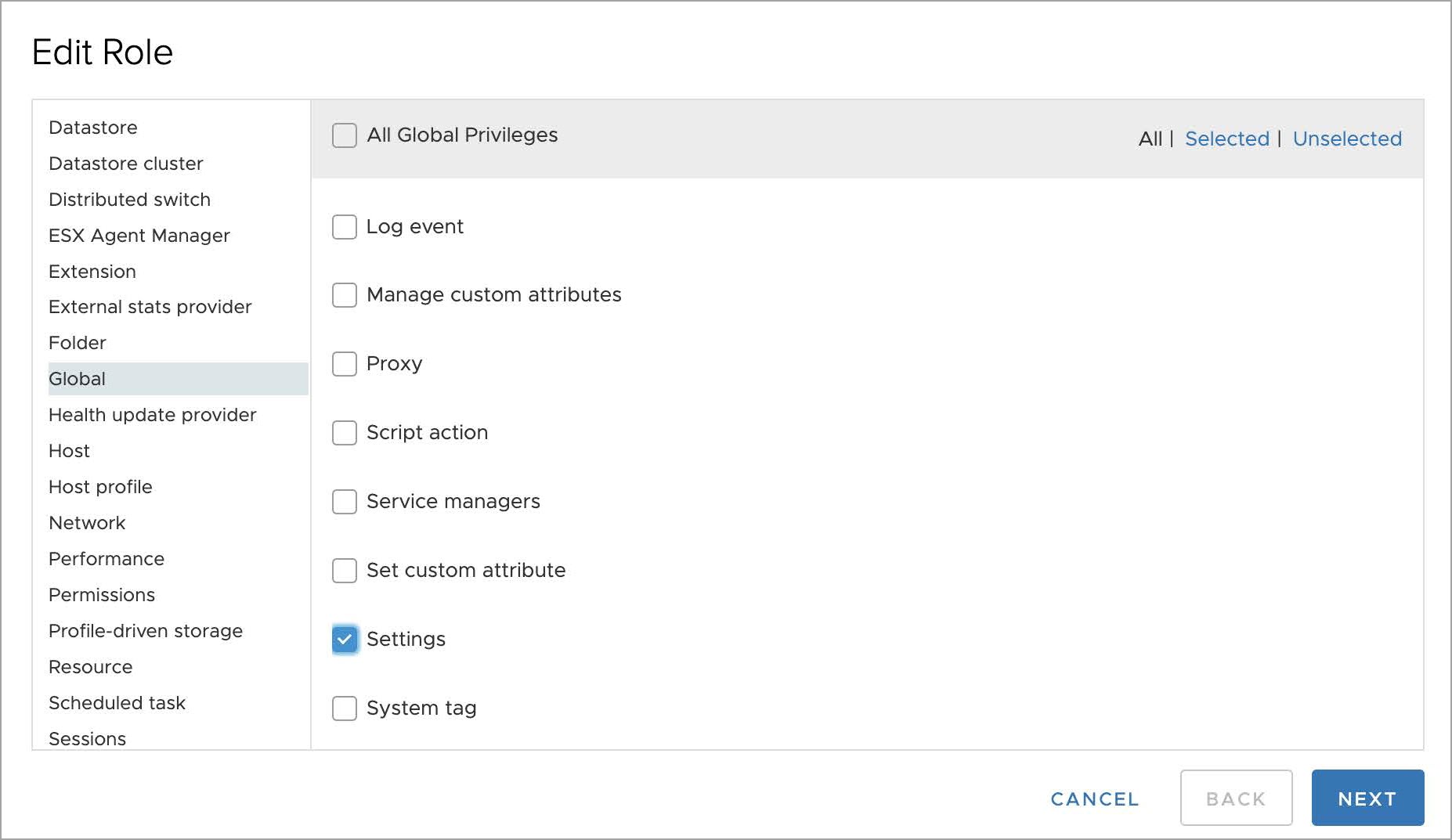
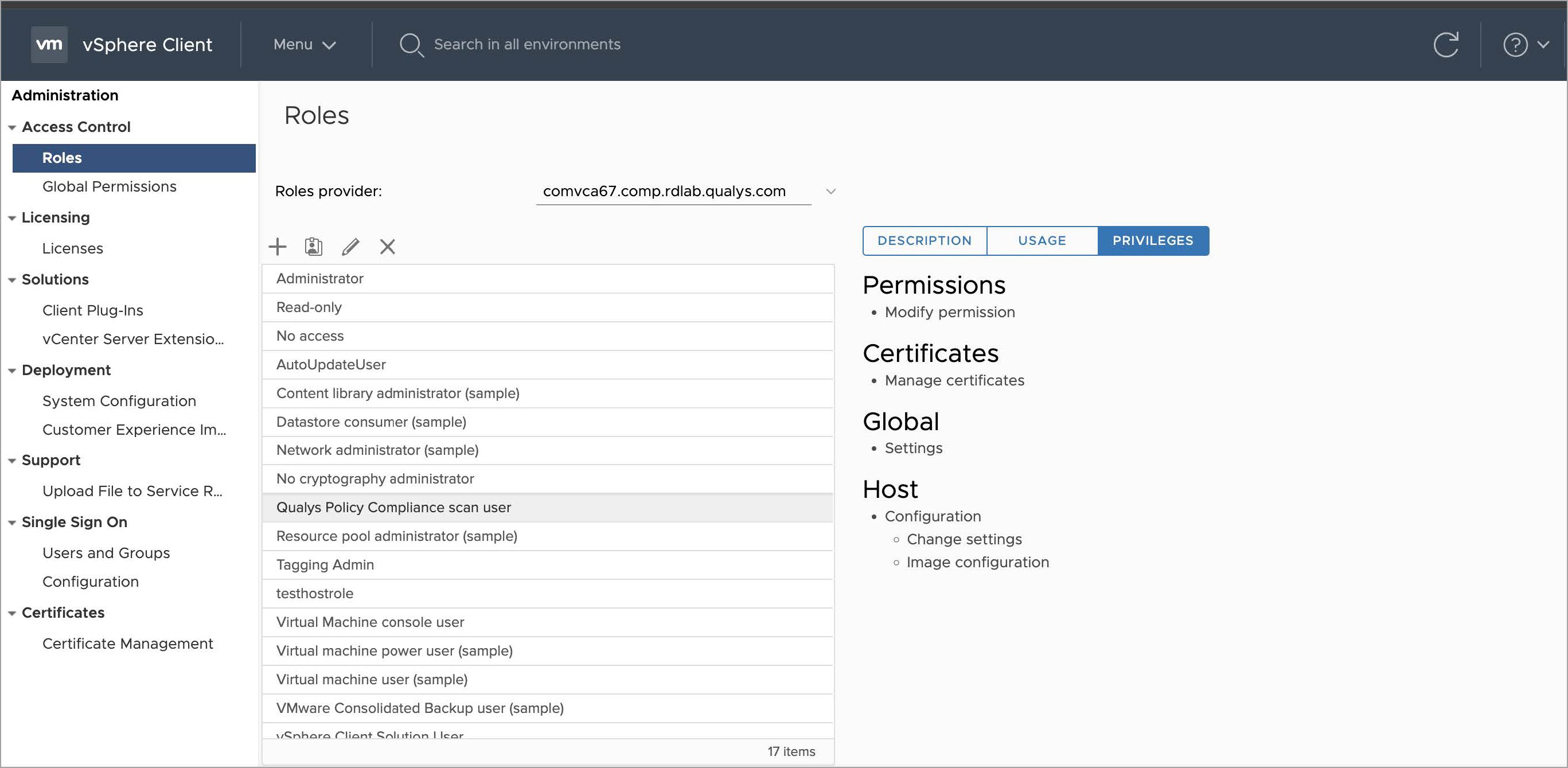
- Select Global from the privilege list and select Settings from the sub-privilege list.
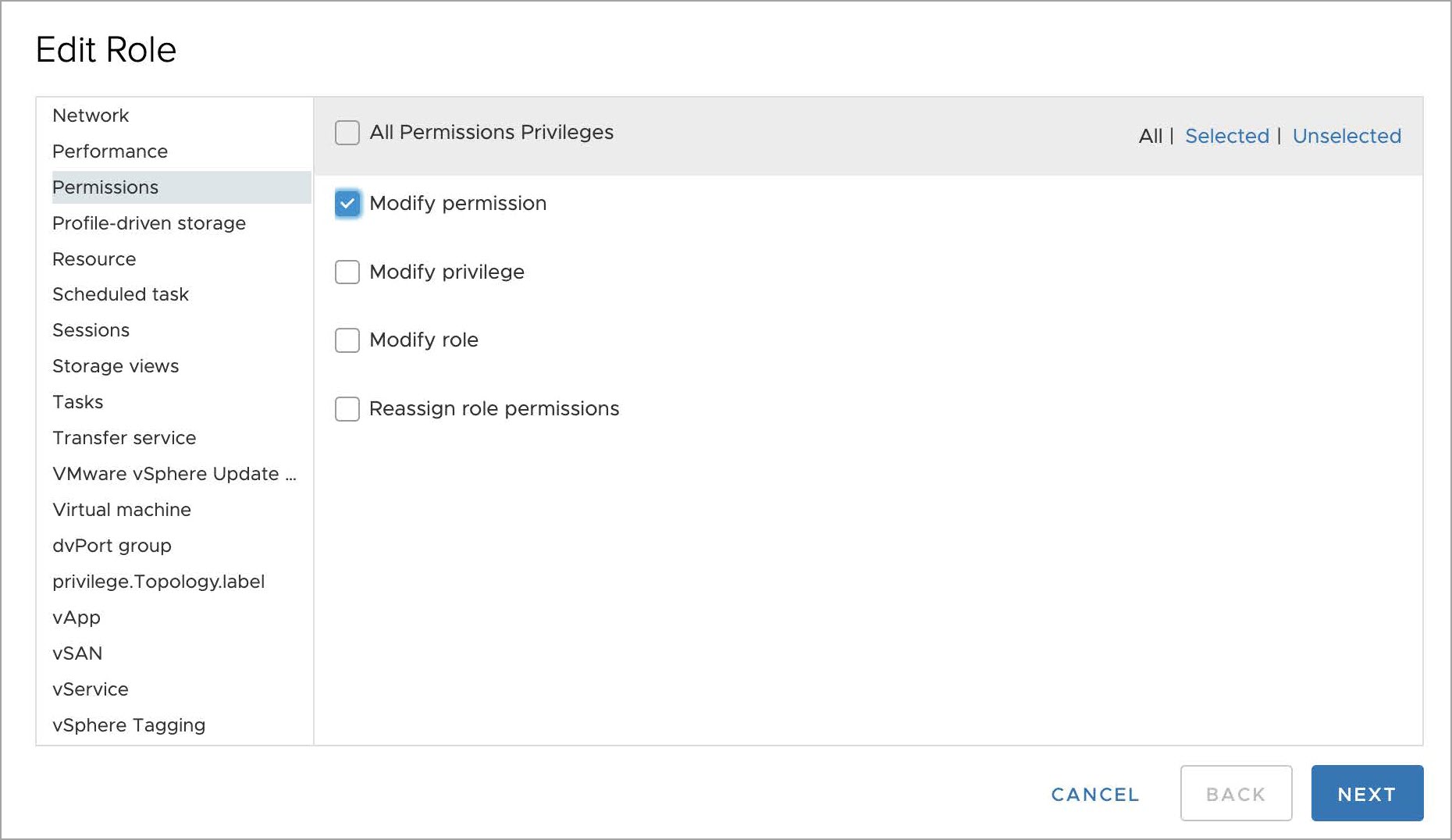
- Select Permissions from the privilege list and select Modify permission from the sub-privilege list.
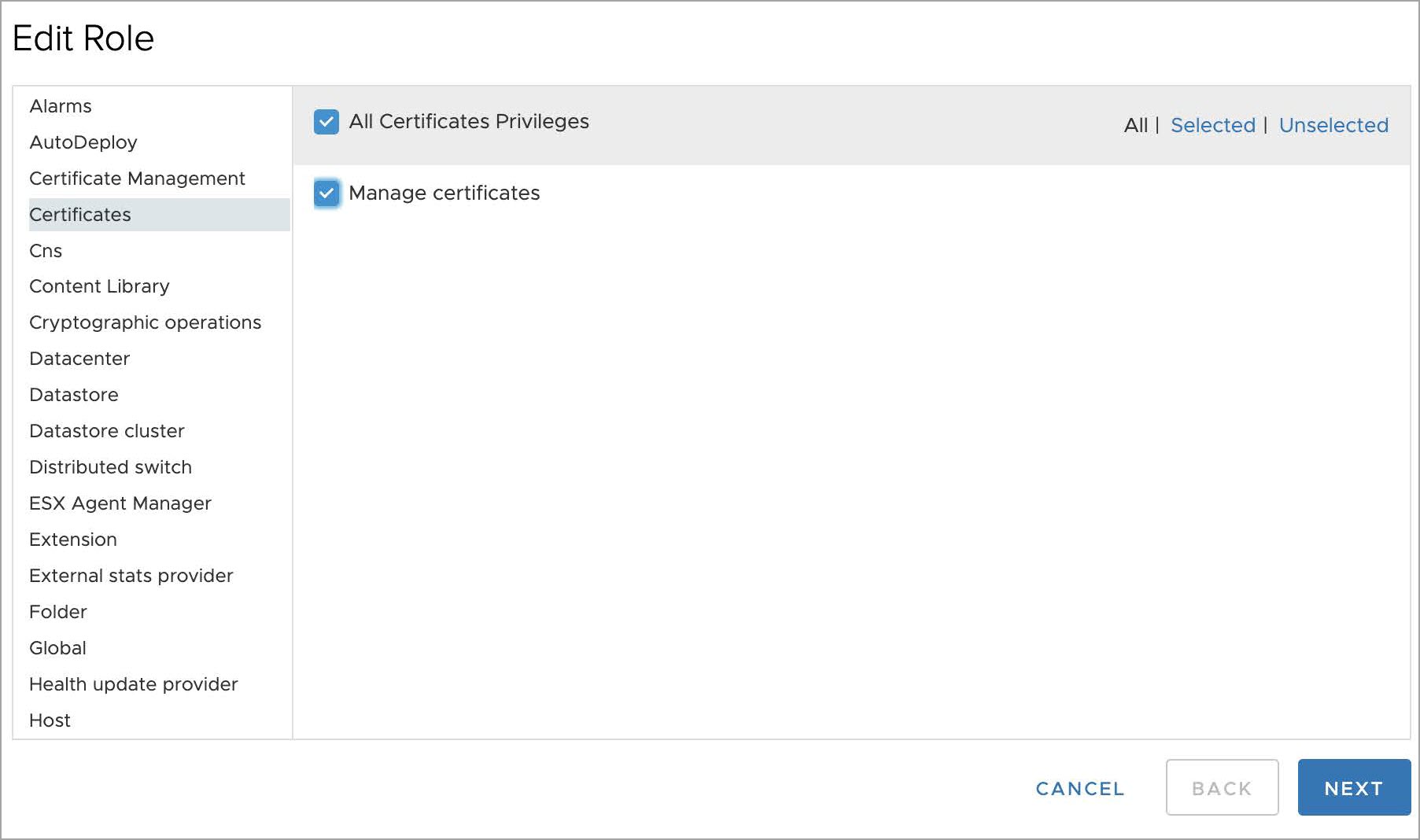
- Select Certificates from the privilege list and select Manage certificates from the sub-privilege list.
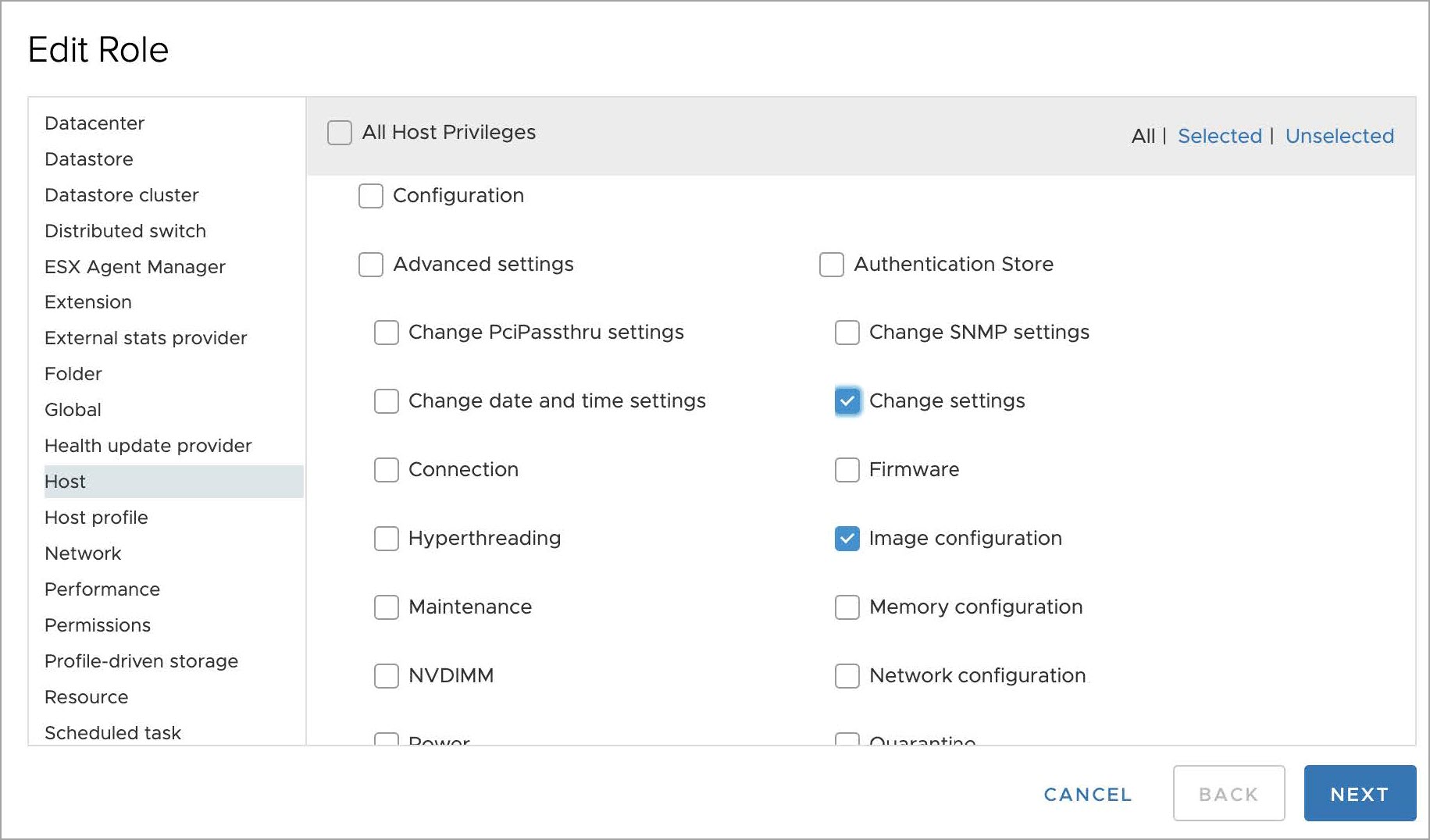
- Select Host from the privilege list under Configuration sub-privilege list select Change settings and
Image configuration.
- Click Next.
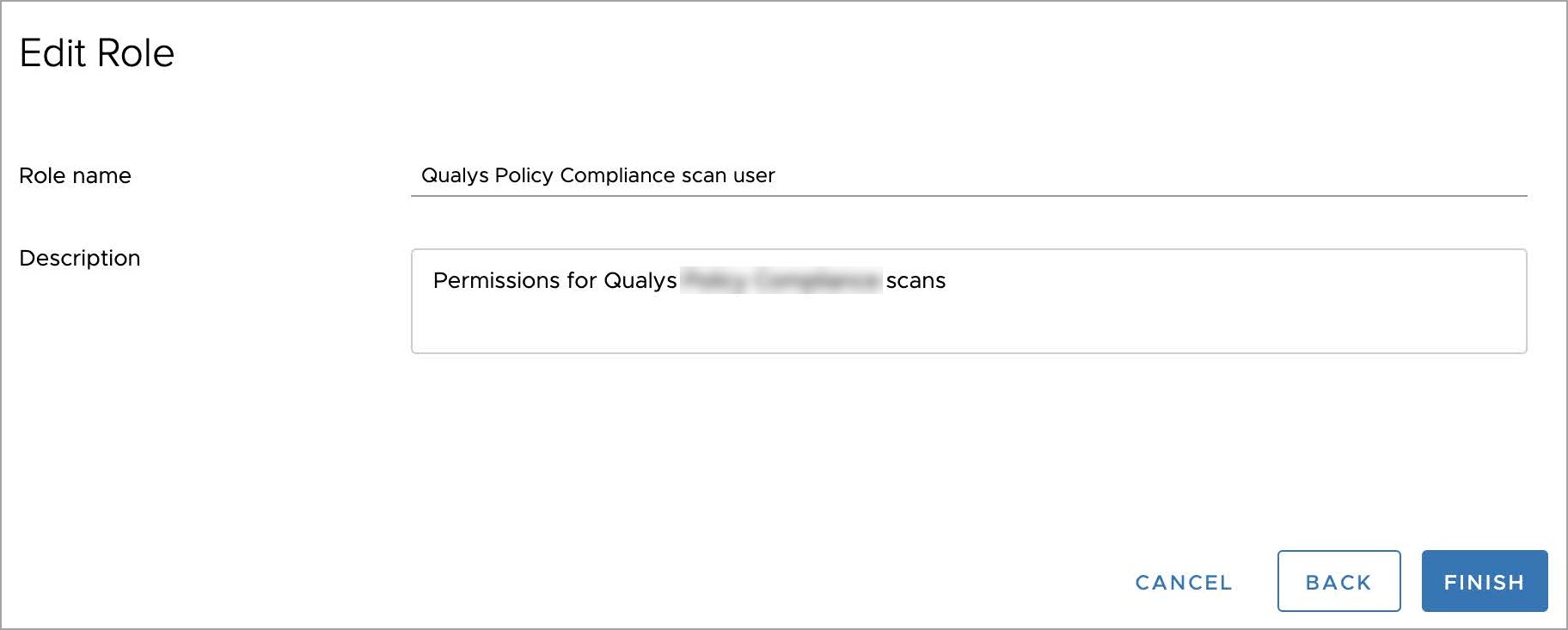
- Update the Role name to indicate the purpose of the role - Qualys Policy Audit
scan user and provide the required description.
- Verify the newly configured role has the required privileges.
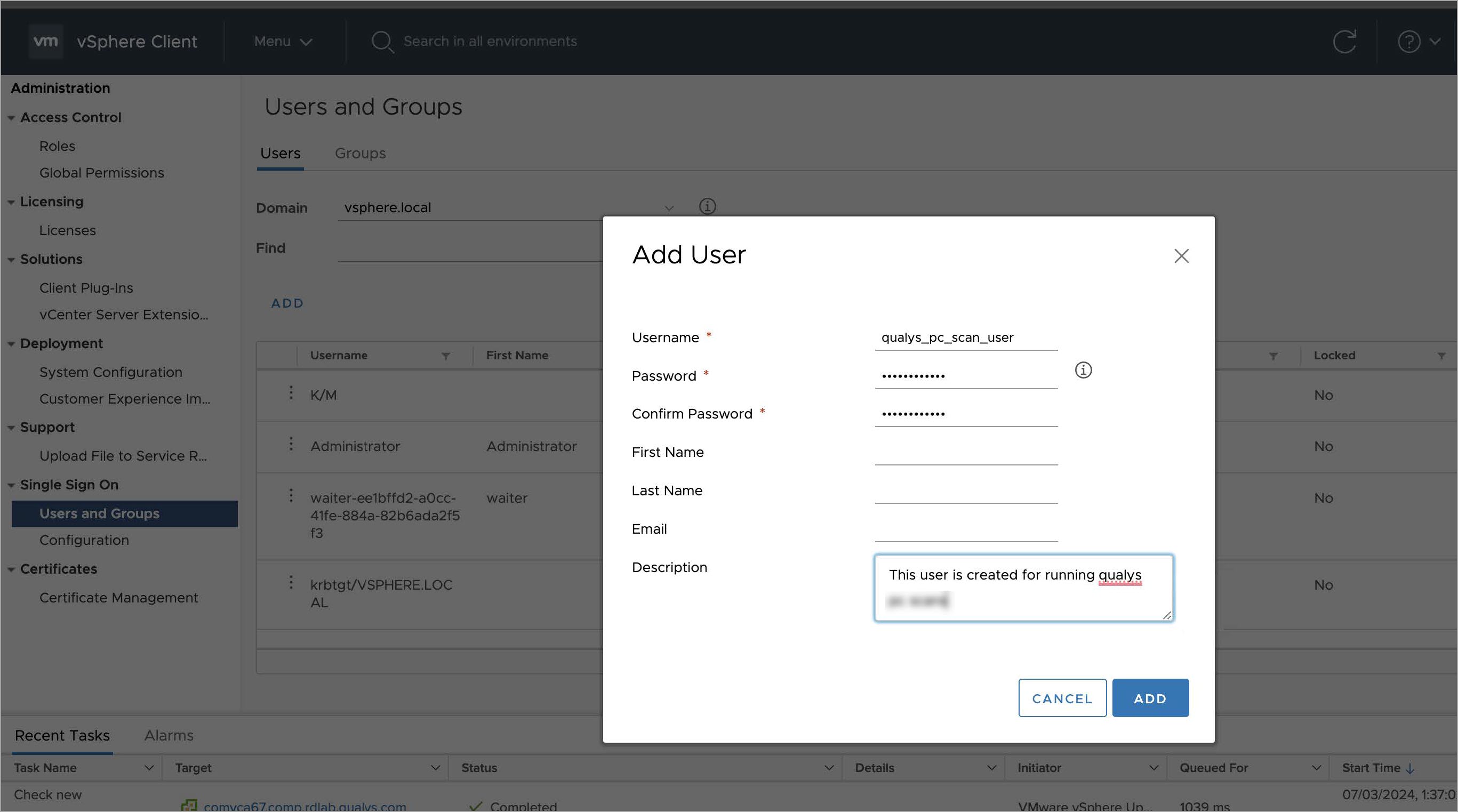
- Navigate to Single Sign On Users and in Users and Groups select Domain as vsphere.local. Create a
user for running PA scans.
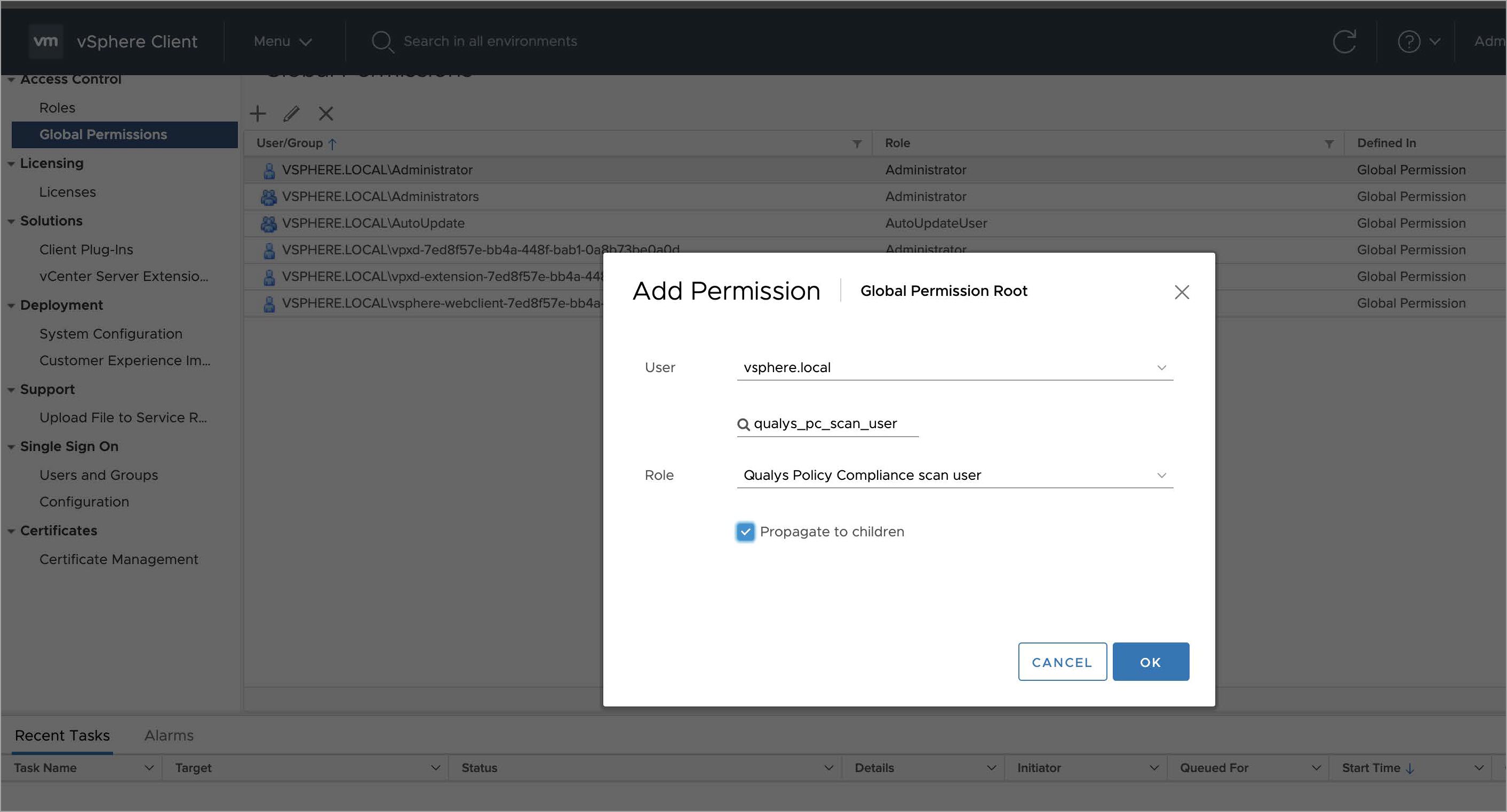
- Navigate to Access Control > Global Permissions > select Add Permission > select the user and
role created in the previous steps.