Set Up VMware NSX Authentication
Qualys supports VMware NSX authentication for vulnerability Management and compliance scans using Qualys apps VM, PA, SCA. Simply create a VMware NSX authentication record with the details of your credentials to authenticate to a VMware NSX environment.
The Scans > Authentication section is where you can find authentication records saved in your account, including VMware NSX records. Each VMware NSX record identifies account login credentials and targets.
Refer to NSX Record Settings below for assistance with the settings displayed in the NSX record.
What are the steps?
Follow these steps to create or edit an NSX record:
1) Go to Scans > Authentication.
2) Take one of these actions:
2a - To create a new VMware NSX record, select New >Hypervisors & Virtualization > NSX.
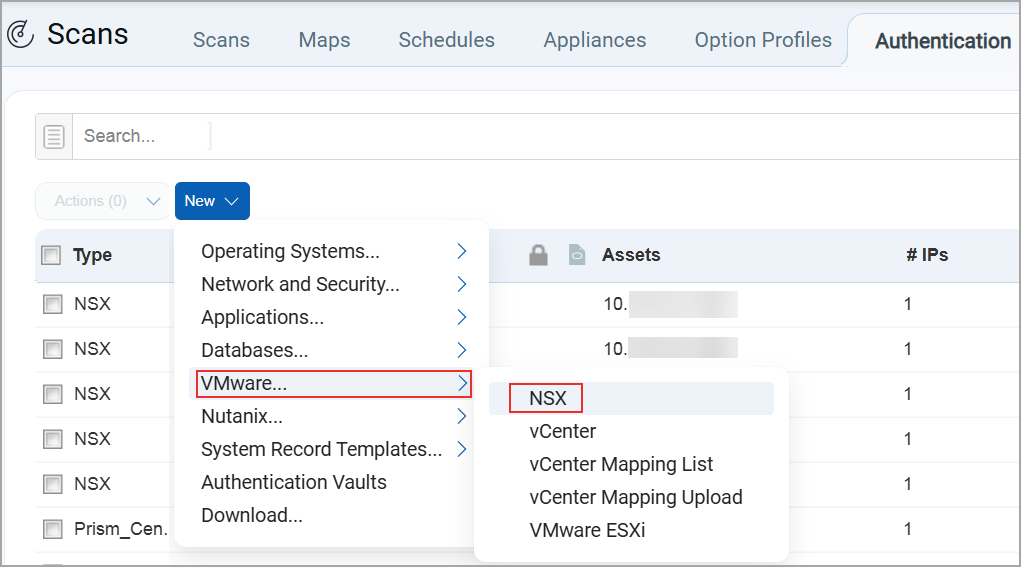
2b - To make changes to an existing NSX record, select a record in the list and choose Edit from the Quick Actions menu.
The New NSX Record or Edit NSX Record window appears (depending on the action taken). This is where you make your record settings.
3) Choose a tab on the left side of the NSX Record window to see the settings available. Provide the necessary inputs on each tab, then click Create (for a new record) or Save (when updating an existing record).
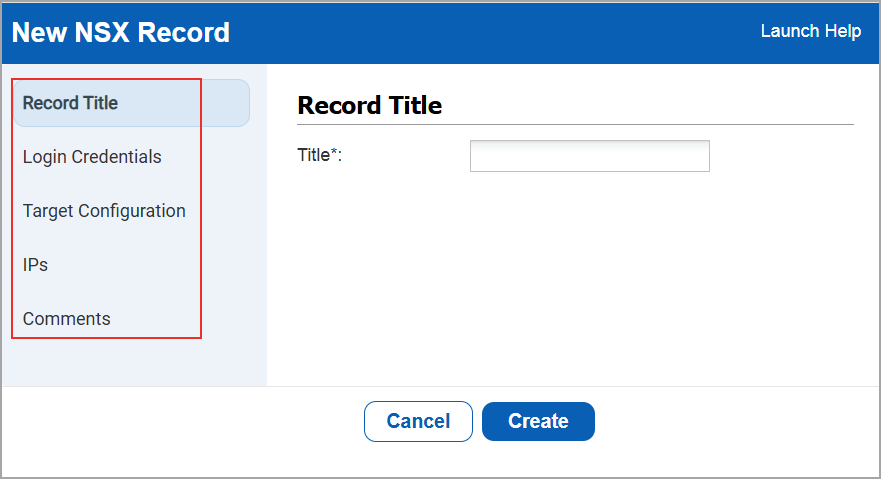
NSX Record Settings
Refer to the help below for the settings that appear on each tab within the NSX record.
This section has basic settings for the record.
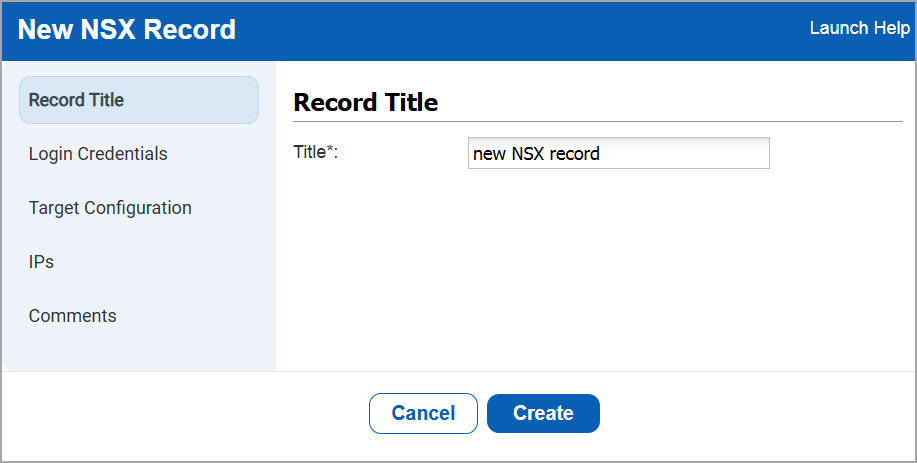
Title - Give the NSX record a title for easy identification.
Login CredentialsLogin Credentials
This section is where you provide credentials for the user account to be used for NSX authentication.
Authentication Type: Basic
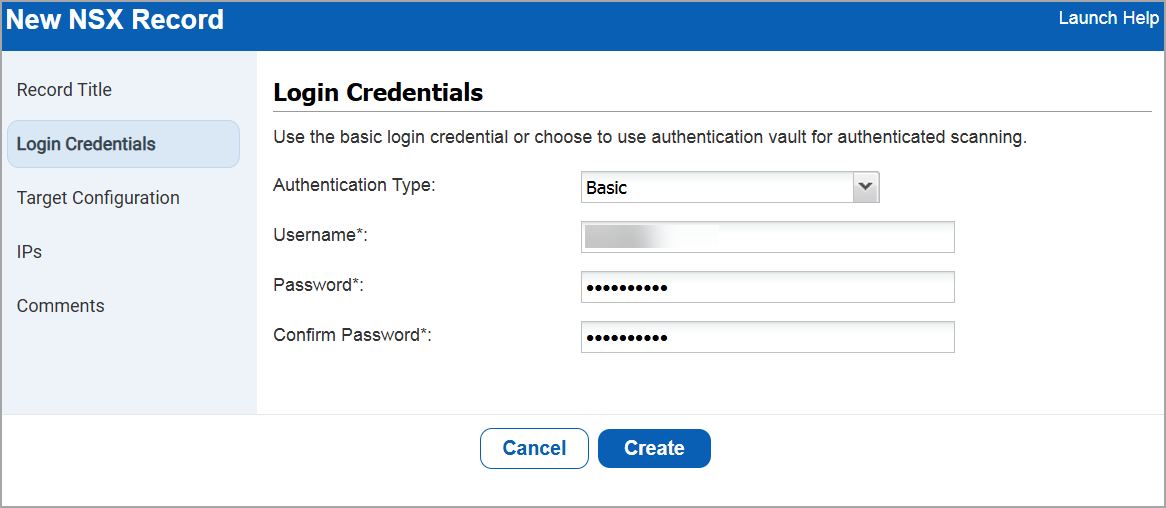
Choose Authentication Type: Basic, and then enter:
Username - Enter the username for the user account to use for authentication.
Password / Confirm Password - Enter the password for the user account. Then confirm the password.
Authentication Type: Vault based
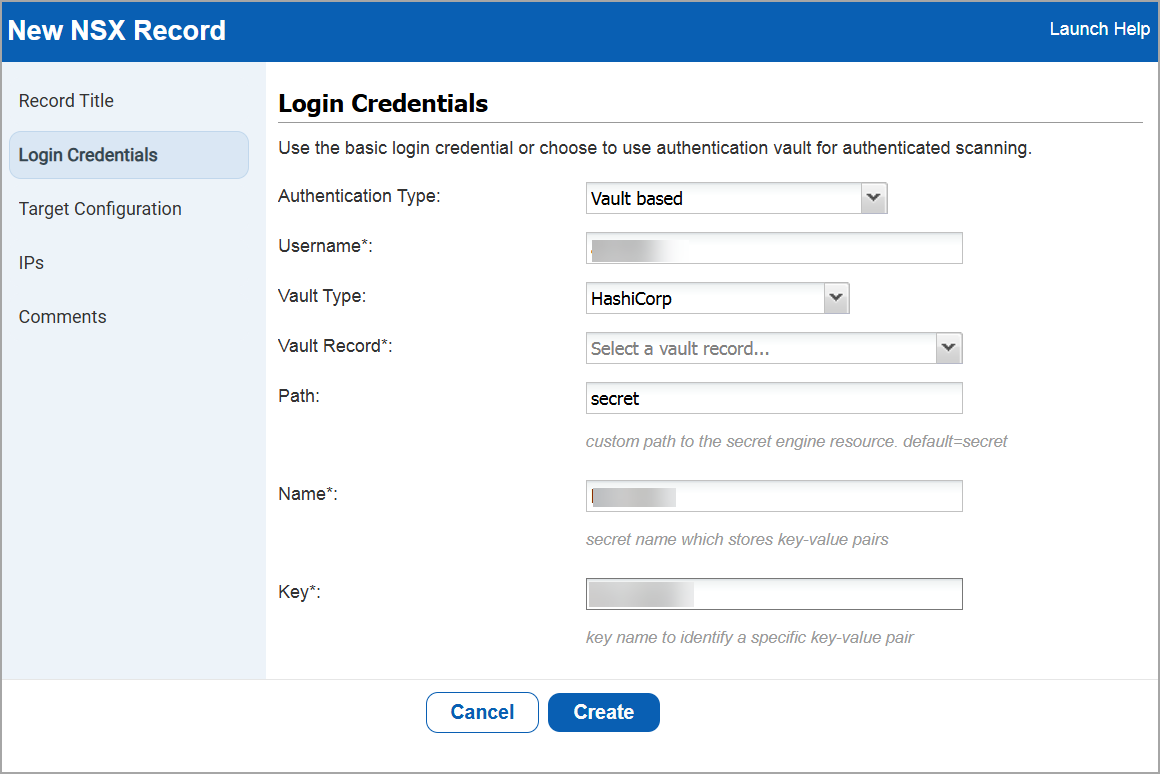
Choose Authentication Type: Vault based to retrieve the password from a password vault. You need vault records already defined in your account to use this option.
Username - Enter the username for the user account to use for authentication.
Vault Type - Select the type of password vault you want to use. For each vault type, additional information is required. The information required depends on the vault type. Please refer to the online help for your vault type to learn more.
Vault Record - Select a vault record that you have already configured in your account. The vault record has vault credentials to securely access sensitive information stored in the vault.
Quick Links: How to Use Vaults | Vault Support Matrix
Use Active Directory (AD) Secrets Engine - Turn on this option to securely retrieve AD credentials from HashiCorp Vault. You can connect directly to the target asset and fetch the credentails dynamically from the specified vault path.
Path-Enter the custom path to the secret engine resource.
Name- Enter the secret name that stores the key-value pairs.
Key- Enter the key name to identify a specific key-value pair.
Note: This Key field is displayed only if you turn off the Use Active Directory (AD) Secrets Engine option.
Target ConfigurationTarget Configuration
This section has Target Configuration settings for the record.
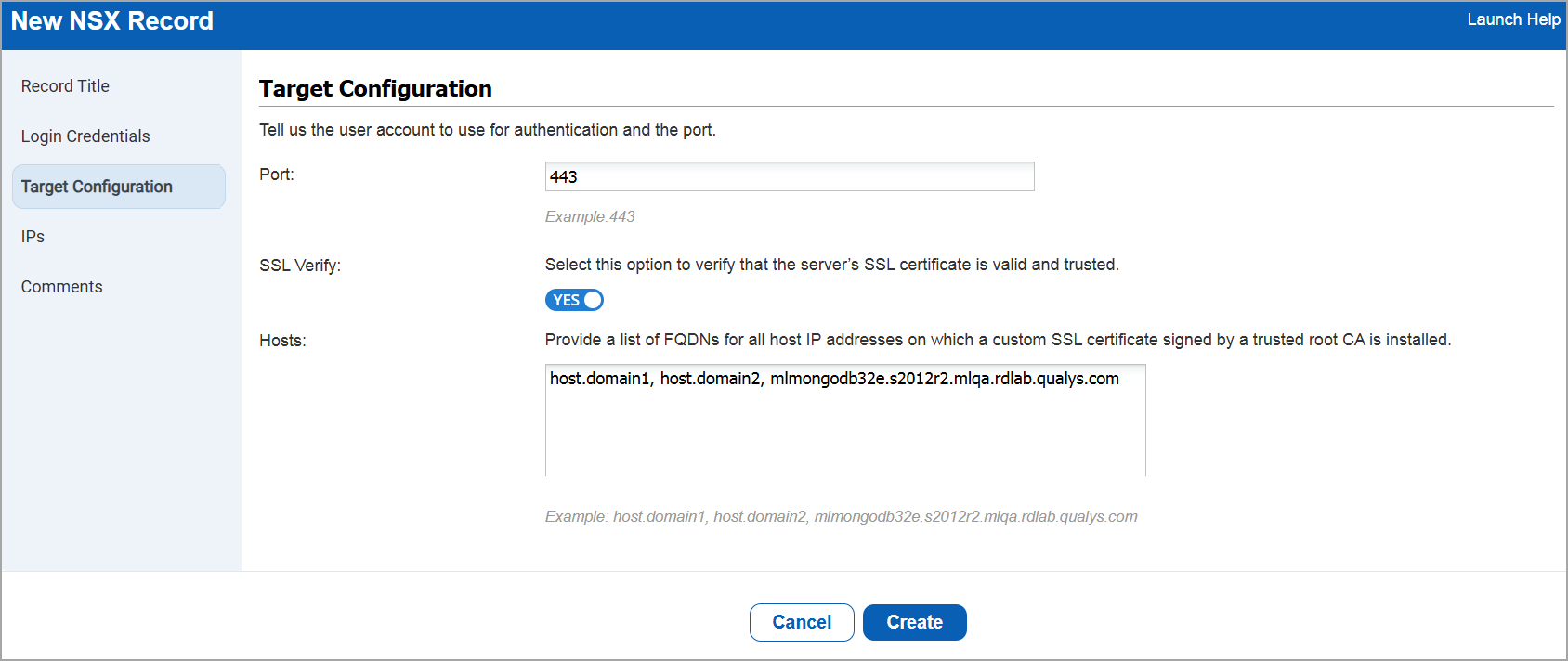
Port - Enter the port number that the NSX instance is running on.
SSL Verify - Select this option to verify the server's SSL certificate is valid and trusted.
Hosts - Provide a list of FQDNs for all the host addresses on which a custom SSL certificate signed by a trusted root CA is installed.
Enter or select the target compliance hosts (IPs) that you want to authenticate to with the credentials provided in this record. Each IP may be included in one NSX record.
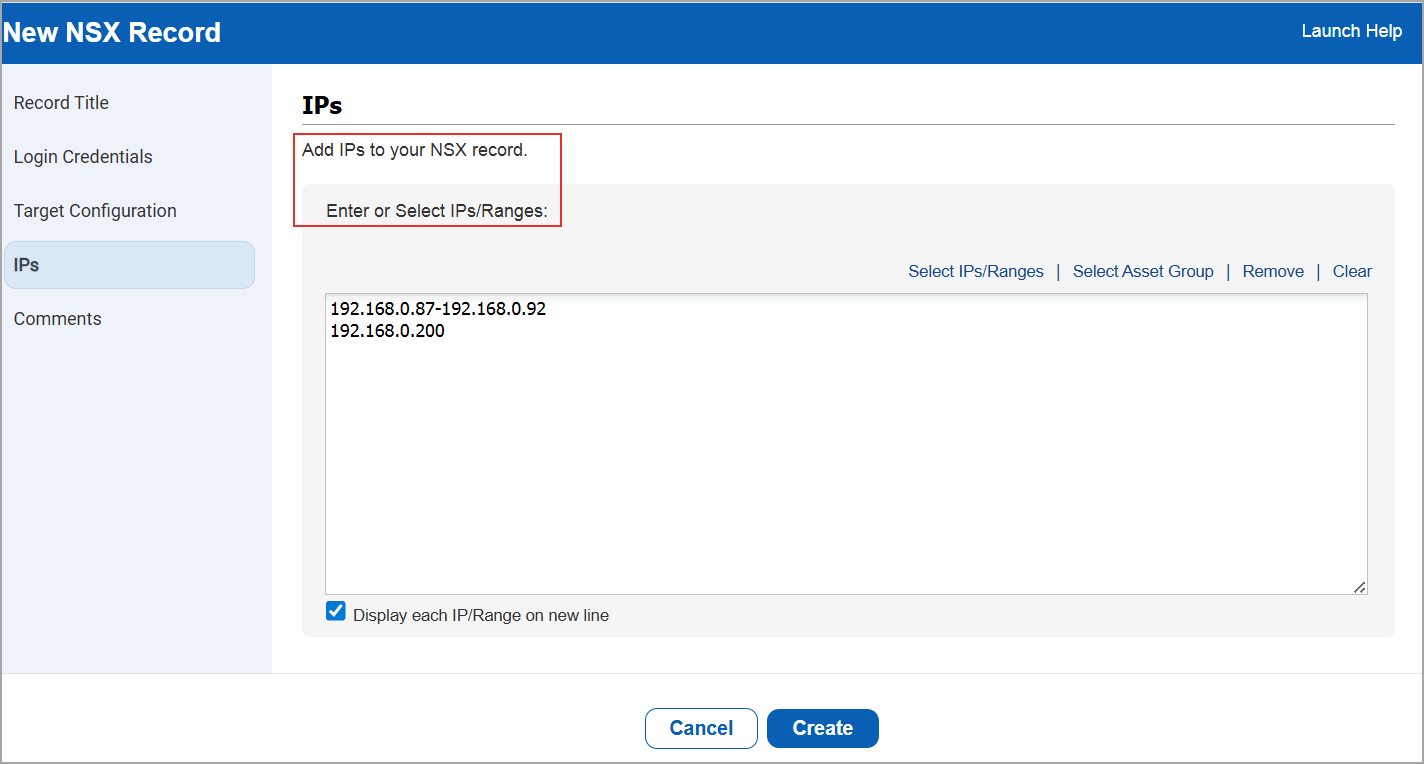
Select the required Asset Type.
- IPs/Ranges - Use this option to add IP addresses/ranges to the record. Enter the IP addresses/ranges in the field provided.
- IP Range in Tag Rule - Use this option to add tags that have IP address ranges defined in the tag rule. All IP addresses defined in the tag rule will be associated with the record, including IPs that don’t already have the tag assigned. Click Add Tag to pick tags to include or exclude. Note that only tags with the dynamic tag rule “IP Address in Range(s)” will be available in the tag selector.
- Asset Tags - Use this option to add tags to the record for the assets you want included. IP addresses with the selected tags already assigned will be associated with the record. Click Add Tag to pick tags to include or exclude.
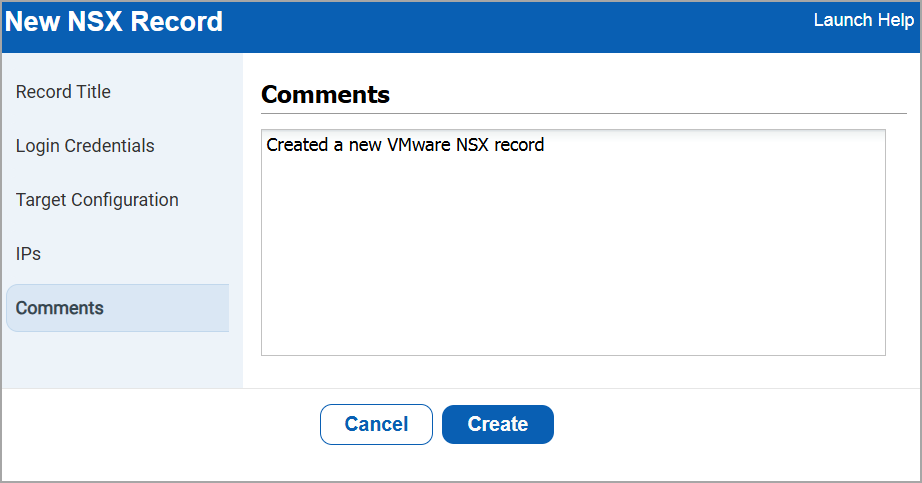
Provide important notes or comments for this record.