Resolve Power BI Connection Errors Caused by HTTP Headers
This topic includes information to fix connection errors in Power BI caused by HTTP header issues or incorrect authentication settings.
Error Messages
Error 1
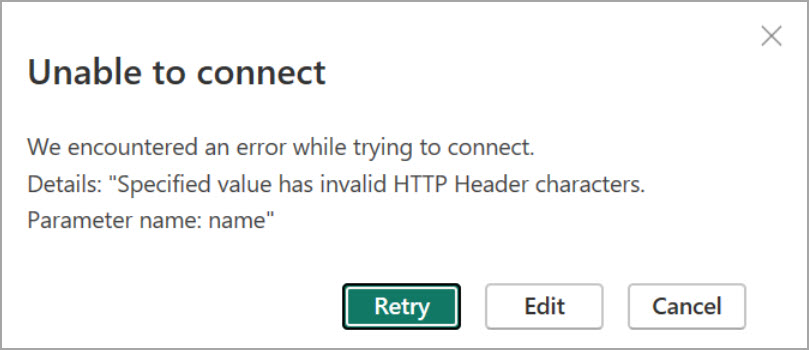
"Unable to connect: We encountered an error while trying to connect. Details: 'Specified value has invalid HTTP Header characters. Parameter name: name.'"
Cause
Incorrect HTTP Header Configuration: This error occurs when the HTTP headers contain extra spaces or unsupported characters in header names.
Solution
Verify Header Parameters
- Ensure correct HTTP headers are used, such as X-Requested-With and Authorization.
- Remove all extra spaces before or after header names or values.
The following is an example of a correct header:
X-Requested-With: XMLHttpRequest

	Authorization: Basic <your_token>
Error 2
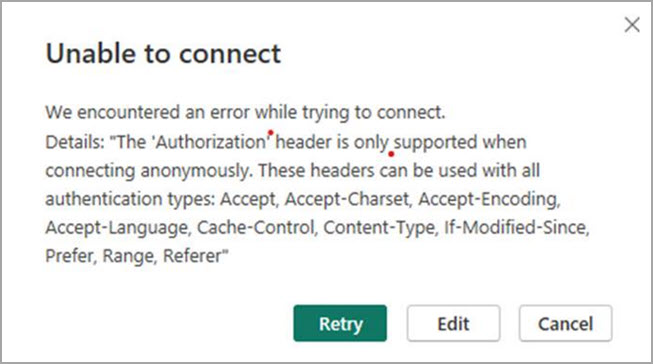
"Unable to connect: We encountered an error while trying to connect. Details: 'The ‘Authorization’ header is only supported when connecting anonymously. These headers can be used with all authentication types: Accept, Accept-Charset, Accept-Encoding, Accept-Language, Cache-Control, Content-Type, If-Modified-Since, Prefer, Range, Referer.'"
Cause
Authentication Misconfiguration: This error occurs when the Authorization header is used incorrectly. This happens when the connection does not use anonymous authentication or a selected authentication mode does not match the data source requirements.
Solutions
Authorization Header Issue
- Switch to Anonymous authentication if you use a username and password.
To switch to anonymous authentication:- In Power BI, go to File > Options and Settings > Data Source Settings.
- Under Global Permissions, select the SQL Server or other data source
- Select Edit Permissions.
- Select Edit Credentials.
- Select Anonymous.
- Click Save to save the settings.
- If the problem continues, clear existing permissions.
- Go to File > Options and Settings > Data Source Settings.
- Under Global Permissions, select the data source.
- Click Clear Permissions.
- Reconnect using the correct authentication method.
Good to know